Blog

  • 8 gaming accessories that can change how a setup feels

    8 gaming accessories that can change how a setup feels

    A gaming setup is not only about the console, PC, or screen. The small things around it can change how the whole space feels. A better headset can make the sound clearer. A good chair can make long sessions easier. A larger mouse pad can help movements feel smoother. Even lighting and cable control can make a desk feel cleaner, calmer, and more fun to use.

    The best accessories do not need to be flashy or expensive. They should solve simple problems, like poor posture, messy cables, weak audio, glare, or limited desk space. Good workstation guidance often points to comfort, proper screen placement, relaxed arm position, and reduced glare as key parts of a better setup.

    A headset changes the mood

    a pair of headphones sitting on top of a stand
    Photo by Barry A on Unsplash

    A gaming headset can make a setup feel more focused right away. Clear sound helps players hear small details, while a built-in mic makes online chats easier.

    Some headsets also support surround or spatial audio features. These can make sound feel like it is coming from different directions, which adds more depth to games that support it.

    A smooth mouse helps control

    black logitech cordless mouse beside brown wooden pencil
    Photo by shri on Unsplash

    A gaming mouse can make movement feel faster and more precise. Many models are shaped for better grip, with buttons that are easier to reach during play.

    The right mouse also depends on comfort. A mouse that feels too small, too heavy, or awkward can make long sessions less enjoyable, even if it has strong features.

    A keyboard adds better feel
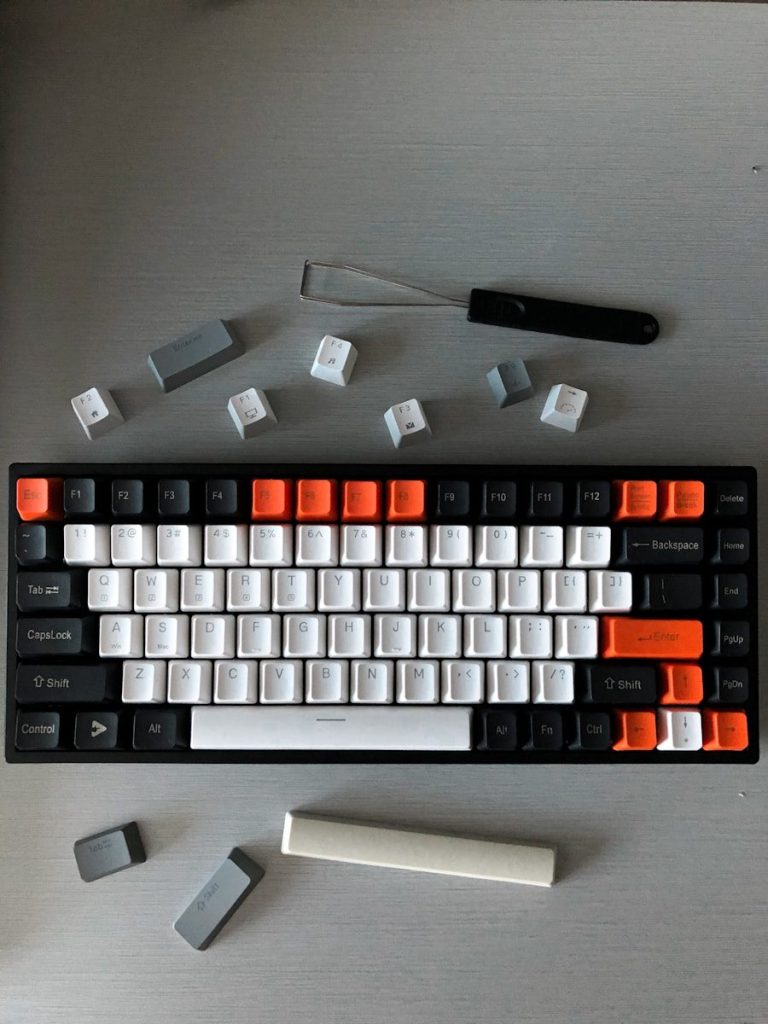
    black and white computer keyboard
    Photo by Bryan Natanael on Unsplash

    A good keyboard can change the way a setup feels under the hands. Some players like a soft, quiet feel, while others prefer sharper key feedback.

    A separate keyboard also helps with desk comfort. It can be placed in front of the player with wrists and forearms in a more natural line, which Mayo Clinic recommends for computer use.

    A big mouse pad helps space
    black iphone 7 on black wooden table
    Photo by Amjith S on Unsplash

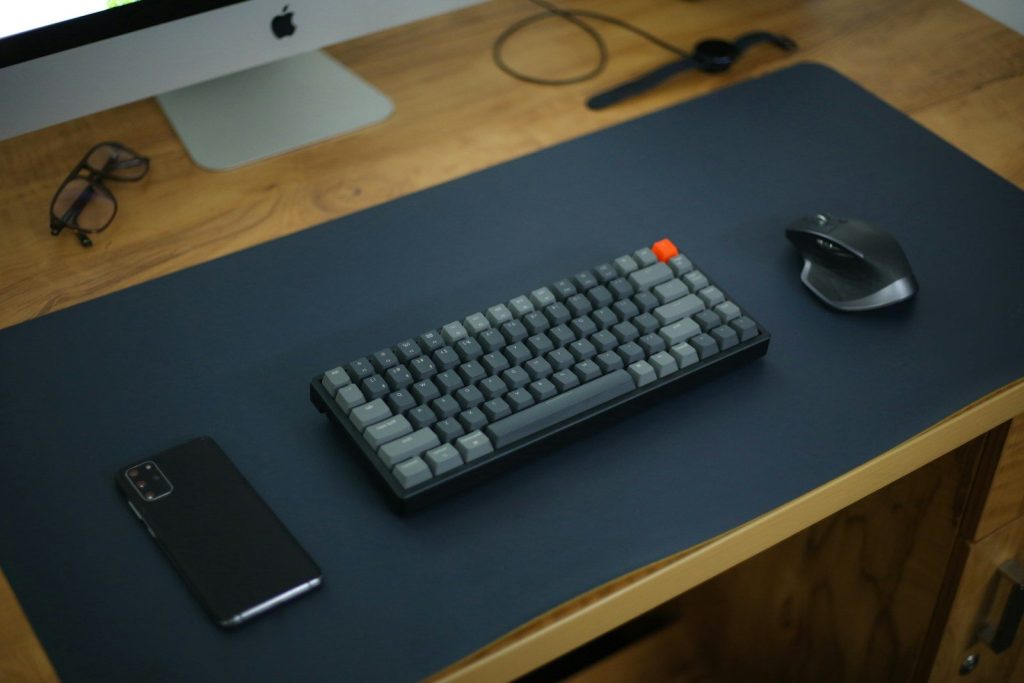
    A large mouse pad gives the mouse more room to move. That can help players who use lower sensitivity or need wider hand movement.

    It can also make the desk feel more organized. A full-size desk mat creates one clear surface for the keyboard and mouse, instead of making the setup feel scattered.

    A monitor stand lifts the screen
    a computer monitor sitting on top of a desk
    Photo by Charles Patterson on Unsplash

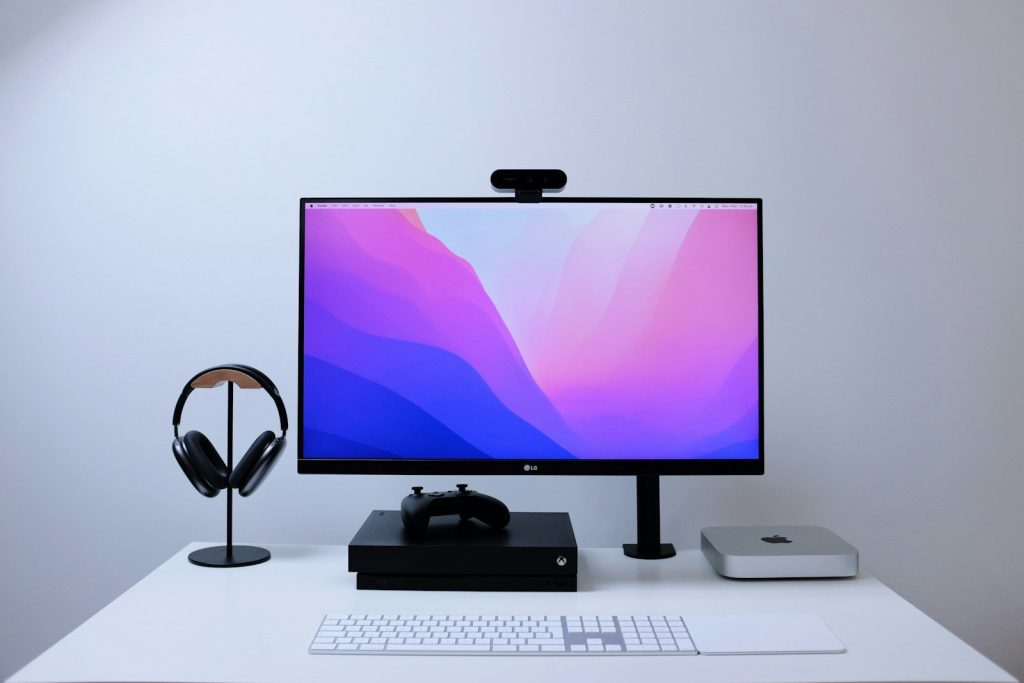
    A monitor stand can make the screen easier to view. When the display sits too low, players may lean forward or look down more than they realize.

    Raising the screen can help the setup feel more balanced. The American Optometric Association notes that poor viewing distance, glare, lighting, and posture can all contribute to digital eye strain.

    Better lighting sets the tone
    black flat screen tv turned on near white wall
    Photo by Chuck Fortner on Unsplash

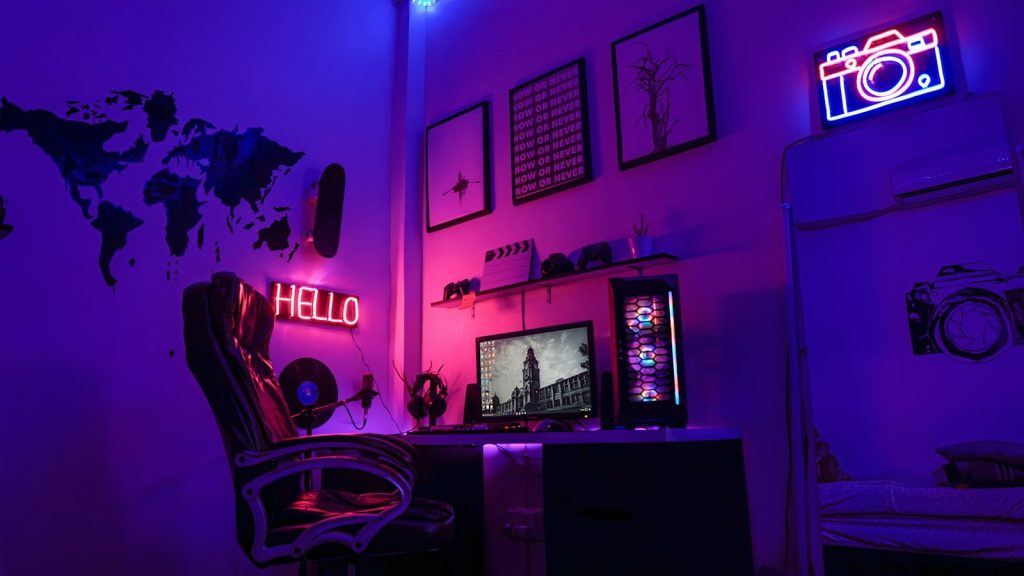
    Lighting can change the whole feel of a gaming space. Soft desk lighting can make the room feel warmer, while backlighting can reduce the harsh contrast between a bright screen and a dark wall.

    Good lighting also helps with eye comfort. A screen that is much brighter or darker than the room can feel tiring during longer sessions.

    A controller adds flexibility
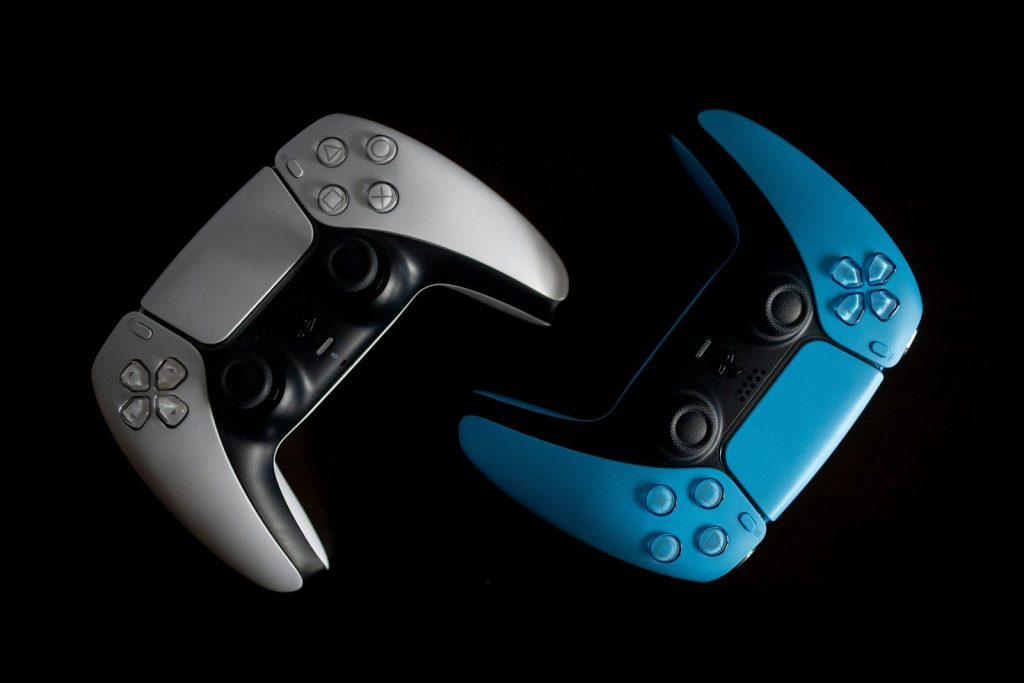
    two video game controllers sitting side by side
    Photo by Kamil Switalski on Unsplash

    A controller can make some games feel more relaxed than a keyboard and mouse. Racing, sports, adventure, and platform games often feel natural with thumbsticks and triggers.

    It also gives players more seating options. Instead of staying close to the desk, they can lean back and enjoy games from a more comfortable position.

    Cable control cleans it up
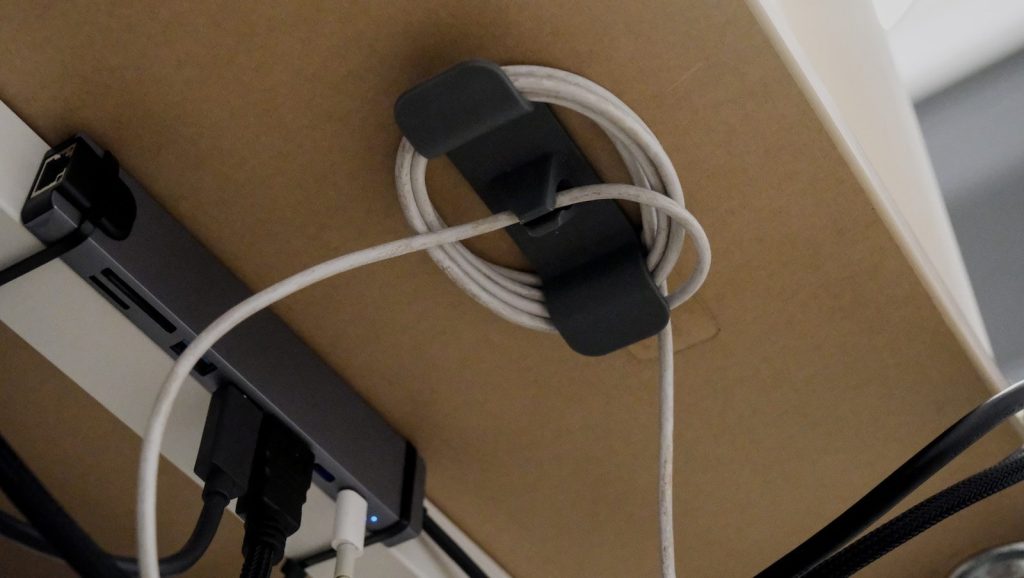
    Cable organizer holding coiled white cord under desk
    Photo by Bedirhan Gül on Unsplash

    Cable ties, clips, sleeves, and trays can make a gaming setup feel much cleaner. A desk with fewer loose wires often looks better and is easier to use.

    Cable control also helps when adding or moving accessories. Instead of fighting a tangled mess, players can find the right cord faster and keep the setup looking neat.


  • Why PC gamers are delaying their next big upgrade

    Why PC gamers are delaying their next big upgrade

    A new gaming PC used to feel like an exciting jump: faster frames, sharper graphics, and smoother play. Now, many players are thinking twice before spending big. Parts are expensive, memory prices have been under pressure, and some gamers are still happy with midrange hardware that runs their favorite titles well enough.

    A recent Tom’s Hardware survey found that 60% of PC gamers who responded had no plans to build a new PC in the next 2 years, with high component prices and supply concerns playing a major role. At the same time, Steam’s hardware survey still shows many players using older or midrange GPUs, which suggests plenty of gamers are stretching their current systems longer.

    Upgrade prices feel too high

    fan of 100 U.S. dollar banknotes
    Photo by Alexander Mils on Unsplash

    Many gamers are delaying upgrades because the total cost feels harder to justify. A new graphics card may also lead to a new power supply, better cooling, more memory, or a stronger processor.

    That turns one upgrade into a bigger bill. With prices changing across GPUs, RAM, and storage, some players are waiting for better deals before they rebuild.

    Current PCs still play well

    person holding black and silver dj controller
    Photo by JESHOOTS.COM on Unsplash

    Not every gamer needs the newest hardware right away. Many popular games still run well on older midrange parts, especially at 1080p or with adjusted settings.

    Steam’s April 2026 hardware survey still shows DirectX 12 GPUs making up most surveyed systems, while many users continue gaming on familiar hardware instead of rushing to the newest tier.

    GPU value feels uncertain

    black and white box fan
    Photo by Thomas Foster on Unsplash

    New graphics cards can bring better performance, but gamers often look closely at price-to-performance before buying. If the jump feels too small for the money, waiting becomes easier.

    Nvidia listed RTX 50-series launch prices in 2025, including $549 for the RTX 5070 and $999 for the RTX 5080. For many buyers, those prices made careful comparison more important than impulse upgrading.

    Memory costs add pressure

    A couple of black and white knives in a package
    Photo by Andrey Matveev on Unsplash

    RAM and storage are not always the most exciting parts of a gaming build, but they affect the final price. MSI noted that AI-industry demand has been impacting PC RAM pricing during the 2025–2026 memory shortage.

    That makes builders more cautious. A gamer who planned a simple upgrade may decide to wait if memory, SSDs, and related parts push the budget too high.

    Bigger games need more storage

    a computer screen with a video game on it
    Photo by Fábio Magalhães on Unsplash

    Modern games can demand a lot of space, which can make upgrades feel less straightforward. Activision lists Call of Duty: Warzone’s PC requirement at 116 GB of available SSD space at launch.

    For gamers with smaller drives, storage becomes another cost to consider. Instead of buying only a GPU, they may need a larger SSD too, which delays the whole upgrade plan.

    Windows changes create decisions

    a macbook air laptop in the dark
    Photo by Sunrise King on Unsplash

    Windows 10 support ended on October 14, 2025, and Microsoft recommends moving to Windows 11 for ongoing security and feature updates. Some older PCs may not meet the official Windows 11 requirements.

    That puts some gamers in a tricky spot. They may need to choose between upgrading parts, replacing the whole system, or keeping an older setup a little longer.

    Waiting can feel smarter

    black flat screen tv turned on near white wall
    Photo by Chuck Fortner on Unsplash

    Gamers are used to watching prices rise and fall. Big sales, new GPU releases, driver updates, and game patches can all change the value of an upgrade.

    That makes patience feel practical. If a current PC still runs favorite games, waiting for better pricing or clearer performance gains can feel like the safer move.

  • How self-driving services may become part of everyday errands

    How self-driving services may become part of everyday errands

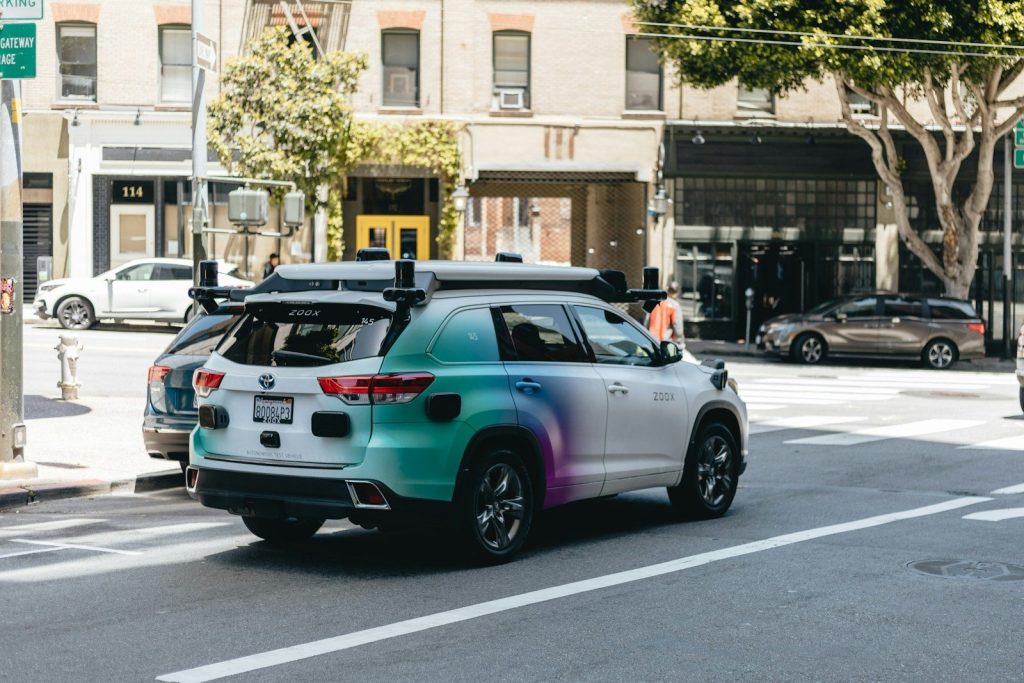
    Running errands can eat up more of the day than people expect. A quick trip for groceries, a ride to an appointment, or a pickup across town can turn into traffic, parking, and waiting around. That is why self-driving services are starting to feel less like a far-off idea and more like a tool people may actually use.

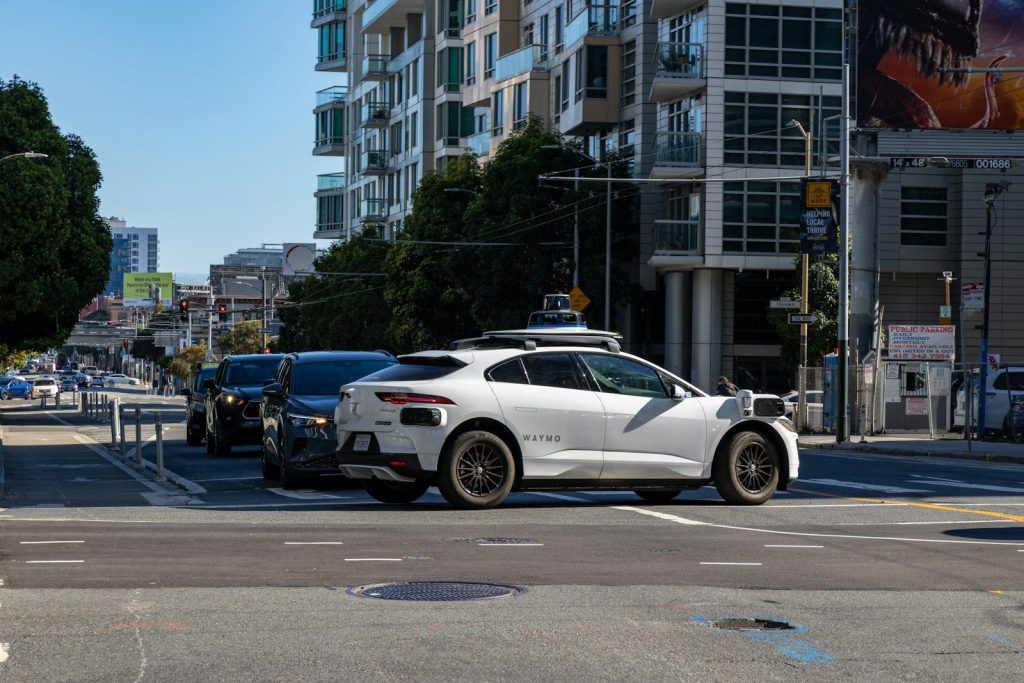
    Robotaxi services are already expanding in several U.S. cities, and companies are also testing autonomous delivery for food, groceries, packages, and local trips. Waymo has grown its driverless ride service across major metro areas, while delivery-focused companies like Nuro are building systems for short local trips and last-mile delivery. The big shift is simple: self-driving tech may become most useful when it handles the small errands people repeat every week.

    Errands may start with a tap

    A person pushes a shopping cart with boxes and blankets in a parking garage.
    Photo by MART PRODUCTION on Pexels

    Most people already use apps to order rides, food, groceries, and home items. Self-driving services could fit into that same habit without asking people to learn much new.

    Instead of calling a friend, driving across town, or waiting for a traditional delivery route, a person may schedule a driverless ride or delivery from their phone. The easier the app feels, the faster these services may become part of normal errands.

    Robotaxis could handle quick trips

    A gold colored car on display in a building
    Photo by Maxim on Unsplash

    Robotaxis may be useful for short rides that do not need much planning. A person could use one for a pharmacy run, a dentist visit, or a ride to the grocery store.

    This could be helpful for people who do not own a car, do not want to park, or need a simple way to move around town. The service works best when the pickup area, drop-off area, and road conditions are already supported.

    Delivery bots may save time

    Man gives robot bottles on a tray
    Photo by Enchanted Tools on Unsplash

    Self-driving delivery vehicles could make small orders feel more practical. Instead of sending a full-size car with a driver for one bag of groceries, a small autonomous vehicle may handle the trip.

    That could help stores, restaurants, and local services move items more often. For customers, the appeal is simple: fewer extra stops, less waiting, and more time back in the day.

    Groceries could arrive differently

    apples and bananas in brown cardboard box
    Photo by Maria Lin Kim on Unsplash

    Grocery shopping is one of the errands people repeat most often. Self-driving delivery could make it easier to get weekly basics without spending time in traffic or checkout lines.

    This does not mean every grocery trip disappears. Many people still like picking produce or browsing in person. But for milk, bread, pet food, and household staples, autonomous delivery may become a handy backup.

    Appointments may be less stressful

    a car that is sitting in the street
    Photo by Timo Wielink on Unsplash

    Getting to an appointment can be stressful when parking is tight or traffic is unpredictable. A self-driving ride could drop someone close to the door and return when needed.

    This may be useful for medical visits, school events, salon appointments, or trips where the person does not want to leave a car parked for hours. The ride itself becomes part of the errand, not another problem to solve.

    Families may use them carefully

    woman in white jacket sitting on car seat
    Photo by ThisisEngineering on Unsplash

    Families could find self-driving services useful, but trust will matter. Parents may want clear rules about who can ride, how pickups work, and what happens if plans change.

    Companies will need strong safety steps, simple rider controls, and easy customer support. For many households, these services may first be used by adults before becoming part of family routines.

    Stores may build around pickup

    grocery store aisle with stocked shelves
    Photo by Franki Chamaki on Unsplash

    Local stores may adapt as autonomous delivery grows. They could create faster pickup systems, smaller packing zones, or special loading areas for self-driving vehicles.

    That would make errands feel more connected. A pharmacy, grocery store, and restaurant could all become part of a smoother local delivery network. The vehicle is only one piece; the store setup matters too.

    Cities may need new rules

    A white car is stopped at an intersection
    Photo by Hoseung Han on Unsplash

    Self-driving services will not fit every street right away. Cities may need rules for curb space, pickup zones, delivery stops, and how vehicles respond near schools or busy sidewalks.

    Good planning could make these services easier to use without causing clutter. The goal should be simple streets, safer stops, and less confusion for riders, pedestrians, drivers, and local businesses.

    Trust will decide adoption

    a white and orange vehicle parked in front of a building
    Photo by Ruslan Fatihov on Unsplash

    The technology may be impressive, but people will judge it by everyday moments. Was the pickup easy? Did the ride feel calm? Did the delivery arrive on time? Was help available when something went wrong?

    Those small details will shape public trust. People do not need every technical answer. They need the service to feel safe, clear, useful, and worth choosing again.

    Everyday use may grow slowly

    a bus and a car on a road
    Photo by Daesun Kim on Unsplash

    Self-driving services probably will not replace regular cars overnight. They are more likely to spread city by city, errand by errand, as coverage improves and people get comfortable.

    The biggest change may be quiet. One day, a driverless ride to an appointment or an autonomous grocery drop-off may feel as normal as ordering takeout from an app. That is when the technology becomes part of daily life.

  • Why streaming subscriptions may keep changing shape

    Why streaming subscriptions may keep changing shape

    Streaming used to feel simple: pick a service, pay one monthly price, and watch what you like. Now it feels more like a moving puzzle. Prices shift, bundles return, ad-supported plans grow, and some platforms are placing more value on live events, sports, and cheaper entry points. Deloitte reported that subscription growth has slowed while ad-supported streaming is becoming a bigger part of the business. It also predicted that the old habit of stacking many separate services would decline as bundles become more important.

    For viewers, that means the “best” subscription may not stay the same for long. A plan that works today might feel too expensive, too limited, or less useful a few months later.

    Bundles are coming back

    Close-up of a hand holding a phone displaying streaming apps in front of a TV with multiple app icons.
    Photo by Jakub Zerdzicki on Pexels

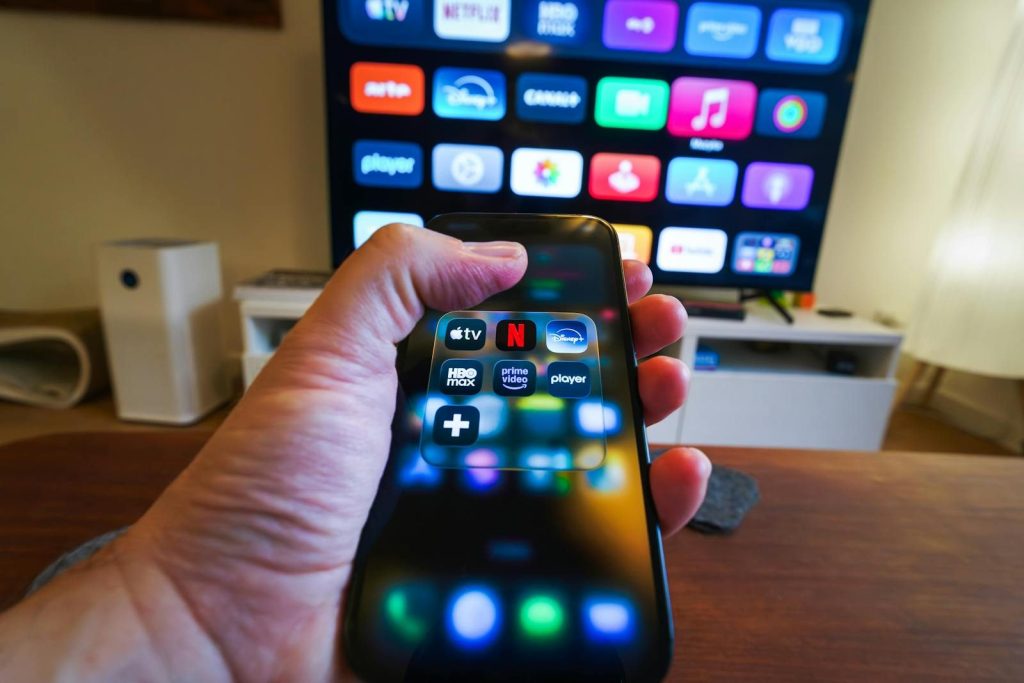
    Many viewers cut cable to avoid big packages, but streaming is starting to borrow one of cable’s old ideas: the bundle. Instead of paying for many apps one by one, people may see more combined deals.

    This can make things easier and sometimes cheaper. It also helps companies keep customers from canceling after watching one favorite show. Deloitte predicted that stacking separate streaming services would fall in 2025 as bundles grow.

    Ads are changing the price

    mockup, screen, smartphone, website, blog, word, subscribe, social, media, channel, subscription, money, sale, youtube, contract, e commerce, number, netflix, streaming, stream, video, subscribe, subscribe, subscribe, subscribe, subscribe, youtube
    Photo by viarami on Pixabay

    Ad-supported plans are becoming a major part of streaming. They usually cost less than ad-free plans, which makes them attractive when monthly bills keep rising. Deloitte’s 2026 survey said ad-supported tiers are now leading the next stage of streaming growth.

    For streaming companies, these plans create another way to earn money. For viewers, the trade-off is simple: pay less, but watch some ads. That choice may become more common.

    Prices keep moving upward

    fan of 100 U.S. dollar banknotes
    Photo by Alexander Mils on Unsplash

    Streaming prices have not stayed still. Several major services raised prices in 2025 or announced higher costs going into 2026, and many viewers are paying closer attention to their monthly bills.

    That pressure may push more people to downgrade, rotate services, or wait for deals. As prices rise, streaming companies may keep reshaping plans to make each tier feel like it offers a clear reason to stay.

    Free options are gaining ground

    A computer monitor displaying an app store interface.
    Photo by Gavin Phillips on Unsplash

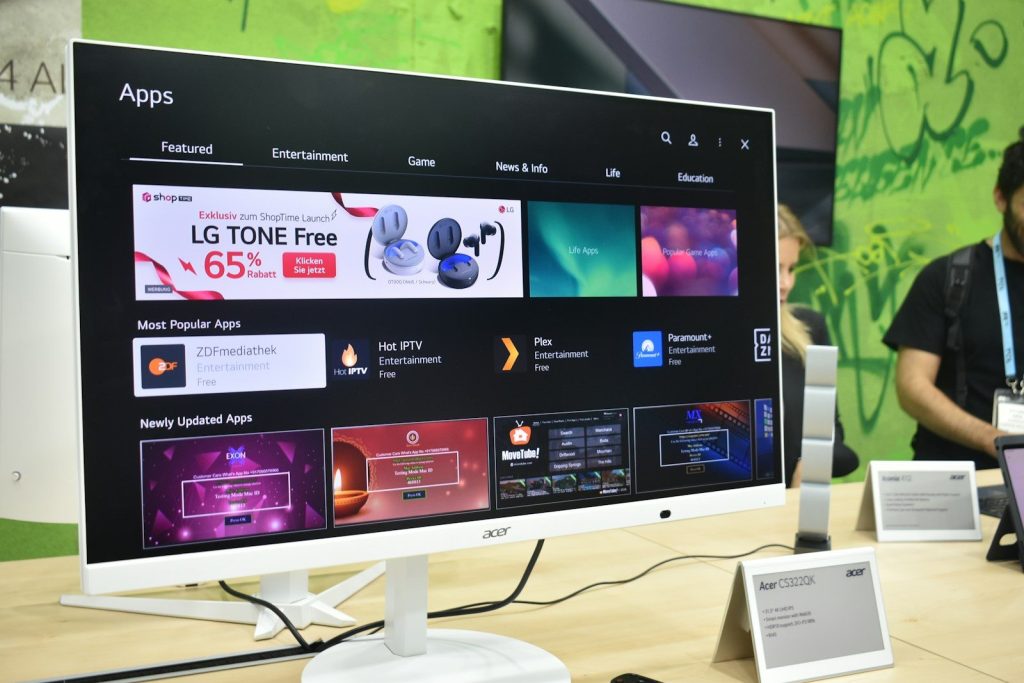
    Free ad-supported streaming TV, often called FAST, is also growing. These services feel more like traditional TV because viewers can browse channels without paying a monthly fee.

    This matters because free choices compete with paid apps for attention. A 2026 market report estimated the FAST market at $14.33 billion in 2026, with continued growth expected through 2031.

    Canceling is more normal now

    Car dashboard displays streaming service options
    Photo by Gavin Phillips on Unsplash

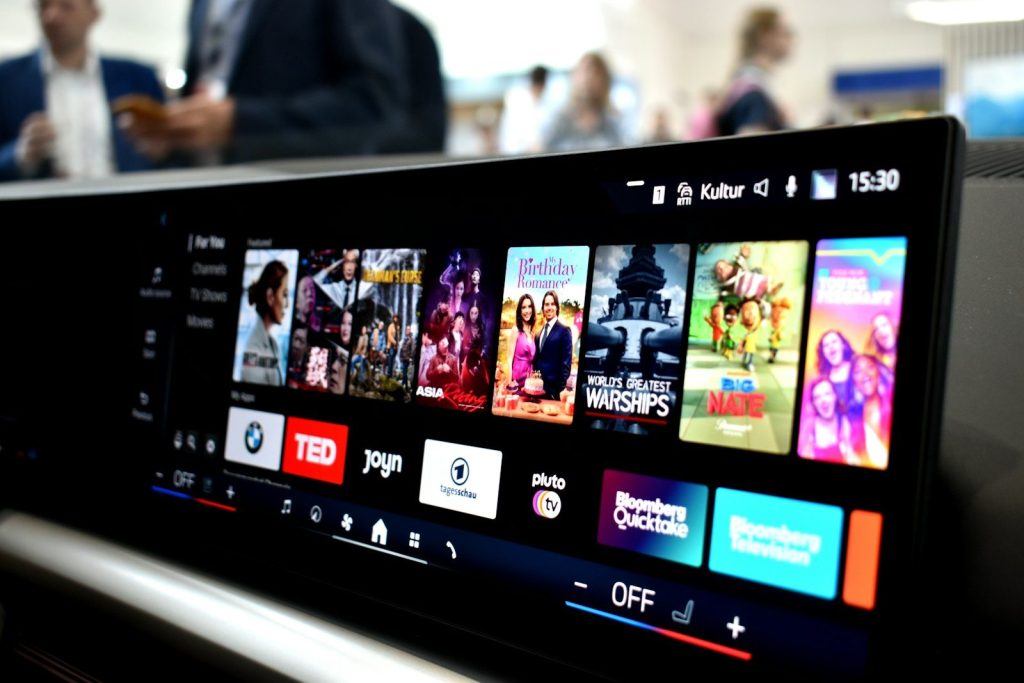
    Many people no longer treat streaming subscriptions as permanent. They may sign up for a new season, cancel after finishing it, and return later when something else arrives.

    That pattern makes streaming companies think differently. Instead of only winning new subscribers, they also need to bring old ones back. Adobe noted that resubscription is becoming important as the industry moves beyond simple cancellation numbers.

    Live content adds new value

    Cricket match playing on a television screen at night.
    Photo by Momina Zeshan on Unsplash

    Streaming is not just about movies and shows anymore. Sports, live events, and special programming are becoming bigger reasons to subscribe. These events can make a service feel more urgent than a library of older titles.

    That may also explain why some plans cost more over time. When platforms add expensive live content, they may adjust prices, tiers, or bundles to support it.

    Viewers want more control

    black flat screen tv turned on showing game
    Photo by Nicolas J Leclercq on Unsplash

    The biggest change may be the viewer’s mindset. People want flexibility, clear value, and fewer surprise costs. They are more willing to switch plans, pause subscriptions, or try cheaper options.

    That means streaming subscriptions may keep changing shape because the audience keeps changing too. The winning plan may be the one that feels easy, fair, and useful month after month.

  • Why home robots are still harder than they look

    Why home robots are still harder than they look

    A robot that folds towels, clears dishes, and picks up toys sounds like the next big household upgrade. The idea is exciting because people already trust smaller home robots for jobs like vacuuming and floor cleaning. But a real home is not a neat test lab. It has tight corners, loose cords, pets, stairs, clutter, soft objects, fragile items, and people moving around without warning.

    That is why building a helpful home robot is much harder than making one look impressive in a short demo. Experts still point to major challenges in object handling, safety, cost, privacy, and real-world reliability. Navigation is already useful in many settings, but object handling remains much harder.

    Homes are full of surprises

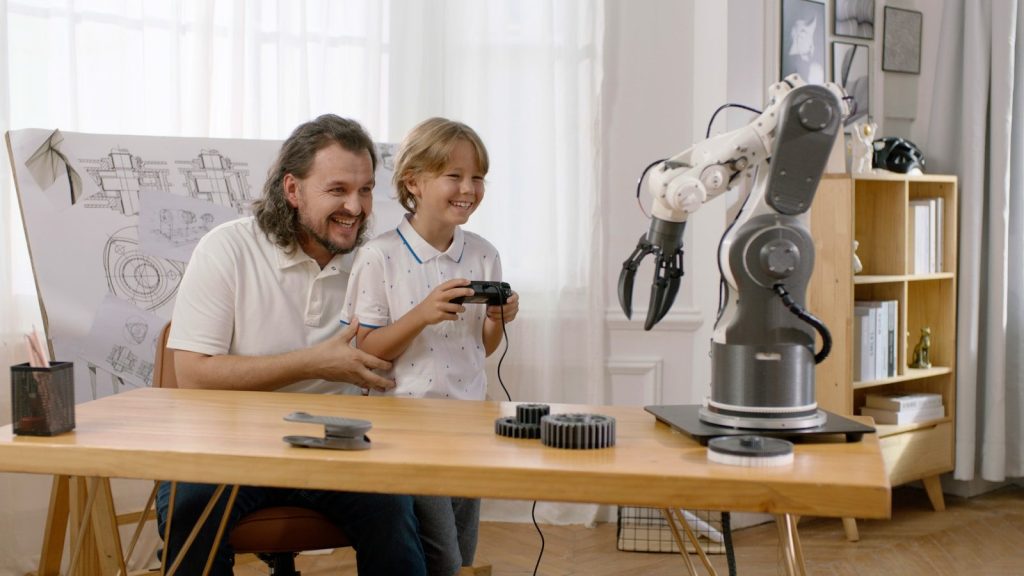
    A man and a child are sitting at a table
    Photo by Snapmaker 3D Printer on Unsplash

    A factory floor can be mapped, planned, and controlled. A home changes every day. Shoes move, chairs shift, bags land in walkways, and toys appear where the robot does not expect them.

    That makes simple jobs harder than they sound. A robot may know how to cross a clean room, but a busy living room asks it to notice obstacles, avoid people, and keep working without getting stuck.

    Picking things up is tough

    robot, ai generated, artificial intelligence, ai, mini robot, home robot, technology
    Photo by chathuraanuradha on Pixabay

    Humans grab objects without thinking. We adjust our grip when something is soft, slippery, heavy, or oddly shaped. Robots have to calculate all of that before they even lift an item.

    That is one reason laundry, dishes, and clutter are still hard tasks. Small, delicate, or irregular objects remain a challenge for home robots, even as AI improves.

    Clean demos can fool us

    Asian man sitting on bed shaking hands with a robot in a modern bedroom.
    Photo by Pavel Danilyuk on Pexels

    Robot videos often show a polished moment: one robot, one task, one clean space, and one successful result. That can make the technology seem closer than it really is.

    Real homes are less predictable. A robot must repeat the job many times, recover from mistakes, and handle bad lighting, noise, and changing layouts. A short clip rarely shows that full test.

    Safety has to come first

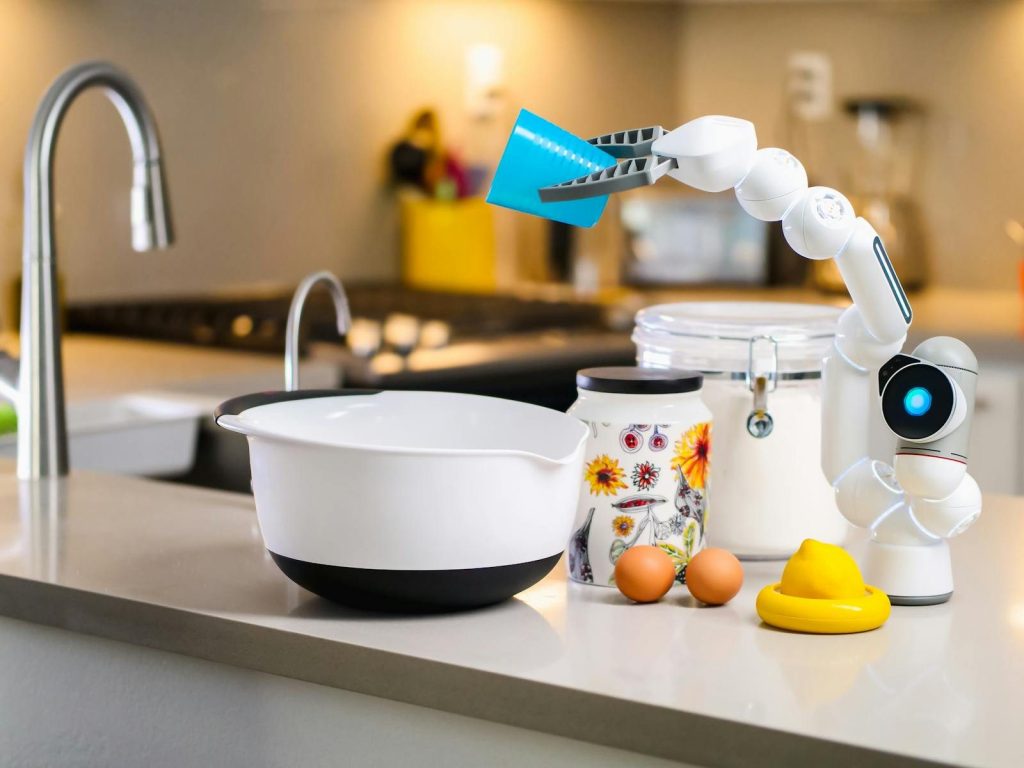
    A robotic arm assists with mixing ingredients in a modern kitchen, showcasing advanced home technology.
    Photo by Kindel Media on Pexels

    A home robot may work near kids, pets, older adults, furniture, glass, and electronics. Even a small mistake can matter if the robot bumps into someone or drops something fragile.

    That is why speed is not the only goal. The robot must move carefully, understand personal space, and stop when something feels unsafe. People need to trust it before they let it roam freely.

    Privacy is a real concern

    Two children enjoy playing interactively with a robot in a cozy living room setting.
    Photo by Pavel Danilyuk on Pexels

    Many home robots depend on cameras, microphones, sensors, maps, and connected apps. Those tools can help the robot understand the room, but they also raise questions about personal data.

    People may wonder what the robot records, where the information goes, and who can access it. Surveys and expert reviews have pointed to privacy and trust as major issues for home robots.

    Price must make sense

    fan of 100 U.S. dollar banknotes
    Photo by Alexander Mils on Unsplash

    A home robot has to be useful enough to justify its cost. That is a high bar when many people already own cheaper tools like vacuums, smart speakers, and basic appliances.

    Even robot vacuums show how tough the market can be. The Roomba helped make home robots familiar, but its maker, iRobot, later faced major business pressure and filed for bankruptcy protection.

    AI helps, but not alone

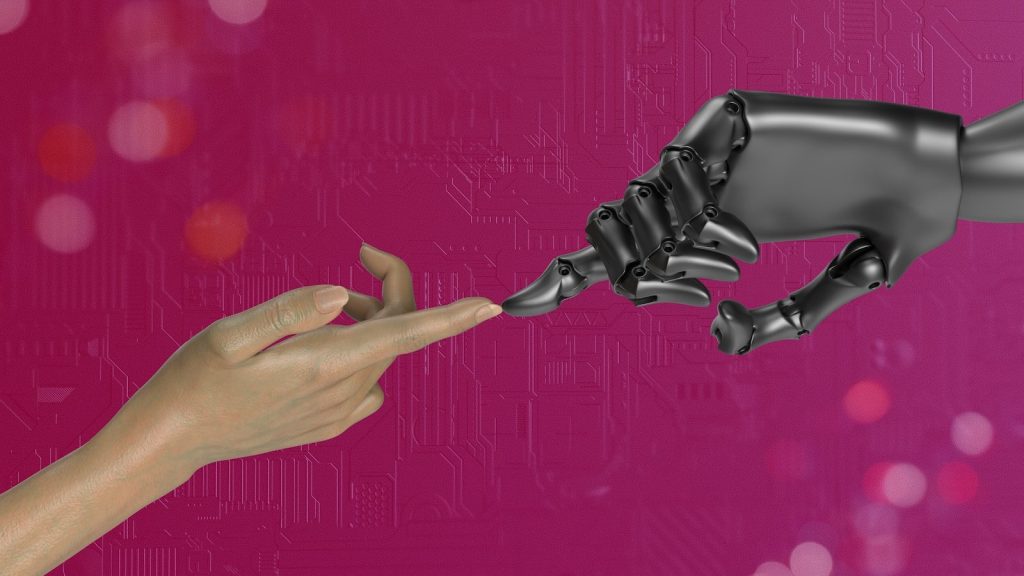
    two hands touching each other in front of a pink background
    Photo by Igor Omilaev on Unsplash

    Better AI can help robots understand speech, recognize objects, and learn from examples. Still, a home robot also needs strong hardware, good sensors, safe motors, and long battery life.

    That mix is difficult. A smart robot that cannot grip well is not very useful. A strong robot that cannot understand its surroundings is not safe. The whole system has to work together.

    Progress will look practical

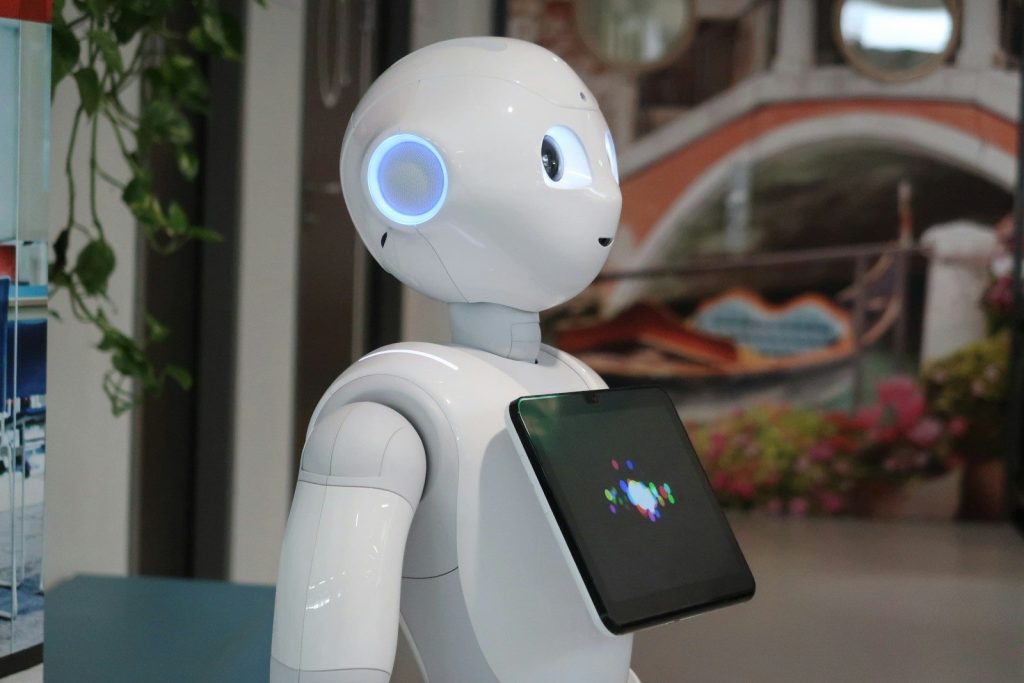
    a white robot holding a tablet in its hand
    Photo by Sieuwert Otterloo on Unsplash

    The first truly useful home robots may not look like movie robots. They may be focused machines that clean, carry, monitor, or help with one clear job.

    That is not a bad thing. Home robots will likely improve step by step, starting with tasks that are repetitive and low-risk. The dream is big, but the best progress may look boring at first.

  • How object-detecting vacuums could avoid tiny mistakes

    How object-detecting vacuums could avoid tiny mistakes

    A robot vacuum is supposed to make life easier, but one tiny mistake can ruin the whole point. A loose charging cord, a sock under the couch, or a small toy in the hallway can stop a cleaning run fast. That is why object detection has become one of the most useful upgrades in robot vacuums. Instead of only bumping into things and turning away, newer models can use cameras, lasers, depth sensors, or AI tools to spot items before trouble starts.

    Some brands now promote features that help vacuums avoid cords, shoes, and other common floor clutter. iRobot says its j Series robots use PrecisionVision Navigation to detect and avoid objects such as charging cords and shoes, while Roborock highlights obstacle-avoidance systems across newer models.

    Tiny items cause big stops

    Child playing in bathtub with robot vacuum cleaner
    Photo by Dreame Vacuum Cleaner on Unsplash

    A small object can turn a simple cleaning job into a rescue mission. A robot vacuum may roll over a cord, push a toy across the room, or get stuck near a chair leg.

    Object detection is meant to catch those problems earlier. Instead of waiting until the robot bumps, drags, or tangles, the system tries to notice the object first and plan a safer path around it.

    Sensors act like extra eyes

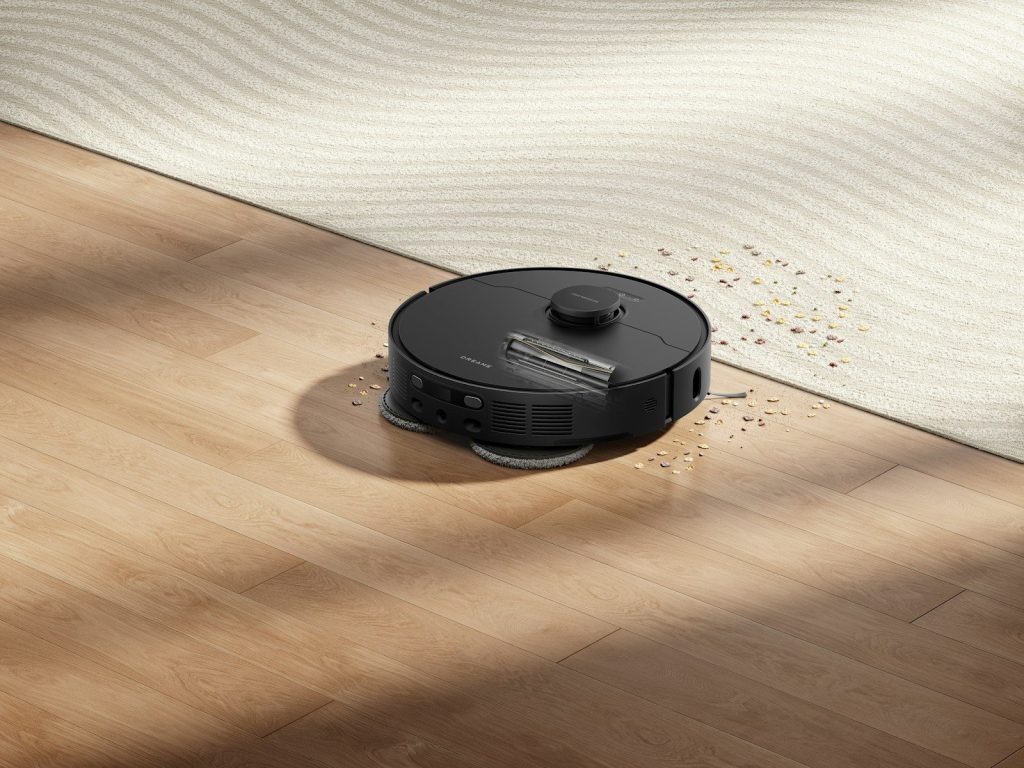
    Robot vacuum cleaning spilled water and debris on floor.
    Photo by Dreame Vacuum Cleaner on Unsplash

    Modern robot vacuums do not all “see” the same way. Some use cameras, while others use lasers, structured light, depth sensors, or a mix of tools to understand what is on the floor.

    These sensors help the vacuum read the space in front of it. That can make cleaning feel less random, especially in busy homes where shoes, cords, and small items do not always get picked up first.

    AI helps name the problem

    robot and human hands reaching toward ai text
    Photo by Igor Omilaev on Unsplash

    Object detection becomes more helpful when the vacuum can tell what it is looking at. A shoe, cable, or toy may need a different response than a wall or table leg.

    Some robot vacuums use AI-backed systems to recognize common obstacles. Ecovacs says certain DEEBOT models use AI technology to capture and analyze images so the robot can identify obstacles and clean around them.

    Cords are a common trap

    white and blue round device
    Photo by Elena Mozhvilo on Unsplash

    Charging cords are one of the most annoying problems for robot vacuums. They are thin, easy to miss, and often sit right where the vacuum wants to travel.

    Object-detecting models can reduce the chance of a cord getting pulled, wrapped, or dragged. That does not mean every cord is safe every time, but it can make daily cleaning less stressful.

    Shoes become less annoying

    Woman watches robot vacuum clean spill on table
    Photo by Dreame Vacuum Cleaner on Unsplash

    Shoes often land near doors, hallways, and bedrooms. Those are also places where robot vacuums need clear paths to move from one room to another.

    Better obstacle detection can help the vacuum work around shoes instead of pushing into them. iRobot says its PrecisionVision system helps j Series robots avoid objects including shoes, cords, and other common obstacles.

    Pet homes need extra care

    white short coated small dog on brown wooden floor
    Photo by YoonJae Baik on Unsplash

    Homes with pets can be harder for robot vacuums. Food bowls, small toys, and surprise floor messes can all create problems during an automatic cleaning run.

    Some newer vacuums are designed with pet-related obstacles in mind. Ecovacs says many robot vacuums can now avoid pet waste using cameras, sensors, obstacle avoidance, and virtual boundaries, though it also notes there is no perfect guarantee.

    Better maps reduce repeats

    Robot vacuum cleans floor while family relaxes
    Photo by Dreame Vacuum Cleaner on Unsplash

    Object detection works best when it pairs with smart mapping. A vacuum that understands the room layout can move more smoothly and avoid repeating the same mistake again and again.

    Roborock says its lineup includes navigation systems such as LiDAR-based mapping and newer obstacle-avoidance tools. A stronger map can help the robot clean in a more organized way, rather than wandering blindly.

    Apps can flag trouble spots

    Adult male using remote control to manage robotic vacuum cleaner on wooden flooring indoors.
    Photo by cottonbro studio on Pexels

    Many smart vacuums connect to mobile apps, which can give users more control. That may include cleaning schedules, room choices, no-go zones, or reminders about areas that need attention.

    This matters because object detection is not only about the robot making choices. It also gives people a way to guide the vacuum, block tricky areas, and make future cleanups smoother.

    It still needs a clear floor

    Close-up of a hand interacting with a robot vacuum cleaner on a parquet floor, showcasing modern cleaning technology.
    Photo by Ron Lach on Pexels

    Object detection is useful, but it is not a free pass to leave everything out. Very small, flat, hidden, or oddly shaped items may still be hard for a vacuum to read.
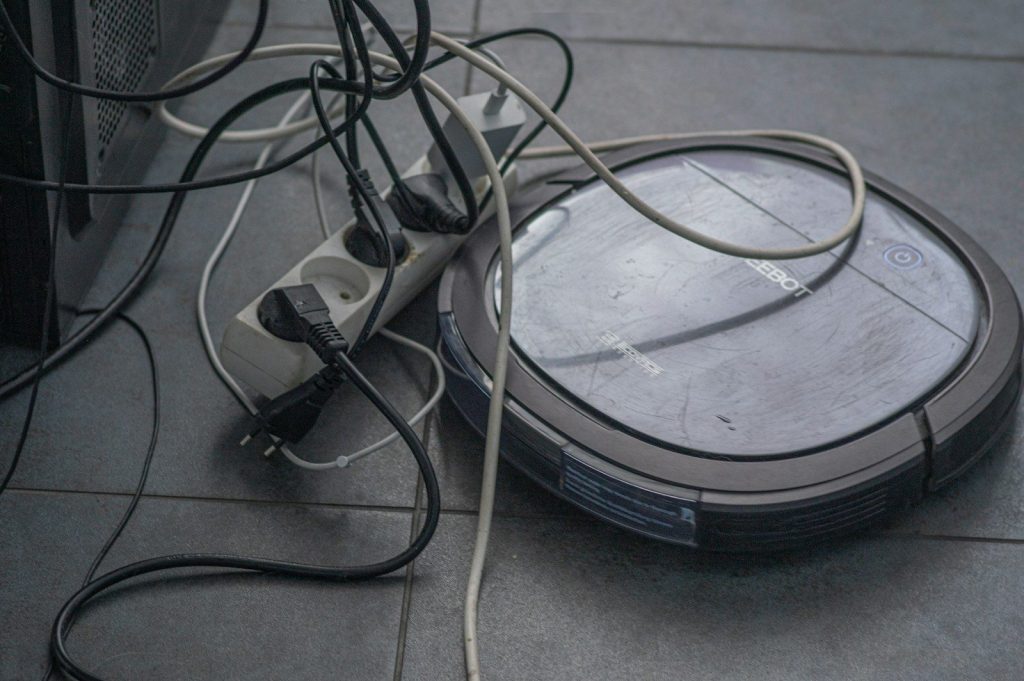

    A quick floor check still helps. Picking up the worst clutter before a cleaning run gives the robot a better chance to finish the job without pausing, tangling, or calling for help.

    The goal is fewer interruptions

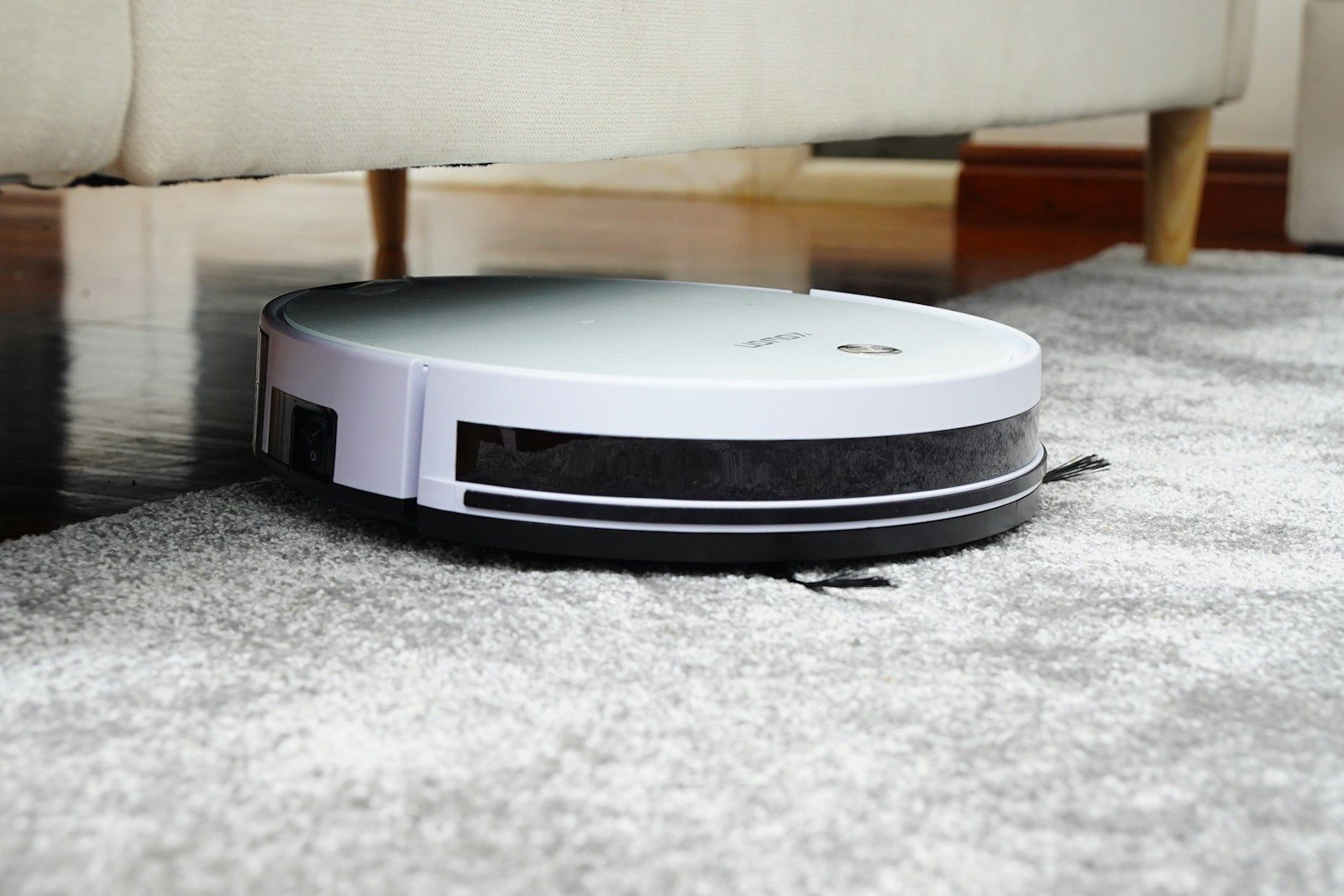
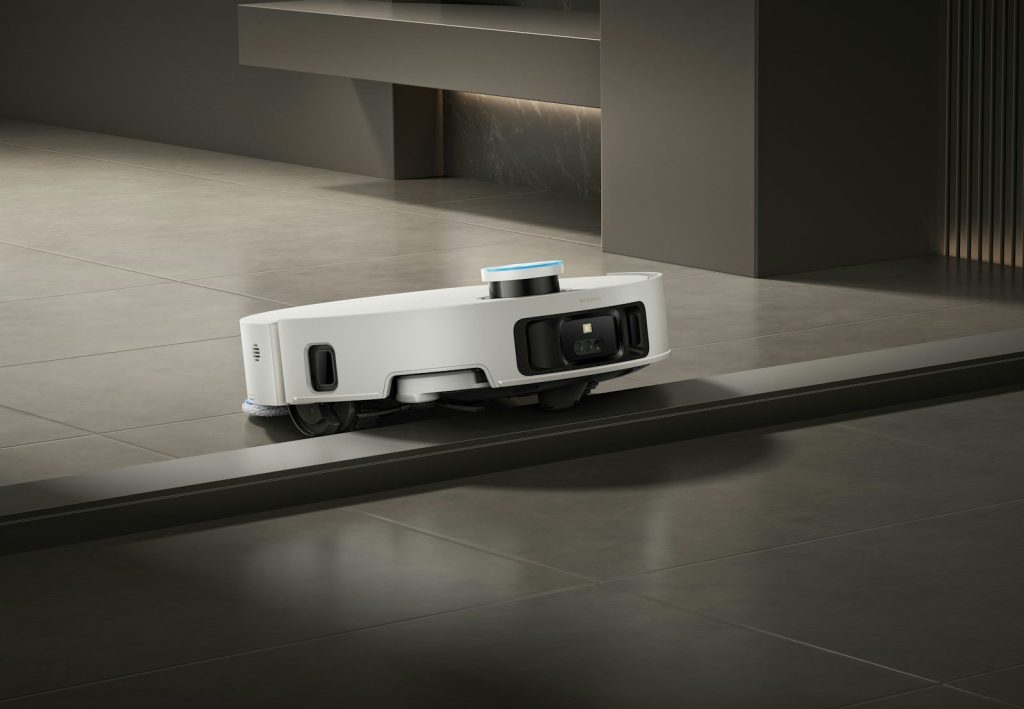
    A white robot vacuum cleaner navigates a floor transition.
    Photo by Dreame Vacuum Cleaner on Unsplash

    The best part of object detection is not that it makes a robot vacuum feel fancy. It is that it can help the vacuum finish more cleanups with fewer small problems.

    That is the real promise. When a vacuum can spot everyday clutter, avoid the easy traps, and keep moving, it feels less like a gadget and more like a dependable household helper.

  • 10 Android Auto features that make road trips easier

    10 Android Auto features that make road trips easier

    A long drive can go from fun to frustrating fast when you are juggling directions, music, messages, calls, and charging stops. That is where Android Auto can make the road feel less stressful. It brings useful phone features to a car’s screen, including maps, calls, text messages, and music, so drivers can keep more attention on the road. Google also describes Android Auto as a hands-free driving companion built around supported apps and voice help.

    For road trips, the best features are the simple ones you may use again and again. Clear navigation, easy media controls, voice commands, message help, and better planning can make every mile feel smoother.

    Navigation that feels simple

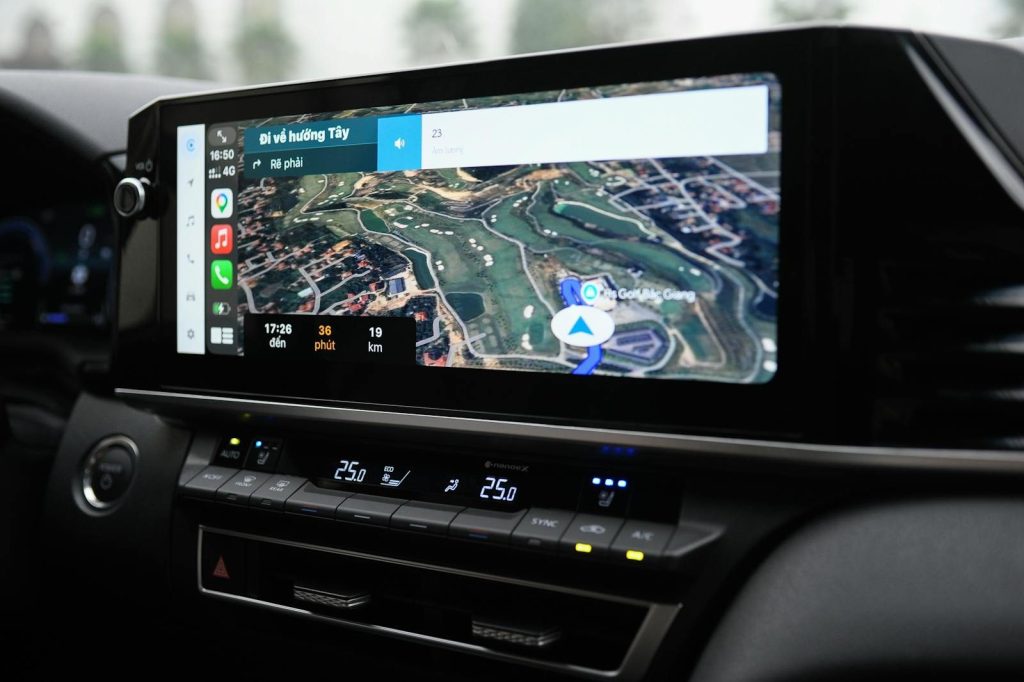
    Modern in-car navigation system showing a digital map and route details.
    Photo by Thang Nguyen on Pexels

    Getting lost on a road trip can waste time, fuel, and patience. Android Auto puts navigation on the car screen, making directions easier to see than checking a phone in a cup holder.

    Google says Android Auto supports navigation and maps on the car display. That means drivers can follow turns, watch the route, and stay focused without bouncing between tiny screens.

    Real-time traffic help

    Traffic jam with an accident warning sign.
    Photo by viktor rejent on Unsplash

    Road trips rarely go exactly as planned. Traffic, crashes, construction, and slowdowns can change the best route in minutes, especially near big cities or busy vacation spots.

    With Google Maps through Android Auto, drivers can use real-time GPS navigation and traffic alerts. That can help spot delays earlier and choose a better route before the backup becomes a bigger problem.

    Voice control for less tapping

    Sleek car interior featuring a digital dashboard during a sunset drive on a curved road.
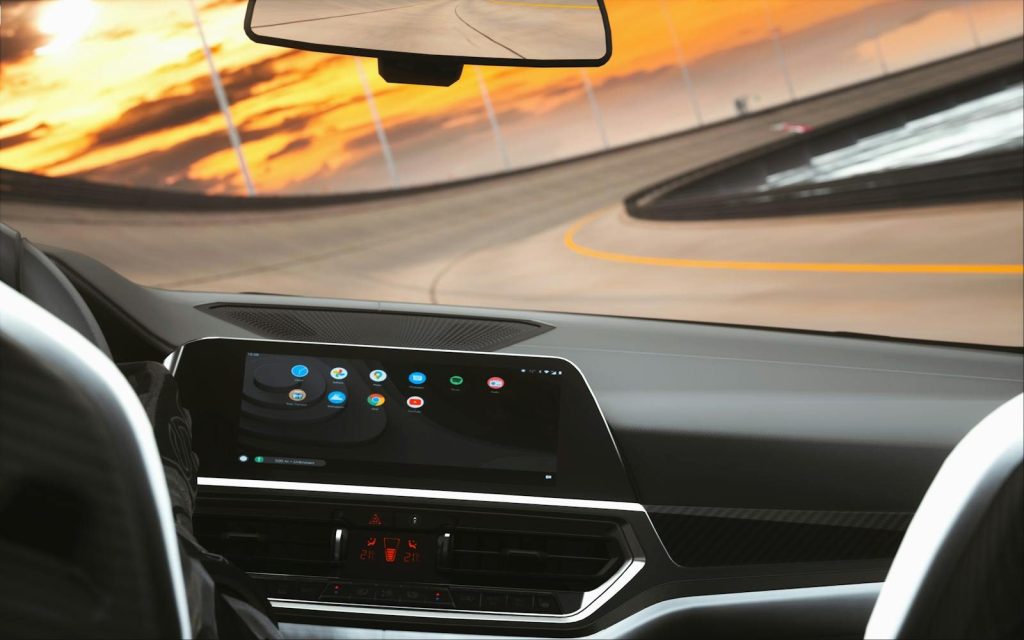
    Photo by Hensan Aranha on Pexels

    Tapping a screen while driving can be distracting, even when the screen is built into the car. Voice control helps by letting drivers ask for directions, music, calls, or messages without reaching around.

    Google says Android Auto supports hands-free help through “Hey Google” or a steering wheel voice button when available. That makes simple tasks easier while keeping attention where it belongs.

    Safer message handling

    Interior view of car dashboard with GPS and music display, creating a modern travel vibe.
    Photo by Nothing Ahead on Pexels

    Messages can pile up during a long drive, but reading and typing replies is not a good road-trip habit. Android Auto helps by bringing messaging features into a more driver-friendly setup.

    Google lists text messages as one of the features Android Auto can control from the car display. Some supported messaging apps also work with voice actions, so drivers can hear and respond without picking up the phone.

    Calls without phone juggling

    woman in green shirt driving car
    Photo by Liz Fitch on Unsplash

    Road trips often come with quick check-ins. Someone may ask where you are, what time you will arrive, or whether plans changed. Android Auto makes those calls easier to handle.

    Google says Android Auto supports calls, and its Play Store listing notes that users can make calls with voice actions and answer incoming calls with a tap. That keeps the phone from becoming another thing to manage.

    Music and podcasts on screen

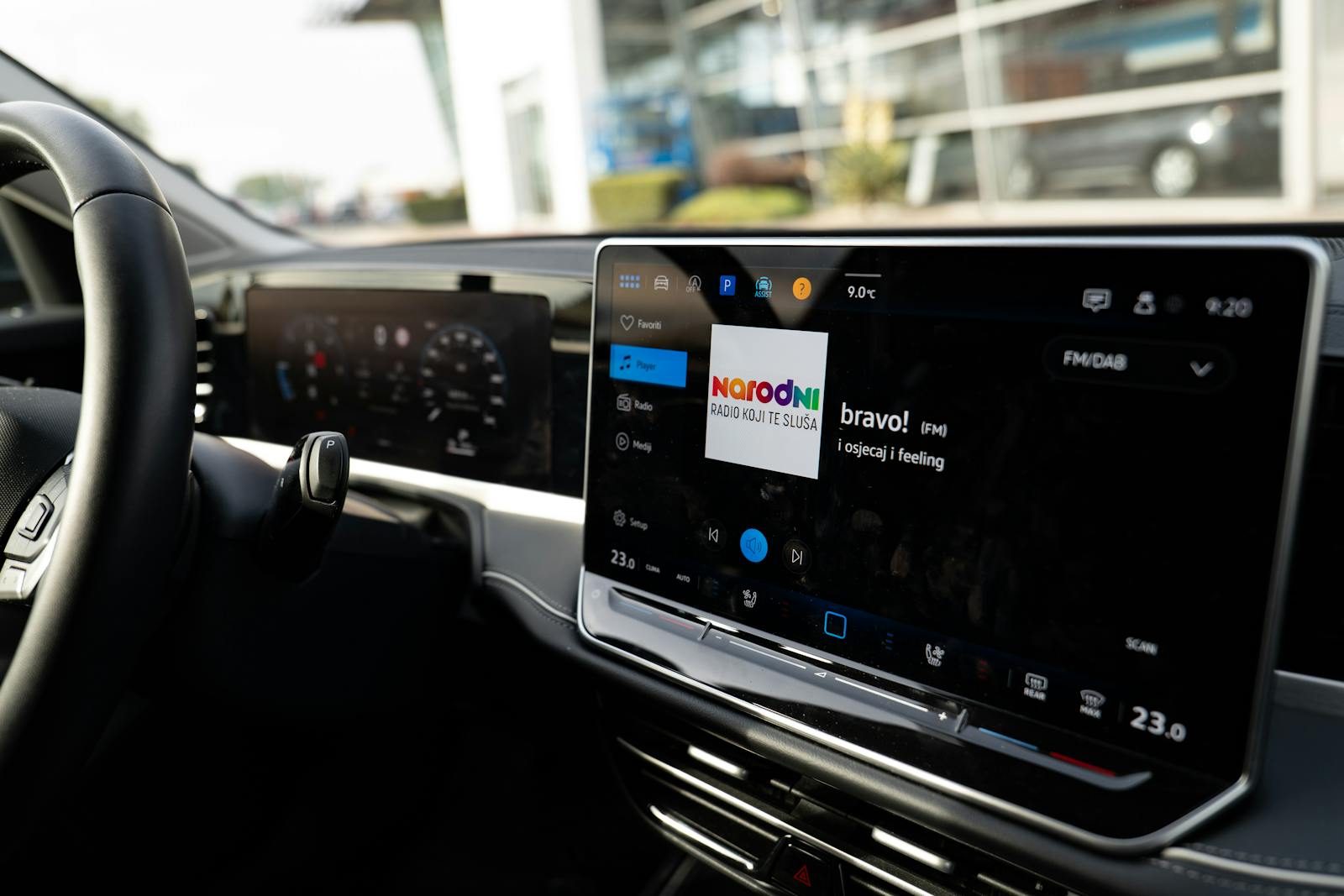
    Close-up of a car dashboard featuring a Bluetooth audio system with music display.
    Photo by Erik Mclean on Pexels

    A good playlist can make a long drive feel shorter. Android Auto brings supported music, podcast, audiobook, and radio apps to the car display, so entertainment is easier to control.

    Google notes that Android Auto can control music, and its listing mentions support for many media apps, including streaming, radio, audiobook, and podcast options. That helps passengers and drivers keep the mood right.

    A cleaner car display

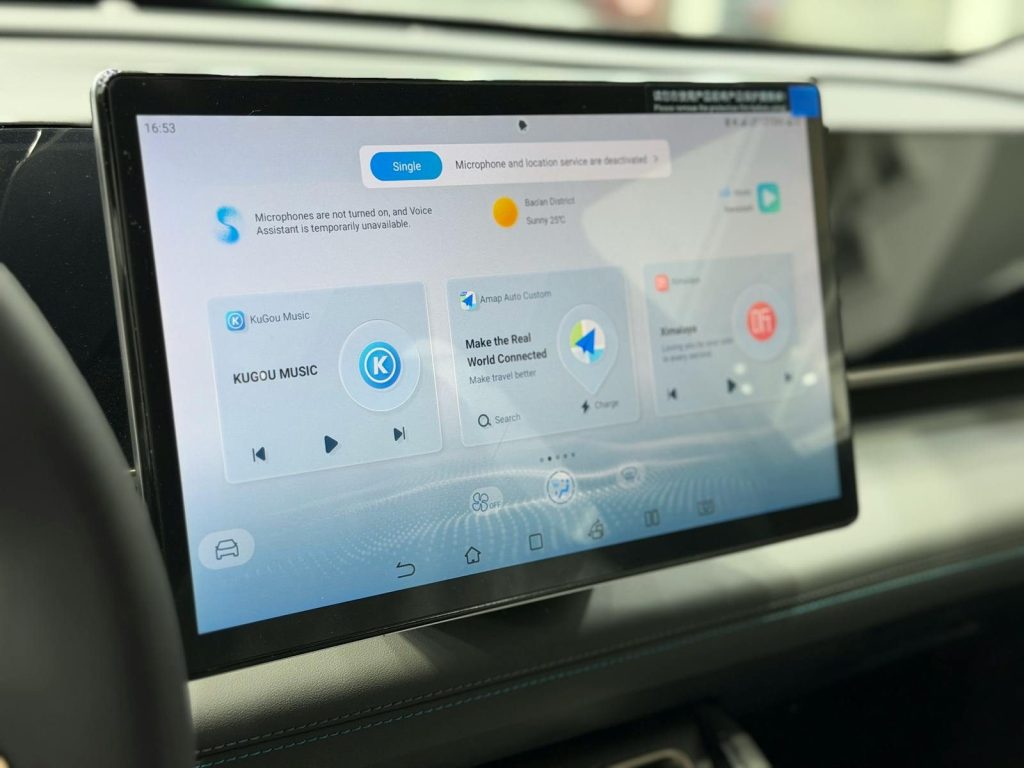
    Modern car dashboard featuring a digital touchscreen interface with multiple apps.
    Photo by Sina Rezakhani on Pexels

    One helpful part of Android Auto is that it keeps the interface focused on driving. Instead of showing every phone feature, it brings forward the tools people usually need in the car.

    Google describes Android Auto as a simplified interface with large buttons and voice actions. On a road trip, that clean layout can make common tasks feel quicker and less distracting.

    Wireless connection support

    the dashboard of a car with a gps device
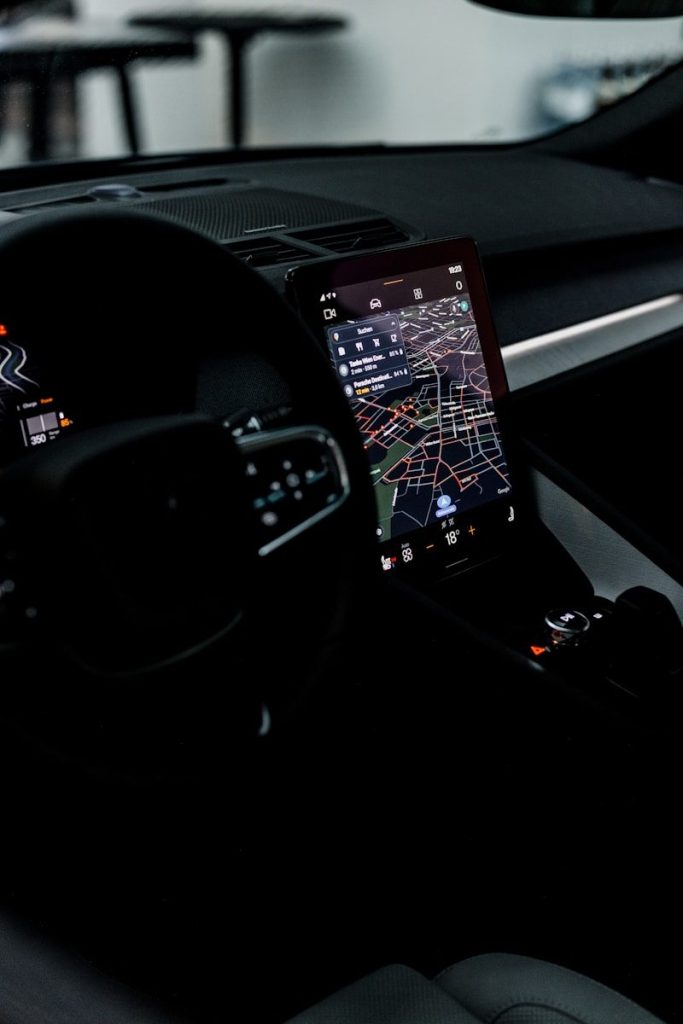
    Photo by Patrick Langwallner on Unsplash

    Nobody wants to fight with cables every time the car starts. In supported vehicles, wireless Android Auto can connect the phone without plugging it in, which is handy during errands and long trips.

    Google’s setup guidance says users should confirm that their car supports wireless Android Auto before using it that way. When it works, the experience feels cleaner and more natural.

    EV charging trip help

    a woman standing next to a blue car
    Photo by JUICE on Unsplash

    Electric road trips need extra planning because charging stops matter. Google Maps has been expanding EV trip tools for Android Auto, including charging help for many compatible EV models.

    Google announced AI-powered EV charging and trip-planning features for more than 350 Android Auto EV models. For drivers with supported cars, that can make long-distance electric travel easier to plan.

    Support for many cars

    white car
    Photo by Peter Broomfield on Unsplash

    A road-trip feature only helps if it works in the car you actually drive. Android Auto is available across many supported vehicles and can also work through compatible aftermarket systems.

    Google’s Android Auto listing says more than 400 car models support it, while Google’s setup page recommends checking your car or manufacturer for compatibility. That makes it worth checking before your next long drive.

  • Why AI search could change how people browse

    Why AI search could change how people browse

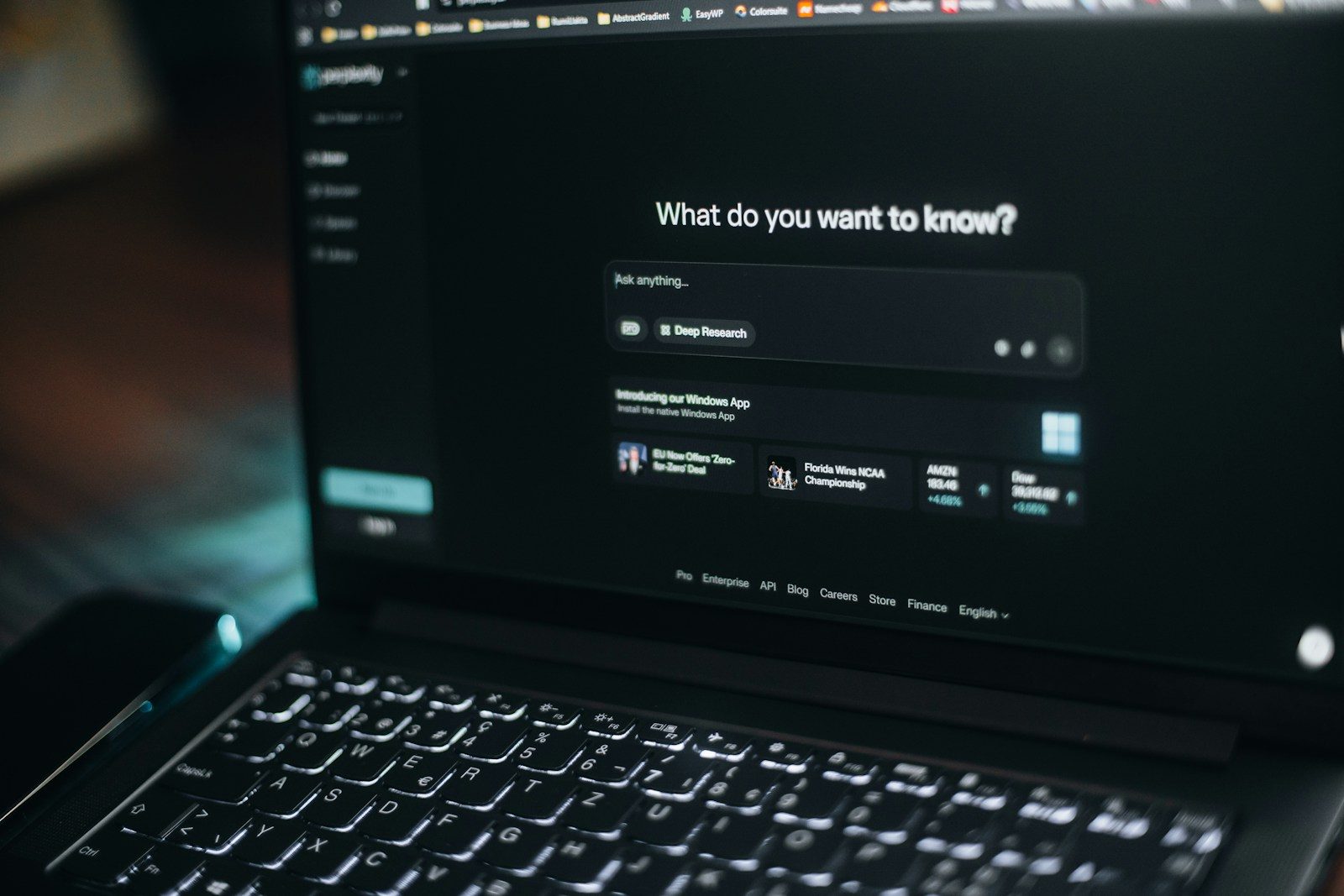
    Searching online used to mean typing a few words, opening several blue links, and piecing together the answer yourself. AI search is changing that routine. Instead of only showing a list of pages, tools like Google AI Overviews, Google AI Mode, and Bing Generative Search can summarize information, answer follow-up questions, and point users toward related links in one place.

    Google says AI Overviews are meant to give a snapshot with key information and links to learn more, while AI Mode supports longer questions and follow-up exploring. Microsoft describes Bing Generative Search as an AI-powered layout that gives a clear summary along with familiar web links. That shift could make browsing faster, more conversational, and more focused.

    Searches may feel more natural

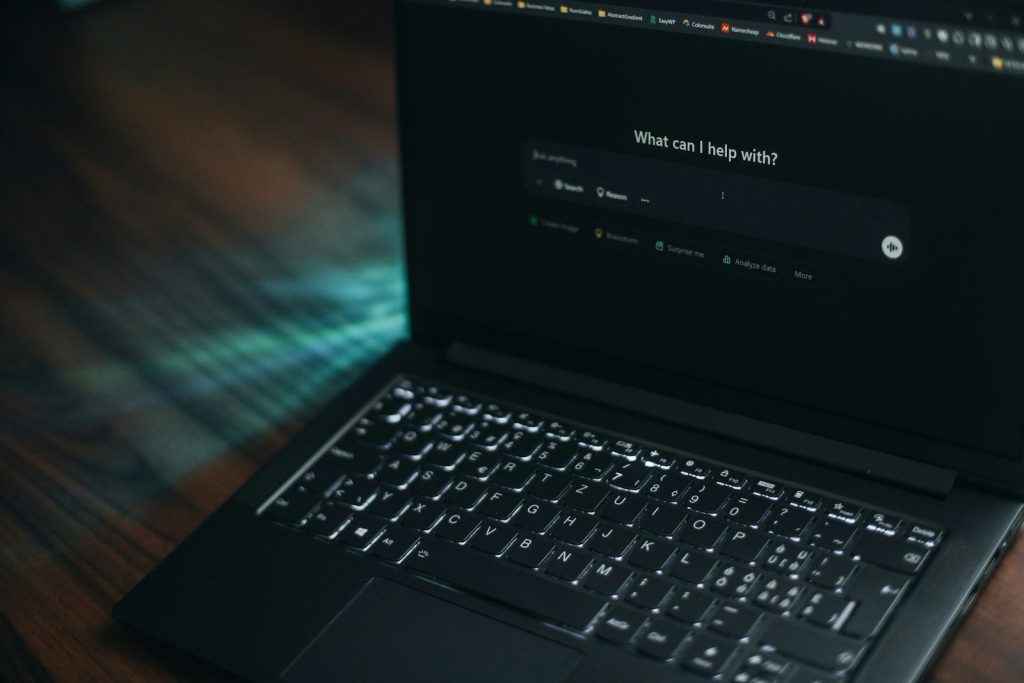
    A laptop displays a search bar asking how it can help.
    Photo by Aerps.com on Unsplash

    People do not always think in perfect keywords. Sometimes they ask messy questions, compare options, or need help understanding a topic from the beginning.

    AI search is built for that kind of behavior. Google says AI Mode lets users ask longer questions and keep going with follow-up questions, which makes searching feel more like a conversation than a one-time query.

    Answers may come faster

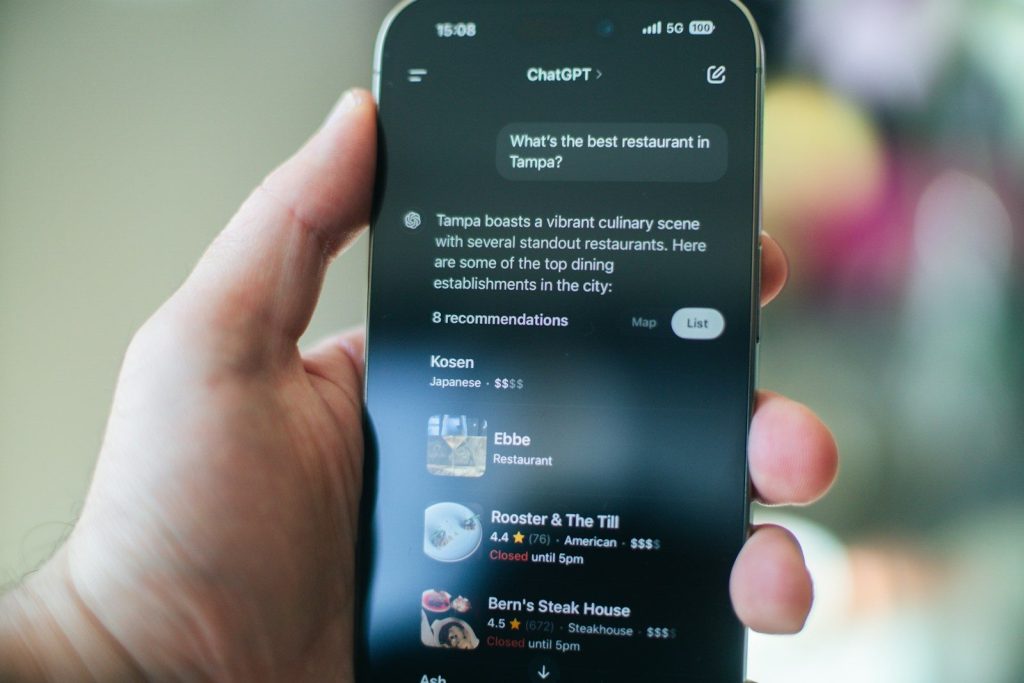
    Someone uses chatgpt to find a restaurant.
    Photo by Aerps.com on Unsplash

    Traditional browsing often means opening several pages before finding the useful part. AI search can shorten that first step by giving a quick summary near the top.

    Google says AI Overviews provide an AI-generated snapshot with key information and links to dig deeper. That can help users get a starting answer before deciding which pages to open next.

    Follow-ups become easier

    a person's feet resting on a computer screen
    Photo by Jacob Mindak on Unsplash

    A normal search can feel like starting over each time. If your first question leads to a second question, you may need to rewrite the whole search.

    AI search changes that pattern. Google’s AI Mode supports follow-up questions, so users can keep narrowing the topic without rebuilding every query from scratch. This could make research feel smoother and less stop-and-start.

    Fewer clicks may happen

    person holding white android smartphone
    Photo by Arkan Perdana on Unsplash

    AI summaries can make browsing quicker, but they may also change how often people click links. If the answer appears on the results page, some users may stop there.

    Pew Research Center found that Google users were less likely to click result links when an AI summary appeared compared with searches without one. That could reshape how people move across the web.

    Links still matter

    the open ai logo is displayed on a computer screen
    Photo by Andrew Neel on Unsplash

    AI search does not remove the need for source pages. Users still need links for details, context, examples, updates, and trust checks.

    Google says AI Overviews include links so users can explore further, and Microsoft says Bing Generative Search presents an AI summary followed by familiar links. The browsing path may change, but sources are still part of the experience.

    Research may get deeper

    Smartphone screen displaying chatgpt interface on keyboard
    Photo by Zulfugar Karimov on Unsplash

    Some questions need more than one quick answer. Planning a trip, comparing a topic, or learning a new skill can require several smaller searches.

    Google says AI Mode uses a technique that breaks a question into subtopics and searches across them at the same time. That may help users explore bigger questions without running many separate searches manually.

    Trust checks become important

    a close up of a computer screen with a message on it
    Photo by Jonathan Kemper on Unsplash

    AI answers can be helpful, but users still need to check where the information comes from. A clean summary is not the same as a fully checked answer.

    That is why links, dates, and source names matter. AI search may save time, but careful readers should still open reliable sources when the topic involves health, money, travel, schoolwork, or major decisions.

    Shopping may feel guided

    a woman sitting at a table looking at her cell phone
    Photo by Vitaly Gariev on Unsplash

    AI search could also change how people compare products and services. Instead of searching one feature at a time, users may ask a bigger question about needs, budget, and trade-offs.

    Google’s AI Mode page says users can ask for recommendations or help deciding between two products. That points to browsing that feels more like guided research than simple keyword matching.

    Publishers may adapt

    A close up of a cell phone on a table
    Photo by Solen Feyissa on Unsplash

    If more answers appear directly in search, websites may need to rethink how they attract readers. Clear expertise, helpful details, and strong original reporting may matter even more.

    Reuters has reported that publishers have raised concerns about Google’s AI Overviews and their effect on web traffic. For readers, this means the web may change behind the scenes as sites adjust.

    Browsing becomes more blended

    logo
    Photo by Denny Müller on Unsplash

    The biggest change may be that search, chat, and browsing start to feel less separate. A user may ask a question, read a summary, open a link, and ask a follow-up without changing tools.

    That does not mean traditional search disappears. It means browsing may become more layered, with quick AI help on top and deeper web pages underneath for people who want more detail.

  • 10 daily tech problems you can fix faster than you think

    10 daily tech problems you can fix faster than you think

    Tech problems always seem to show up at the worst time. Your Wi-Fi drops during a video call. Your phone battery falls fast before you leave the house. Your laptop slows down right when you need to finish something important. The good news is that many everyday tech headaches do not need a repair shop or a long support call.

    A few simple checks can often bring things back to normal. Restarting a device, checking updates, freeing storage, or reconnecting an accessory can solve more than people expect. Microsoft, Apple, and Google all recommend basic troubleshooting steps like updates, restarts, connection resets, and battery checks for common device issues.

    Wi-Fi keeps dropping

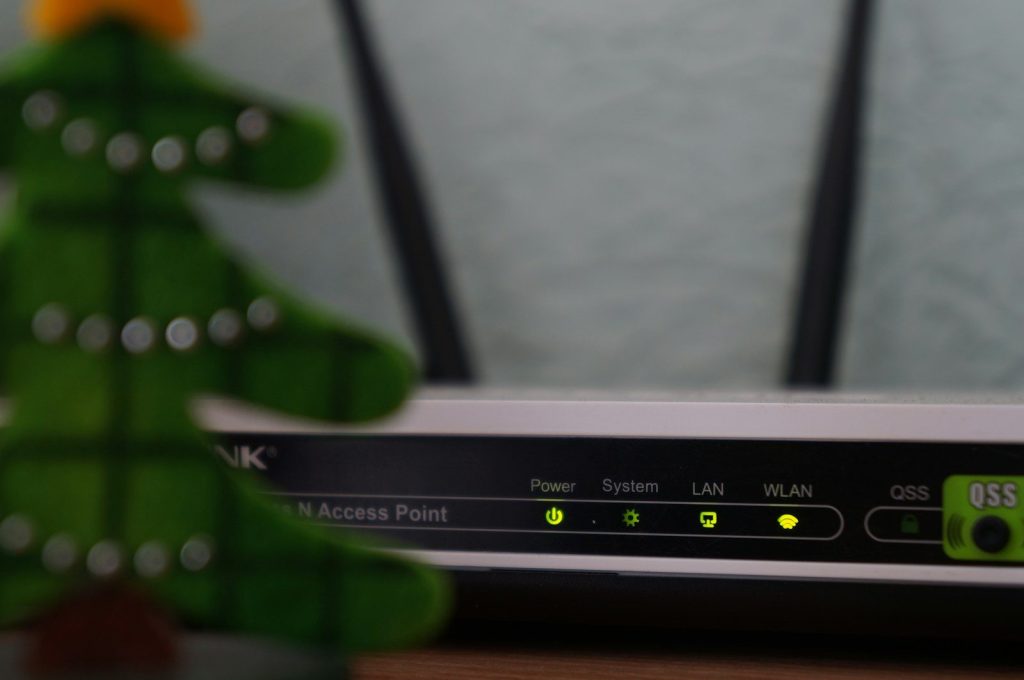
    white and black modem router with four lights
    Photo by Misha Feshchak on Unsplash

    Few things are more annoying than Wi-Fi that works one minute and disappears the next. Before blaming your internet provider, restart your router and your device. A fresh connection often clears small glitches.

    Also check whether other devices are having the same problem. If only one laptop or phone is affected, forget the Wi-Fi network and reconnect. On Windows, Microsoft also suggests network reset when normal fixes do not work.

    Your phone battery drains fast

    person holding low battery smartphone
    Photo by Alexander Andrews on Unsplash

    A fast-draining phone can make a normal day feel stressful. Start by checking which apps are using the most power. Both iPhone and Android phones include battery settings that show app activity.

    Lower screen brightness, use Wi-Fi when possible, and close apps that are working too hard in the background. Apple also recommends checking battery suggestions and daily usage when battery life feels shorter than expected.

    Bluetooth will not connect

    black and white remote control
    Photo by Brett Jordan on Unsplash

    Bluetooth problems are often caused by a bad pairing, not a broken device. Turn Bluetooth off, turn it back on, then restart both devices. That simple reset can clear a stuck connection.

    If it still fails, remove the device from your Bluetooth list and pair it again. Keep the devices close together and make sure the accessory is charged. For phones, checking for system updates can also help fix connection bugs.

    Your laptop feels too slow

    Two people sitting across from each other in an office working on a Surface laptop
    Photo by Microsoft Edge on Unsplash

    A slow laptop does not always mean it is old. Too many startup apps, low storage, or pending updates can make even a decent computer feel tired.

    Check for Windows updates, close unused programs, and remove apps you no longer need. Microsoft says Windows updates can include performance improvements, and optional driver updates may also help with slow or unstable behavior.

    Apps keep freezing

    woman in white shirt holding black iphone 4
    Photo by Miquel Parera on Unsplash

    When an app freezes, the fastest fix is often closing it completely and reopening it. If that fails, restart the device. This clears temporary issues that may be blocking the app.

    Next, check for app and system updates. If the same app keeps freezing, clear its cache on Android or reinstall it on iPhone or desktop. Just make sure any important data is backed up first.

    Storage is almost full

    Phone cleaner app showing finished cleaning and whatsapp cleaner.
    Photo by Zulfugar Karimov on Unsplash

    Low storage can slow devices, stop updates, and keep apps from working well. Start with the easy stuff: delete old downloads, duplicate photos, and videos you no longer need.

    Cloud backups can help, but do not delete anything important until you know it is safely saved. On Windows, built-in storage tools can help remove temporary files. Phones also show which apps and media take the most space.

    Printer refuses to print

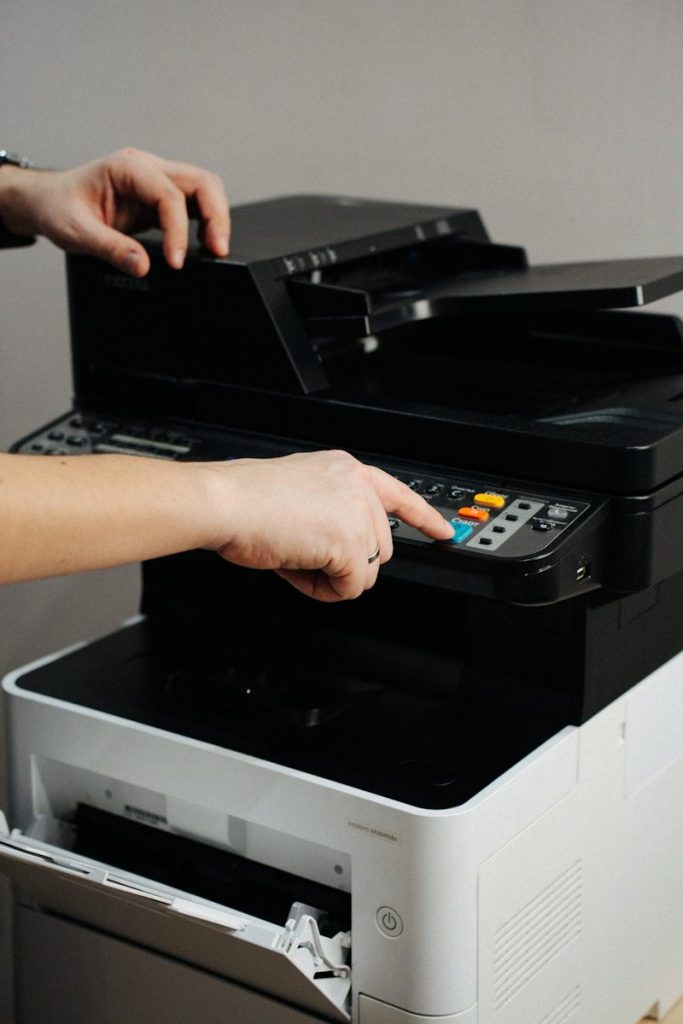
    A person is pressing a button on a printer
    Photo by Stanislav Staritsyn on Unsplash

    Printers can be fussy, but the fix is often simple. Check that the printer is on, loaded with paper, connected to Wi-Fi, and not showing an error light.

    Then restart the printer, computer, and router. If the printer still does not respond, remove it from your device and add it again. Updating printer software or drivers can also solve problems after a system update.

    Video calls sound bad

    person in black long sleeve shirt holding black tablet Surface device
    Photo by Surface on Unsplash

    Bad sound on a call can come from the wrong microphone, weak internet, or background noise. First, check the meeting app’s audio settings and make sure the right mic and speaker are selected.

    Use headphones if the room echoes or the laptop mic sounds weak. If voices cut in and out, move closer to the router or switch off other heavy internet use, like large downloads or streaming.

    Your screen looks strange

    a man holding a smart phone in his hands
    Photo by Jonas Leupe on Unsplash

    If text looks blurry or colors seem off, check display settings before worrying about hardware. A wrong resolution, zoom setting, or night mode can change how everything looks.

    On laptops, reconnect any external monitor cables and restart the computer. Also check brightness and color settings. If the problem started after an update, a graphics driver update may help restore normal display behavior.

    Updates will not install

    A xiaomi phone is displaying the hyperos screen.
    Photo by Andrey Matveev on Unsplash

    Failed updates can be frustrating, but they often need space, power, and a stable connection. Plug in the device, connect to strong Wi-Fi, and free up storage before trying again.

    Restart the device and run the update one more time. Microsoft recommends checking Windows Update and optional updates when fixing pe

  • 7 browser habits that make the internet safer

    7 browser habits that make the internet safer

    A safer internet does not always require fancy tools or expert skills. Most of the time, it comes down to small browser habits you repeat every day. Your browser is where you shop, search, study, stream, check email, and sign in to important accounts, so it deserves more attention than most people give it.

    The good news is that modern browsers already include strong safety features. Chrome, for example, can check for weak passwords, unsafe browsing settings, unwanted notifications, and available updates through Safety Check. The FTC also recommends keeping software updated, using strong passwords, and turning on two-factor authentication to protect personal information online.

    Keep your browser updated

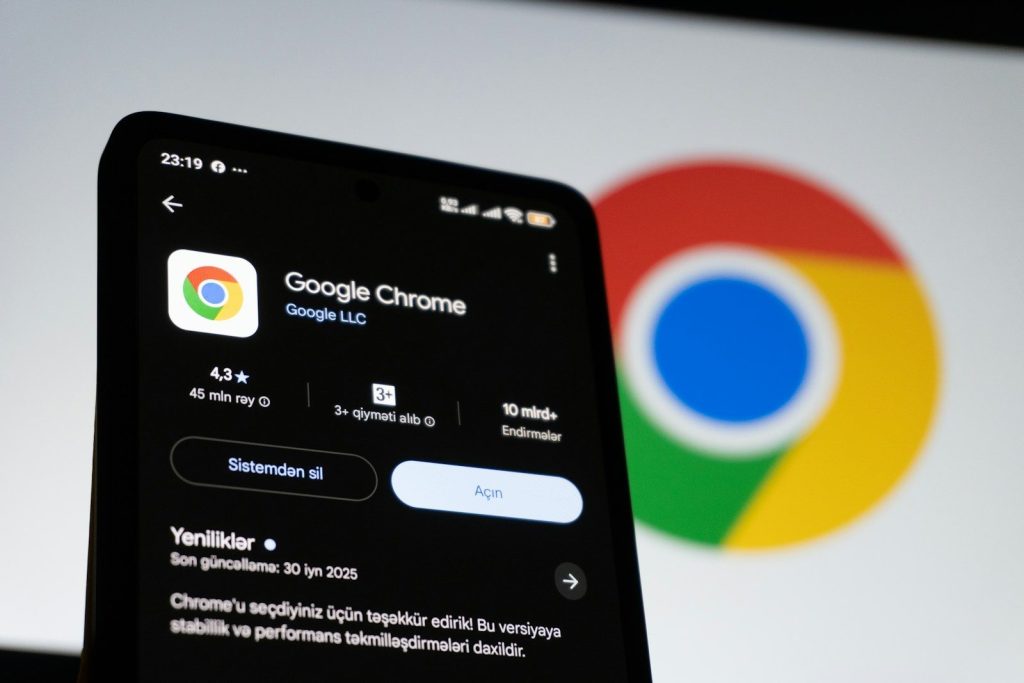
    Google chrome app on a smartphone with logo
    Photo by Zulfugar Karimov on Unsplash

    Browser updates are easy to ignore, especially when you are busy and just want to keep clicking. But those updates often include security fixes that help block new tricks used by scammers and harmful websites.

    Make it a habit to restart your browser when an update is ready. If your browser offers automatic updates, keep them turned on. A few minutes of updating can save you from much bigger problems later.

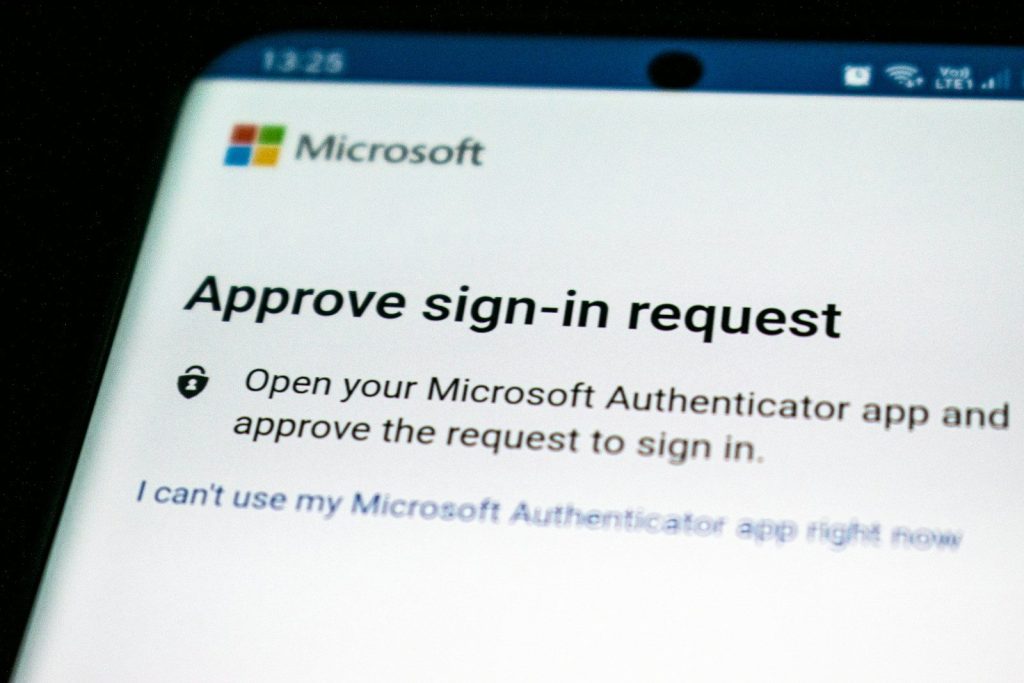
    Use stronger sign-ins

    a screenshot of a phone
    Photo by Ed Hardie on Unsplash

    Weak or reused passwords make online accounts easier to break into. A better habit is to use long, unique passwords for every important account and store them in a trusted password manager.

    Two-factor authentication adds another layer of protection by asking for a second step when you sign in. Passkeys can also make signing in safer because they are designed to resist many common phishing tricks.

    Check links before clicking

    Woman working on a laptop in a modern office.
    Photo by Vitaly Gariev on Unsplash

    A link can look normal at first glance but still lead somewhere risky. Before clicking, slow down and check the web address, especially if the message sounds urgent or asks you to sign in.

    Google recommends watching for look-alike domains, checking unfamiliar URLs, and being careful with sudden password reset messages. Scammers often copy real brands, so the address bar can be your best early warning sign.

    Watch for secure pages

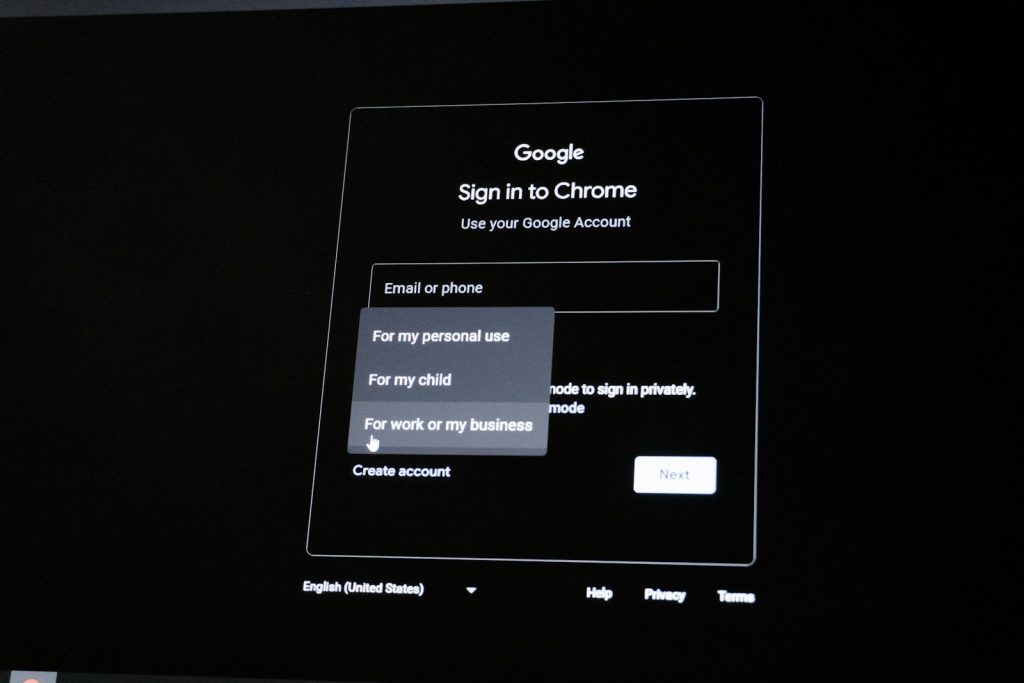
    Google sign in to chrome screen
    Photo by Zulfugar Karimov on Unsplash

    When you enter private details, the page should use a secure connection. Many browsers show a warning when a site is not secure, especially on pages that ask for passwords or payment details.

    HTTPS helps protect the connection between your browser and the website. It is not a guarantee that a site is honest, but it is still an important sign to check before sharing sensitive information.

    Limit browser extensions

    Browser search bar with pinterest suggestions
    Photo by Zulfugar Karimov on Unsplash

    Extensions can be useful, but they can also see or change parts of what you do in the browser. That is why it is smart to keep only the ones you truly use and trust.

    Review your extensions every few months. Remove anything you do not recognize, no longer need, or installed for a one-time task. A cleaner browser is often a safer browser.

    Control site permissions

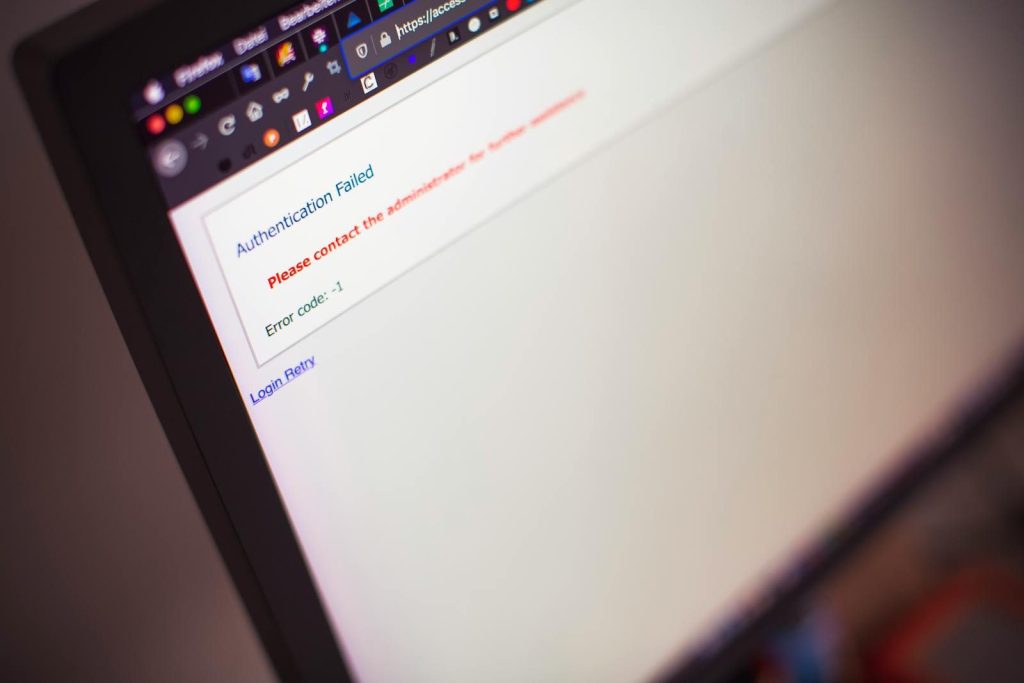
    Close-up of a computer screen displaying an authentication failed message.
    Photo by Markus Spiske on Pexels

    Websites may ask for access to your camera, microphone, location, notifications, or clipboard. Some requests make sense, but others are unnecessary and should be denied.

    Check your browser’s site settings and remove permissions from websites you no longer use. Chrome can also remind users about unwanted notifications and remove unused permissions from inactive sites.

    Be careful with downloads

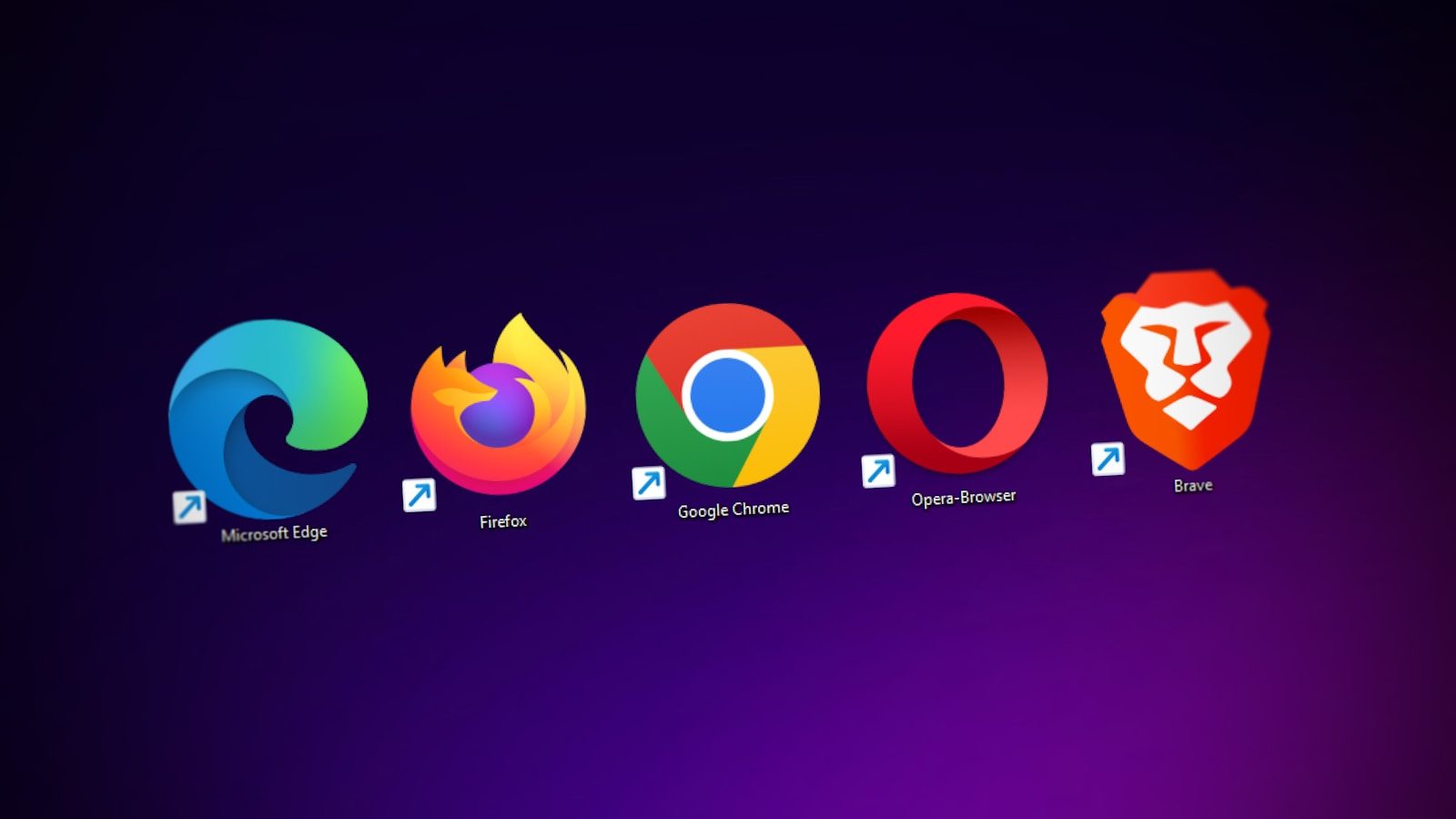
    Browser logos displayed on a laptop screen.
    Photo by Zulfugar Karimov on Unsplash

    Downloads are one of the easiest ways to invite trouble onto a device. Avoid files from random pop-ups, strange ads, or websites that pressure you to install something right away.

    A safer habit is to download apps, browser updates, and files from official sources. If a page says your device is infected or demands urgent action, close it and check through your browser or device settings instead.