Tech problems always seem to show up at the worst time. Your Wi-Fi drops during a video call. Your phone battery falls fast before you leave the house. Your laptop slows down right when you need to finish something important. The good news is that many everyday tech headaches do not need a repair shop or a long support call.
A few simple checks can often bring things back to normal. Restarting a device, checking updates, freeing storage, or reconnecting an accessory can solve more than people expect. Microsoft, Apple, and Google all recommend basic troubleshooting steps like updates, restarts, connection resets, and battery checks for common device issues.
Wi-Fi keeps dropping
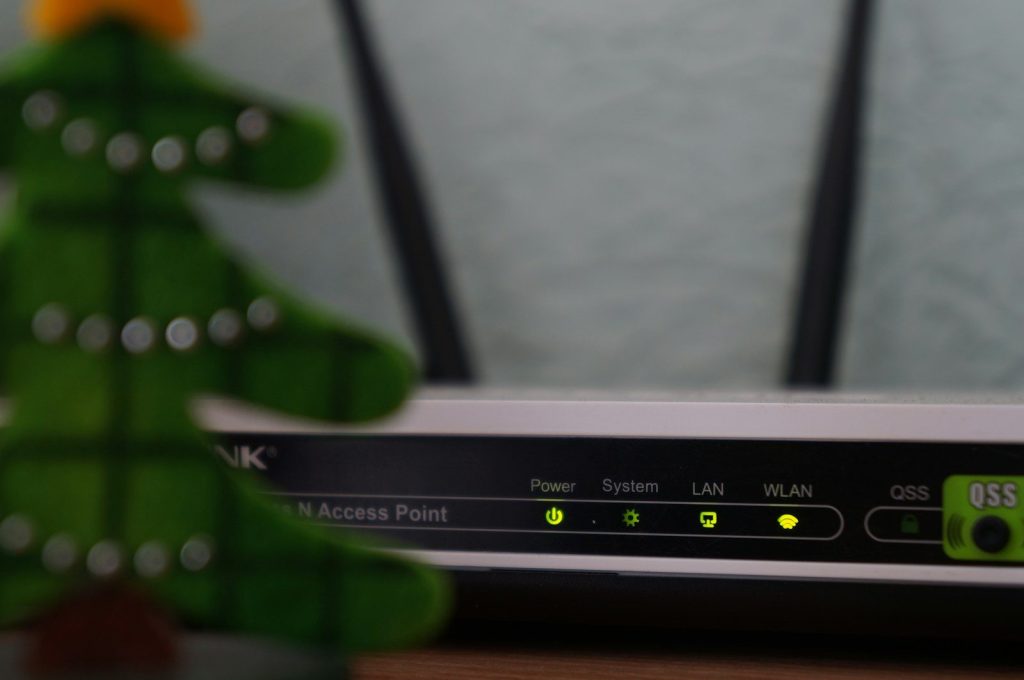
Few things are more annoying than Wi-Fi that works one minute and disappears the next. Before blaming your internet provider, restart your router and your device. A fresh connection often clears small glitches.
Also check whether other devices are having the same problem. If only one laptop or phone is affected, forget the Wi-Fi network and reconnect. On Windows, Microsoft also suggests network reset when normal fixes do not work.
Your phone battery drains fast
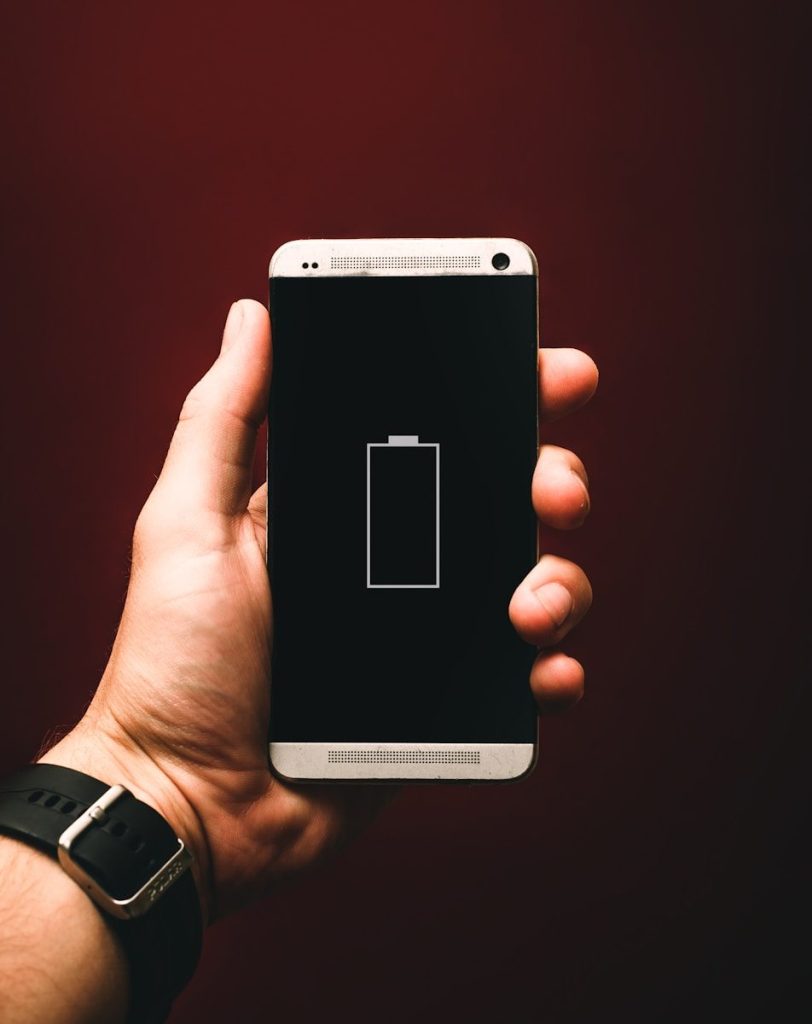
A fast-draining phone can make a normal day feel stressful. Start by checking which apps are using the most power. Both iPhone and Android phones include battery settings that show app activity.
Lower screen brightness, use Wi-Fi when possible, and close apps that are working too hard in the background. Apple also recommends checking battery suggestions and daily usage when battery life feels shorter than expected.
Bluetooth will not connect
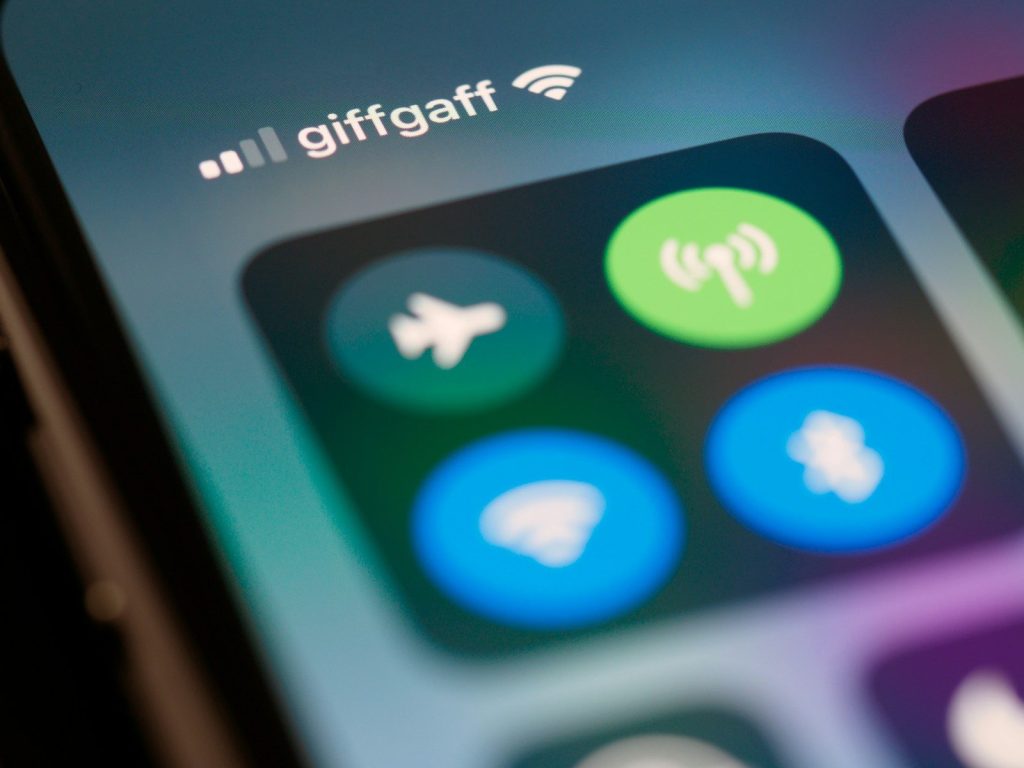
Bluetooth problems are often caused by a bad pairing, not a broken device. Turn Bluetooth off, turn it back on, then restart both devices. That simple reset can clear a stuck connection.
If it still fails, remove the device from your Bluetooth list and pair it again. Keep the devices close together and make sure the accessory is charged. For phones, checking for system updates can also help fix connection bugs.
Your laptop feels too slow

A slow laptop does not always mean it is old. Too many startup apps, low storage, or pending updates can make even a decent computer feel tired.
Check for Windows updates, close unused programs, and remove apps you no longer need. Microsoft says Windows updates can include performance improvements, and optional driver updates may also help with slow or unstable behavior.
Apps keep freezing
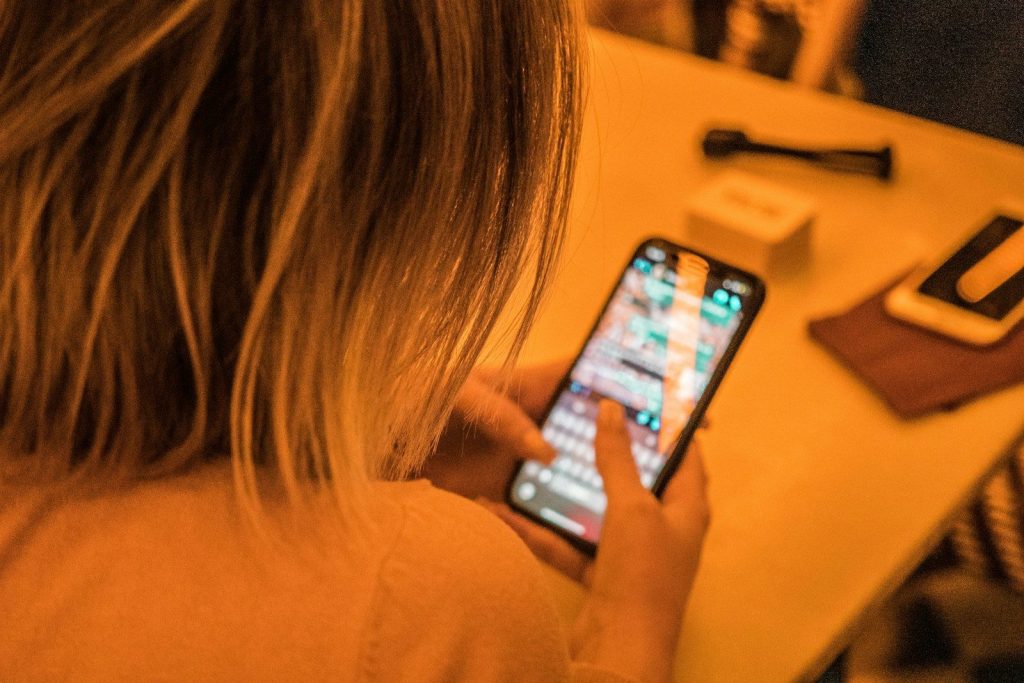
When an app freezes, the fastest fix is often closing it completely and reopening it. If that fails, restart the device. This clears temporary issues that may be blocking the app.
Next, check for app and system updates. If the same app keeps freezing, clear its cache on Android or reinstall it on iPhone or desktop. Just make sure any important data is backed up first.
Storage is almost full
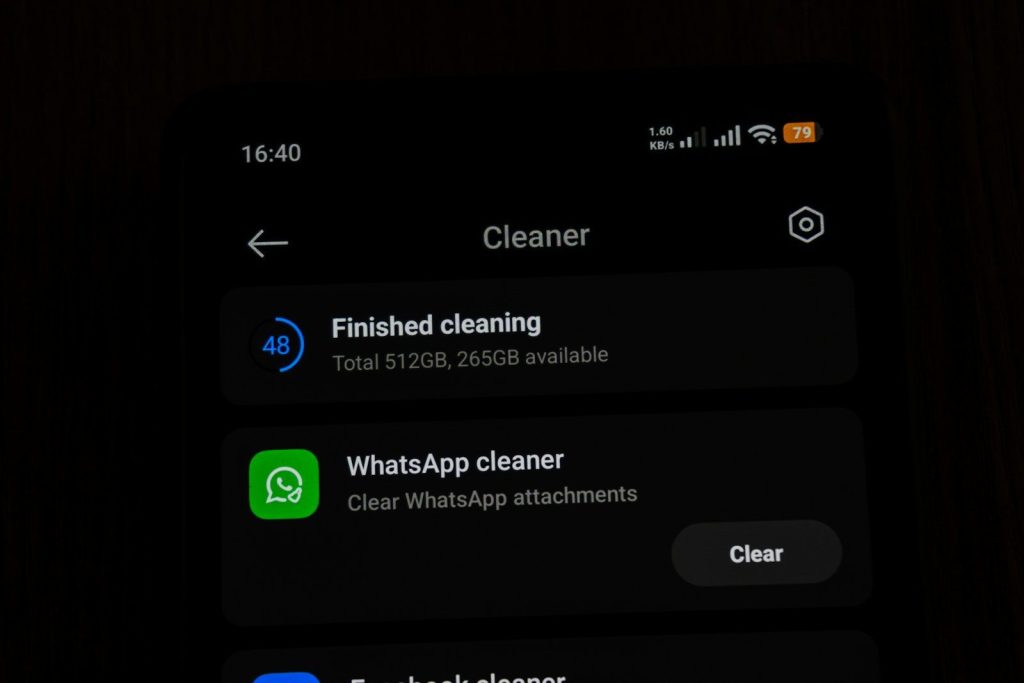
Low storage can slow devices, stop updates, and keep apps from working well. Start with the easy stuff: delete old downloads, duplicate photos, and videos you no longer need.
Cloud backups can help, but do not delete anything important until you know it is safely saved. On Windows, built-in storage tools can help remove temporary files. Phones also show which apps and media take the most space.
Printer refuses to print
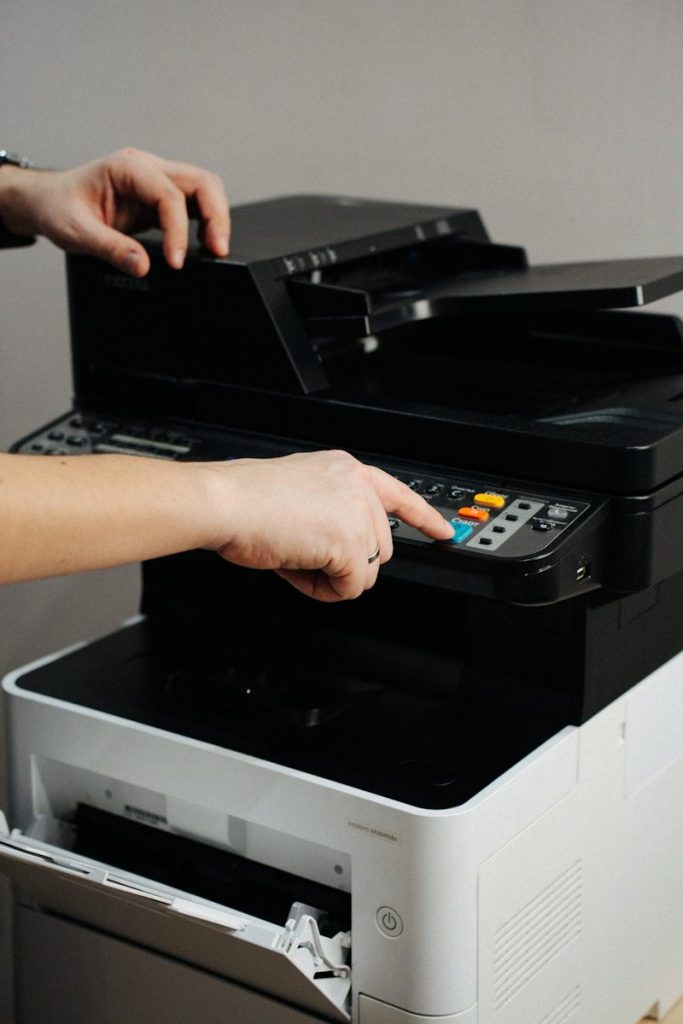
Printers can be fussy, but the fix is often simple. Check that the printer is on, loaded with paper, connected to Wi-Fi, and not showing an error light.
Then restart the printer, computer, and router. If the printer still does not respond, remove it from your device and add it again. Updating printer software or drivers can also solve problems after a system update.
Video calls sound bad

Bad sound on a call can come from the wrong microphone, weak internet, or background noise. First, check the meeting app’s audio settings and make sure the right mic and speaker are selected.
Use headphones if the room echoes or the laptop mic sounds weak. If voices cut in and out, move closer to the router or switch off other heavy internet use, like large downloads or streaming.
Your screen looks strange

If text looks blurry or colors seem off, check display settings before worrying about hardware. A wrong resolution, zoom setting, or night mode can change how everything looks.
On laptops, reconnect any external monitor cables and restart the computer. Also check brightness and color settings. If the problem started after an update, a graphics driver update may help restore normal display behavior.
Updates will not install
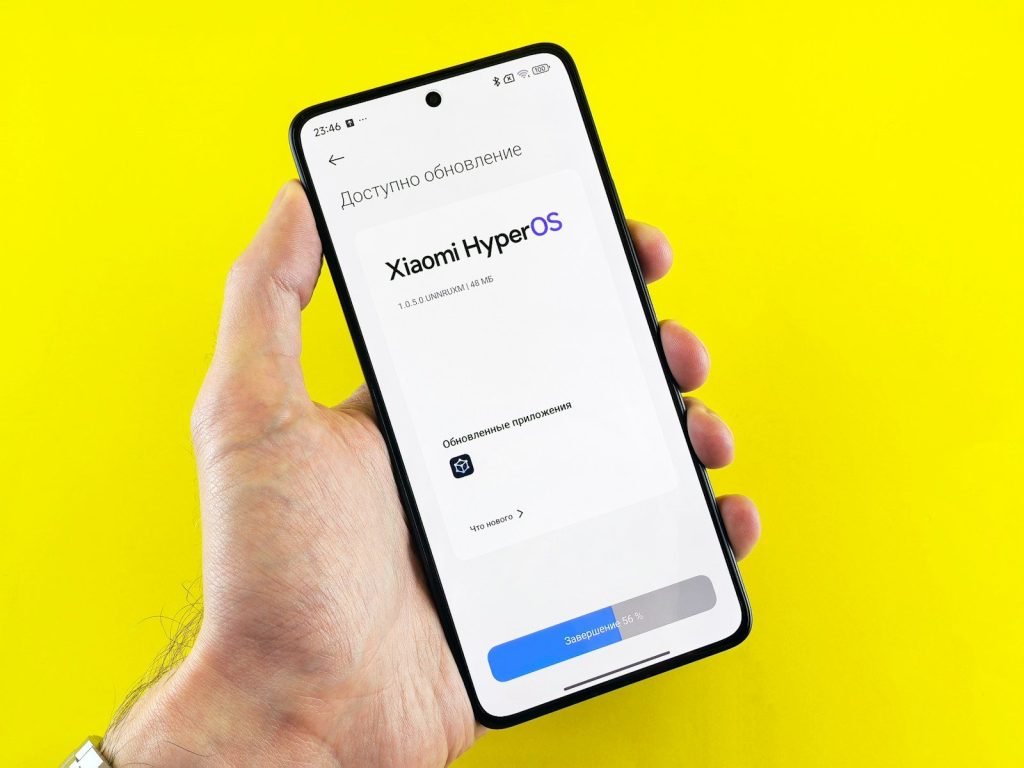
Failed updates can be frustrating, but they often need space, power, and a stable connection. Plug in the device, connect to strong Wi-Fi, and free up storage before trying again.
Restart the device and run the update one more time. Microsoft recommends checking Windows Update and optional updates when fixing pe
Leave a Reply