
A safer internet does not always require fancy tools or expert skills. Most of the time, it comes down to small browser habits you repeat every day. Your browser is where you shop, search, study, stream, check email, and sign in to important accounts, so it deserves more attention than most people give it.
The good news is that modern browsers already include strong safety features. Chrome, for example, can check for weak passwords, unsafe browsing settings, unwanted notifications, and available updates through Safety Check. The FTC also recommends keeping software updated, using strong passwords, and turning on two-factor authentication to protect personal information online.
Keep your browser updated
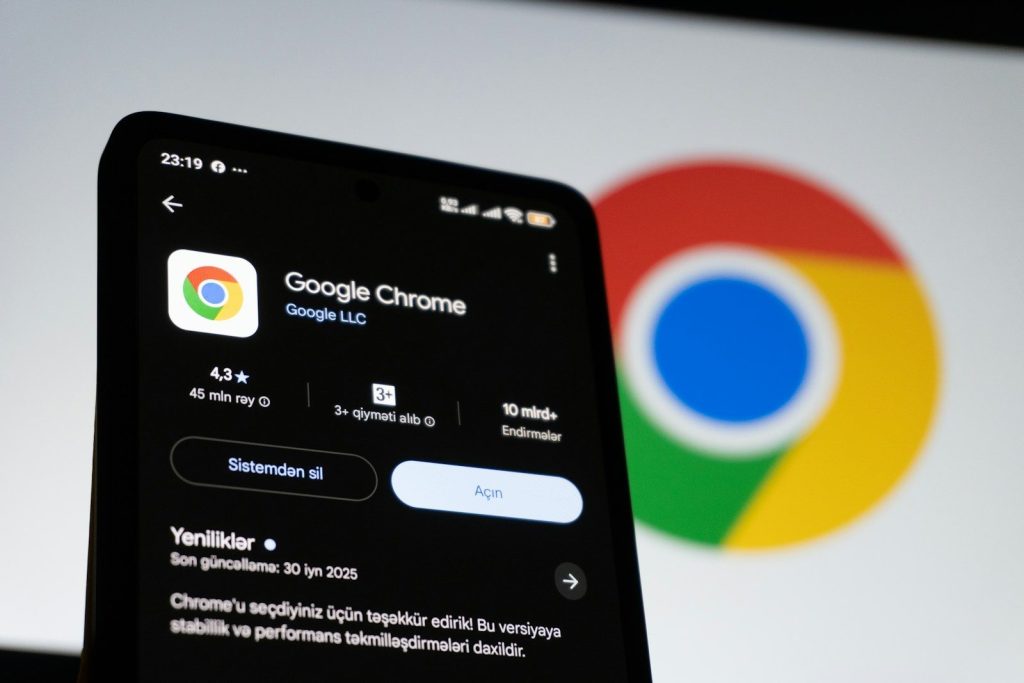
Browser updates are easy to ignore, especially when you are busy and just want to keep clicking. But those updates often include security fixes that help block new tricks used by scammers and harmful websites.
Make it a habit to restart your browser when an update is ready. If your browser offers automatic updates, keep them turned on. A few minutes of updating can save you from much bigger problems later.
Use stronger sign-ins
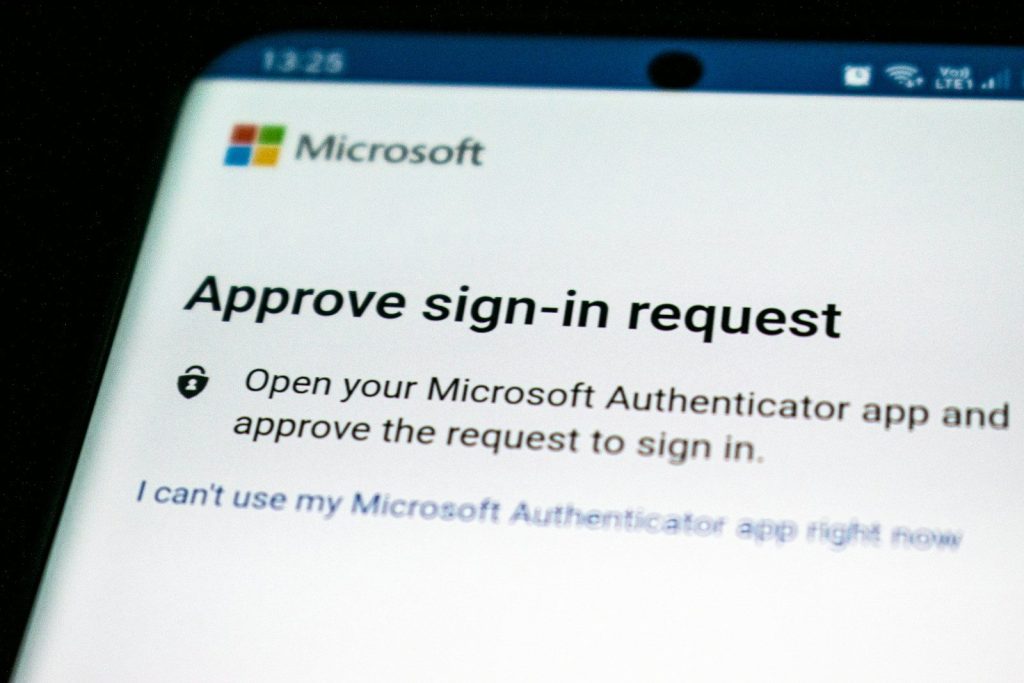
Weak or reused passwords make online accounts easier to break into. A better habit is to use long, unique passwords for every important account and store them in a trusted password manager.
Two-factor authentication adds another layer of protection by asking for a second step when you sign in. Passkeys can also make signing in safer because they are designed to resist many common phishing tricks.
Check links before clicking

A link can look normal at first glance but still lead somewhere risky. Before clicking, slow down and check the web address, especially if the message sounds urgent or asks you to sign in.
Google recommends watching for look-alike domains, checking unfamiliar URLs, and being careful with sudden password reset messages. Scammers often copy real brands, so the address bar can be your best early warning sign.
Watch for secure pages
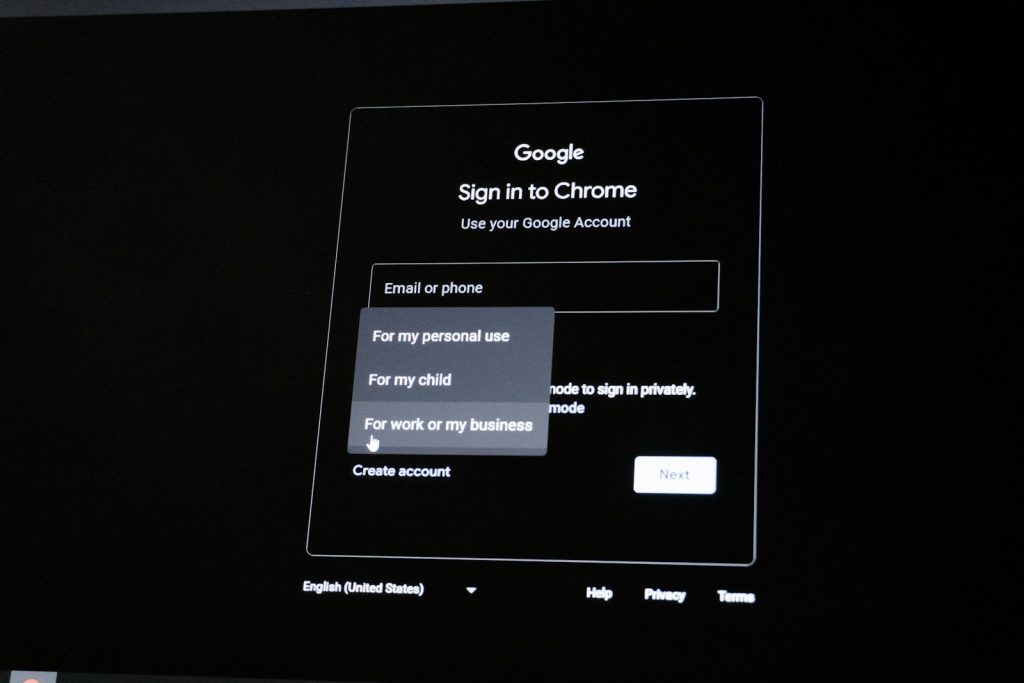
When you enter private details, the page should use a secure connection. Many browsers show a warning when a site is not secure, especially on pages that ask for passwords or payment details.
HTTPS helps protect the connection between your browser and the website. It is not a guarantee that a site is honest, but it is still an important sign to check before sharing sensitive information.
Limit browser extensions
Extensions can be useful, but they can also see or change parts of what you do in the browser. That is why it is smart to keep only the ones you truly use and trust.
Review your extensions every few months. Remove anything you do not recognize, no longer need, or installed for a one-time task. A cleaner browser is often a safer browser.
Control site permissions
Websites may ask for access to your camera, microphone, location, notifications, or clipboard. Some requests make sense, but others are unnecessary and should be denied.
Check your browser’s site settings and remove permissions from websites you no longer use. Chrome can also remind users about unwanted notifications and remove unused permissions from inactive sites.
Be careful with downloads

Downloads are one of the easiest ways to invite trouble onto a device. Avoid files from random pop-ups, strange ads, or websites that pressure you to install something right away.
A safer habit is to download apps, browser updates, and files from official sources. If a page says your device is infected or demands urgent action, close it and check through your browser or device settings instead.
Leave a Reply