Author: Dylan

  • 8 Alexa features people forget they can use

    8 Alexa features people forget they can use

    Alexa is easy to use for quick weather checks, music, and timers, but many people never go much deeper than that. The helpful part is that some of Alexa’s most useful tools are already built into the app or supported on Echo devices. Amazon says Alexa Routines can group several actions together, while Alexa also supports reminders, calendars, timers, smart home controls, accessibility tools, and household features like Announcements and Drop In on supported devices.

    That makes Alexa more than a speaker you talk to once in a while. It can help organize busy mornings, make family updates easier, manage connected devices, and reduce little daily tasks. The trick is remembering what it can do and setting up the features that actually fit your home.

    Routines save extra steps

    gray round portable speaker on white table
    Photo by Brandon Romanchuk on Unsplash

    Routines are one of Alexa’s most useful features, but many people forget to set them up. A routine can combine several actions into one command, like turning on lights, sharing the weather, and starting music.

    This can make mornings smoother or evenings easier. Instead of asking for each task one at a time, you can build a simple shortcut that fits your daily rhythm.

    Announcements reach everyone

    a planet in space
    Photo by Jonathan Borba on Unsplash

    Alexa Announcements can send a message across supported Echo devices in the home. It is an easy way to tell everyone dinner is ready, remind kids to grab backpacks, or share a quick update.

    This feature can be more useful than shouting from room to room. It keeps the message simple, clear, and easy to hear in different parts of the house.

    Drop In helps at home

    a blue speaker sitting on top of a white table
    Photo by James Yarema on Unsplash

    Drop In can work like a quick intercom between supported Echo devices when it is enabled. Families may use it to check in from another room or talk without making a regular call.

    It is best for trusted household use, since permissions matter. When set up carefully, it can be handy for large homes, home offices, or checking on a room without walking over.

    Reminders do more

    a blue ball on a stand
    Photo by Jonathan Borba on Unsplash

    Alexa reminders are not just for one-time alerts. People can use them for daily tasks, weekly chores, school pickup notes, medication reminders, or bill due dates.

    The best part is how quick they are to create. A simple voice command can turn a passing thought into a reminder, which helps when your hands are busy or your phone is not nearby.

    Lists are easy to share

    alexa, echo, smart home, box, jukebox, echodot, amazon, computer, alexa, alexa, alexa, alexa, alexa
    Photo by finnhart on Pixabay

    Shopping and to-do lists are easy to overlook, but they can be very practical. You can add items by voice the moment you notice something is missing.

    That helps prevent forgotten groceries, cleaning supplies, or household basics. Since lists can be checked in the Alexa app, they can follow you from the kitchen to the store.

    Smart home control helps

    black amazon echo dot on brown wooden table
    Photo by Mark Farías on Unsplash

    Alexa can control many connected lights, plugs, thermostats, cameras, and other smart home devices. Once linked, simple voice commands can handle everyday changes around the house.

    This can be useful for comfort and convenience. Turning off lights, adjusting a room, or starting a connected plug can feel much easier when you do not need to open several apps.

    Timers can stack up

    Amazon Echo dot
    Photo by Andres Urena on Unsplash

    Many people use one timer, but Alexa can handle multiple timers at the same time. That is especially useful in the kitchen, where different foods may need different countdowns.

    You can name timers too, so they are easier to track. A “pasta timer” and “oven timer” are much clearer than guessing which alarm belongs to which task.

    Accessibility tools add options

    white Amazon Echo Dot speaker on book
    Photo by Find Experts at Kilta.com on Unsplash

    Alexa also includes accessibility features on supported devices. These can help people interact by voice, touch, captions, screen readers, or other options depending on the Echo model.

    These tools are useful even for people who do not think of them as accessibility features. Touch controls, captions, and voice shortcuts can make Alexa easier for many households to use every day.

  • Why Amazon shopping is starting to feel more like a personal assistant

    Why Amazon shopping is starting to feel more like a personal assistant

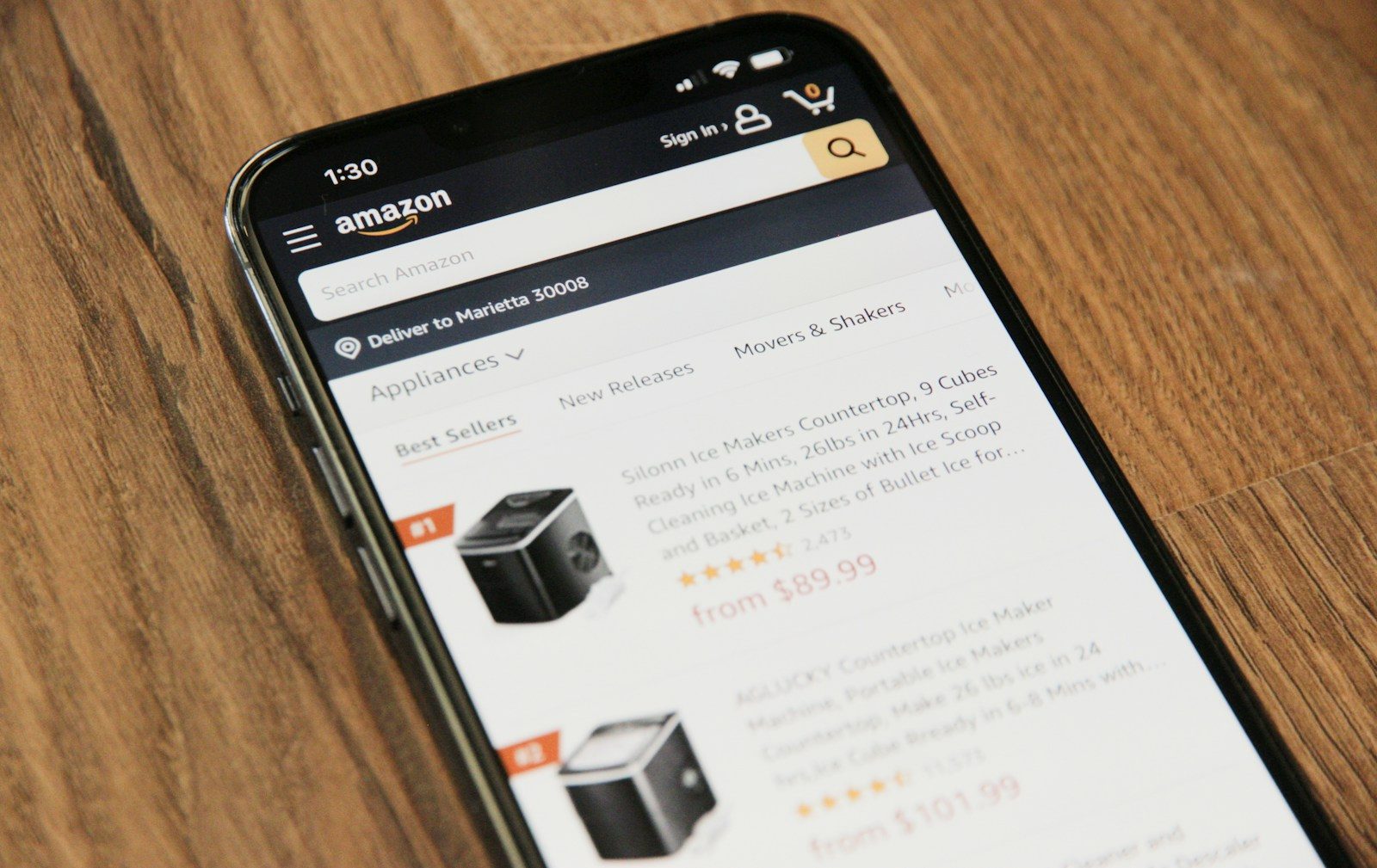
    Amazon shopping used to begin with a search box and a long list of results. Now it is starting to feel more like asking someone for help. Amazon has been adding AI tools that can answer product questions, compare options, track prices, suggest items, and even help with shopping from other brand sites.

    Its Rufus shopping assistant was built to answer questions inside the Amazon shopping experience, and Amazon recently introduced Alexa for Shopping as a more personalized assistant across the app, website, and Echo Show devices. Amazon says Rufus helped more than 300 million customers in 2025 research, compare, and buy products. That shows how quickly online shopping is shifting from search-and-scroll to ask-and-decide.

    Search is becoming conversational

    a computer screen with a website on it
    Photo by Marques Thomas on Unsplash

    Instead of typing short phrases like “best backpack” or “cheap headphones,” shoppers can ask fuller questions. They can explain what they need, who it is for, and what matters most.

    That makes shopping feel less like digging through pages and more like getting guided help. Amazon says Rufus can answer shopping questions, compare products, and make recommendations based on Amazon’s catalog and other sources.

    Rufus started the shift

    a smart phone sitting next to a credit card
    Photo by CardMapr.nl on Unsplash

    Rufus helped Amazon test the idea of an AI shopping guide inside its own store. It was designed to help customers ask product questions without leaving the shopping app.

    That changed the role of the search bar. Instead of only matching keywords, Amazon could help shoppers understand choices, compare features, and narrow down options using plain language.

    Alexa is joining shopping

    gray round portable speaker on white table
    Photo by Brandon Romanchuk on Unsplash

    Amazon’s newer Alexa for Shopping brings Rufus-style help together with Alexa’s assistant features. Amazon says it works across the shopping app, Amazon.com, and Echo Show devices.

    That matters because shopping may not stay limited to one screen. A customer could research on a phone, check a reminder on a smart display, and keep the same shopping context moving.

    Comparisons can get easier

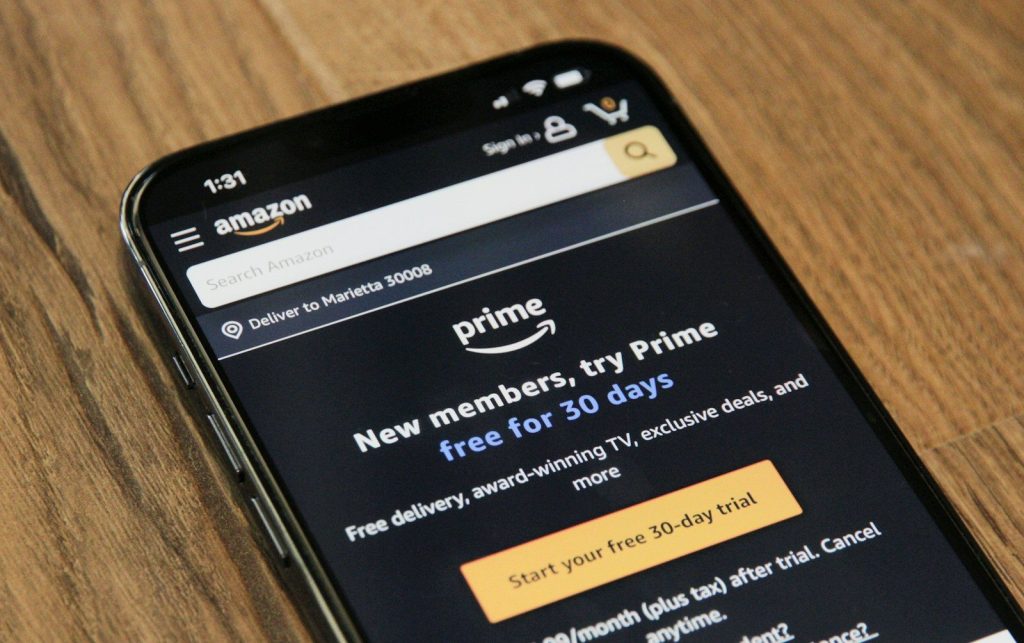
    an amazon prime app on a cell phone
    Photo by Marques Thomas on Unsplash

    Choosing between similar products can be tiring. Shoppers often open many tabs, read reviews, check specs, and wonder which small difference actually matters.

    AI shopping tools can turn that messy process into a clearer comparison. Amazon says its assistant can help customers research and compare products, which may save time when categories are crowded with nearly identical-looking options.

    Price tracking feels helpful

    a close up of a cell phone on a table
    Photo by Marques Thomas on Unsplash

    Amazon is also making shopping feel more proactive. Reports on Alexa for Shopping describe tools that can monitor price drops and help shoppers find better timing for a purchase.

    That can make the experience feel more like a helper watching the shelf for you. Instead of checking the same item again and again, shoppers may be able to set a goal and wait for an alert.

    Lists may become smarter

    E-commerce” by Nestlé is licensed under CC BY-NC-ND 2.0

    Shopping lists are also getting more useful. Amazon has described AI features that can handle more specific needs, like searching by event, purpose, activity, or a handwritten grocery list.

    That could help busy shoppers move faster. A person planning a school project, family trip, or weekly grocery run may not need to type every exact item if the assistant can understand the larger task.

    Visual search adds another path

    online shopping, amazon, shop, shopping, e commerce, to buy, online, internet, shopping cart, web, e business, purchasing, trade, sale, business, were, online shopping, online shopping, online shopping, amazon, amazon, amazon, amazon, amazon
    Photo by Preis_King on Pixabay

    Sometimes shoppers do not know the name of what they want. They may see a lamp, bag, tool, or kitchen item and want something similar.

    Amazon’s Lens Live feature uses real-time visual search in the shopping app. Reports say it can identify items through the phone camera, show similar products, and connect with Rufus for summaries and questions.

    Shopping may go beyond Amazon

    A person scans package barcodes using a smartphone for delivery logistics.
    Photo by RDNE Stock project on Pexels

    Amazon’s Buy for Me feature shows another direction. Amazon says the feature can help customers discover and buy select products from other brand sites when those items are not sold in Amazon’s store.

    That makes Amazon feel less like one store and more like a shopping hub. The feature is still limited, but it points toward assistants that help complete more of the buying journey.

    Personalization is the goal

    MacBook Pro
    Photo by Quilia on Unsplash

    A personal assistant is useful because it remembers what matters. Amazon’s AI shopping push is heading in that direction, with tools that can respond to needs, habits, lists, prices, and product preferences.

    That does not mean shoppers should stop checking details. Reviews, return policies, prices, and product pages still matter. But the first step may feel less like searching and more like asking.

    The cart may feel guided

    a miniature shopping cart sitting on top of a rug
    Photo by حامد طه on Unsplash

    The biggest change is not one single feature. It is the way search, recommendations, lists, reviews, price tracking, visual search, and voice help are starting to blend together.

    For shoppers, that could mean fewer dead ends and faster decisions. For Amazon, it means the shopping trip starts earlier, feels more personal, and may continue across more devices than before.

  • Why gaming PC cases matter more than looks

    Why gaming PC cases matter more than looks

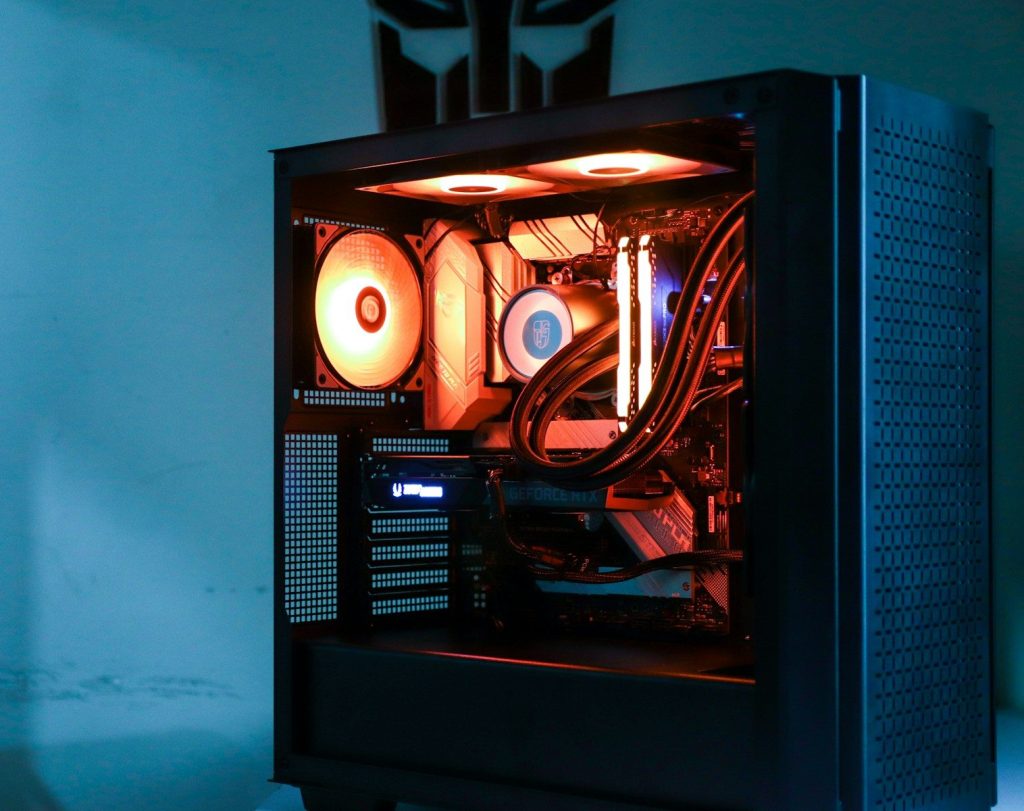
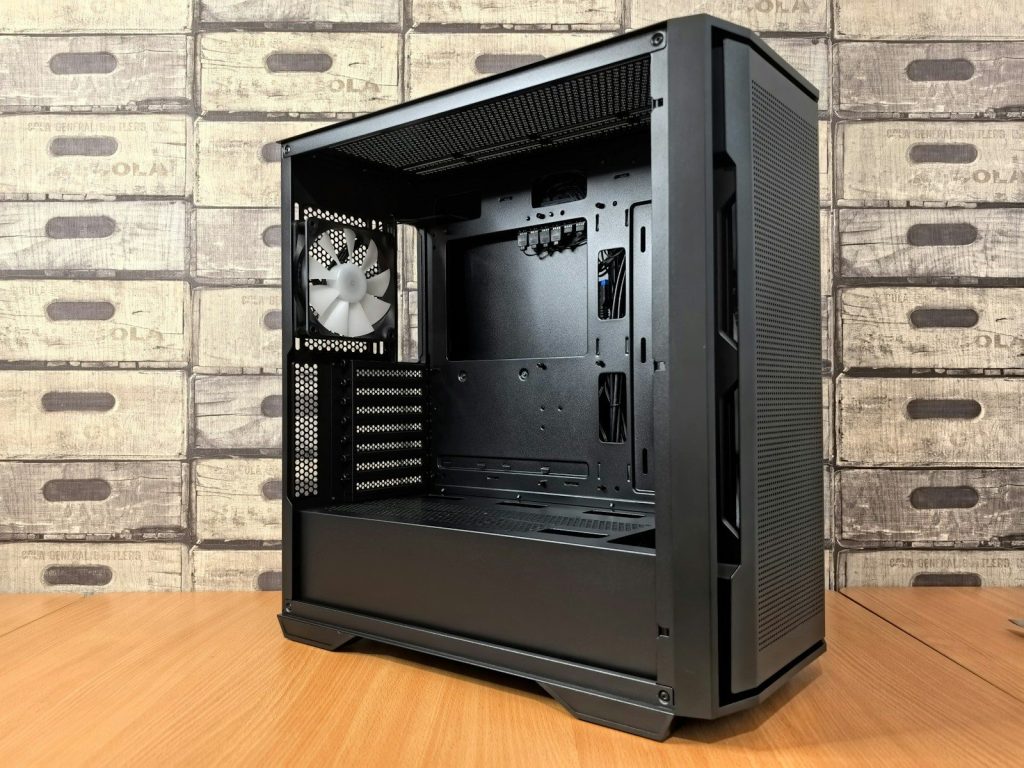
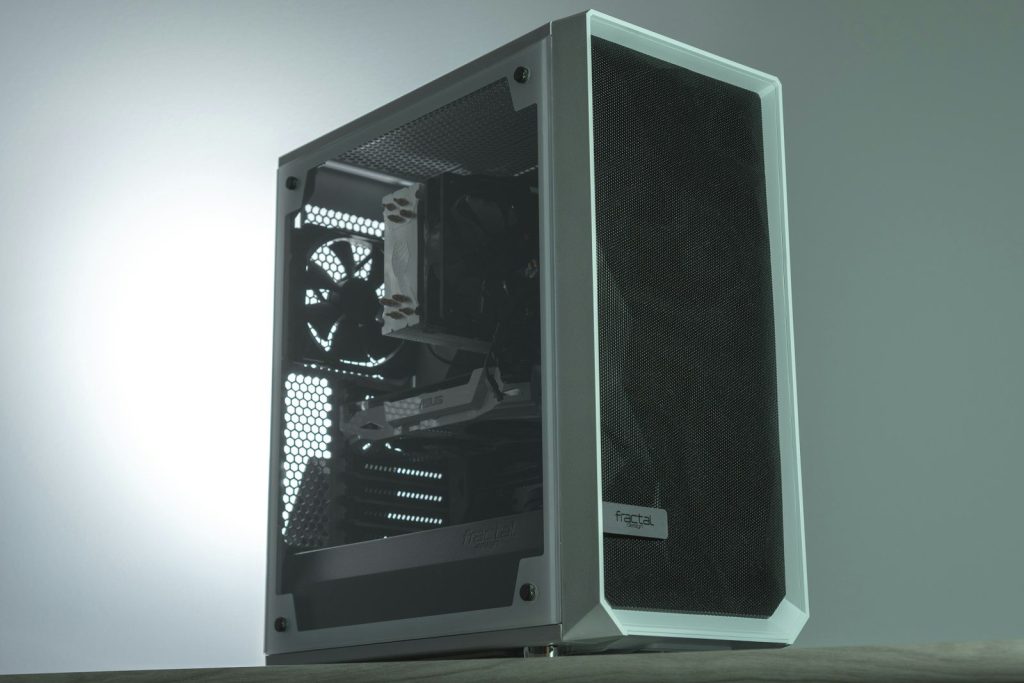
    A gaming PC case may be the first thing people notice, especially when it has glass panels, clean lighting, and a sharp desk setup. But looks are only one part of the story. The case also shapes how cool your parts stay, how loud your PC gets, how easy it is to build, and how much room you have for future upgrades.

    That matters more than ever because modern gaming PCs can use large graphics cards, big air coolers, liquid-cooling radiators, multiple fans, and extra storage. A good case helps all those parts work together without turning the inside of your PC into a cramped heat box. Case guides often point to airflow, component fit, cooling support, and cable space as key buying factors, not just style.

    Airflow keeps parts steady

    black computer tower on white table
    Photo by Nathan Anderson on Unsplash

    A gaming PC creates heat when the CPU and graphics card are working hard. The case needs a clear path for cool air to come in and warm air to leave.

    That is why airflow-focused cases matter. Newegg’s case guide notes that airflow patterns, radiator support, and fan placement can affect CPU and GPU temperature stability. Better airflow can help performance feel smoother during long gaming sessions.

    Size affects every part

    black and brown computer tower
    Photo by Nathan Anderson on Unsplash

    A case has to match the parts going inside it. Motherboard size, graphics card length, power supply space, and CPU cooler height can all decide whether a build fits.

    Micro Center explains that smaller Mini-ITX cases are great for tight spaces, but they require careful planning because component choices are more limited. Bigger cases usually give builders more room to work, upgrade, and manage cables.

    GPUs need breathing room

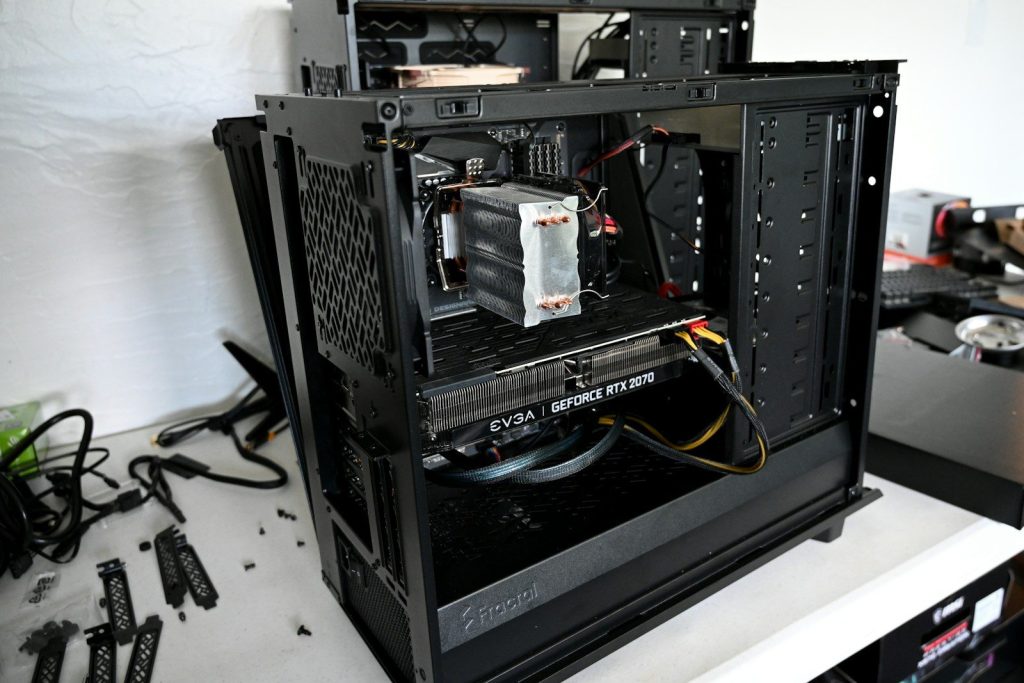
    a computer tower with a fan
    Photo by Hudson McNamara on Unsplash

    Modern graphics cards can be long, thick, and power-hungry. Even if a card technically fits, it still needs room for airflow and clean cable routing.

    Lenovo’s PC case guide notes that ATX cases support most graphics cards, but buyers should still check GPU clearance for larger models. That small detail can prevent a frustrating build problem later.

    Cooling options add flexibility

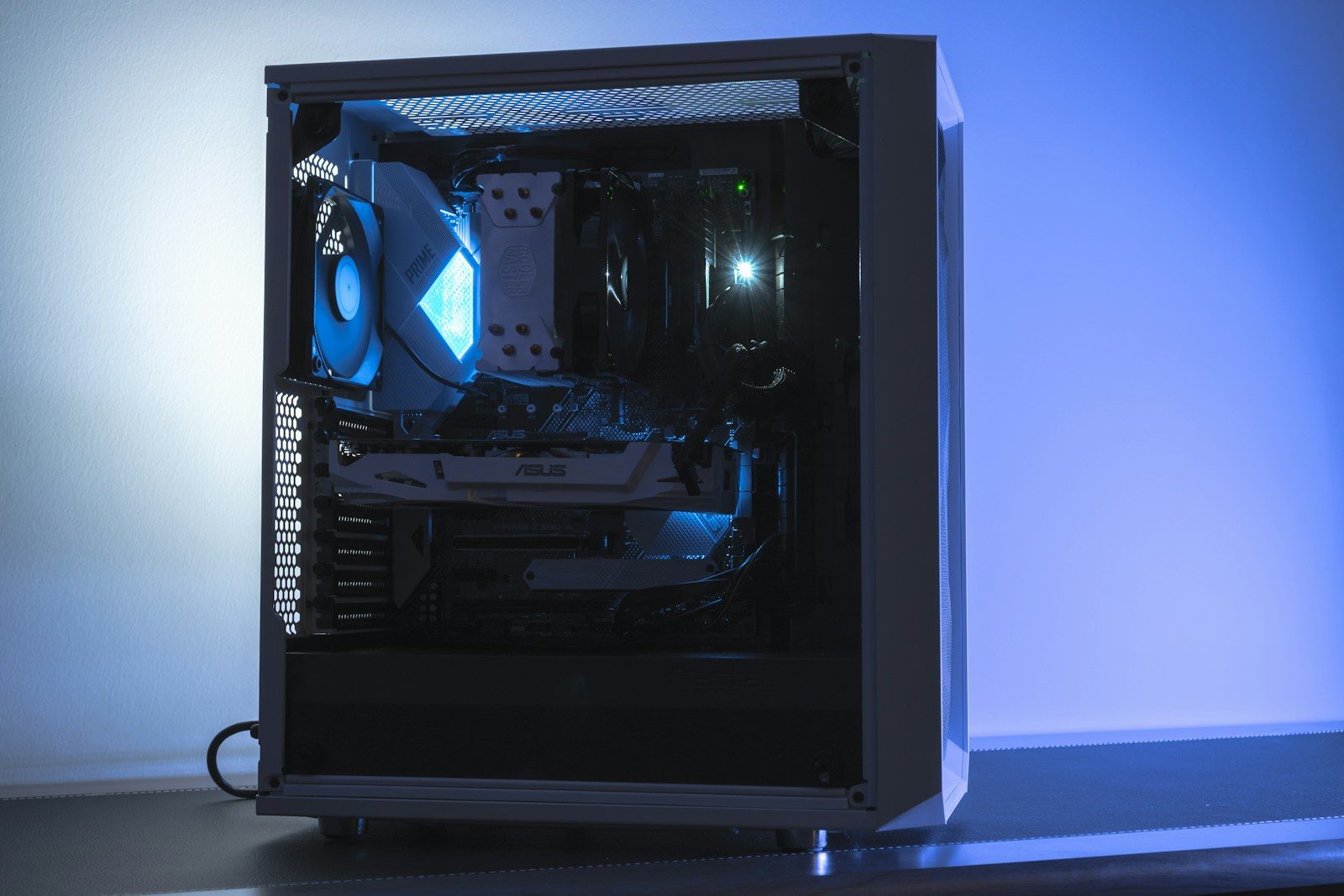
    A computer case with a blue light inside of it
    Photo by Bhautik Patel on Unsplash

    Some gamers use air coolers, while others prefer liquid cooling. A good case gives room for fans, radiators, and smart placement choices without forcing awkward compromises.

    Corsair’s case information shows how radiator support can vary by model, with some mid-tower cases supporting large front and top radiators. That flexibility helps builders match the case to the cooling style they want.

    Dust control saves effort

    a computer with a couple of monitors
    Photo by Samsung Memory on Unsplash

    Dust is not exciting, but it matters. When dust builds up inside a PC, fans and filters need cleaning, and airflow can get worse over time.

    Cases with removable dust filters make maintenance easier. Corsair also notes that radiator fan placement can affect where dust collects, which can make cleaning simpler depending on the setup. A cleaner PC is usually easier to keep running smoothly.

    Cable space helps builds

    black and purple audio mixer
    Photo by Christian Wiediger on Unsplash

    Cable management is not just about making the inside look neat. Good cable space can make building easier, improve airflow paths, and help future upgrades feel less stressful.

    A cramped case can turn simple work into a headache. When there is room behind the motherboard tray and enough tie-down points, builders can route power cables more cleanly and keep the main chamber less crowded.

    Noise can change the feel

    a computer tower with a fan
    Photo by Abdullah Abid on Unsplash

    A powerful gaming PC does not have to sound like a small fan storm. Case design, fan placement, airflow, and panel layout can all affect how loud a system feels.

    Better airflow can also help fans work less aggressively. When the case lets air move well, the system may not need to spin fans as hard just to keep temperatures under control during gaming.

    Upgrades need extra room

    A black computer case sitting on top of a wooden table
    Photo by Andrey Matveev on Unsplash

    A gaming PC often changes over time. Someone may add a bigger graphics card, more storage, extra fans, or a new cooler later.

    That is why buying a case only for today can be risky. A case with extra clearance, useful drive mounts, and flexible cooling support can make upgrades easier. It gives the build more life before the whole setup feels too tight.

    Building should feel easier

    a computer tower with a black screen
    Photo by Anthony Roberts on Unsplash

    Some cases are easier to build in than others. Tool-free panels, open layouts, removable brackets, and clear cable paths can make a big difference, especially for first-time builders.

    PC Gamer’s 2026 case guide highlights build experience, dimensions, and airflow as important parts of choosing a case. That shows why a case is more than a shell. It shapes the whole building process.

    Looks still have a role

    black flat screen computer monitor beside white computer keyboard
    Photo by Alienware on Unsplash

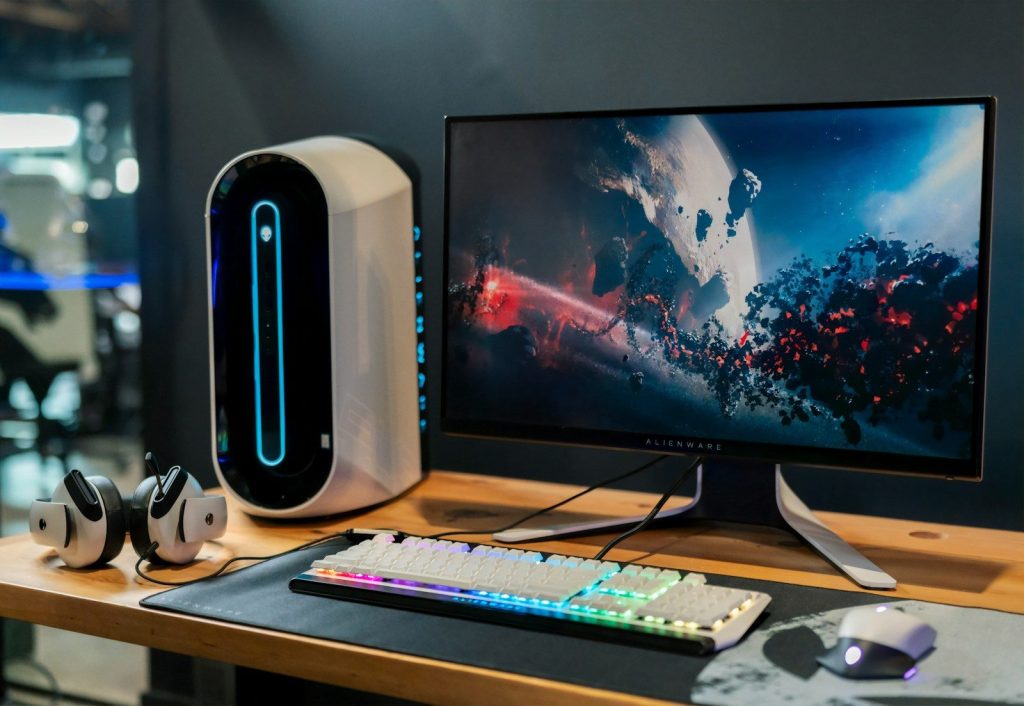
    Style still matters because the case is what people see on the desk. Glass panels, lighting, color, and shape can make a setup feel personal and finished.

    But the best-looking case is not always the best choice. A smart pick balances design with airflow, space, cooling support, dust filters, and upgrade room. When those pieces line up, the PC looks good and works better too.

  • Flagship phones vs flagship killers: what buyers should notice

    Flagship phones vs flagship killers: what buyers should notice

    Buying a phone can feel tricky because the names do not always tell the whole story. A “flagship” usually means a brand’s top model, packed with its best cameras, screen tech, materials, chips, and long-term support. A “flagship killer” tries to offer much of that speed and style for less money, often by trimming extras most people may not use every day.

    The difference is not always obvious on a store page. For example, Apple lists premium display features like ProMotion up to 120Hz on the iPhone 16 Pro Max, Samsung highlights titanium design and an S Pen on the Galaxy S25 Ultra, Google promotes long Pixel update support, and OnePlus pushes flagship-level power in the OnePlus 13.

    Price is only the start

    fan of 100 U.S. dollar banknotes
    Photo by Alexander Mils on Unsplash

    A flagship killer often gets attention because it costs less than the biggest-name premium phones. That lower price can be attractive, especially when the phone still has a fast chip, bright screen, and strong charging features.

    But buyers should look beyond the sticker price. Trade-in offers, carrier deals, storage upgrades, cases, repairs, and resale value can change the real cost over two or three years.

    The chip can be similar

    qualcomm Snapdragon 800” by Stratageme.com is licensed under CC BY-NC-SA 2.0

    Many flagship killers use high-end processors, which helps them feel fast in daily use. That means apps, games, videos, and multitasking may run smoothly even without the highest price tag.

    For example, OnePlus lists the OnePlus 13 with Qualcomm’s Snapdragon 8 Elite platform, showing how performance-focused phones can compete hard on raw speed.

    Cameras tell the story

    A hand holds an iqoo smartphone.
    Photo by Andrey Matveev on Unsplash

    Flagships often spend more money on camera hardware, image processing, zoom systems, and video features. That can matter if you take lots of photos of kids, pets, travel, sports, or night scenes.

    Flagship killers may still take great pictures, but they sometimes cut costs on extra lenses or advanced zoom. Buyers should check real camera samples, not just megapixel numbers.

    Screens are not equal

    a cell phone on a table
    Photo by Amanz on Unsplash

    A phone screen is something you use every time you pick up the device. Brightness, refresh rate, outdoor visibility, color quality, and glass protection can make a big difference.

    Apple lists the iPhone 16 Pro Max with a Super Retina XDR OLED display, ProMotion up to 120Hz, and high outdoor peak brightness. Those details show why premium screens remain a major flagship selling point.

    Build quality matters

    a close up of a cell phone on a surface
    Photo by He Junhui on Unsplash

    Flagship phones often use premium materials, stronger glass, tighter water resistance, and more polished designs. Those details can help the phone feel better and last longer.

    Samsung, for example, highlights a titanium frame and built-in S Pen on the Galaxy S25 Ultra. A flagship killer may feel premium too, but buyers should still check materials, durability ratings, and repair options.

    Software support adds value

    A xiaomi phone is displaying the hyperos screen.
    Photo by Andrey Matveev on Unsplash

    A cheaper phone can lose some of its value if updates stop too soon. Security patches, Android or iOS upgrades, and feature updates help keep a phone useful longer.

    Google says Pixel 9 phones receive seven years of updates from when the device first became available on the Google Store in the U.S. That kind of support is a big deal for long-term buyers.

    Charging can hide tradeoffs

    white iphone 5 c on brown wooden table
    Photo by De an Sun on Unsplash

    Some flagship killers promote very fast charging, which is useful when you forget to plug in overnight. A quick top-up can make a phone feel easier to live with.

    But charging is not the whole battery story. Buyers should also check battery size, screen efficiency, heat control, wireless charging support, and whether the fast charger is included in the box.

    Extras may sway buyers

    a person holding a cell phone
    Photo by Shawn Rain on Unsplash

    Flagships often include small extras that are easy to overlook at first. These can include stronger zoom, better speakers, satellite features, ultra-wideband, stylus support, or deeper ecosystem tools.

    Flagship killers may skip some of those features to hit a lower price. That is not always bad. The key is knowing which extras you actually use and which ones just sound impressive.

    Storage affects real cost

    Hand holding smartphone with abstract interface design
    Photo by Georgiy Lyamin on Unsplash

    The cheapest version of a phone may not be the best deal if it has limited storage. Photos, videos, apps, offline music, and games can fill space faster than expected.

    Flagship phones and flagship killers both may charge more for higher storage. Buyers should compare the exact storage version, not just the starting price shown in ads.

    The best choice feels practical

    Several smartphones of varying colors are displayed.
    Photo by Andrey Matveev on Unsplash

    A flagship is often the safer pick for buyers who want the best camera, strongest support, premium design, and top extras. It costs more, but it may stay satisfying longer.

    A flagship killer makes sense for buyers who want speed, a modern screen, and strong daily performance without paying for every luxury feature. The smart choice is the phone that fits your habits, not just the one with the loudest label.

  • Why gaming fans are not just for RGB looks

    Why gaming fans are not just for RGB looks

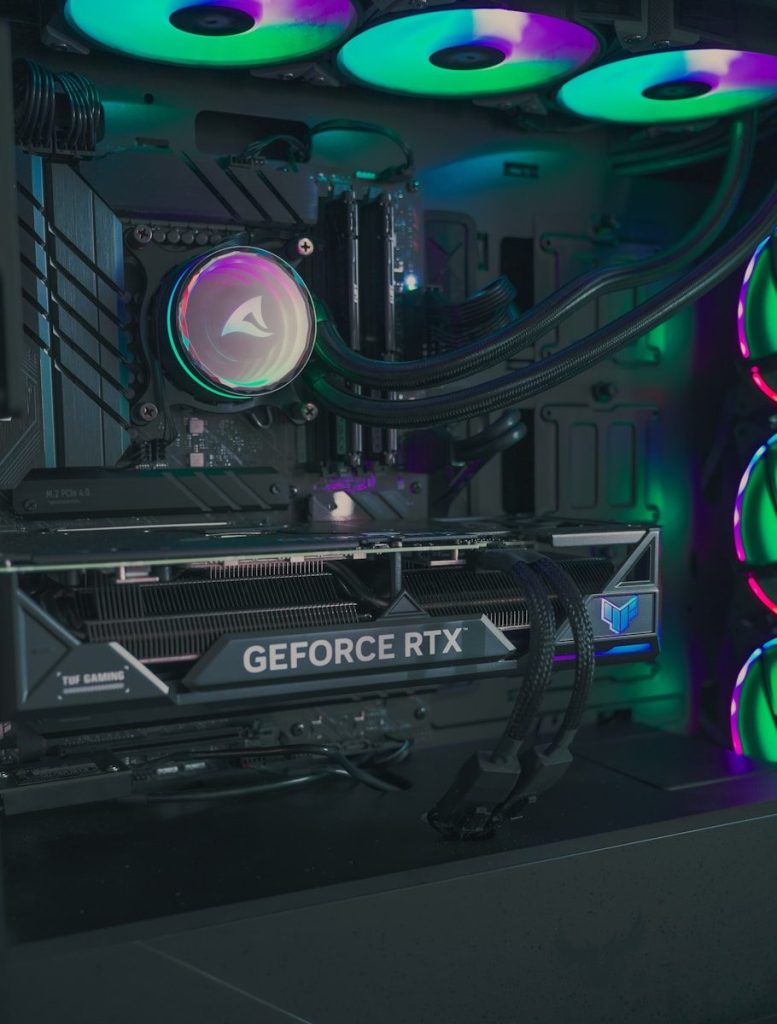
    RGB lighting can make a gaming PC look fun, but fans are not just decoration. They are part of the cooling system that helps move heat away from key parts like the CPU, graphics card, storage, and motherboard. When airflow is weak, hot air can sit inside the case and make the whole system work harder.

    Intel explains that a good PC case should support airflow through fan placement or airflow options, and fan designs can vary by size, noise level, and purpose. Some fans are better for open case airflow, while others are built to push air through tight spaces like radiators or dense filters. In other words, the glow may catch your eye, but the real job is keeping the build cool, stable, and comfortable to use.

    Fans move heat out

    black and purple audio mixer
    Photo by Christian Wiediger on Unsplash

    A gaming PC creates heat every time it runs a demanding game. The CPU and graphics card can warm up quickly, especially during long play sessions or high settings.

    Case fans help by moving cooler air in and pushing warmer air out. That steady airflow keeps heat from building up inside the case and helps other cooling parts do their jobs better.

    Airflow affects performance

    black and brown computer tower
    Photo by Nathan Anderson on Unsplash

    Cooling can affect how smooth a system feels. When parts get too hot, they may slow down to protect themselves, which can hurt performance during games.

    Good airflow helps the PC stay closer to its intended speed. It does not turn weak hardware into powerful hardware, but it can help strong parts perform more consistently under load.

    Placement matters a lot

    a computer tower with a fan
    Photo by Abdullah Abid on Unsplash

    Fans work best when they are placed with a clear path in mind. Many cases use front or bottom intake fans and rear or top exhaust fans to guide air through the build.

    Intel notes that cases often include fan mounting spots near the front, back, or top. The goal is simple: bring in cooler air and give hot air a clear way out.

    Not all fans are equal

    a close up of a computer motherboard in a dark room
    Photo by Tai Bui on Unsplash

    Some PC fans are built for airflow, while others are made for static pressure. Airflow fans are useful in open areas where air can move freely through the case.

    Static pressure fans are better when air must push through resistance. Corsair explains that static pressure fans are useful for tight fins, radiators, and other restrictive spots.

    Radiators need pressure

    turned-on black and red computer tower
    Photo by Artiom Vallat on Unsplash

    Liquid coolers still need fans. The radiator has thin fins, and air has to move through those fins to carry heat away from the liquid cooling loop.

    That is where static pressure matters. A fan that looks bright and colorful may not be ideal for a radiator if it cannot push air through resistance well enough.

    Noise is part of comfort

    a close up of the inside of a computer
    Photo by Onur Binay on Unsplash

    A loud PC can get annoying fast, especially in a bedroom, office, or shared space. Fans affect comfort because they can add hum, whine, or rushing air sounds.

    Better fan control can help balance cooling and noise. Many modern fans use PWM control, which lets the system adjust fan speed based on temperature instead of running full blast all the time.

    Bigger can be quieter

    black and red speaker with blue light
    Photo by Nassim Allia on Unsplash

    Fan size can change how a PC sounds and cools. A larger fan can often move a useful amount of air at a lower speed than a smaller fan.

    That can help reduce noise, depending on the case and setup. Bigger fans still need good placement, but they can be a smart choice when the case supports them.

    Filters can slow air

    blue and black digital device
    Photo by AVI deOry on Unsplash

    Dust filters help keep the inside of a PC cleaner, but they also add resistance. That means fans may have to work harder to pull or push air through them.

    This is another reason fan type matters. A filtered front panel may benefit from fans that can handle pressure better than basic airflow fans in a more open setup.

    Clean fans work better

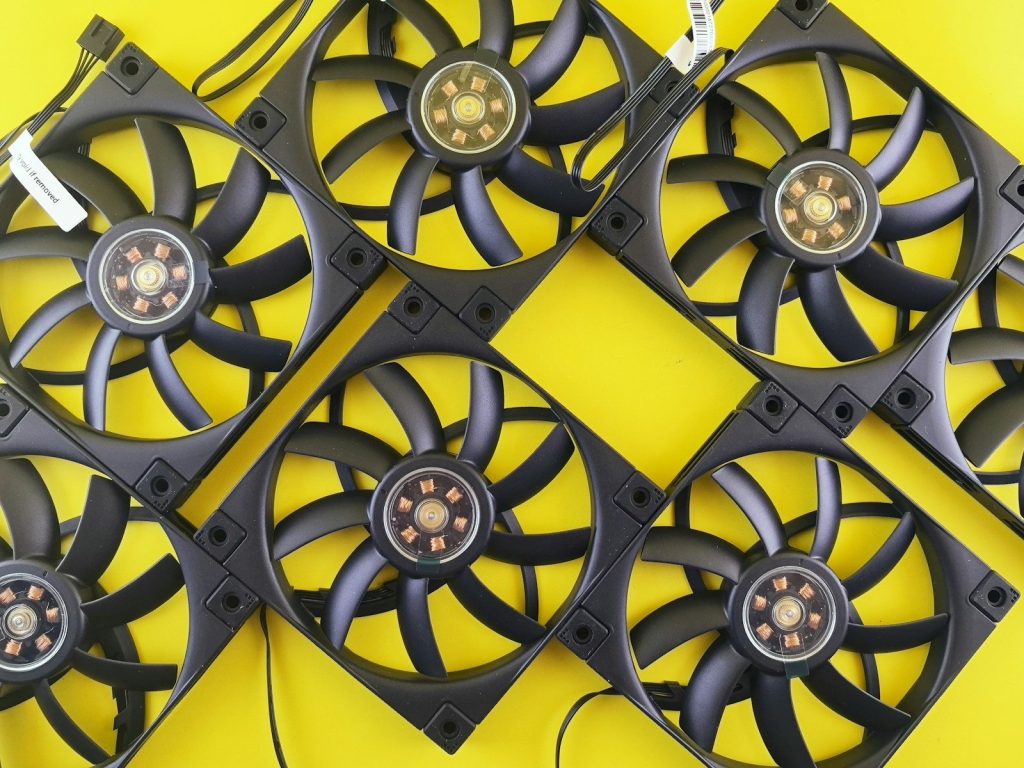
    Multiple black computer fans arranged on yellow background
    Photo by Andrey Matveev on Unsplash

    Dust can build up on fan blades, filters, vents, and heatsinks. Over time, that buildup can block airflow and make the system run warmer or louder.

    A little maintenance goes a long way. Cleaning filters and gently removing dust helps fans move air the way they were meant to, instead of fighting through clogged paths.
    RGB is just the bonus

    A close up of a computer tower in the dark
    Photo by Sam Tsonis on Unsplash

    RGB fans can make a build look great, and there is nothing wrong with enjoying that. The key is remembering that lighting is not the main performance feature.

    The best gaming fans earn their place by moving air well, fitting the right spot, staying reasonably quiet, and helping the whole PC stay cool. The color show is just the extra fun.

  • 7 things gamers should know before choosing a GPU

    7 things gamers should know before choosing a GPU

    A new graphics card can make games look sharper, run smoother, and feel more responsive. But picking one is not just about grabbing the newest model or the biggest number on the box. The right GPU depends on your monitor, the games you play, your case size, your power supply, and how long you want the card to stay useful.

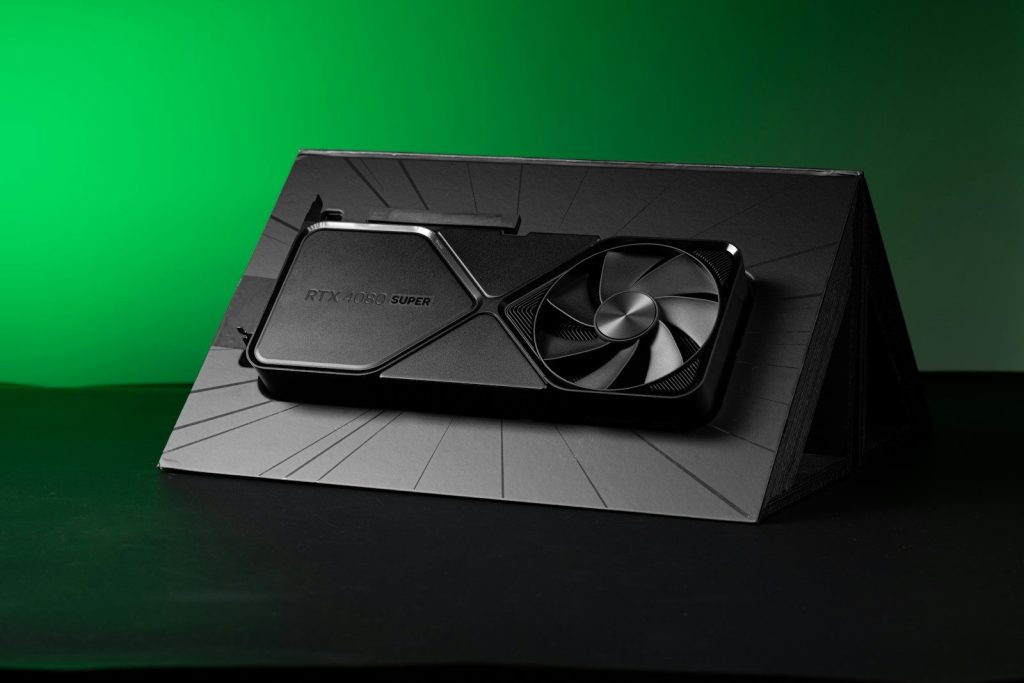
    Today’s GPU market also has more features to compare. NVIDIA promotes RTX 50 Series cards with Blackwell architecture and DLSS 4.5, AMD highlights RDNA 4 Radeon RX 9000 cards with improved ray tracing and AI accelerators, and Intel Arc cards include ray tracing, XeSS upscaling, and AI engines. That means gamers should look at the full setup, not just raw speed.

    Match your screen first

    a computer with a couple of monitors
    Photo by Samsung Memory on Unsplash

    Your monitor should guide your GPU choice. A card that is perfect for 1080p may feel weak at 4K, while a high-end 4K card may be more than you need for a basic 1080p screen.

    Refresh rate matters too. If your monitor runs at 144Hz or higher, you need enough graphics power to push high frame rates. Otherwise, you may pay for performance you cannot fully see.

    Check the VRAM amount

    black and silver sony cassette player
    Photo by Nana Dua on Unsplash

    VRAM is the memory your GPU uses for textures, game worlds, high resolutions, and visual effects. Many modern games can use a lot of it, especially at 1440p or 4K.

    That does not mean everyone needs the most VRAM possible. But gamers should avoid choosing only by price. A card with more memory can age better when newer games demand larger textures and heavier settings.

    Power supply matters

    a black box sitting on top of a table
    Photo by Andrey Matveev on Unsplash

    A GPU upgrade can put more stress on your power supply. Before buying, check the card’s power needs, connector type, and the recommended power supply rating.
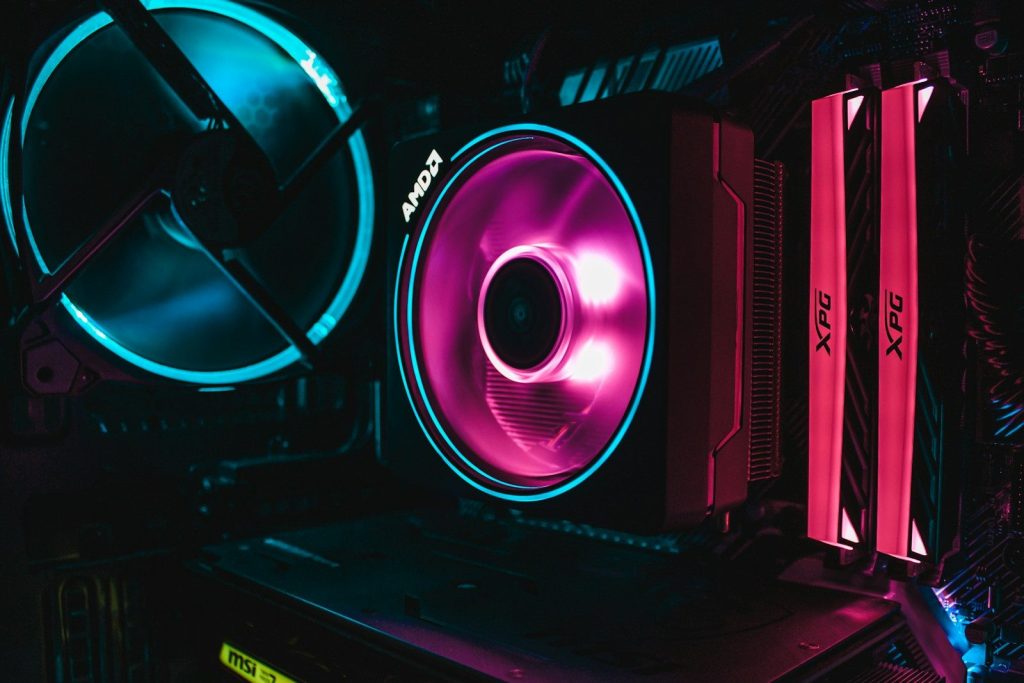
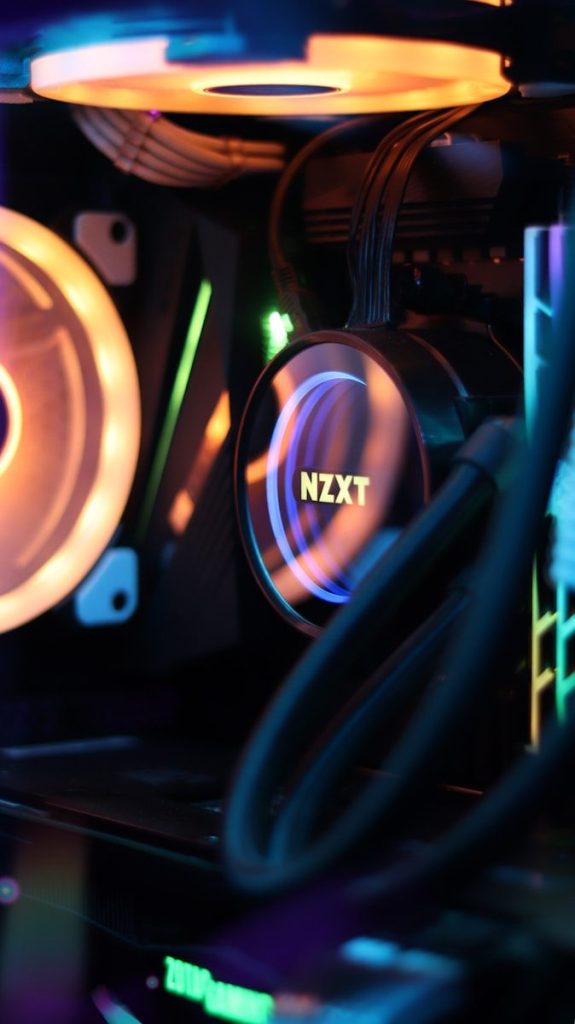
    This step can prevent shutdowns, crashes, or messy adapter problems. It is also smart to check if your power supply has the right cables, especially with newer cards that may use updated power connectors.

    Size can surprise buyers

    black and silver round device
    Photo by Bruno Yamazaky on Unsplash

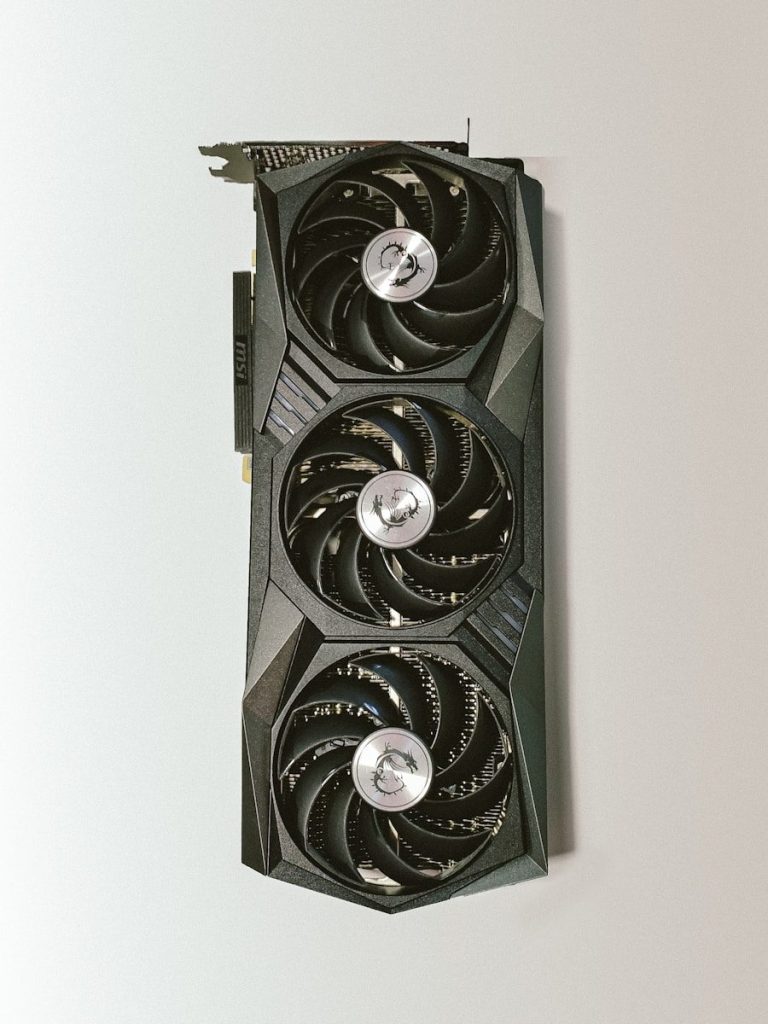
    Not every GPU fits every PC case. Some cards are long, thick, and heavy, especially models with large cooling systems and three fans.

    Before ordering, measure the space inside your case. Check card length, slot thickness, and room near cables or drive cages. A powerful card is not helpful if it blocks airflow or simply will not fit.

    Ray tracing needs context

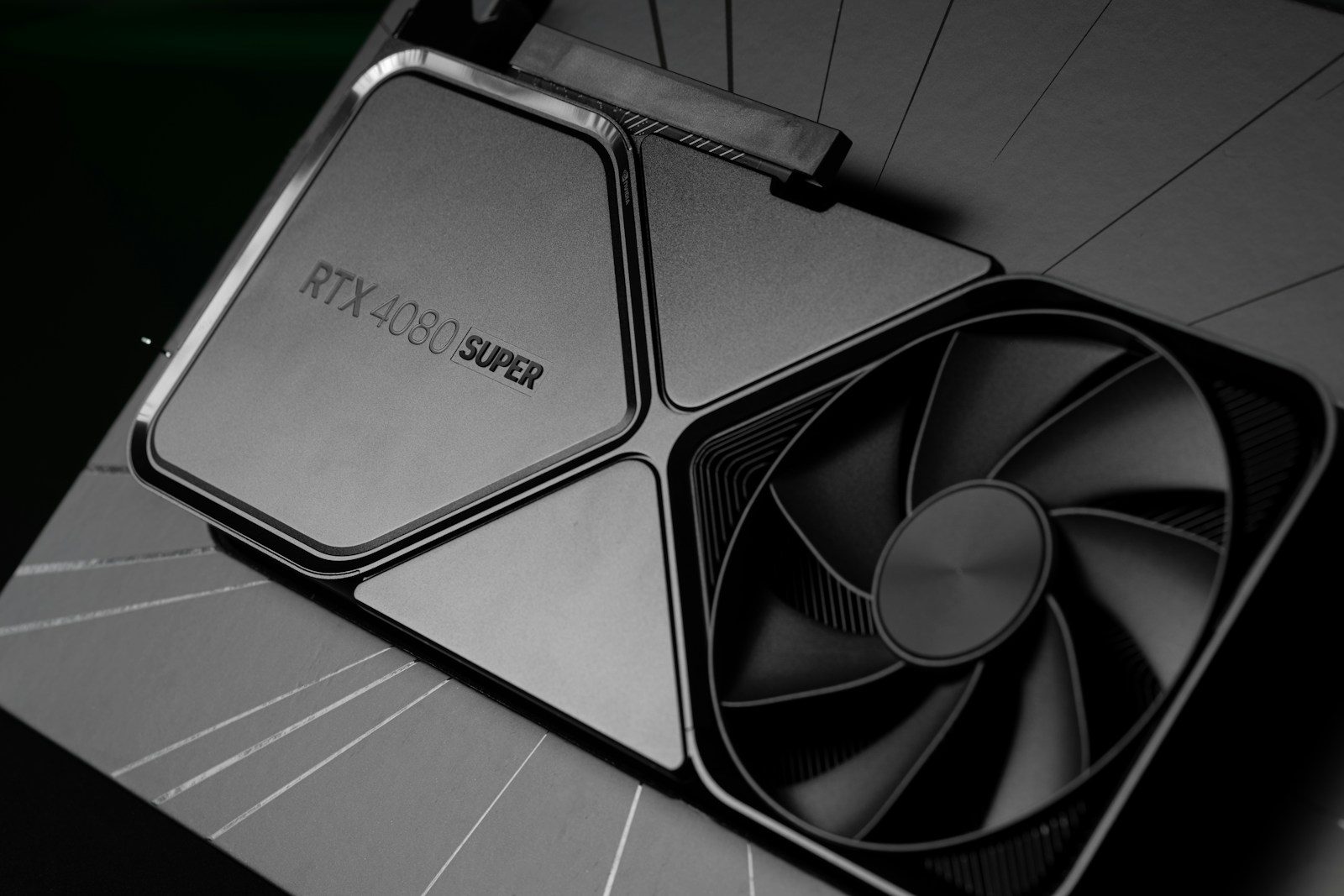
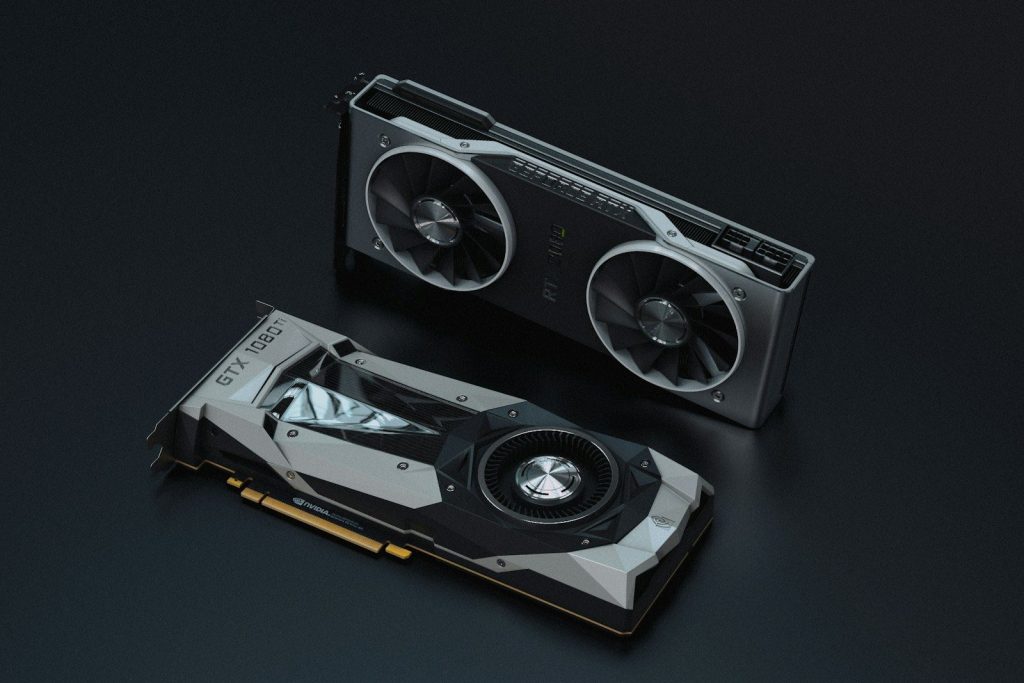
    a close up of a graphics card on a table
    Photo by Christian Wiediger on Unsplash

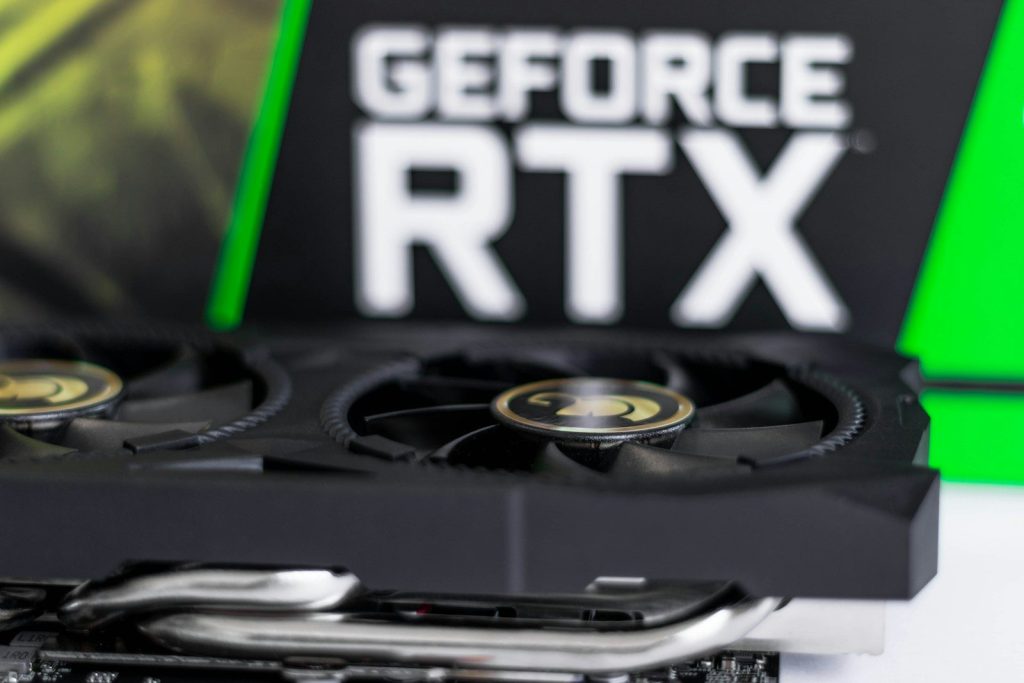
    Ray tracing can make lighting, reflections, and shadows look more realistic. NVIDIA, AMD, and Intel all promote ray tracing features on current gaming GPUs.

    Still, ray tracing can lower frame rates. If you care most about smooth competitive play, standard performance may matter more. If you enjoy story games and visual detail, ray tracing support may be worth a closer look.

    Upscaling can help performance

    A black box with a fan on top of it
    Photo by Đào Hiếu on Unsplash

    Upscaling tools can improve frame rates by rendering games at a lower resolution and making the final image look sharper. NVIDIA has DLSS, AMD has related Radeon software features, and Intel promotes XeSS for Arc GPUs.

    These tools can be useful, especially at higher resolutions. But support depends on the game, the GPU, and the settings. It is best to check the games you actually play before making upscaling the main reason to buy.

    Price is not everything

    fan of 100 U.S. dollar banknotes
    Photo by Alexander Mils on Unsplash

    A cheap GPU can look tempting, but value depends on performance, memory, power use, warranty, and how long it will meet your needs. A slightly higher price can make sense if the card lasts longer.

    Also watch real market pricing. Recent reports show GPU prices can move above suggested prices because of supply and memory cost changes. Comparing current prices before buying can help avoid overpaying.

  • 8 PSU mistakes that can ruin a PC build

    8 PSU mistakes that can ruin a PC build

    A power supply unit does not get the same attention as a graphics card, glass case, or glowing fans, but it can make or break a PC build. The PSU feeds power to every major part, from the CPU and GPU to storage drives and cooling. Pick the wrong one, install it badly, or reuse the wrong cables, and a clean build can turn into random shutdowns, upgrade headaches, or damaged hardware.

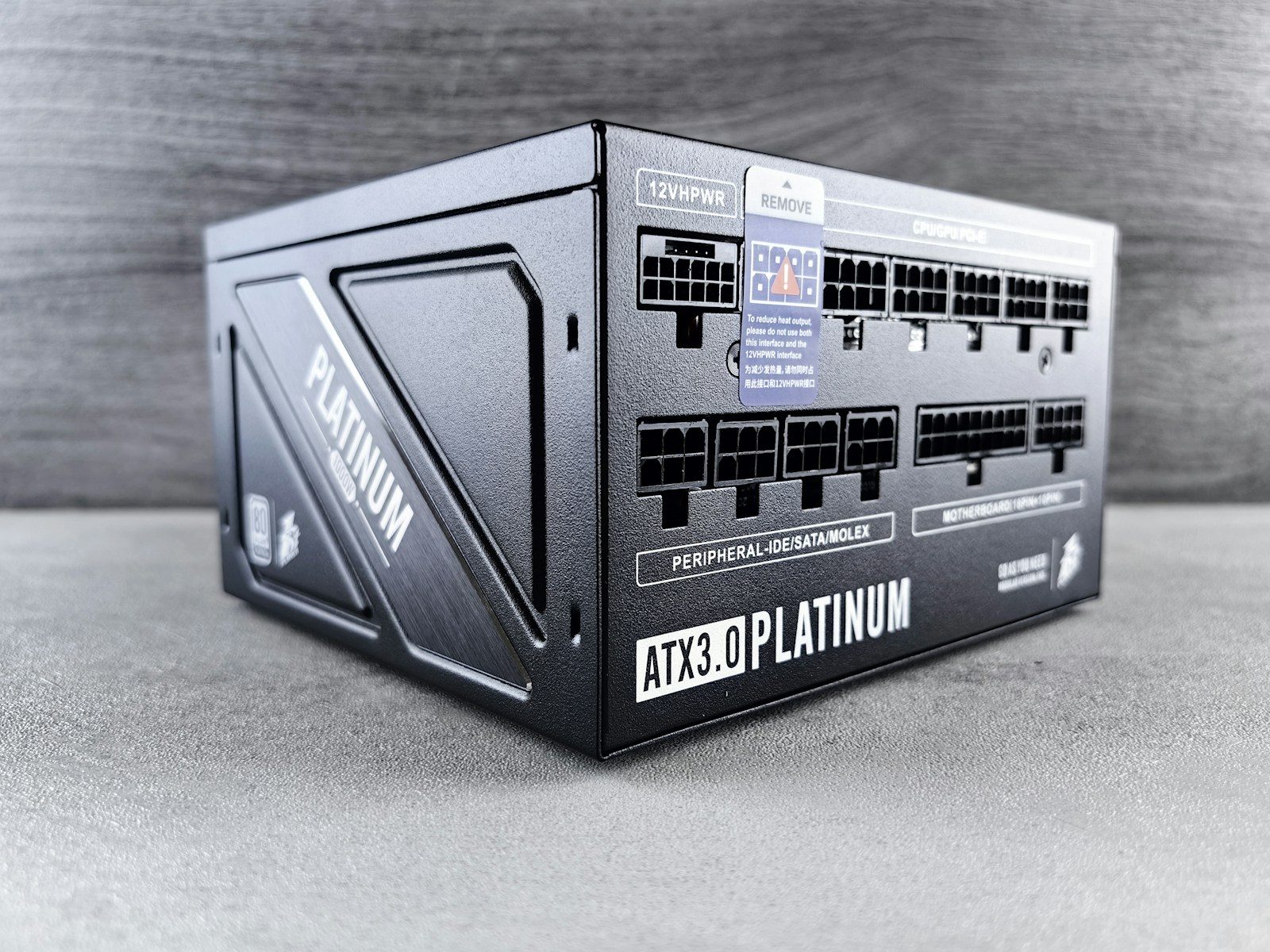
    Modern parts also make PSU choices more important because high-end GPUs can pull heavy power in short bursts, and newer standards are built to handle those spikes. Intel’s ATX 3.0 guidance includes power-excursion requirements, while brands like Corsair warn that modular PSU cables are not universal.

    Buying too little wattage

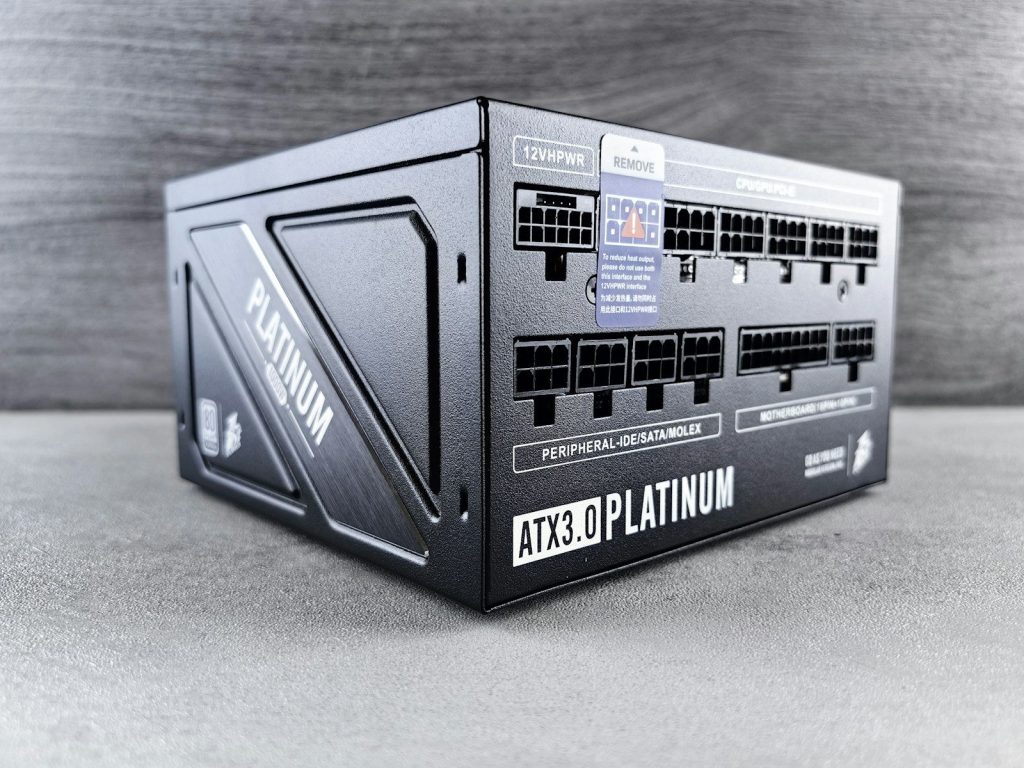
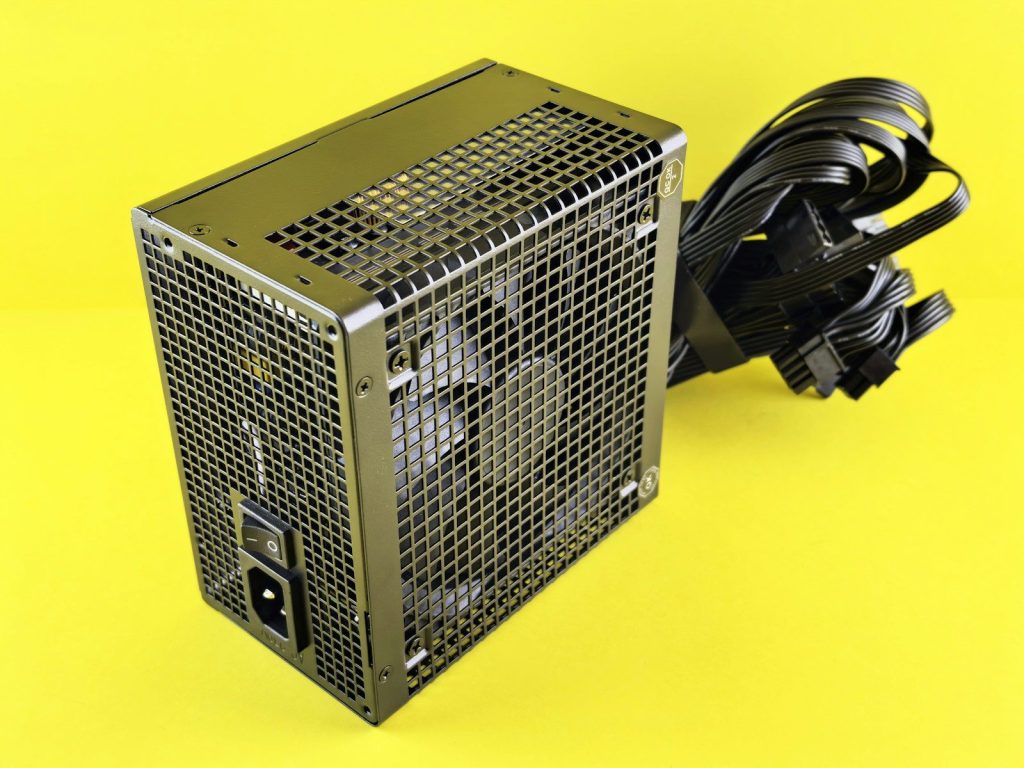
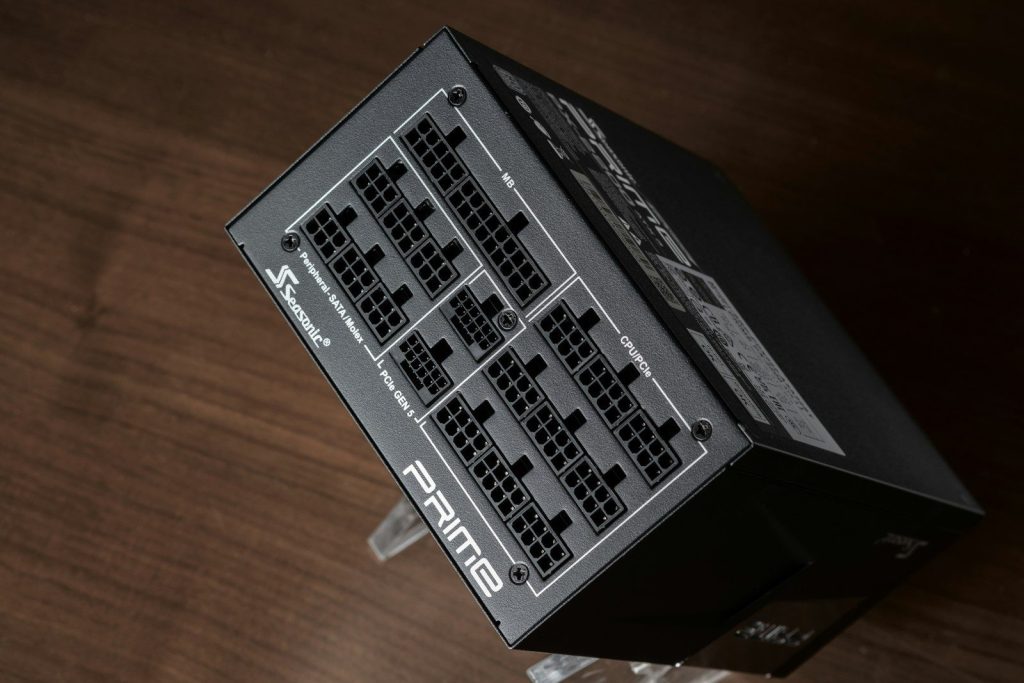
    Here's a caption: a computer power supply unit is shown.
    Photo by Andrey Matveev on Unsplash

    A common mistake is buying a PSU that barely covers the parts list. The PC may turn on, but gaming, rendering, or future upgrades can push it harder than expected.

    Use the CPU, GPU, drives, fans, and planned upgrades to estimate the real load. Be quiet!’s PSU calculator says it uses peak power consumption from selected components when estimating the correct wattage.

    Ignoring power spikes

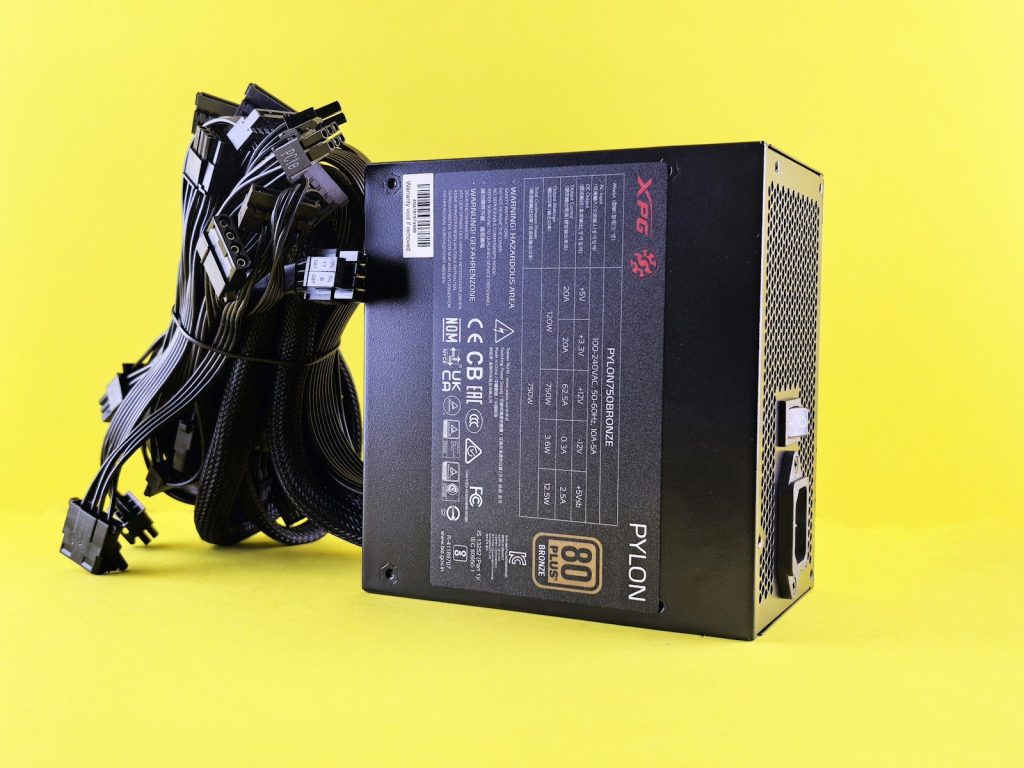
    Black computer power supply unit with cables
    Photo by Andrey Matveev on Unsplash

    Some PC parts do not pull power in a perfectly smooth line. Modern graphics cards can create short power spikes that stress a weak or older PSU.

    That is why newer PSU standards matter. Intel’s ATX 3.0 design guide includes power-excursion rules, and some guides explain that compliant units must handle brief loads above normal rated power.

    Reusing modular cables

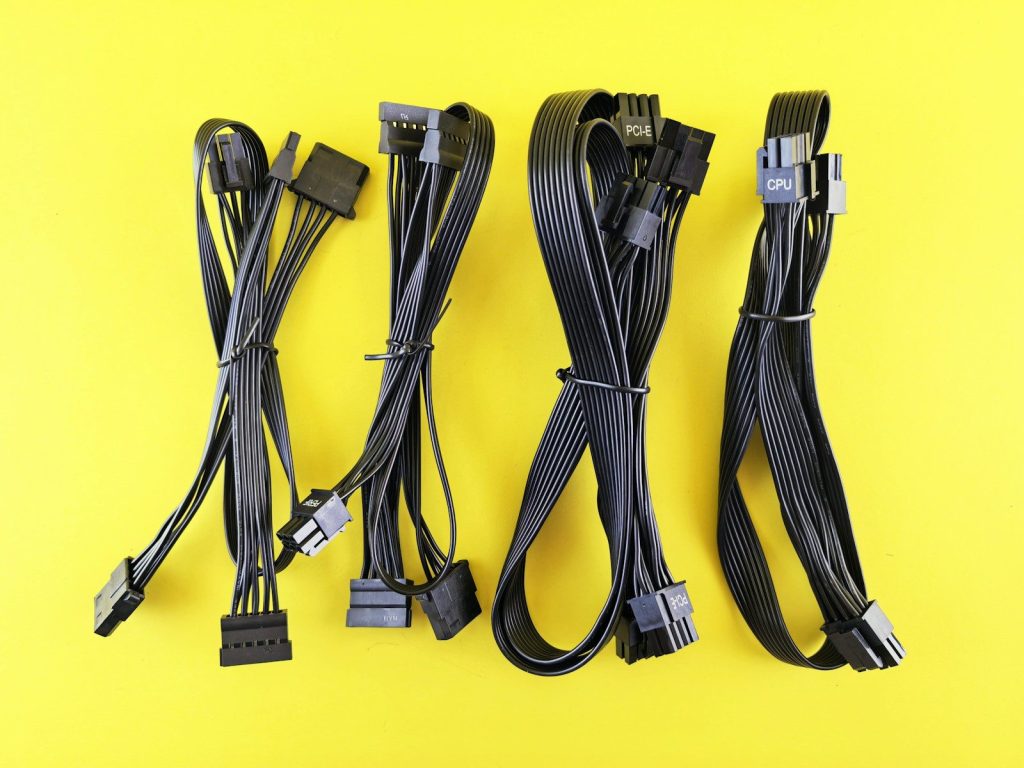
    Computer power supply cables are displayed.
    Photo by Andrey Matveev on Unsplash

    Modular PSU cables can look alike, but that does not make them interchangeable. Mixing cables from another brand or model can be one of the riskiest build mistakes.

    Corsair says PSU-side wiring can vary by manufacturer, even when the component-side connector looks standard. Using the wrong cable can be dangerous for the user and the parts.

    Chasing only 80 Plus

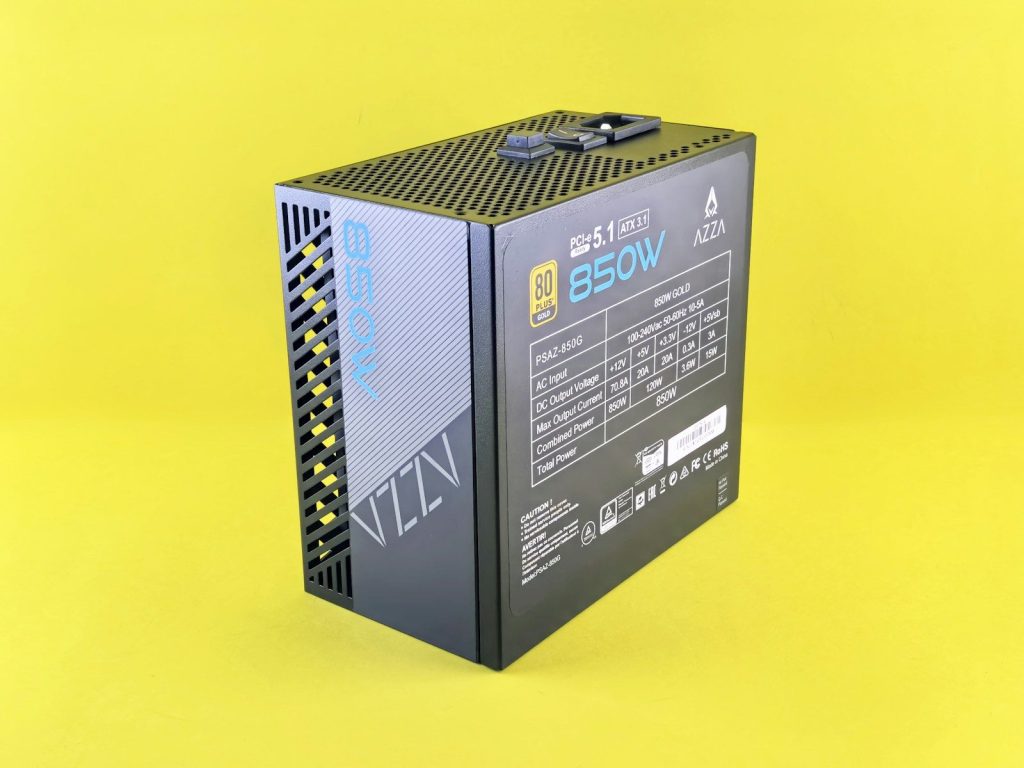
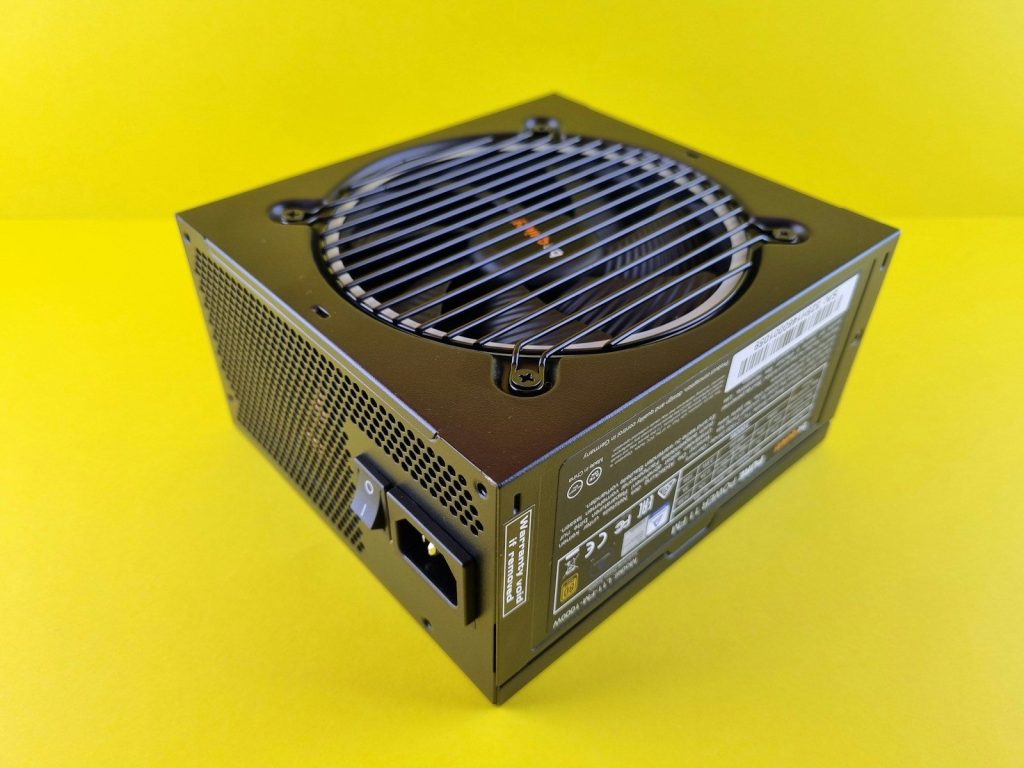
    A black electronic device on a yellow background
    Photo by Andrey Matveev on Unsplash

    An 80 Plus label is useful, but it does not tell the whole story. It mainly shows efficiency, not every detail about build quality, noise, protection, or long-term reliability.

    The official 80 Plus program describes several certification levels for increasing PSU energy efficiency. That is helpful, but builders should still check trusted reviews, warranty length, protections, and platform quality.

    Skipping safety protections

    A black box sitting on top of a wooden table
    Photo by Đào Hiếu on Unsplash

    A PSU should do more than deliver power. It should also protect the system when something goes wrong, such as overload, short circuit, overheating, or voltage problems.

    Seasonic lists protections such as OVP, UVP, OCP, SCP, OTP, and OPP in its PSU safety explanation. These features can help the system react quickly during faults.

    Using the wrong GPU cable

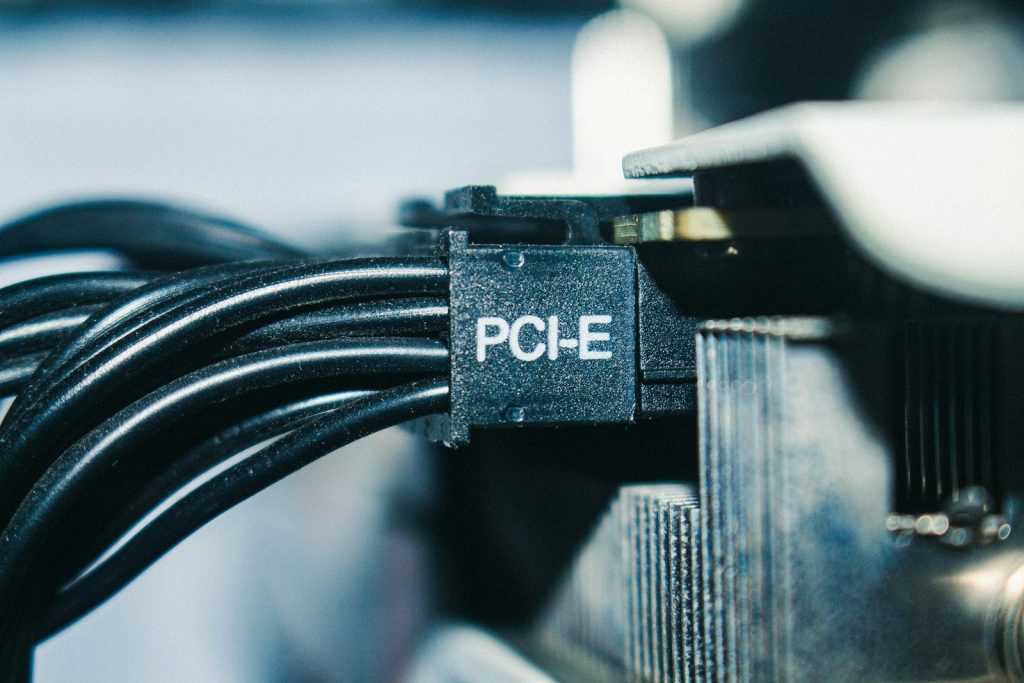
    Close-up of a black pci-e power cable connector.
    Photo by Neum0* on Unsplash

    High-power GPUs can be picky about power cables. A cable that is loose, sharply bent, or not fully seated can cause serious trouble, especially with newer 16-pin-style connectors.

    Reports around RTX 4090 connector problems showed that poor seating and harsh bends were concerns. Builders should follow the GPU and PSU maker’s cable guidance closely and check the connector before closing the case.

    Mounting it with poor airflow

    black and brown computer tower
    Photo by Nathan Anderson on Unsplash

    A PSU still needs airflow, even if it sits at the bottom of the case. Blocking the fan with carpet, dust, cables, or a solid surface can trap heat.

    Heat can make the fan work harder and may reduce comfort, noise performance, and long-term reliability. Builders should match the PSU fan direction to the case layout and keep vents clear.

    Forgetting future upgrades

    a black computer case sitting on top of a yellow table
    Photo by Andrey Matveev on Unsplash

    A PSU can last across more than one PC build, but only if it has enough capacity, connectors, and the right standard for future parts. Buying too close to today’s needs can limit tomorrow’s upgrade.

    A little planning helps. Think about the next GPU, more drives, extra fans, or a stronger CPU. A good PSU choice should support the build you have now and the one you may want later.

  • Why SSD choices matter for games, not just storage space

    Why SSD choices matter for games, not just storage space

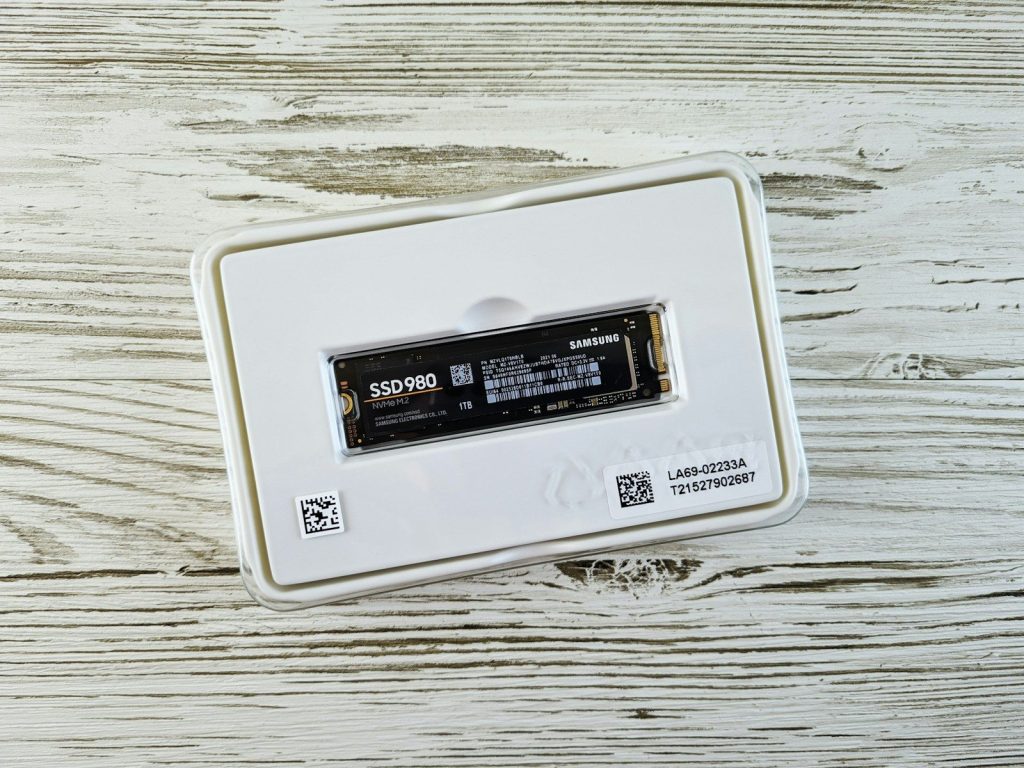
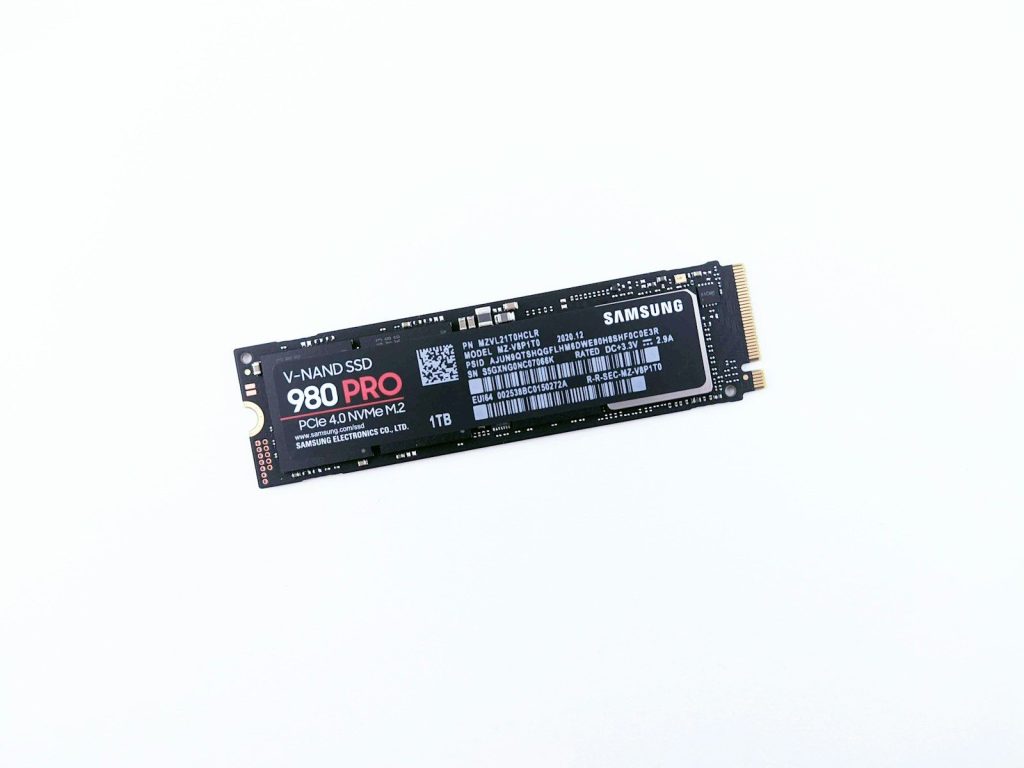
    Buying an SSD for gaming sounds simple at first. You see a big number on the box, compare the price, and hope your game library finally has room to breathe. But storage space is only part of the story. The drive you choose can affect load times, game updates, install juggling, console compatibility, and how smoothly large game worlds pull in new areas.

    That is why SSD choices matter more now. Modern games are bigger, consoles have stricter storage rules, and PC features like Microsoft DirectStorage are built around fast NVMe drives. A smart SSD pick is not just about having more terabytes. It is about choosing storage that fits how and where you play.

    Load times still matter

    text
    Photo by Mike van den Bos on Unsplash

    Long loading screens can break the mood, especially when you only have a short time to play. A faster SSD can help games start quicker and move between areas with less waiting.

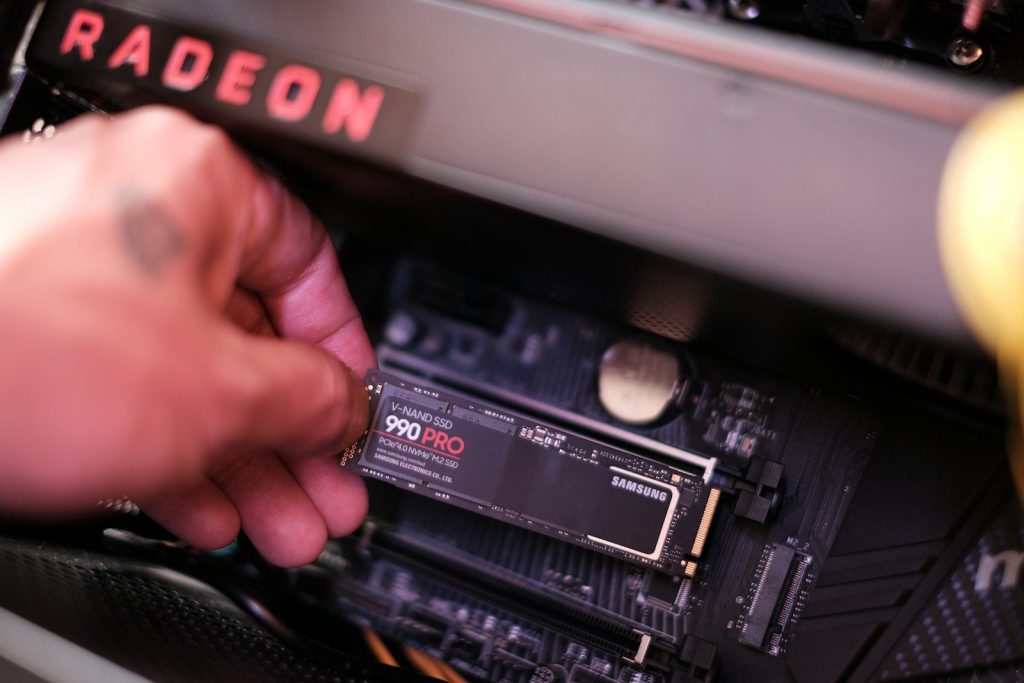
    Microsoft DirectStorage is designed to help games pull data from NVMe SSDs more efficiently. Kingston explains that a PCIe 4.0 NVMe SSD can load PC games faster than a SATA SSD, with DirectStorage adding more room for improvement.

    Speed is not just storage

    a person holding a device
    Photo by Samsung Memory on Unsplash

    An SSD is not only a place to park game files. It also affects how fast the system can read textures, maps, saves, and other game data when a title needs it.

    That matters more in open-world games, where the next area may need to load while you are still moving. Faster drives can help reduce rough transitions, though the game and platform still decide how much difference you notice.

    Consoles have strict rules

    black xbox one console with controller
    Photo by Billy Freeman on Unsplash

    Console players cannot always buy any SSD and expect the same result. The PS5 requires a compatible M.2 SSD, and Sony recommends a sequential read speed faster than 5,500 MB/s.

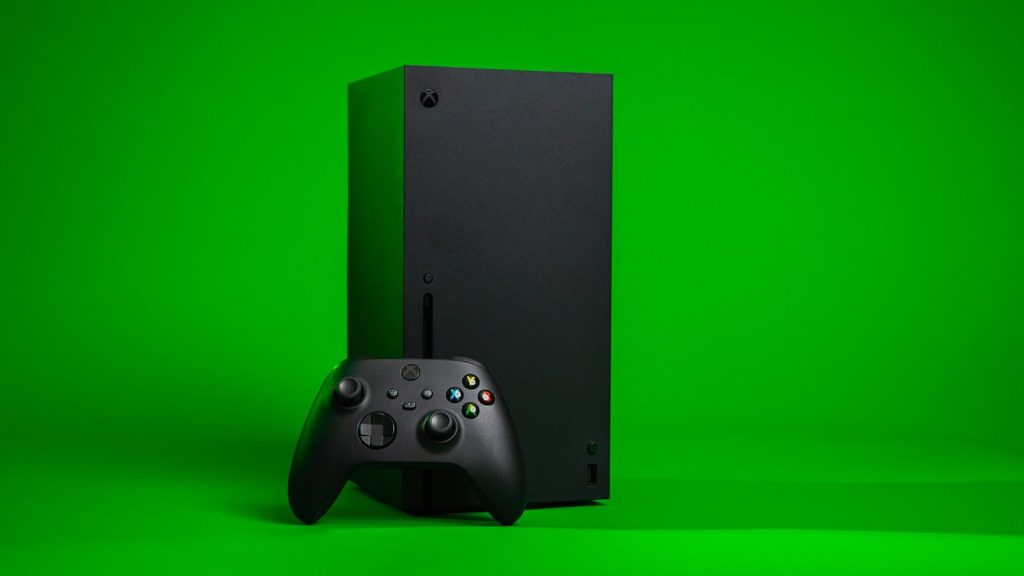
    Xbox Series X|S is also specific. Microsoft says games optimized for Xbox Series X|S need to be installed on the internal SSD or an official Storage Expansion Card to play as intended.

    Capacity changes your habits

    a close up of a computer motherboard
    Photo by Behnam Norouzi on Unsplash

    A small SSD can fill up fast when games, updates, and add-ons stack up. Once that happens, players spend more time deleting, moving, and reinstalling titles.

    A larger SSD can make gaming feel simpler because more of your library stays ready. It may not raise frame rates, but it can reduce the daily hassle of deciding which game has to go before a new one fits.

    SATA and NVMe differ

    data storage, ssd, hard drive, memory, sandisk, x110, ssd, ssd, ssd, ssd, ssd
    Photo by pagefact on Pixabay

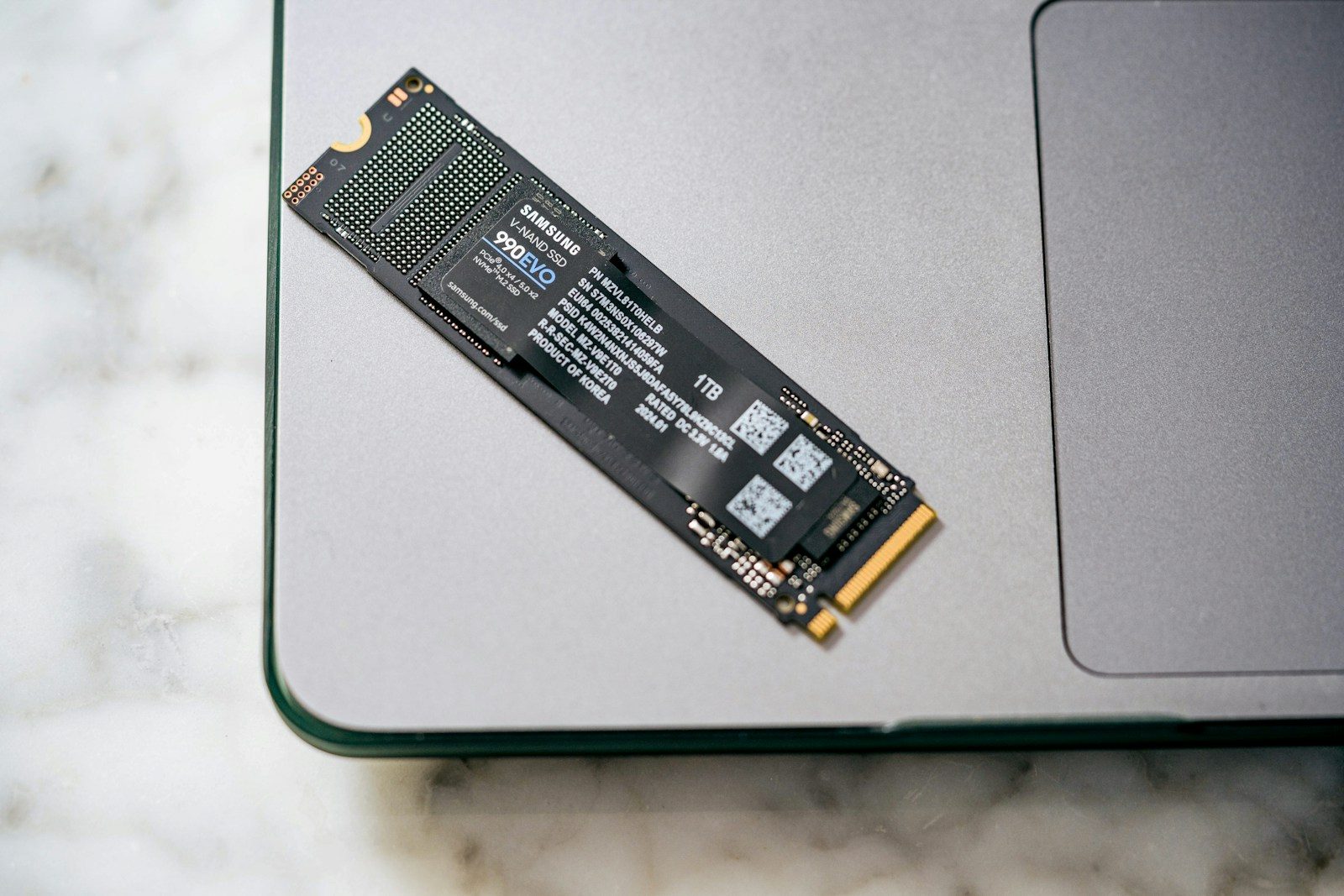
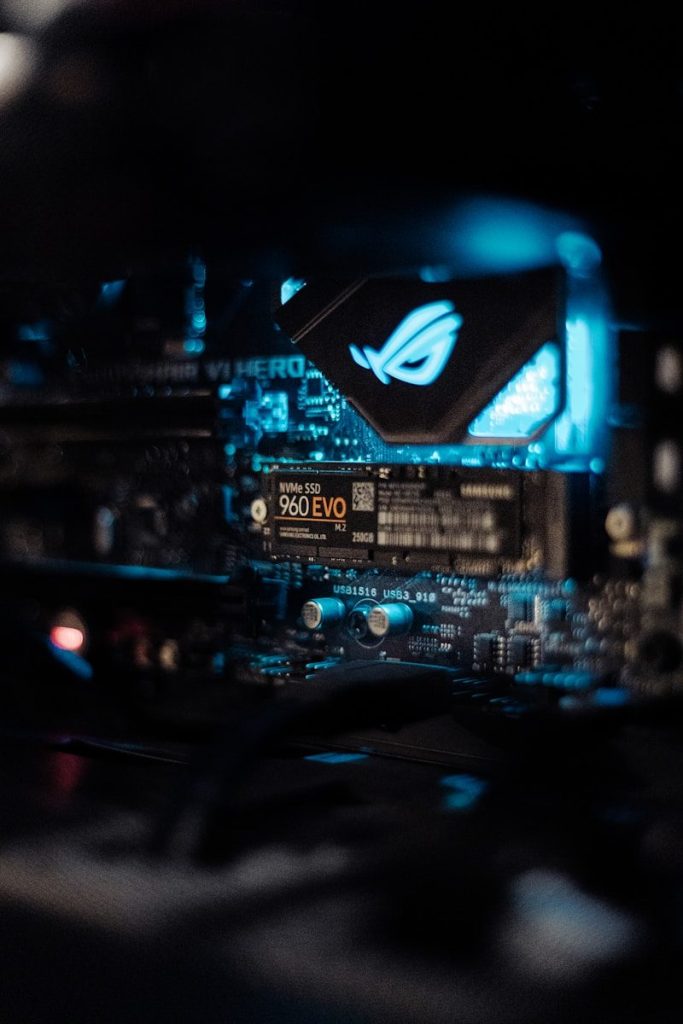
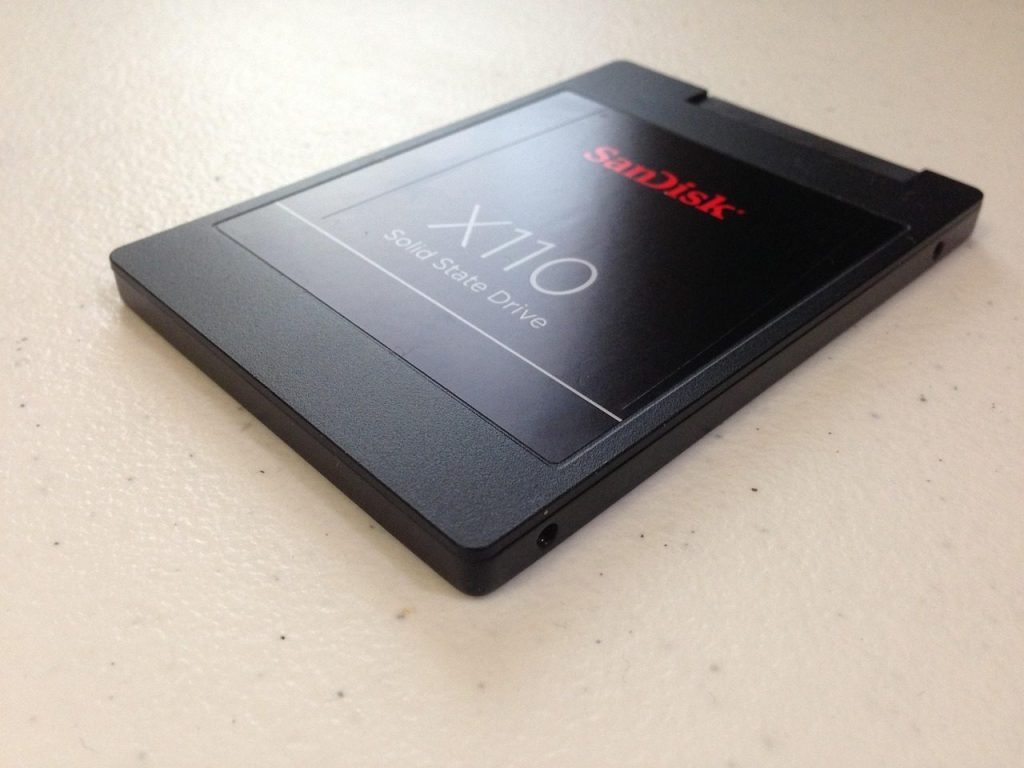
    Not all SSDs are built the same. SATA SSDs are much faster than older hard drives, but NVMe drives can move data through a faster connection and are now common in gaming PCs.

    That does not mean every game feels wildly different on the fastest drive. Some titles only gain a few seconds. Still, NVMe matters more for newer platforms, newer PC features, and future games designed around faster storage.

    Cooling can matter too

    a white clock sitting on top of a wooden table
    Photo by Andrey Matveev on Unsplash

    Fast SSDs can get warm, especially high-speed M.2 drives inside tight gaming PCs or consoles. When a drive gets too hot, performance may drop to protect the hardware.

    That is why heatsinks and airflow are worth checking. Sony notes that PS5 M.2 SSD cooling structures vary in size, and buyers should confirm the drive and heatsink fit the console’s slot before installing.

    Updates need free space

    a black rectangular electronic device
    Photo by Andrey Matveev on Unsplash

    Game updates can be surprisingly demanding. Even when the update itself looks small, the system may need extra working room to download, unpack, copy, or patch files.

    This is where SSD size affects convenience. Leaving open space can help avoid last-minute cleanup before a patch. It also makes the drive feel less cramped when several big games are installed at once.

    The best pick fits you

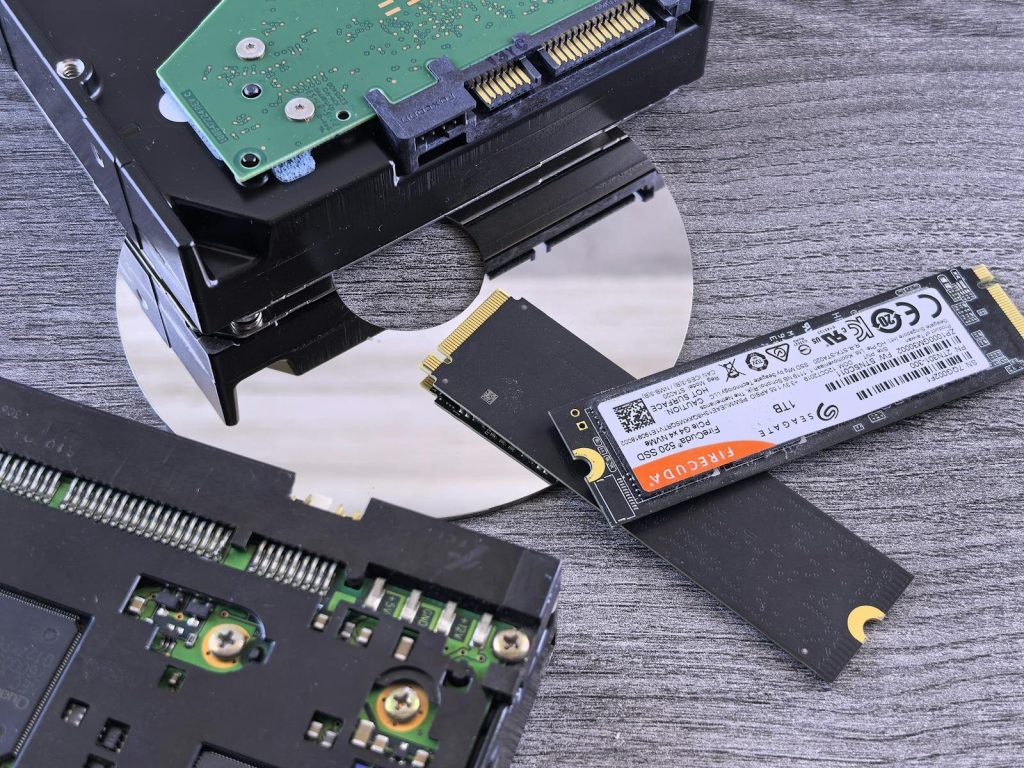
    Contrasting data storage technologies: NVMe SSD, HDD, and CD.
    Photo by Andrey Matveev on Pexels

    The right SSD depends on your device and your habits. A PS5 owner should focus on Sony’s M.2 requirements, while an Xbox Series X|S player should understand which storage can run optimized games. PC gamers should check motherboard slots, PCIe support, and cooling.

    Storage space is important, but it is not the only thing. Speed, compatibility, heat control, and library size all shape the experience. A good SSD should make gaming feel easier, faster, and less interrupted.

  • 8 gaming monitor features that change the experience

    8 gaming monitor features that change the experience

    A gaming monitor is not just a screen with a cool stand. The right features can make games feel smoother, sharper, faster, and easier to enjoy for long sessions. Refresh rate affects how often the picture updates, while response time helps control motion blur. Variable refresh rate technologies like NVIDIA G-SYNC and AMD FreeSync can reduce screen tearing and stutter by synchronizing the display’s refresh rate with the game’s frame rate.

    HDR standards, such as VESA DisplayHDR, help buyers understand whether a monitor can deliver stronger brightness, contrast, and color for supported games. For console players, HDMI 2.1 can also matter because it supports features like high refresh rates and variable refresh rate on newer systems.

    Refresh rate feels faster

    A girl is playing a video game on her computer
    Photo by ELLA DON on Unsplash

    Refresh rate tells you how many times a monitor updates the image each second. A 144Hz or 165Hz screen can feel much smoother than a basic 60Hz screen, especially in fast games.

    This matters most in racing, sports, shooters, and action games where movement changes quickly. A higher refresh rate will not make someone instantly better, but it can make the game feel more responsive and easier to follow.

    Response time cuts blur

    A group of people standing around a computer
    Photo by ELLA DON on Unsplash

    Response time explains how quickly pixels can change from one shade to another. When response time is slow, fast movement can leave smearing or ghosting behind objects.

    A lower response time can make motion look cleaner. This is helpful when tracking fast characters, cars, or camera turns. Buyers should still check reviews, because real-world performance can vary from the number printed on the box.

    VRR helps smooth frames

    a computer monitor sitting on top of a desk
    Photo by Charles Patterson on Unsplash

    Variable refresh rate, often called VRR, helps the monitor match the game’s changing frame rate. That can reduce screen tearing, stutter, and uneven motion during gameplay.

    NVIDIA G-SYNC and AMD FreeSync are two common VRR options. AMD says FreeSync works by syncing a display’s refresh rate with compatible graphics output, while NVIDIA lists G-SYNC and G-SYNC Compatible displays for smoother gaming experiences.

    Resolution sharpens details

    two computer monitors sitting on top of a desk
    Photo by amjed omaf on Unsplash

    Resolution controls how many pixels appear on the screen. A 1080p monitor can still be great for high-frame-rate play, while 1440p often gives a sharper image without needing the most expensive PC.

    A 4K monitor can look very crisp, especially on larger screens. But higher resolution needs more graphics power, so buyers should match the monitor to their console or gaming PC.

    HDR can add depth

    A vibrant, colorful owl artwork displayed on a modern monitor.
    Photo by Gavin Phillips on Unsplash

    HDR can make bright highlights, dark scenes, and colors look more dramatic when the game and monitor support it. But not every monitor labeled “HDR” gives the same experience.

    That is why certifications can help. VESA says DisplayHDR is an open standard for HDR quality and performance, and Intel notes the DisplayHDR logo can help identify monitors tested through that program.

    Panel type changes the look

    a desk with a keyboard and two monitors
    Photo by sdl sanjaya on Unsplash

    Panel type affects color, contrast, viewing angles, and motion. IPS panels are often known for strong color and wide viewing angles, while VA panels can offer better contrast in dark scenes.

    OLED monitors can deliver deep blacks and very fast pixel response, but buyers should also think about price and long-term screen care. The best panel depends on what games you play most.

    Ports decide your limits

    a close up view of a computer keyboard
    Photo by TheRegisti on Unsplash

    Ports can quietly decide what a monitor can actually do. A screen may support high refresh rates, but the wrong cable or port can hold it back.

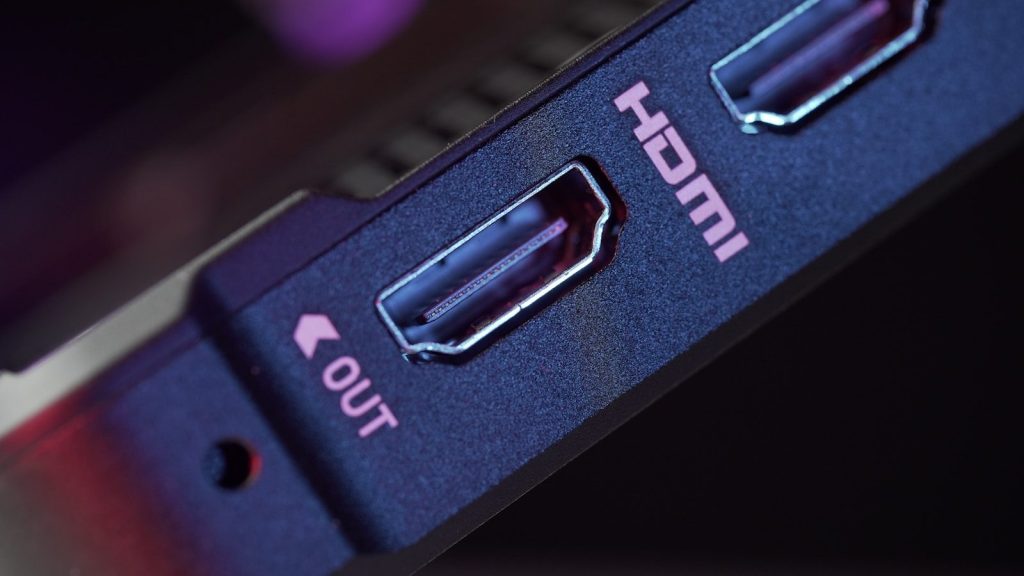
    HDMI 2.1 is useful for newer consoles and some PCs because it supports higher bandwidth, higher refresh rates at high resolutions, automatic low-latency mode, and variable refresh rate features.

    Ergonomics matter daily

    black flat screen computer monitor beside white computer keyboard
    Photo by Alienware on Unsplash

    A monitor can have great specs and still feel annoying if it sits too low, tilts poorly, or takes up too much desk space. Height, tilt, swivel, and VESA mount support all matter.

    Comfort becomes more important during long sessions. A screen that lines up well with your eyes can make gaming, streaming, browsing, and work feel easier on the neck and shoulders.

  • 8 gaming mouse features that are not just marketing

    8 gaming mouse features that are not just marketing

    A gaming mouse can look flashy, but the useful parts are not always the bright lights or big numbers on the box. The features that really matter are the ones that change how the mouse feels during play: tracking, weight, shape, click speed, polling rate, wireless connection, button layout, and software control.

    Brands like Razer, SteelSeries, Corsair, and Logitech often highlight sensor accuracy, polling rates, lift-off distance, programmable buttons, and lightweight builds because these details can affect aiming, movement, and comfort. Razer says higher polling rates can improve responsiveness, SteelSeries highlights lift-off distance control for precision, and Corsair lists weight, polling rate, and sensor specs across its gaming mice. Those are the features worth understanding before buying.

    Sensor accuracy matters

    Stylish workspace setup featuring a gaming mouse and laptop with dramatic lighting.
    Photo by karim Ouakkaha on Pexels

    A good gaming mouse should track movement cleanly without skipping, drifting, or feeling uneven. That is why the sensor is more than a marketing line.

    SteelSeries describes its TrueMove sensor system as offering true one-to-one tracking, which means hand movement is meant to match screen movement closely. For shooters, strategy games, and fast camera control, that steady tracking can make play feel more reliable.

    Polling rate affects response

    gaming mouse, mouse pad, desk, computer mouse, pc mouse, gamer mouse, hardware, controller, logitech g pro x superlight, closeup, gaming mouse, gaming mouse, gaming mouse, gaming mouse, gaming mouse, mouse pad, mouse pad, mouse pad, mouse pad, mouse pad, computer mouse
    Photo by MatthiasHaltenhof on Pixabay

    Polling rate is how often the mouse reports its position to the computer. A higher rate can make movement feel more immediate, especially on fast gaming monitors.

    Razer says its HyperPolling technology moved beyond the common 1,000Hz rate to 8,000Hz for faster responsiveness. Not every player needs the highest setting, but for competitive games, lower delay can be a real benefit.

    Weight changes control

    Mobile Gaming Mouse” by Pablo Bigatti is licensed under CC BY-NC-SA 2.0

    A lighter mouse can be easier to move quickly, especially in games that require wide swipes or fast aim changes. That is why many gaming mice now focus on lower weight.

    Corsair lists gaming mice with weights such as 56g and features built around speed and control. A light mouse is not automatically better for everyone, but it can reduce hand strain and help players move faster.

    Shape affects comfort

    black and yellow logitech computer mouse
    Photo by maar gaming on Unsplash

    Shape is one of the most important features because hands are not all the same. A mouse that feels great for one player may feel awkward for another.

    Grip style also matters. Palm, claw, and fingertip grips need different shapes and heights. A comfortable mouse can help during long sessions because players are less likely to fight the device while trying to focus on the game.

    Clicks can feel faster

    person holding black and gray computer mouse
    Photo by Rebekah Yip on Unsplash

    Mouse switches control how clicks feel and respond. In fast games, players want clicks that feel crisp, quick, and dependable.

    Razer promotes optical mouse switches on some gaming mice, which are designed to register clicks using light instead of traditional metal contact. The point is not just fancy tech. It is about making clicks feel consistent during repeated actions.

    Lift-off distance helps aim

    black Logitech corded mouse
    Photo by Emiliano Cicero on Unsplash

    Lift-off distance is the height where the sensor stops tracking when the mouse is lifted. This matters when players pick up the mouse to reset its position.

    SteelSeries says its dual-sensor design lets players adjust lift-off distance and control when tracking stops. A lower lift-off distance can help reduce unwanted cursor movement during quick resets, especially in shooters.

    Programmable buttons save time

    black and red gaming mouse
    Photo by Ahmed Helal on Unsplash

    Extra buttons are not only for show. They can help players use abilities, reload, switch tools, push-to-talk, or trigger common actions without reaching across the keyboard.

    Corsair’s M55 specs list six programmable buttons, showing how even simpler gaming mice can offer useful control options. The best button layout depends on the game, but smart shortcuts can make play smoother.

    Software makes tuning easier

    black logitech cordless computer mouse beside black pen
    Photo by Homescreenify on Unsplash

    Gaming mouse software can control DPI levels, button mapping, lighting, profiles, and sometimes tracking settings. That makes the mouse easier to match to different games.

    This matters because a player may want low sensitivity for shooters and faster movement for browsing or strategy games. Good software turns a mouse from one fixed tool into something more personal and flexible.