Most car enthusiasts believe that building a fast vehicle is simply a matter of adding a larger engine. We assume that horsepower is the only metric that determines straight-line speed.
But crossing the two-thousand-horsepower barrier introduces a terrifying realm of physics. Standard automotive materials quickly tear themselves apart under these extreme mechanical stresses.
The Battle Against Air Resistance

Driving at extreme speeds forces the surrounding atmosphere to behave like a thick liquid wall. According to aerodynamic test reports, drag forces increase exponentially as a vehicle accelerates past two hundred miles per hour. The air is solid. Engineers must shape the carbon fiber body panels with absolute precision to slice through this resistance. But keeping the car on the ground requires a highly active wing system.
Generating Massive Downforce Safely

Without extreme downforce, a fast car will literally take flight like a wingless airplane. According to wind tunnel research papers, active aerodynamic wings press the tires into the asphalt with thousands of pounds of force. The grip is immense. This artificial weight allows the hypercar to handle high-speed turns without sliding. But this intense downward pressure places a crushing load on the tire compound.
The Melting Point Of Rubber
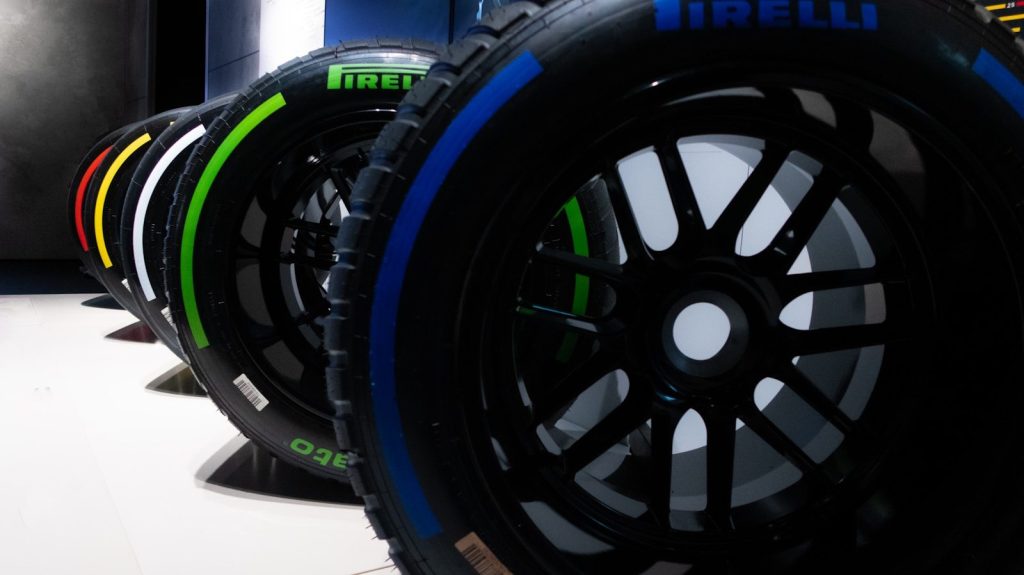
Spinning tires at extreme speeds generates intense friction heat that can melt standard rubber compounds. According to materials science studies, hypercar tires are constructed with specialized aramid fibers to prevent explosive blowouts. The heat is brutal. These custom tires can only survive a few minutes of continuous high-speed running before disintegrating completely. But feeding these hungry engines demands an incredibly fast cooling setup.
The Thermal Heat Management

Managing engine temperatures during high-speed runs requires a massive cooling network. According to radiator performance audits, a typical hypercar routes hundreds of gallons of coolant through its core every minute. The engines run hot. This thermal system keeps the hardware from melting under extreme combustion pressures. But generating this intense power also requires a highly robust gearbox.
The Instant Clutch Gearbox
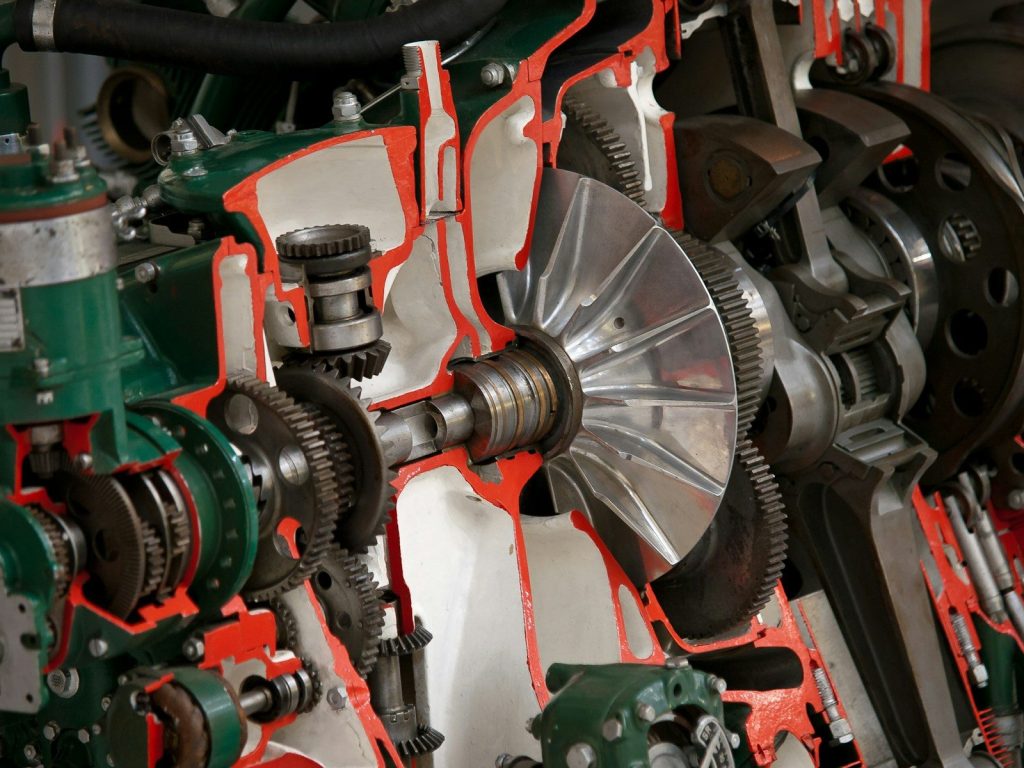
Traditional gearboxes would easily shred their steel teeth under thousands of horsepower. According to mechanical engineering journals, designers use custom dual-clutch systems made from titanium alloys. They are incredibly tough. This specialized setup shifts gears in a fraction of a millisecond to maintain constant acceleration. But bringing this flying heavy machine to a complete stop requires another physical marvel.
Carbon Ceramic Braking Systems
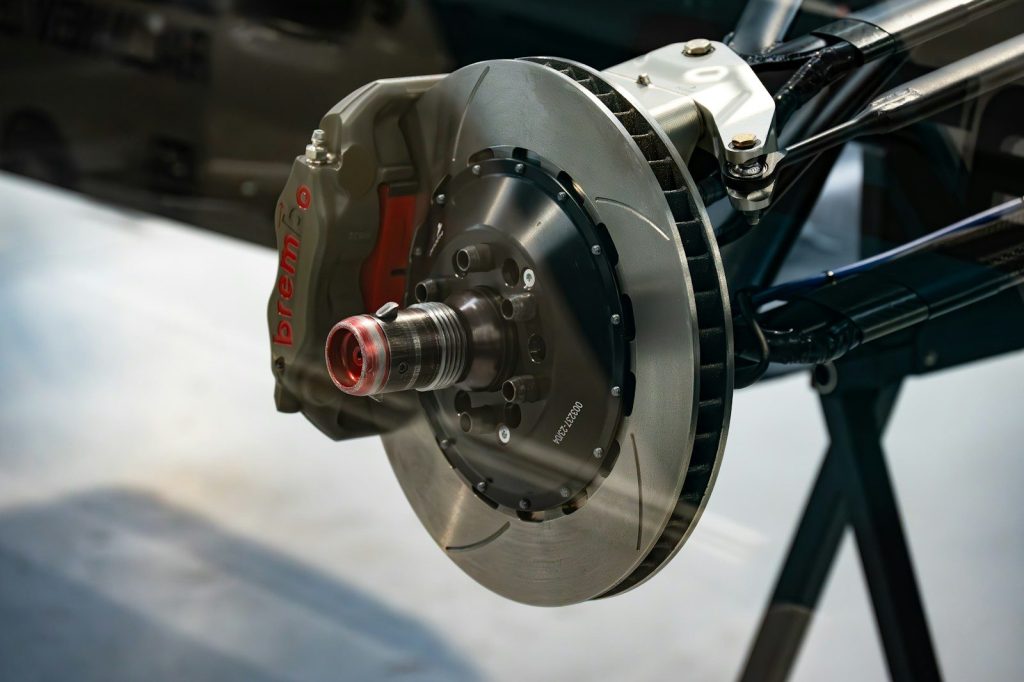
Slowing down from extreme speeds releases enough thermal energy to melt standard steel brakes. According to automotive testing records, high-performance vehicles use massive carbon-ceramic discs that survive temperatures over one hundred degrees. The stopping is instant. These advanced materials prevent brake fade during intense track sessions. But the ultimate limits of high-speed performance are now shifting toward electric power.
Reimagining The Hypercar Era

Electric motors are quietly rewriting the rules of acceleration by delivering instant torque without any lag. According to automotive historians, this technological transition is pushing vehicle performance into a bold new era. Innovation has no limits. These extreme physics lessons help engineers design safer and more efficient consumer vehicles for tomorrow. This article is for informational purposes only.
Featured Image: Photo by Wolfgang Vrede on Unsplash