Category: Technology

  • Why foldable phones need different software

    Why foldable phones need different software

    Foldable phones look exciting because the hardware can bend, open, close, and change size in seconds. But the screen is only half of the story. A foldable can feel amazing or awkward depending on how well the software understands what the user is doing. A regular phone app may look fine on a small display, then feel stretched or empty when opened on a tablet-sized inner screen.

    That is why foldables need software built for changing layouts, smooth app switching, multitasking, and special screen positions. Google’s Android guidance says foldable devices can move between compact phone screens and larger tablet-like displays, while also using postures such as tabletop and book mode for special layouts.

    Bigger screens need better layouts
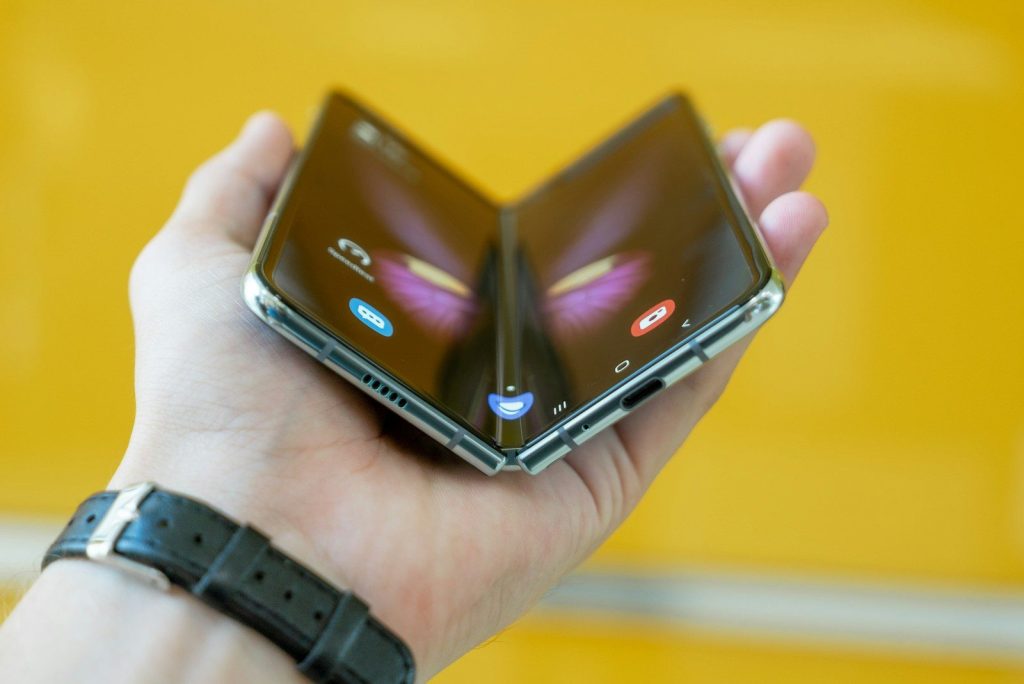
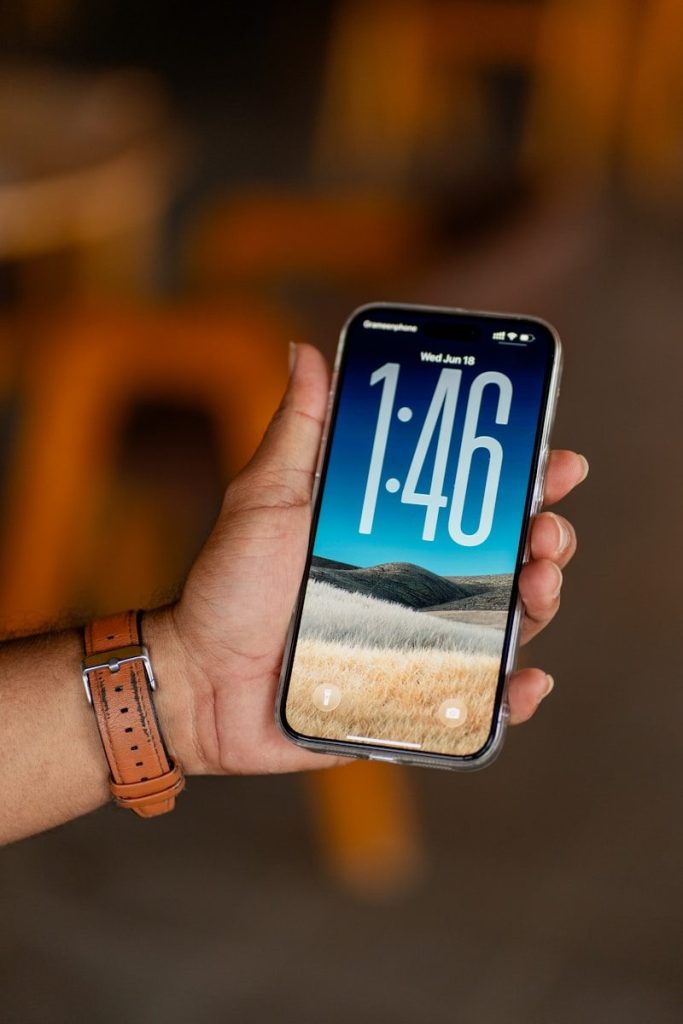
    person holding black phone
    Photo by Mika Baumeister on Unsplash

    A foldable phone is not just a regular phone with more space. When opened, the display can feel closer to a small tablet, so apps need to use the extra room in a smart way.

    Google encourages developers to use responsive and adaptive layouts for large screens. That means apps should adjust to different screen sizes instead of simply stretching buttons, lists, and menus across a wider display.

    Apps must switch smoothly
    a cell phone sitting on top of a table
    Photo by Amanz on Unsplash

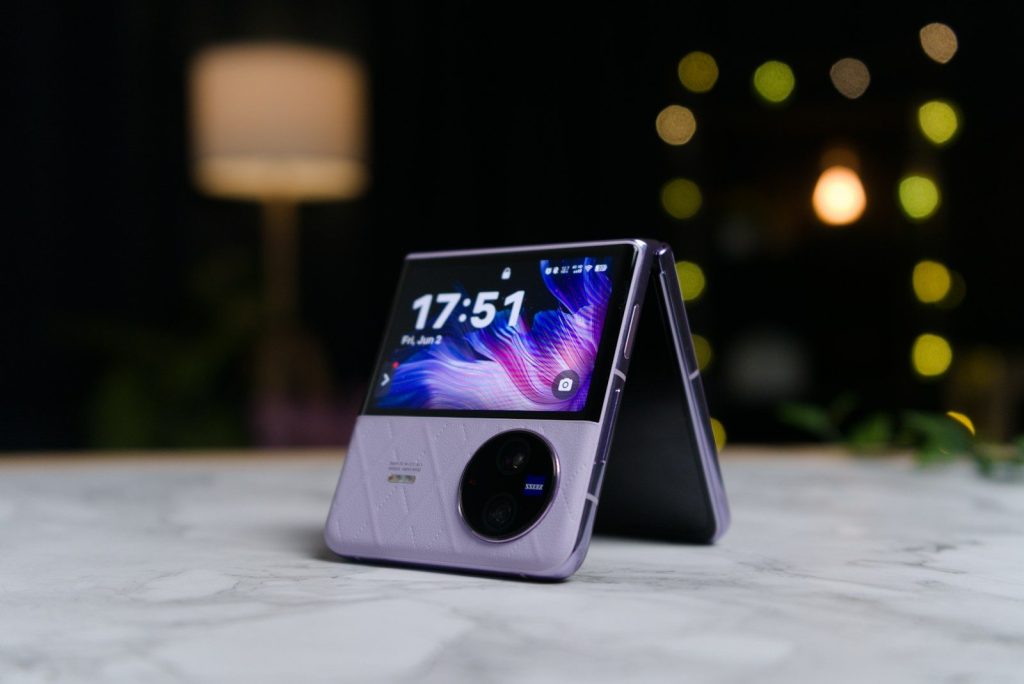
    One big foldable trick is moving from the outside screen to the inside screen without losing your place. If software is not ready for that change, an app can refresh, resize poorly, or feel broken.

    Samsung calls this kind of smooth movement app continuity. Its foldable guidance says apps should restore the user’s state when the device changes configuration, such as when the screen opens or closes.

    Multitasking changes everything
    black Android smartphone
    Photo by Mika Baumeister on Unsplash

    Foldables are built for doing more than one thing at a time. A large inner screen can make split-screen use feel much more natural than it does on a narrow phone display.

    Google says large-screen foldables are well suited for multitasking in multi-window mode. Some foldable experiences can even support desktop-style windows, where apps can move or resize in a more computer-like way.

    Tabletop mode needs support
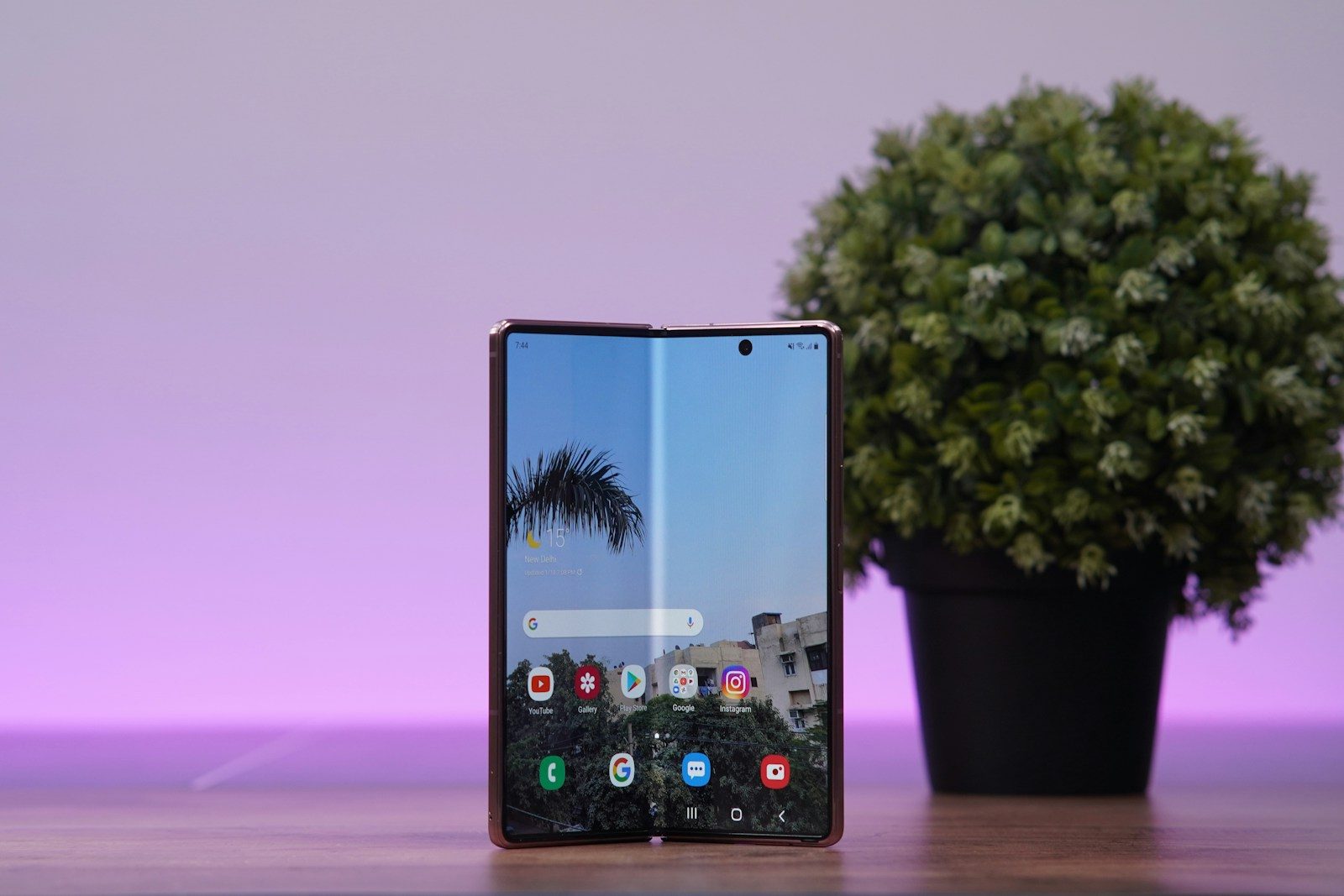
    a cell phone sitting on top of a table next to a potted plant
    Photo by Amanz on Unsplash

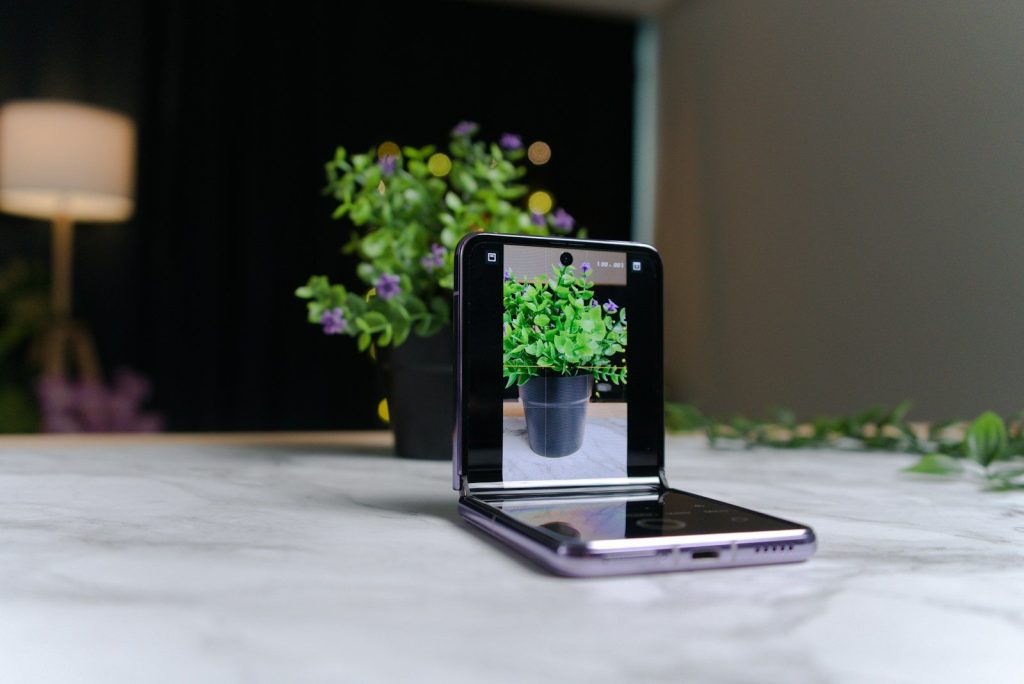
    A foldable phone can sit half-open on a desk, almost like a tiny laptop. That posture can be great for video calls, photos, timers, recipes, or hands-free viewing.

    But the software must know how to split the experience. Google notes that foldable postures, including tabletop and half-open states, create chances for special app designs that regular phones do not need.

    Book mode feels different
    a blue sign on a white surface
    Photo by TechieTech Tech on Unsplash

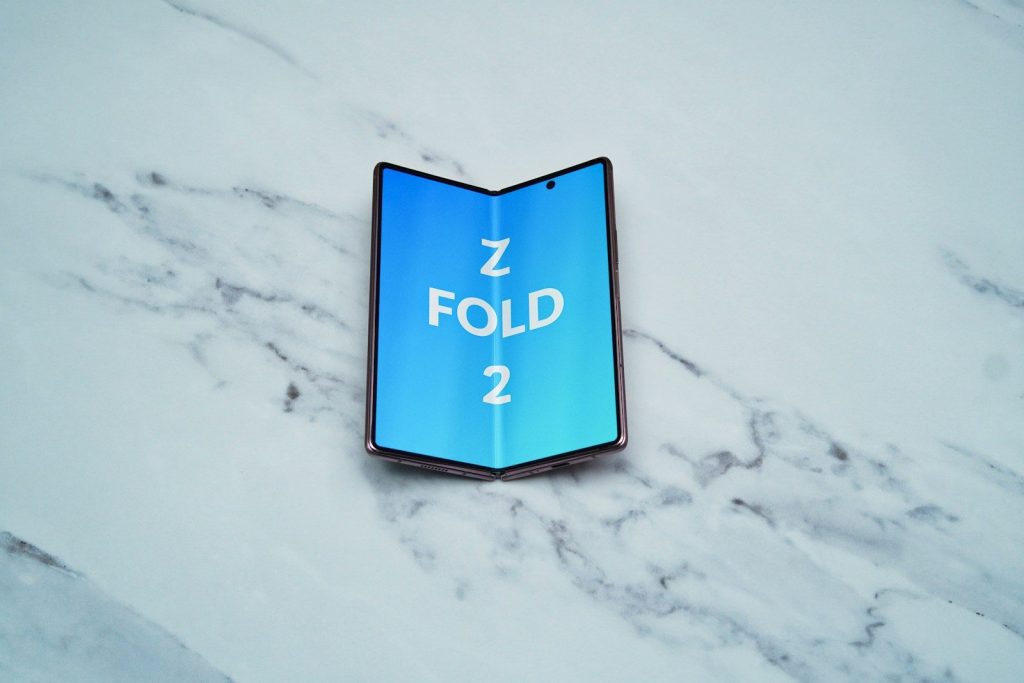
    Some foldables can be held like a small book. That shape can make reading, browsing, notes, calendars, and photo galleries feel more natural when the app is designed for two sides.

    Google’s foldable quality guidance says devices can use postures such as book posture for specialized layouts. Without that support, an app may waste space or place important controls in uncomfortable spots.

    Menus need more room
    person holding black android smartphone
    Photo by Jonas Leupe on Unsplash

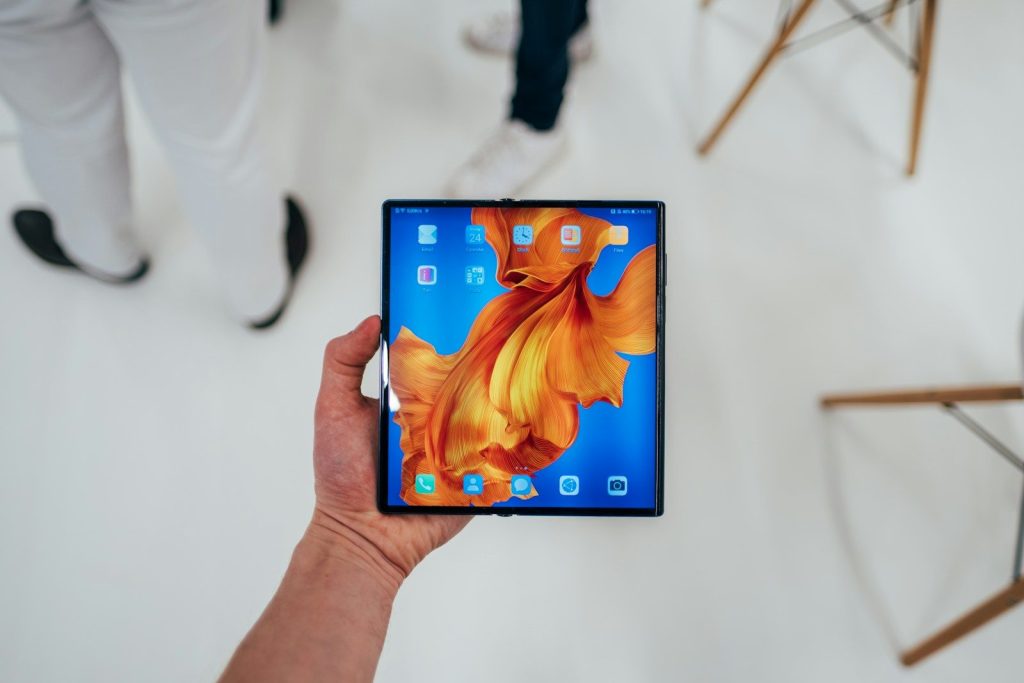
    A normal phone app often shows one column at a time. On a foldable, that can feel slow because the larger screen has enough room for a list, details, and controls together.

    Google’s window size class guidance helps developers decide when an app should change layout at different screen widths. This matters because foldables can quickly move between compact and expanded views.

    Controls should move wisely
    a close up of a cell phone on a table
    Photo by Amanz on Unsplash

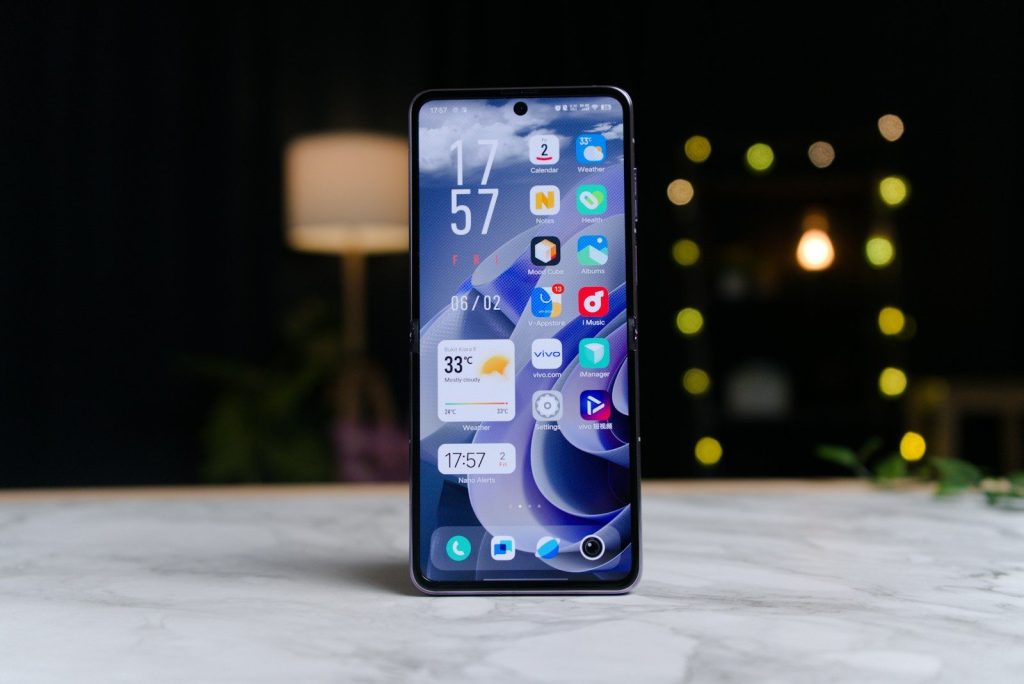
    When a foldable opens, the user’s thumbs, hands, and screen angle can change. Buttons that feel fine on a small screen may suddenly be too far away or placed in an awkward area.

    Good foldable software thinks about reach, comfort, and posture. That can mean moving playback controls, camera buttons, or menus to the half of the screen that makes the most sense.

    Video apps need new tricks
    person holding black android smartphone
    Photo by Jonas Leupe on Unsplash

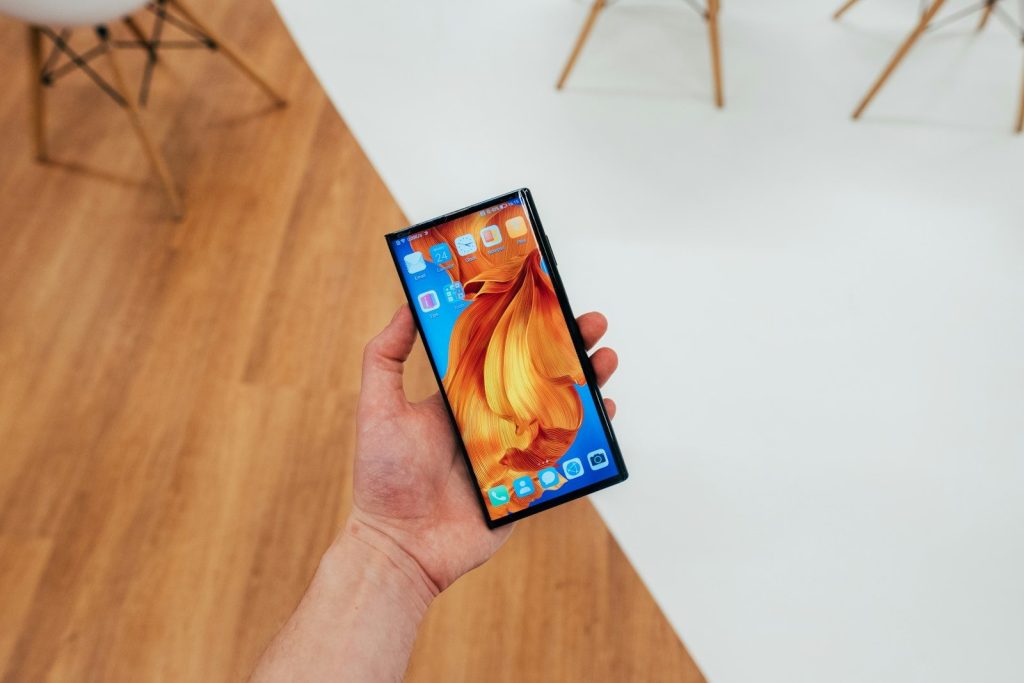
    Foldables can make videos more flexible, especially when the phone is partly folded. On supported Galaxy Z devices, Samsung says Flex Mode lets apps adapt when the phone is positioned at certain angles.

    That can place video on one part of the screen and controls on another. It keeps the viewing area cleaner and makes the phone useful without a stand.

    Testing matters much more
    black samsung android smartphone turned off
    Photo by Daniel Romero on Unsplash

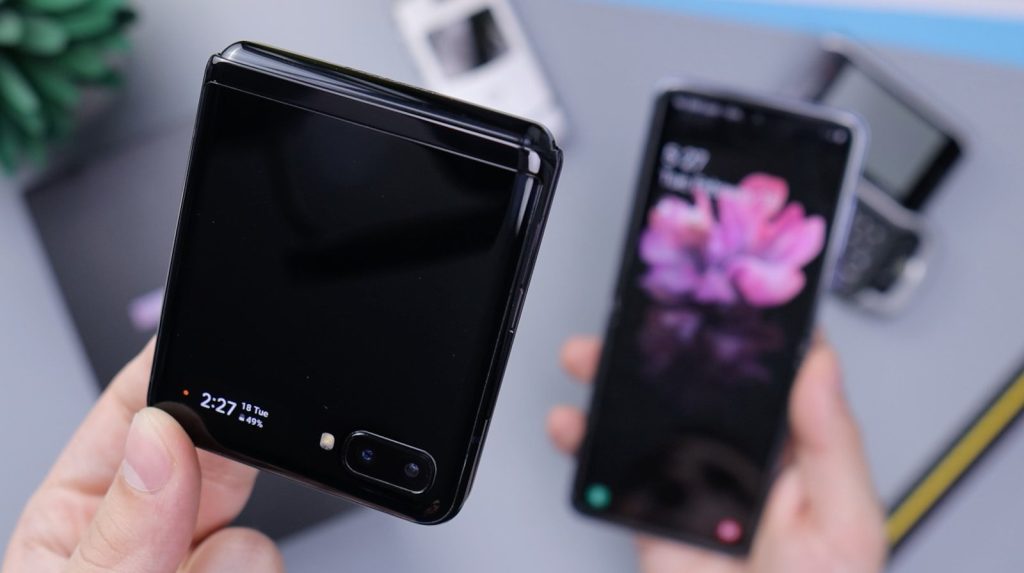
    Foldable software has more situations to handle than a regular slab phone. Developers have to think about closed screens, open screens, split-screen, half-open positions, rotation, and app resizing.

    Samsung’s developer resources highlight testing for optimized layouts, app continuity, multi-window, and Flex Mode. That shows why foldable apps need extra care before they feel polished.

    The best foldables feel natural

    a man holding a smart phone in his hands
    Photo by Jonas Leupe on Unsplash

    The goal is not to make every app look fancy. The real goal is to make the phone feel natural when it changes shape, size, and position during normal use.

    When software works well, a foldable can feel like a phone, tablet, camera stand, and multitasking tool in one device. Without that software polish, the flexible screen is only doing part of the job.
  • Why iPhone and Android texting is getting better

    Why iPhone and Android texting is getting better

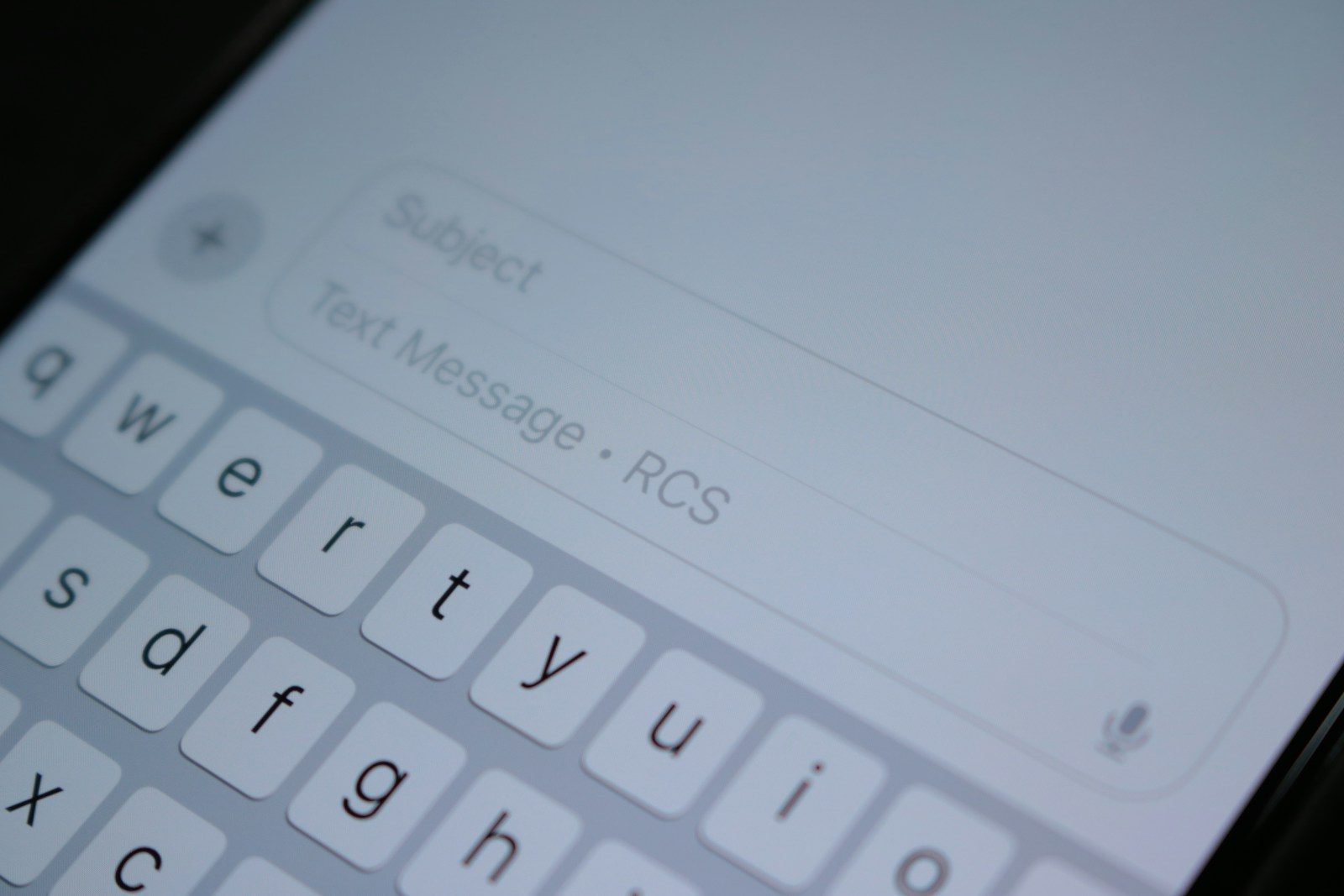
    Texting between iPhone and Android used to feel stuck in the past. Photos could look blurry, group chats could get messy, and small details like typing dots or read receipts often disappeared. That is changing because RCS, short for Rich Communication Services, is becoming more common across both platforms. Apple says RCS on iPhone can support high-resolution photos and videos, links, delivery receipts, read receipts, and typing indicators when the device and carrier support it.

    The biggest shift is simple: mixed-phone chats are starting to feel more modern. They still are not exactly the same as iMessage or every Android-to-Android chat, but the gap is getting smaller. For families, friend groups, schools, and coworkers, that can make everyday messaging feel smoother and less annoying.

    RCS is the big reason

    person holding black sony digital device
    Photo by Hillary Black on Unsplash

    RCS is the main upgrade behind better iPhone and Android texting. It is designed to replace older SMS and MMS with a richer messaging experience.

    Instead of plain texts and limited media, RCS can support higher-quality photos, videos, read receipts, typing indicators, and better group chats. That gives mixed-phone conversations more of the features people already expect from modern messaging apps.

    Photos look less blurry

    person holding black iphone 4
    Photo by Priscilla Du Preez 🇨🇦 on Unsplash

    One of the most noticeable changes is media quality. Old MMS texting could shrink photos and videos so much that they looked fuzzy or hard to watch.

    With RCS, iPhone and Android users can send higher-resolution photos and videos when the feature is available. That is a big deal for family pictures, school updates, travel clips, and anything people actually want to save.

    Typing dots help conversations

    person holding silver iphone 6
    Photo by Jonny Gios on Unsplash

    Typing indicators may seem small, but they change the feel of a chat. When you can see that someone is replying, the conversation feels more natural.

    RCS supports typing indicators, which helps iPhone and Android users avoid guessing whether a reply is coming. It makes texting feel closer to a live conversation without needing a separate messaging app.

    Read receipts reduce guessing

    a man laying on a couch taking a picture of himself
    Photo by LexScope on Unsplash

    Read receipts are another feature many people expect now. They can show when a message was received or read, depending on settings and support.

    That can be helpful for quick plans, school pickups, work updates, or family check-ins. It does not mean everyone must use read receipts, but having the option makes cross-platform texting feel more flexible.

    Group chats work better

    silver iPhone X on brown surface
    Photo by Austin Distel on Unsplash

    Mixed iPhone and Android group chats have often been the most frustrating part of texting. Older SMS and MMS group chats could feel limited and clunky.

    RCS helps improve the group chat experience by supporting richer features and smoother media sharing. It may not solve every issue overnight, but it moves mixed groups closer to the kind of chat experience people already expect.

    Wi-Fi texting is useful

    black and white remote control
    Photo by Brett Jordan on Unsplash

    RCS messages can be sent over mobile data and Wi-Fi, which is helpful when cell signal is weak but internet access is available.

    That can make a difference at home, school, work, airports, or large buildings where service is spotty. It gives texting another path to work instead of relying only on older carrier text systems.

    Security is improving too

    A person is holding an iphone.
    Photo by Shuvro Mojumder on Unsplash

    Cross-platform messaging is also getting a security upgrade. Apple announced that end-to-end encrypted RCS began rolling out in beta for iPhone users on iOS 26.5 with supported carriers and Android users on the latest Google Messages version.

    Apple says encrypted RCS chats show a lock icon when the conversation is protected. This rollout depends on device software, app support, and carrier support, so it may not appear for everyone at the same time.

    Carriers still matter

    Apple Store shop front
    Photo by Laurenz Heymann on Unsplash

    RCS is improving texting, but it is not magic. Apple says iPhone users need iOS 18 and a cellular plan from a carrier that supports RCS messaging on iPhone.

    That means two people with newer phones may still have different results depending on where they live, their carrier, and their settings. If RCS is not supported, a chat may fall back to SMS or MMS.

    Green bubbles are changing

    a close up of a cell phone on a table
    Photo by Lana Codes on Unsplash

    Green bubbles are not going away on iPhone, but what they can do is changing. Apple says RCS messages still appear in green bubbles, similar to SMS and MMS.

    The difference is that a green bubble can now carry richer features when RCS is active. So the color may look familiar, but the experience behind it can be much better than old-school texting.

    Texting feels more normal

    woman in white shirt holding black iphone 4
    Photo by Miquel Parera on Unsplash

    The best part of this change is that people do not need to think as much about who has which phone. A message should simply send, photos should look clear, and group chats should feel easier.

    RCS is not perfect, and support can still vary. But iPhone and Android texting is clearly moving in a better direction, with richer media, smarter chat signals, and stronger security slowly becoming part of everyday texting.

  • How Android Auto is turning cars into rolling screens

    How Android Auto is turning cars into rolling screens

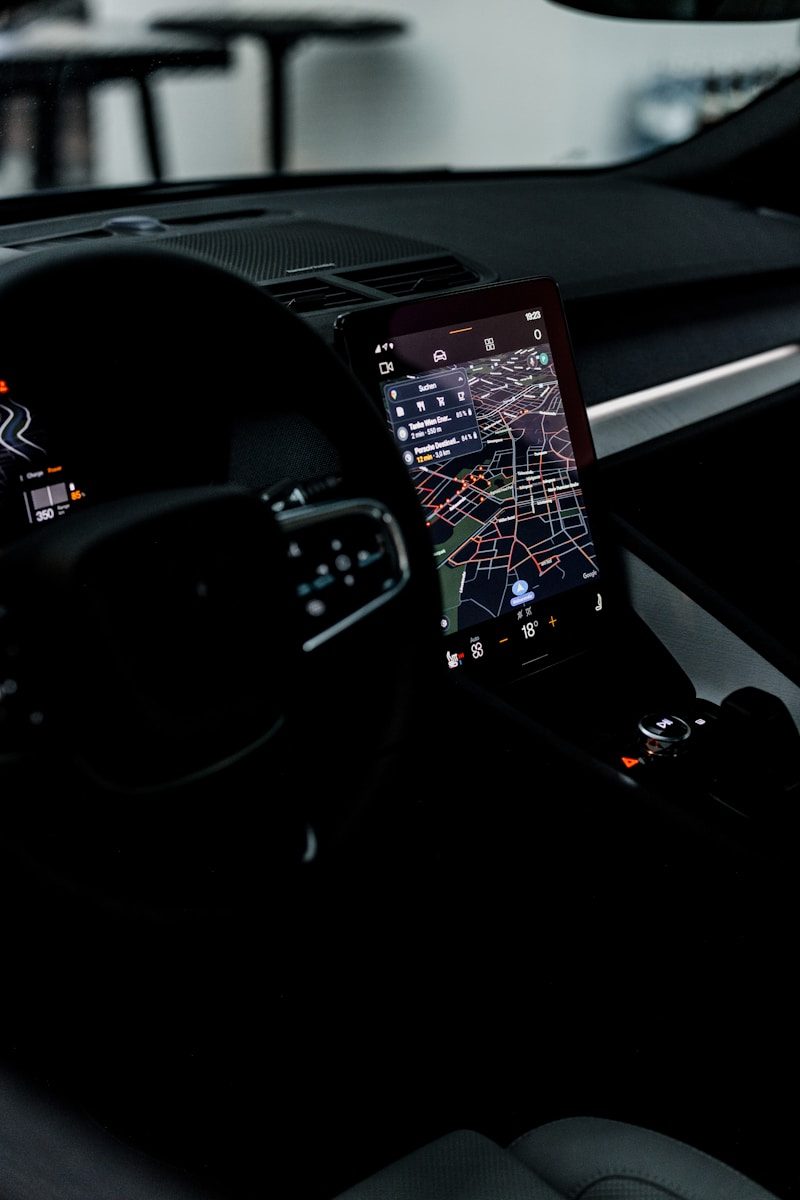
    Your car’s dashboard is no longer just a place for speed, fuel, and radio buttons. Android Auto is helping turn the center screen into a bigger, smarter extension of your phone. It brings maps, calls, messages, music, and other supported apps to the car display so drivers can keep their focus on the road. Google says Android Auto works with more than 500 vehicle models, and setup can be done with a USB cable or wirelessly in supported cars.

    The big shift is that car screens are becoming more useful, more personal, and more app-friendly. New updates are also adding refreshed layouts, smarter voice help, immersive navigation, and parked entertainment features, making the dashboard feel more like a connected screen than an old-school control panel.

    The dashboard is changing

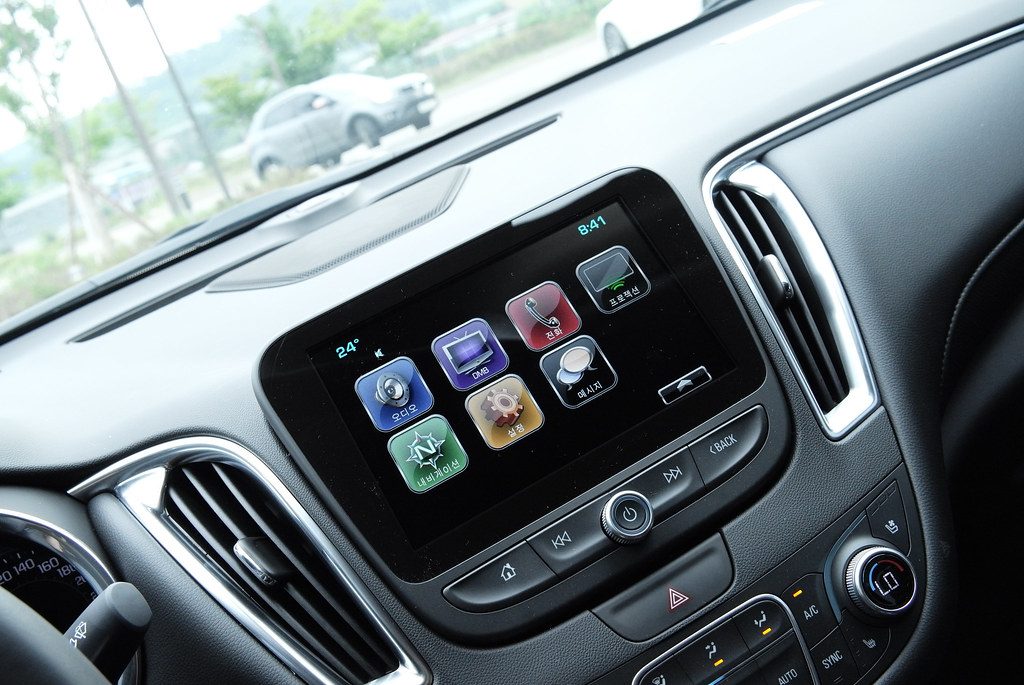
    Car INFOTAINMENT Apple CarPlay Android Auto” by TheBetterDay is licensed under CC BY-ND 2.0

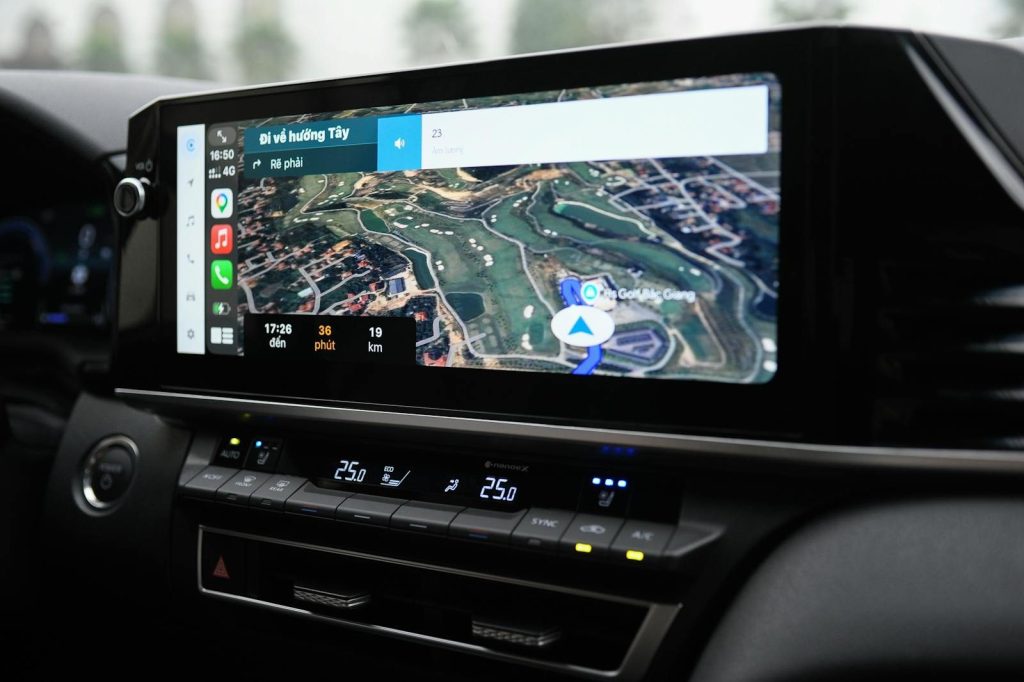
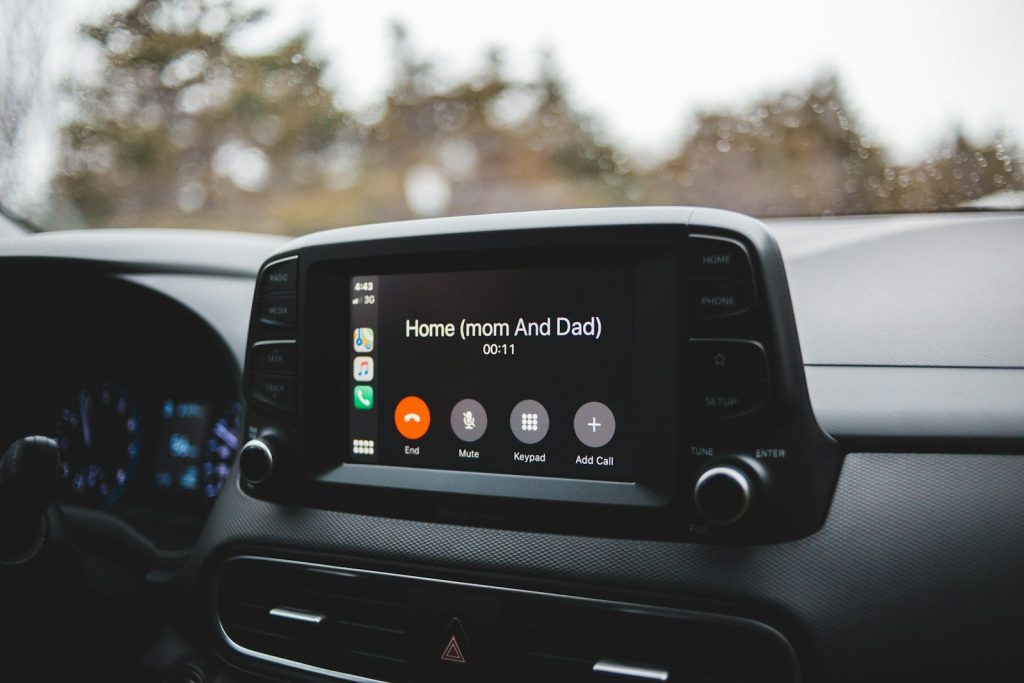
    Car screens used to be simple. They showed radio stations, climate settings, and maybe a basic map. Now, Android Auto puts phone-based tools right in the middle of the dashboard.

    That changes how drivers interact with the car. Instead of looking at a phone for directions or music, they can use a larger screen built for quick glances and simpler controls.

    Maps lead the shift

    Interior view of a car featuring the GPS navigation system illuminated at night, showcasing technology and modern travel.
    Photo by Erik Mclean on Pexels

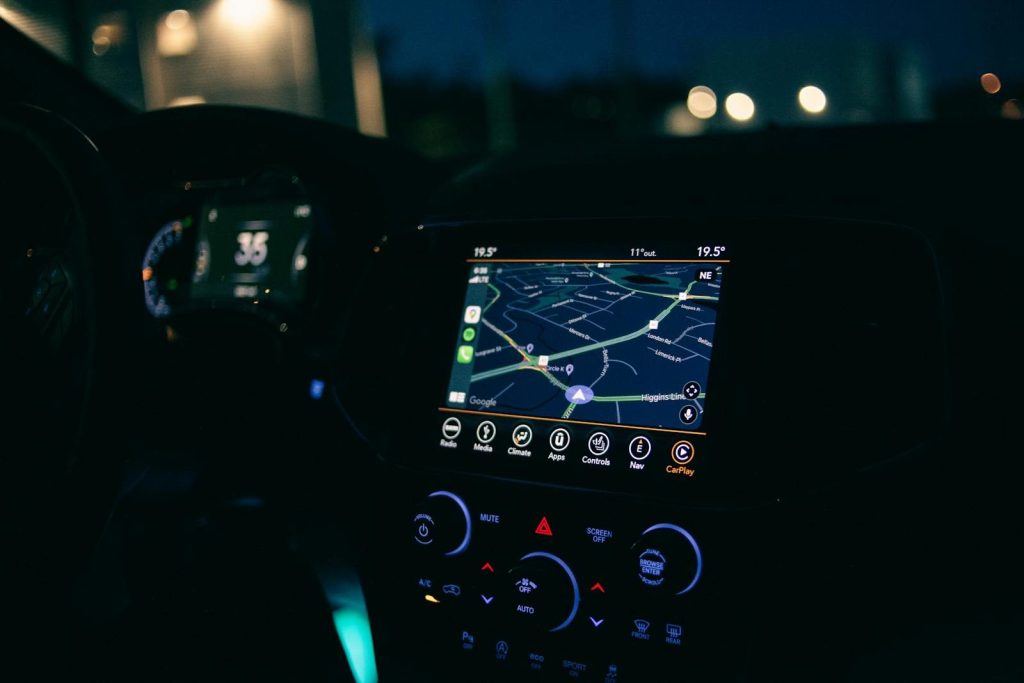
    Navigation is one of the biggest reasons people use Android Auto. Google says it brings maps and navigation to the car display, helping drivers control directions while staying focused.

    This makes the screen feel more like the main command center. Traffic, turns, arrival times, and route updates all become part of the driving view, not something hidden on a smaller phone screen.

    Music is always close

    the dashboard of a car in the dark
    Photo by Bruno Guerrero on Unsplash

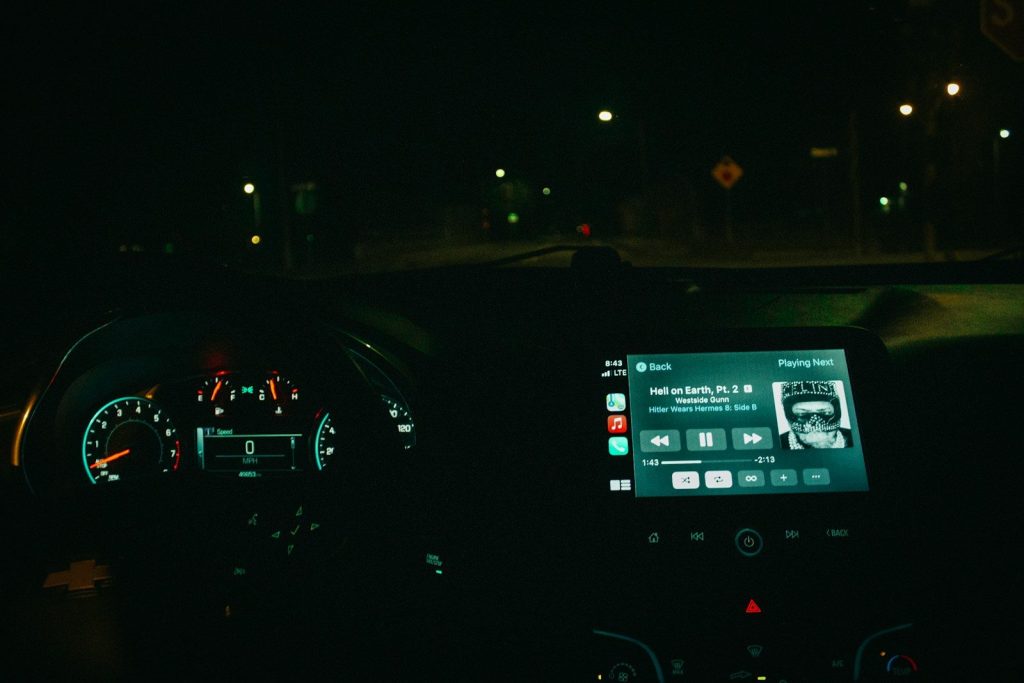
    Android Auto also makes music and audio apps easier to reach. Drivers can play songs, podcasts, and other media from supported apps without digging through their phones.

    That is a major reason cars feel more screen-based now. The dashboard is not just giving directions. It is also managing entertainment in a way that feels closer to a tablet or smart display.

    Messages are more visual

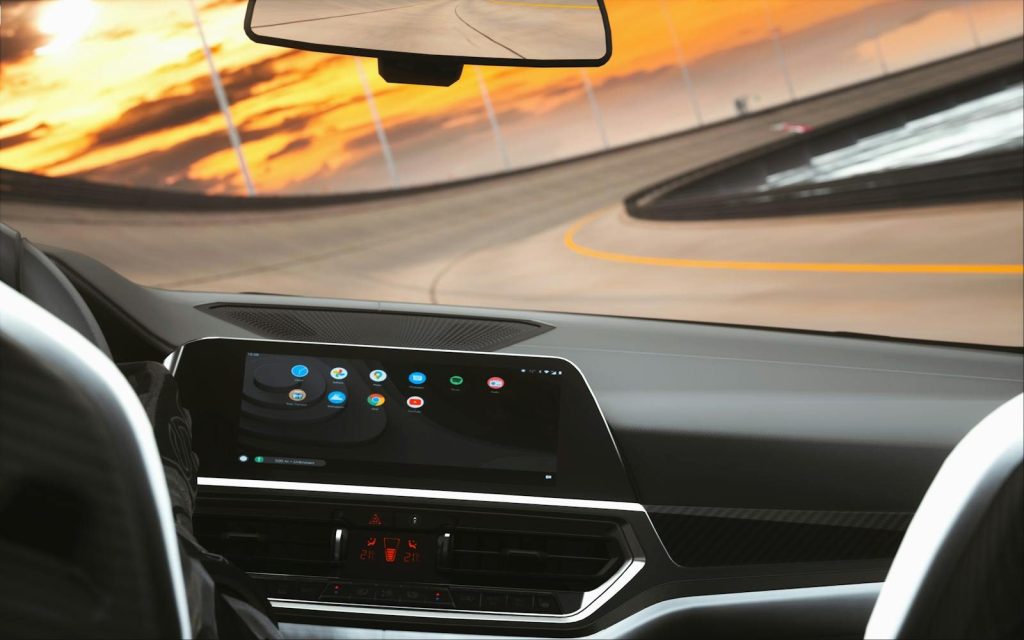
    Sleek car interior featuring a digital dashboard during a sunset drive on a curved road.
    Photo by Hensan Aranha on Pexels

    Texts and alerts can now appear in safer, simpler ways on the car screen. Android Auto supports message controls, and Google highlights suggested replies that can help drivers respond quickly.

    The goal is not to turn the car into a phone. It is to reduce phone handling by moving basic communication tools onto a larger, cleaner display with voice and tap-friendly options.

    Voice control matters more

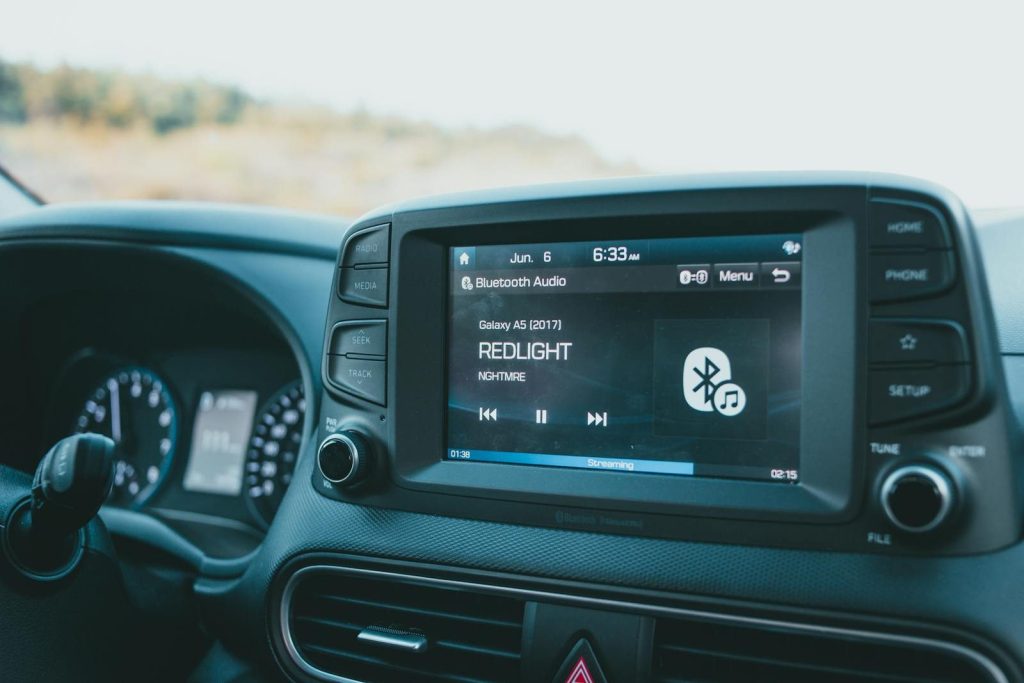
    Close-up of a car dashboard featuring a Bluetooth audio system with music display.
    Photo by Erik Mclean on Pexels

    A screen alone is not enough in a car. Drivers need controls that do not require too much looking or tapping, which is why voice help is becoming a key part of Android Auto.

    Google says Gemini is being added to Android Auto as the newer hands-free assistant experience. That means drivers may soon talk to the car screen more naturally for directions, messages, and simple tasks.

    Bigger screens need better layouts

    Inside view of a car with a sleek digital dashboard showing navigation and media controls.
    Photo by Vladimir Srajber on Pexels

    Modern cars do not all use the same screen size or shape. Some dashboards have wide displays, curved screens, or unusual layouts that older systems did not handle well.

    Google’s newer Android Auto updates are aimed at making the experience work better across different car screens. That matters because the dashboard screen is becoming a major selling point in many vehicles.

    Parked video is arriving

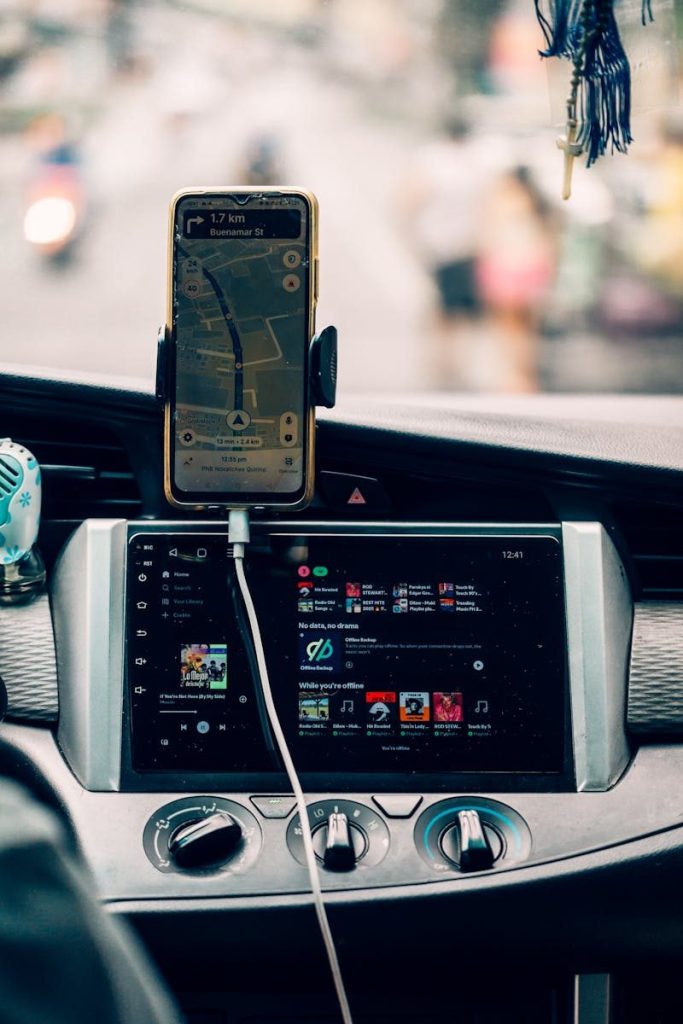
    Interior view of car dashboard with GPS and music display, creating a modern travel vibe.
    Photo by Nothing Ahead on Pexels

    Android Auto is also moving beyond driving-only tools. Google says video apps will be supported on Android Auto starting with phones running Android 16 on select compatible cars, with the experience meant for parked use.

    That detail is important. The car screen may become more useful during charging stops, school pickups, or waiting in a parking lot, but safety limits still matter while driving.

    Apps are becoming car-ready

    Modern in-car navigation system showing a digital map and route details.
    Photo by Thang Nguyen on Pexels

    Android Auto is not just about Google’s own apps. Google’s developer tools support categories like navigation, weather, media, messaging, and other car-ready experiences.

    This is part of the “rolling screen” idea. As more apps are designed for cars, the dashboard can handle more helpful tasks without copying the clutter of a regular phone screen.

    Google built-in goes deeper

    Modern car dashboard featuring a digital touchscreen interface with multiple apps.
    Photo by Sina Rezakhani on Pexels

    Android Auto connects your phone to the car screen, but some cars also come with Google built-in. Those vehicles can run Google apps more directly from the car system.

    Google says cars with Google built-in can receive automatic updates and access apps through Google Play. That makes some dashboards feel even more like connected devices that keep improving over time.

    Safety still sets limits

    black 2 din car stereo
    Photo by Erik Mclean on Unsplash

    The rise of bigger car screens can sound distracting, but Android Auto is designed around simpler controls, larger buttons, and voice help. Google also reminds users to pay attention to the road and follow driving laws.

    That balance is the real story. Cars are becoming more screen-based, but the best features are the ones that reduce phone handling and keep key information easy to reach.

  • 10 car tech features drivers may actually use

    10 car tech features drivers may actually use

    New cars can feel packed with screens, menus, sensors, and buttons that sound impressive at the dealership but rarely matter on a normal Tuesday. The best features are the ones that quietly make driving easier, safer, or less annoying. They help in traffic, parking lots, bad weather, school pickup lines, long drives, and quick grocery runs.

    Some tech is flashy. Some of it feels like a gimmick. But a few features earn their place because drivers can use them almost every day. From automatic braking to better phone connection, these tools are not just for luxury cars anymore. They can save time, reduce stress, and help drivers feel more aware behind the wheel.

    Automatic emergency braking

    an aerial view of a car in the snow
    Photo by Bernd 📷 Dittrich on Unsplash

    Automatic emergency braking can help when traffic suddenly stops and your foot is a second too slow. It uses sensors or cameras to watch the road ahead and may apply the brakes if it detects a possible crash.

    This feature is becoming a bigger deal in the U.S. NHTSA finalized a rule requiring automatic emergency braking in new cars and light trucks starting in 2029. That makes it one of the most practical safety features to know.

    Blind spot alerts

    Close-up of a car side mirror with raindrops, reflecting a blurred background.
    Photo by Damir K . on Pexels

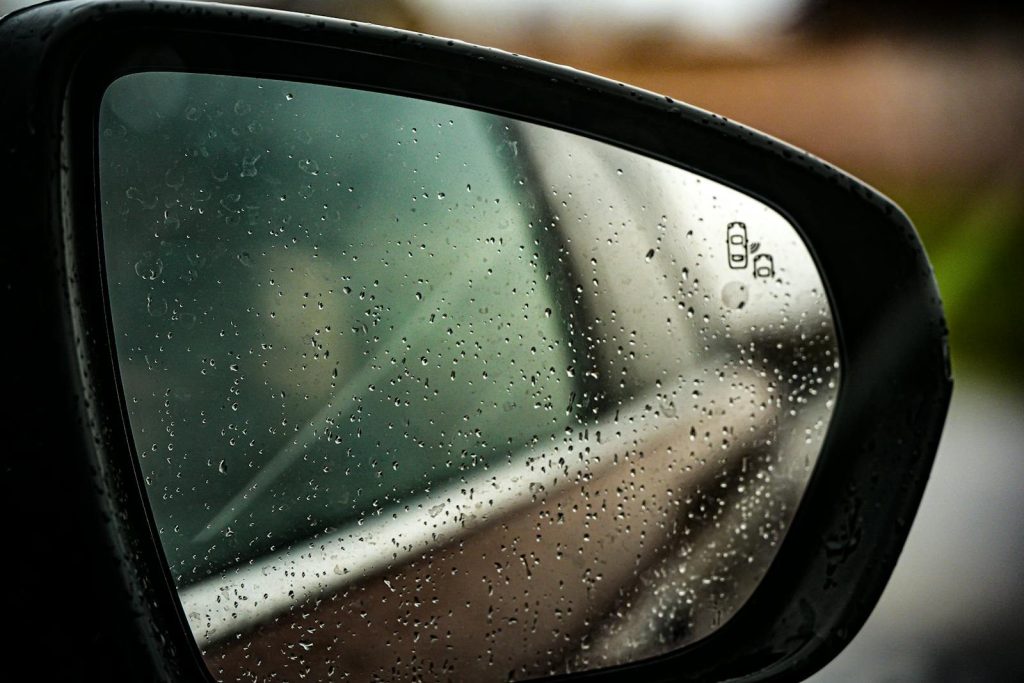
    Changing lanes is easier when your car gives you a warning about vehicles you may not see. Blind spot alerts usually use lights in the side mirrors, and some systems add a sound or steering warning.

    This is useful because blind spots can hide smaller cars, motorcycles, or fast-moving traffic. IIHS says blind spot detection has been shown to reduce lane-change crashes, which makes it more than a nice extra.

    Adaptive cruise control

    Hand pressing button on car steering wheel
    Photo by Edi Kurniawan on Unsplash

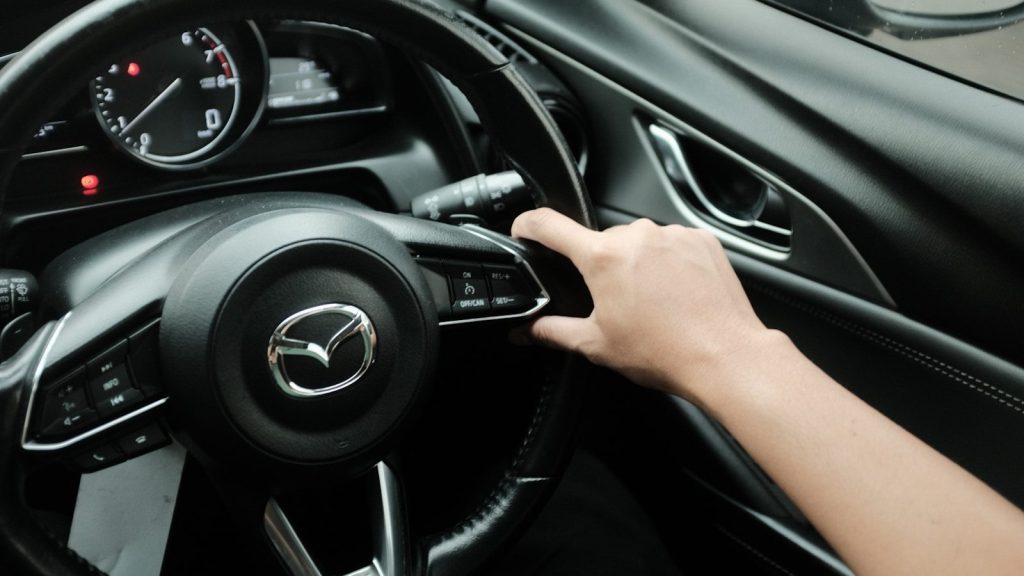
    Regular cruise control holds one speed. Adaptive cruise control goes a step further by adjusting your speed to keep distance from the car ahead. On long highway drives, that can make a big difference.

    Some newer systems can even work in stop-and-go traffic, slowing down and speeding up with traffic flow. You still have to pay attention, but it can make daily commuting feel less tiring.

    Rear cross-traffic alert

    Traffic jam with an accident warning sign.
    Photo by viktor rejent on Unsplash

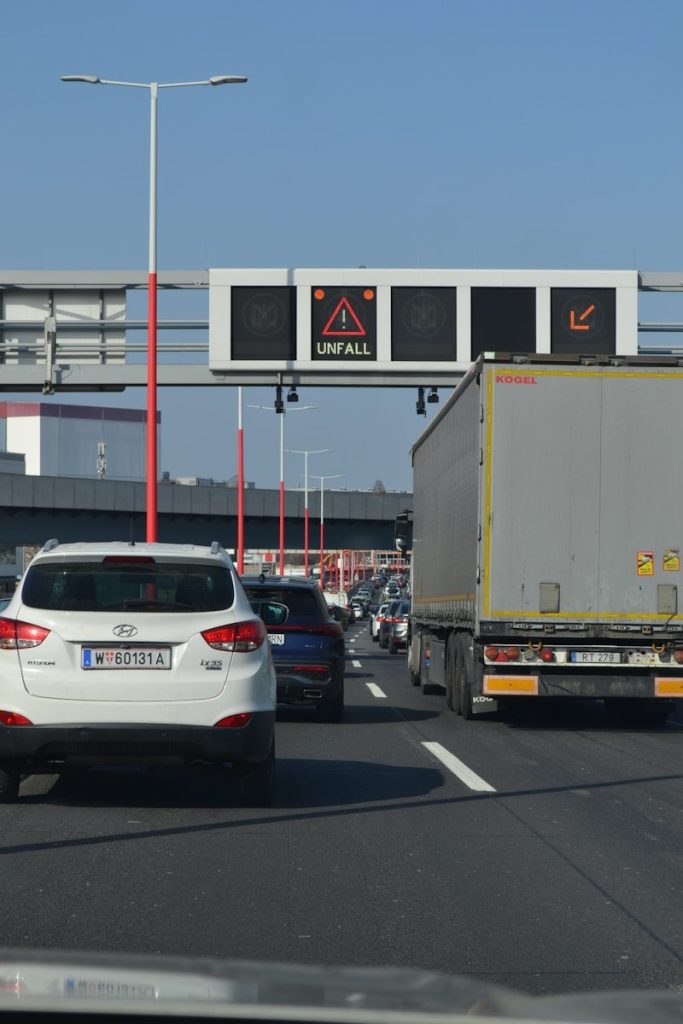
    Backing out of a parking space can be stressful when large trucks or SUVs block your view. Rear cross-traffic alert watches for vehicles approaching from the side while you reverse.

    This feature is especially helpful in crowded parking lots, apartment garages, and shopping centers. IIHS groups rear cross-traffic alert with rear crash prevention technologies, along with parking sensors and rear automatic braking.

    360-degree cameras

    black 2 din car stereo
    Photo by Erik Andersson on Unsplash

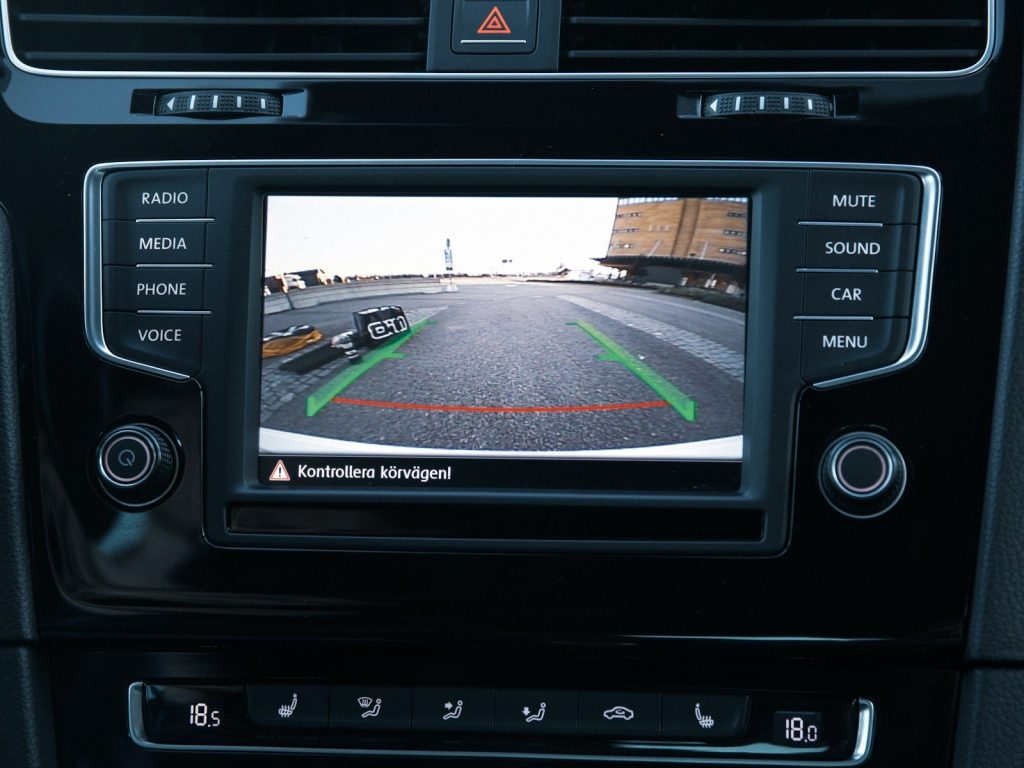
    A backup camera is helpful, but a 360-degree camera can feel like having eyes around the whole car. It combines camera views to show a top-down image of the vehicle’s surroundings.

    This can make tight parking, narrow driveways, and curbside spots much easier. It is not a replacement for mirrors or checking around the car, but it can help drivers avoid small bumps and scratches.

    Lane keeping assist

    person driving car during daytime
    Photo by Eugene Chystiakov on Unsplash

    Lane keeping assist can gently help steer the car back if it starts drifting out of its lane. It usually works best on clearly marked roads and highways.

    This feature is most useful during long drives, when small moments of distraction can happen. IIHS research has found that lane departure warning and blind spot detection help drivers avoid the types of crashes they are designed to prevent.

    Wireless phone connection

    black iphone 4 on car dashboard
    Photo by Omar Al-Ghosson on Unsplash

    Apple CarPlay and Android Auto can put maps, music, calls, and messages on the car’s screen in a simpler way. Wireless versions make it even easier because you do not need to plug in every time.

    For many drivers, this may be the most-used tech feature in the car. It keeps the phone tucked away while still giving quick access to navigation, audio, and voice controls.

    Built-in voice controls

    Close-up of a car dashboard featuring a Bluetooth audio system with music display.
    Photo by Erik Mclean on Pexels

    Good voice controls can help drivers change music, call someone, set a destination, or adjust basic settings without hunting through menus. That matters because touchscreens can be distracting.

    The best systems understand normal speech and respond quickly. Even when they are not perfect, voice controls can reduce the need to tap through screens while the car is moving.

    Remote vehicle apps

    A picture of a man's face on a monitor in a car
    Photo by Maxim on Unsplash

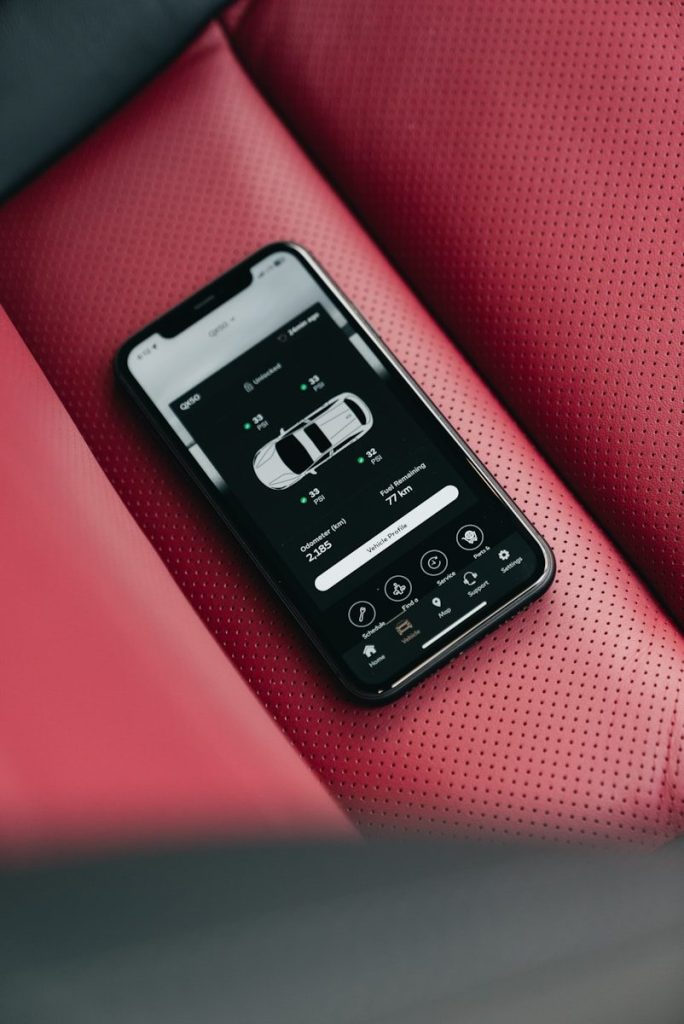
    Many newer cars have apps that let drivers lock doors, check fuel or battery level, start climate control, or find where the car is parked. Those small tools can be surprisingly useful.

    Remote start is especially handy in very hot or cold weather. A quick app check can also help when you are halfway across a parking lot and suddenly wonder whether you locked the doors.

    Tire pressure monitoring

    Smartphone displaying car app on red leather seat
    Photo by Erik Mclean on Unsplash

    Tire pressure monitoring is not flashy, but it is one of the most useful everyday alerts. It tells you when a tire may be low, which can help prevent poor handling, bad fuel economy, or tire damage.

    Drivers may ignore it until the warning light appears, but that little symbol can catch a problem early. It is simple tech, yet it can save time, money, and stress on the road.

  • 10 iPhone features that make everyday life feel easier

    10 iPhone features that make everyday life feel easier

    Some iPhone features are flashy, but the most useful ones are often the quiet tools you use without thinking. They save a few taps, help you find information faster, make your screen easier to manage, or turn a small habit into something smoother. Apple keeps adding features that make the iPhone feel less like a device you have to manage and more like a helper that fits into daily routines.

    The best part is that many of these tools do not require extra apps. Features like Back Tap, Live Text, widgets, Focus, Control Center shortcuts, and Check In are built into iPhone. Apple’s support pages show how these tools can help with quick actions, text copying, notifications, safety updates, and easier access to common controls.

    Back Tap saves extra taps

    a close up of a silver iphone on a black surface
    Photo by Li Yan on Unsplash

    Back Tap lets you double-tap or triple-tap the back of your iPhone to run an action. You can use it for things like opening the camera, taking a screenshot, or launching a shortcut.

    It is especially handy because you do not need to hunt through menus. Once it is set up, a quick tap on the back of the phone can handle a small task in seconds.

    Live Text grabs words fast

    A close up of a cell phone with a keyboard
    Photo by Samuel Angor on Unsplash

    Live Text lets your iPhone camera recognize text in front of you. You can copy text, open a website, call a number, or use text from a photo without typing it by hand.

    This is useful for signs, flyers, menus, packages, and notes. Instead of retyping a long code or address, you can let the iPhone pick up the words for you.

    Widgets show info quicker

    black samsung android smartphone on white textile
    Photo by Alvaro Perez on Unsplash

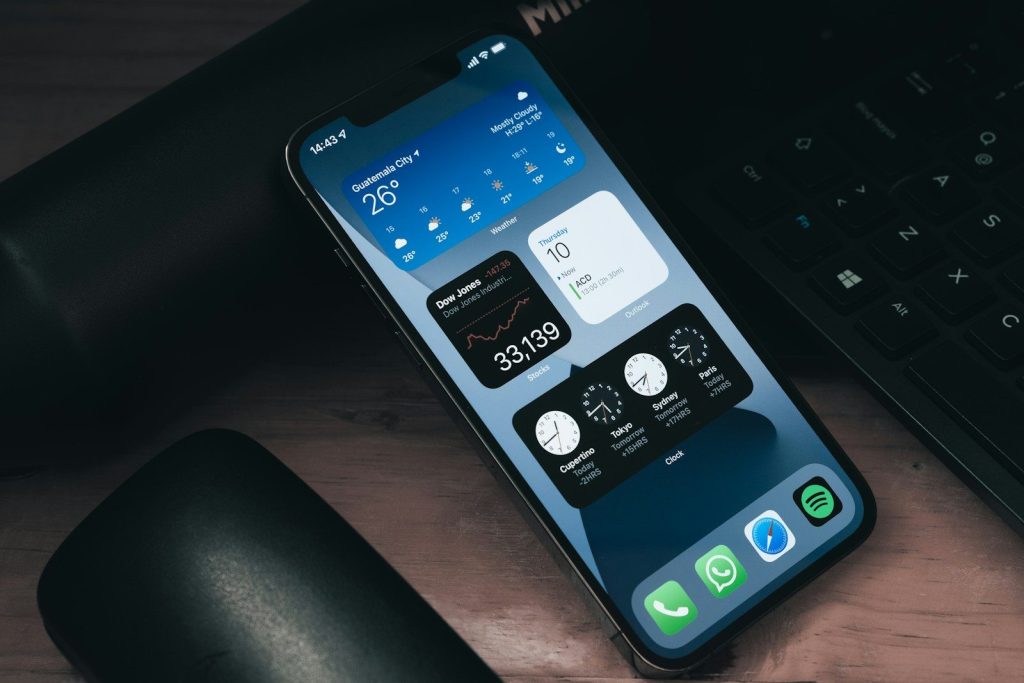
    Widgets bring useful information to your Home Screen or Lock Screen. Apple lets users add, edit, and remove widgets so the phone can show details from apps without opening each one.

    A calendar widget can show your next event. A weather widget can show the forecast. A reminders widget can keep your to-do list visible before you forget it.

    Control Center cuts searching

    Hand holding a smartphone with colorful app icons.
    Photo by Georgiy Lyamin on Unsplash

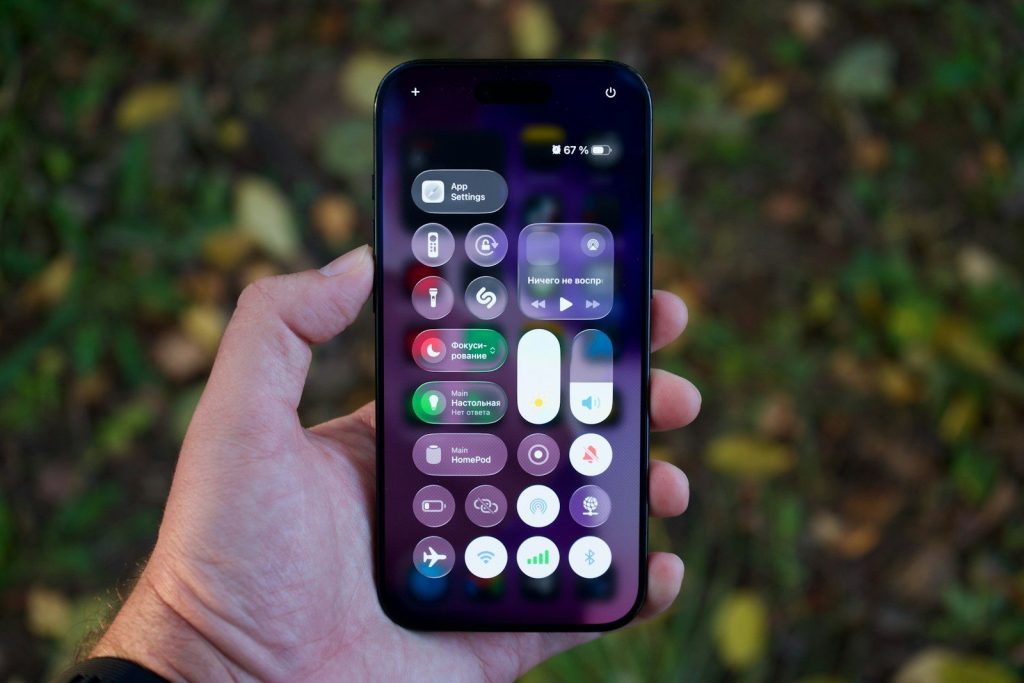
    Control Center gives quick access to useful controls like flashlight, brightness, volume, Airplane Mode, and Do Not Disturb. Apple also lets users customize Control Center to fit what they use most.
    That makes everyday tasks faster. Instead of opening Settings for basic controls, you can swipe, tap, and move on. It is one of the easiest ways to save time.

    Shortcuts handle repeat tasks

    a cell phone sitting on top of a desk next to a keyboard
    Photo by Soliman Cifuentes on Unsplash

    Shortcuts can turn several steps into one tap. Apple says users can even run shortcuts from Control Center, making favorite actions easier to reach.

    This can help with simple routines, like sending a message, opening directions, starting a playlist, or changing phone settings. It makes the iPhone feel more personal without needing advanced tech skills.

    Focus keeps distractions down

    A person is holding an iphone.
    Photo by Shuvro Mojumder on Unsplash

    Focus helps control which notifications reach you during certain times. You can use different modes for work, sleep, driving, or personal time, depending on what needs your attention.

    This feature makes daily use easier because it reduces noise. Your phone can still be useful without buzzing for everything. That can help when you are working, resting, studying, or spending time with family.

    Check In adds peace of mind

    internet, whatsapp, smartphone, communication, phone, networking, app, chat, mobile, networked, global, iphone, ios, make a phone call, community, social media, multimedia, web, instant messenger, touch screen, threema, imessage, telegram, social network, write, messenger, media, social, whatsapp, whatsapp, whatsapp, app, iphone, social media, social media, social media, social media, social media
    Photo by LoboStudioHamburg on Pixabay

    Check In in Messages can automatically let a friend know when your iPhone has arrived at a destination. Apple says users can also choose what details are shared if a check-in is not completed.

    It is a small feature with a practical purpose. Instead of remembering to text “I’m here,” your iPhone can help send that update for you in supported situations.

    Notifications are easier to manage

    person holding phone
    Photo by Jamie Street on Unsplash

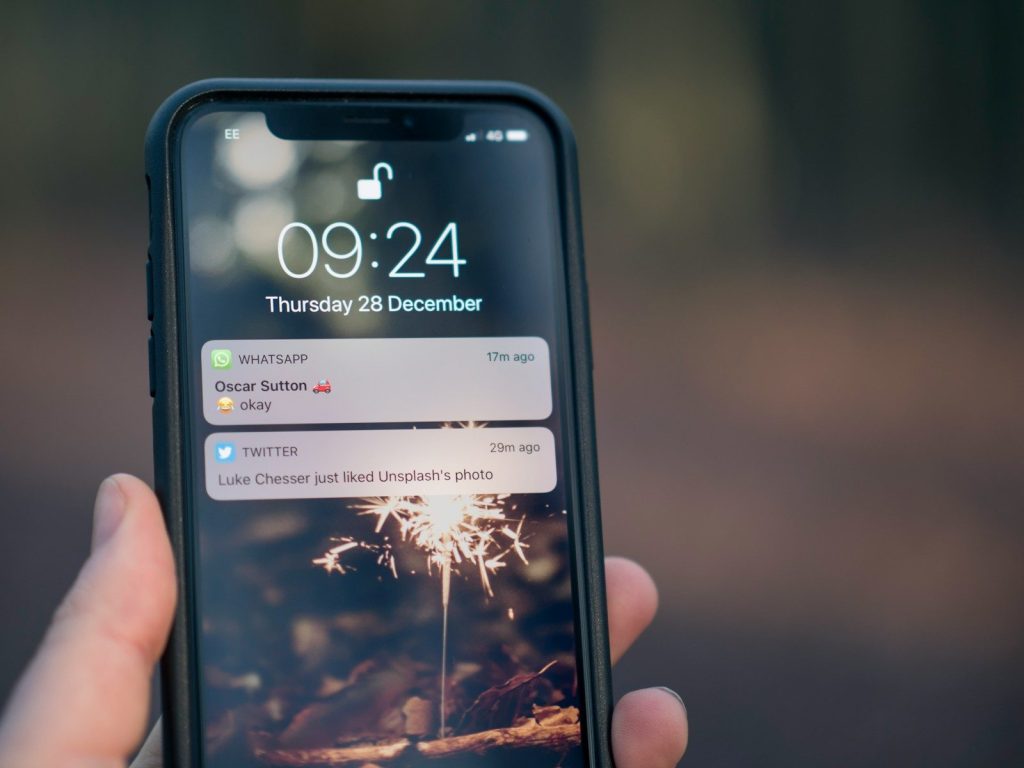
    iPhone notifications can appear on the Lock Screen in different views, including expanded list, stacked view, or count view. Apple says users can pinch notifications on the Lock Screen to change the layout.

    That helps keep the screen from feeling messy. You can still see what matters, but the phone does not have to look crowded every time you wake it.

    Journal helps save moments

    smartphone on notebook
    Photo by Debby Ledet on Unsplash

    The Journal app gives iPhone users a built-in place to record daily thoughts and memories. Apple says entries can include writing, photos, music, drawings, and audio recordings.

    It can be useful for quick reflections, travel memories, or small notes about the day. Since it is built into iPhone, it can feel easier than starting from a blank notebook.

    Accessibility improves comfort

    a close up of a cell phone on a table
    Photo by Stephen Walker on Unsplash

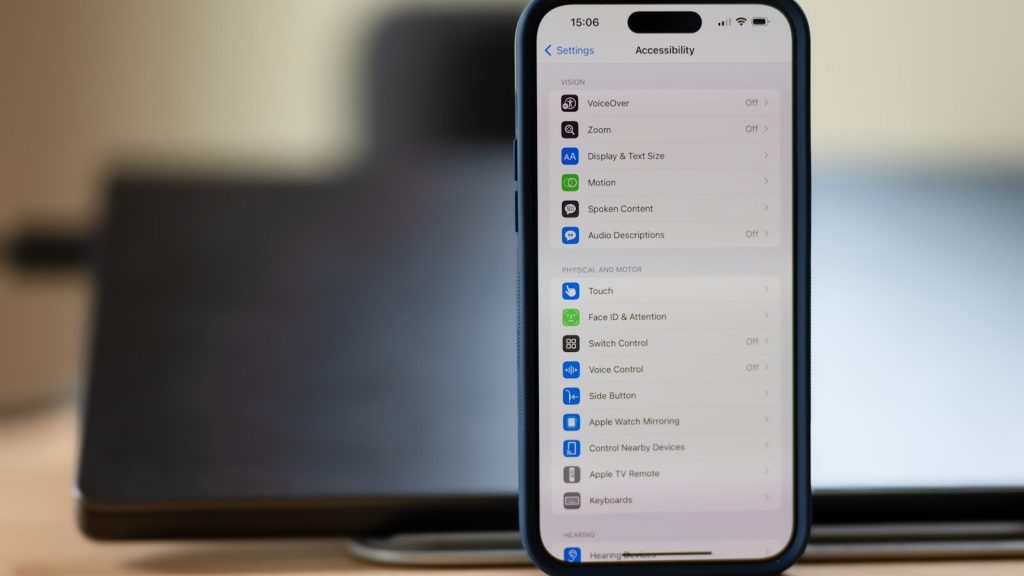
    iPhone includes built-in accessibility tools that can make the screen easier to see, hear, and control. Apple lists many vision features that help users adjust how content appears or is spoken on the device.

    These tools are not only for one group of users. Larger text, spoken content, display changes, and touch settings can make daily iPhone use more comfortable for many people.

  • Why Googlebooks could make basic laptops feel behind

    Why Googlebooks could make basic laptops feel behind

    Basic laptops have always had one clear job: open the web, run simple apps, handle schoolwork, and keep the price low. But Google’s next laptop push could make that formula feel a little old. Reports around the new “Googlebook” idea point to a more premium Google laptop platform with stronger AI features, deeper Android ties, and more powerful chips from partners like Qualcomm and MediaTek.

    Even before that arrives, Chromebook Plus already shows where Google is heading. Google says Chromebook Plus offers stronger performance, built-in Google apps, AI features, long battery life, and built-in security. That mix could challenge plain budget laptops that still rely mostly on price alone.

    A simpler laptop idea

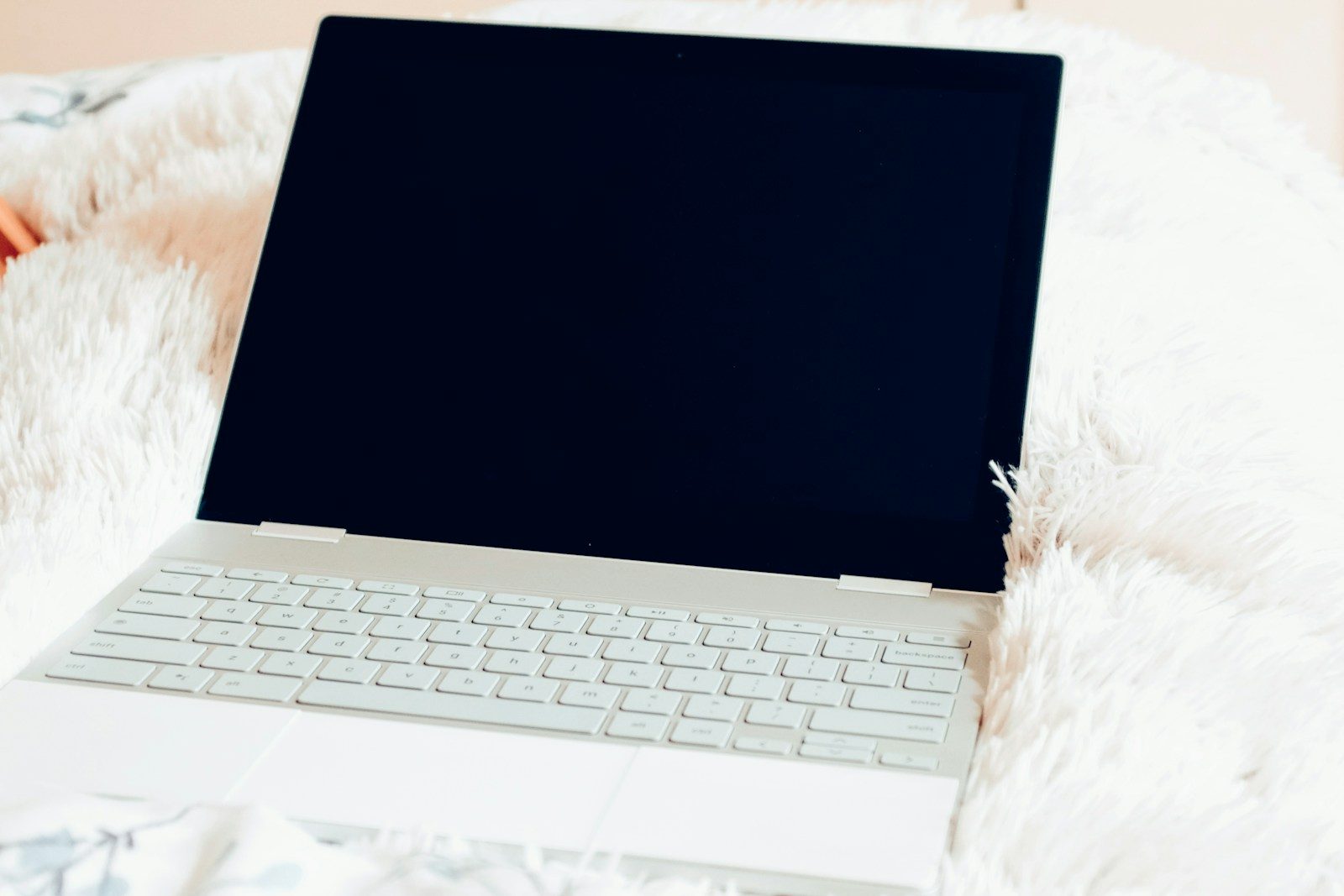
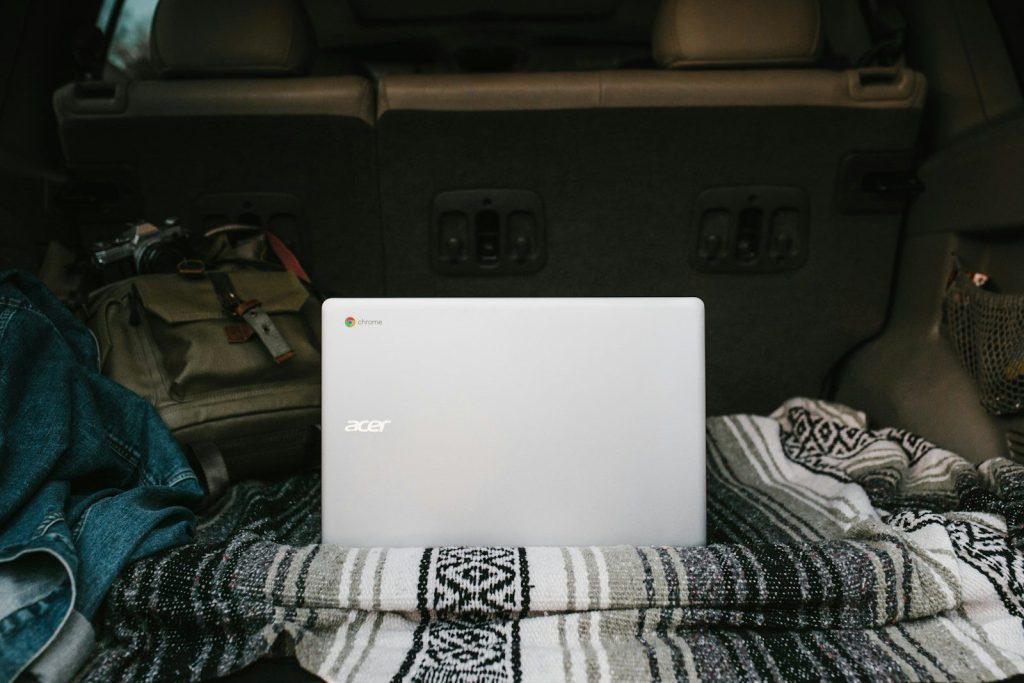
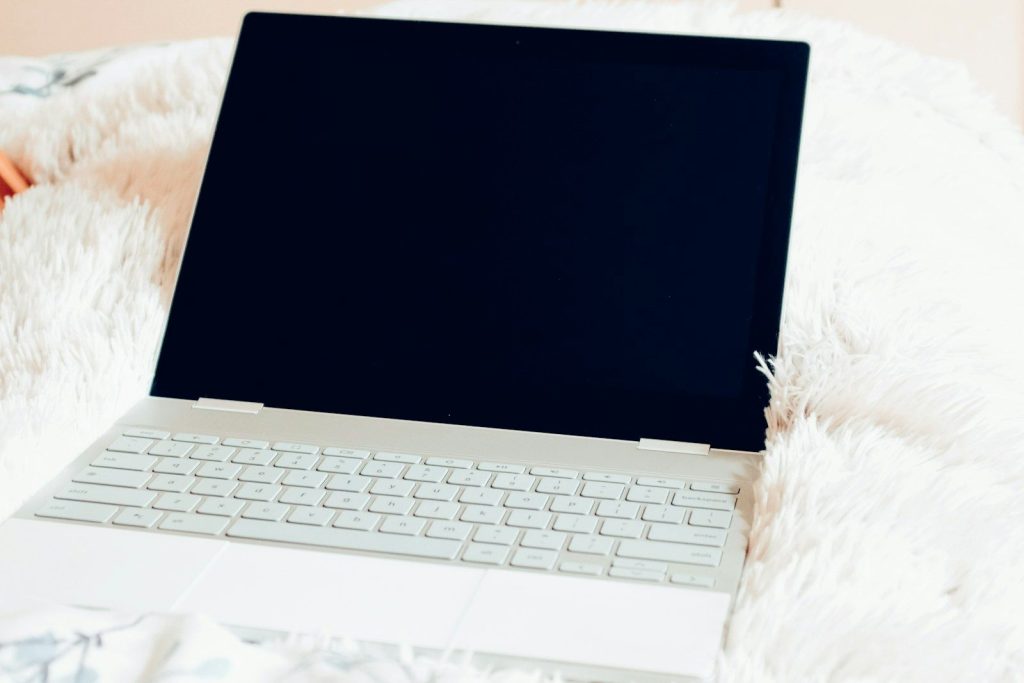
    white Acer Chromebook laptop
    Photo by Andrew Neel on Unsplash

    Many basic laptops are sold on low cost and familiar software. That can be enough for browsing, email, homework, and streaming.

    Googlebooks could challenge that by making the laptop feel simpler from the start. If the device is built around Google apps, Android tools, cloud storage, and AI help, buyers may see less setup work and fewer confusing choices.

    AI could feel built in

    a yellow letter sitting on top of a black floor
    Photo by Jackson Sophat on Unsplash

    A lot of laptops now advertise AI, but the features can feel scattered. Some tools live in the browser, some in apps, and some need separate accounts.

    Google has already added Gemini and other AI features to Chromebook Plus laptops. A Googlebook-style device could make that feel more natural by placing AI help closer to writing, searching, editing, and daily tasks.

    Android ties could matter

    green frog iphone case beside black samsung android smartphone
    Photo by Denny Müller on Unsplash

    One reason Googlebooks could stand out is Android integration. Reports suggest the platform may connect more deeply with Android phone apps, files, and services.

    That could be a big deal for people who already use Android phones. Instead of treating the laptop and phone like separate worlds, Google could make them feel more connected for photos, messages, apps, and quick sharing.

    Basic laptops may feel plain

    macbook pro on brown wooden table
    Photo by Clint Patterson on Unsplash

    A budget laptop can still be useful, but many of them feel very ordinary. They may offer a browser, office apps, and storage, but not much that feels new.

    If Googlebooks focus on smarter search, cleaner app access, and helpful AI tools, they could make a basic laptop feel less exciting. The challenge is proving those extras are useful, not just flashy.

    Price will shape the fight

    fan of 100 U.S. dollar banknotes
    Photo by Alexander Mils on Unsplash

    Price is where basic laptops still have a strong advantage. Many shoppers choose them because they are affordable, easy to replace, and good enough for simple work.

    Googlebooks may not win if they cost too much. Reports suggest the platform may aim higher than traditional budget Chromebooks. That means Google will need to show clear value beyond the name.

    Chromebook Plus paved the way

    chromebook, office, laptop, work from home, desk, table, computer, work, workspace, workplace, officespace, tech, technology, quote, corona, covid, make a video call, webinar, digitization, feline corona virus, digital, network, chromebook, chromebook, chromebook, chromebook, chromebook, webinar
    Photo by RoonzNL on Pixabay

    Google has already used Chromebook Plus to raise expectations. When it launched the category, Google said it offered double the performance, built-in Google apps, AI tools, and a starting price of $399.

    That matters because Googlebook may not appear out of nowhere. It could build on years of Chromebook changes while aiming for buyers who want more power and polish.

    Updates are a quiet advantage

    A close up of a cell phone on a table
    Photo by appshunter.io on Unsplash

    Long support can make a laptop feel like a safer buy. Google says Chromebooks receive automatic updates for 10 years from the platform release date.

    That could help Googlebooks challenge basic laptops, especially for families and schools. A device that stays updated longer can feel less risky, even if the first price is not the lowest.

    Security stays important

    Google Chromebook med Chrome OS” by Martin Bekkelund is licensed under CC BY-NC-ND 2.0

    Many people want a laptop that feels safe without a lot of extra work. Google promotes Chromebooks as fast, secure, and affordable devices for daily needs.

    That security message could carry into Googlebooks. If buyers believe the laptop is easier to maintain, safer to use, and less stressful, it could stand out from cheap laptops that need more hands-on care.

    The app story is bigger

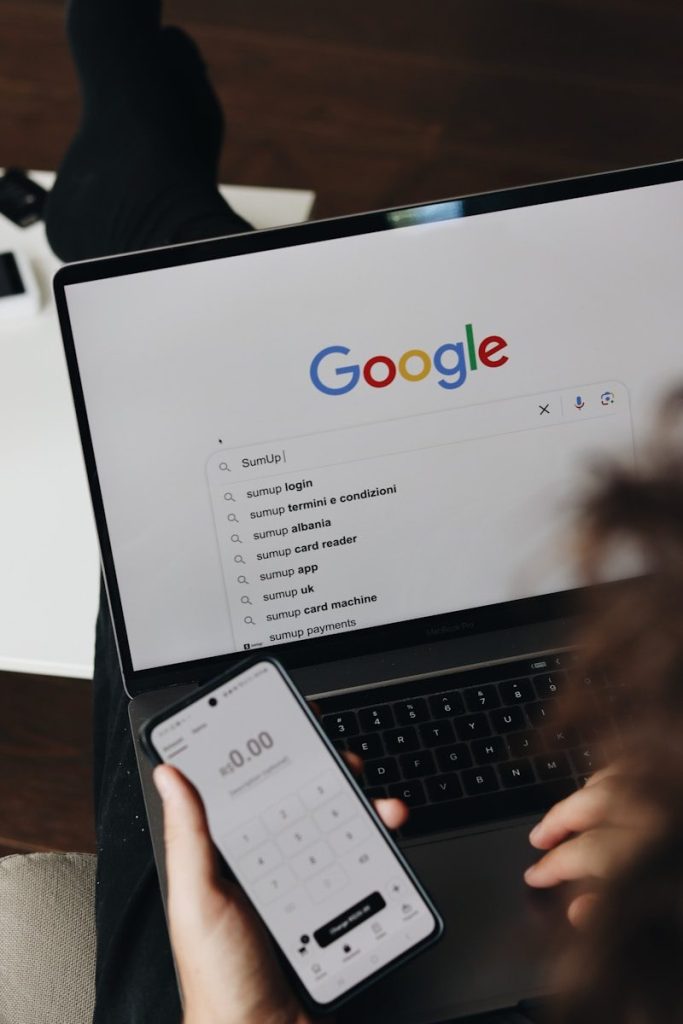
    A person holding a cell phone and a laptop
    Photo by SumUp on Unsplash

    Basic laptops often rely on traditional desktop programs or browser tabs. That works, but it can feel limited for people who live across phones, apps, and cloud services.

    A Googlebook could lean harder into Android apps, web apps, and Google services in one place. If that mix works smoothly, it could feel more modern than a low-cost laptop built only around older desktop habits.

    Success depends on clarity

    the google logo is displayed on the side of a building
    Photo by Adarsh Chauhan on Unsplash

    Googlebooks could challenge basic laptops, but only if the message is clear. Buyers need to understand what they are getting: better AI, stronger phone ties, longer support, or a smoother daily experience.

    The danger is confusion. If Googlebooks sound like expensive Chromebooks with a new label, people may ignore them. But if they solve real daily problems, basic laptops could suddenly look less future-ready.

  • 7 Apple ecosystem tricks that make your devices feel smarter together

    7 Apple ecosystem tricks that make your devices feel smarter together

    Apple devices can do more together than many people realize. An iPhone, iPad, Mac, Apple Watch, and Apple TV are not just separate gadgets sitting on the same account. They can share a clipboard, pass tasks between screens, turn an iPhone into a Mac camera, unlock a Mac with a watch, and move files without cables. Apple groups many of these tools under Continuity, which is designed to help nearby Apple devices work together when they are signed in with the same Apple Account and meet the right requirements.

    The best part is that these tricks are built in. You do not need to buy another app or learn anything complicated. A few simple habits can make daily work, school, travel, and home use feel much smoother.

    Copy once, paste anywhere

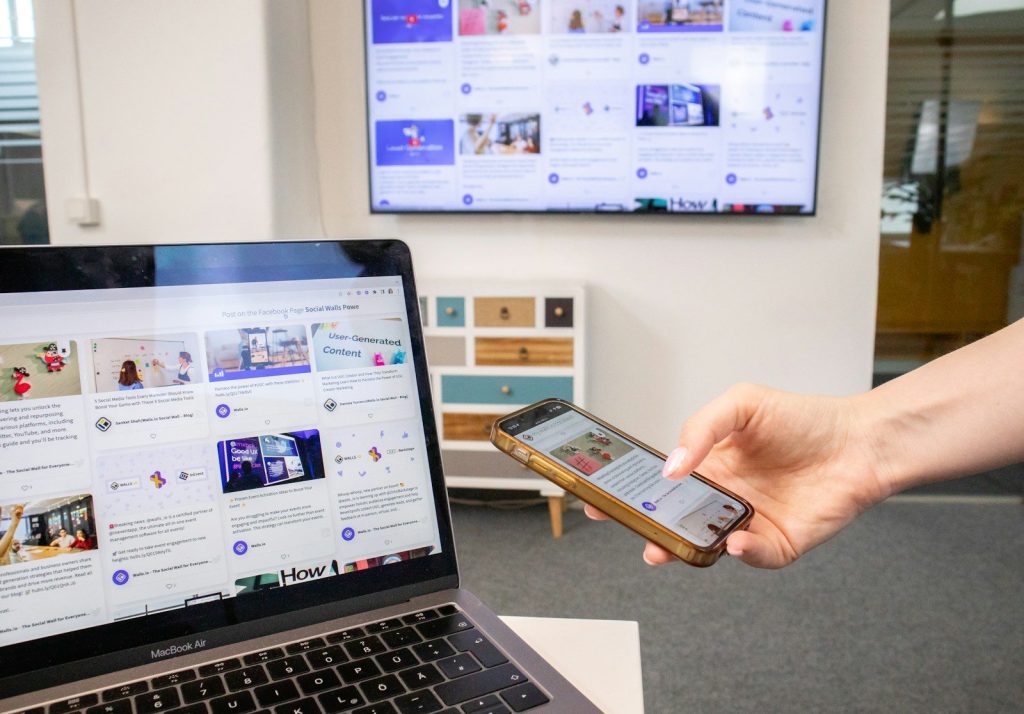
    a person holding a cell phone in front of a laptop
    Photo by Walls.io on Unsplash

    Universal Clipboard lets you copy text, photos, images, or videos on one Apple device and paste them on another. You might copy a link on your iPhone and paste it into a Mac document seconds later.

    It feels small until you use it often. Instead of emailing yourself notes or sending links in a message, your devices can quietly pass the copied item along for you.

    Use iPhone as a webcam

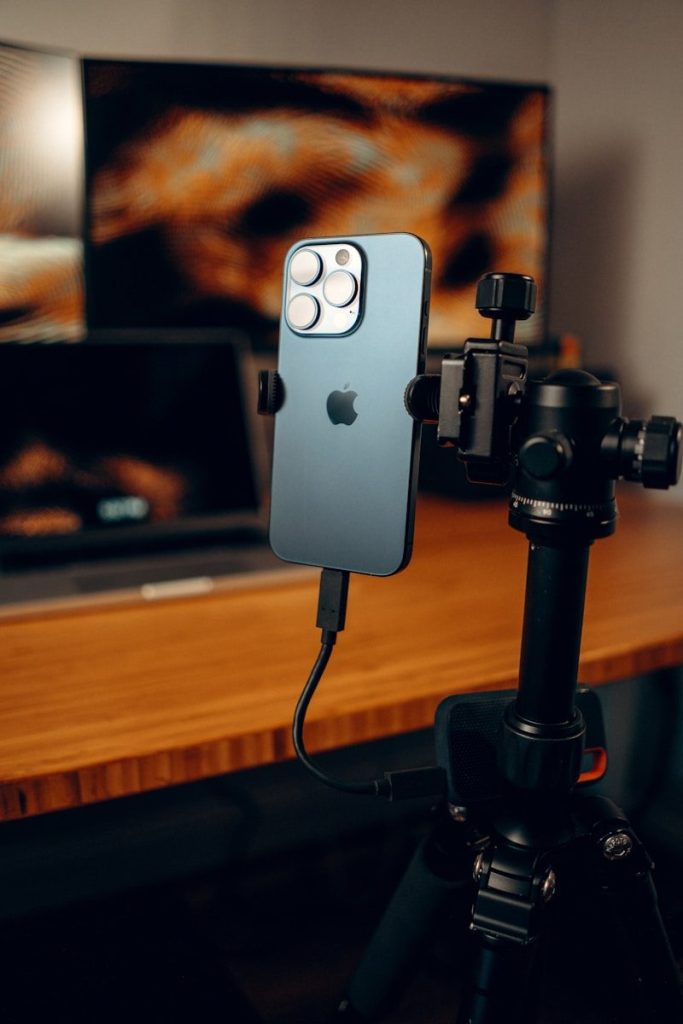
    a cell phone sitting on top of a tripod
    Photo by Yianni Mathioudakis on Unsplash

    Continuity Camera can turn your iPhone into a webcam or microphone for your Mac. Apple says it can work wired or wirelessly, which makes it useful for calls, classes, and remote meetings.

    This is easy to forget because the iPhone is usually seen as the camera you carry. But paired with a Mac, it can become a better desk camera without needing extra gear.

    Unlock Mac with your watch

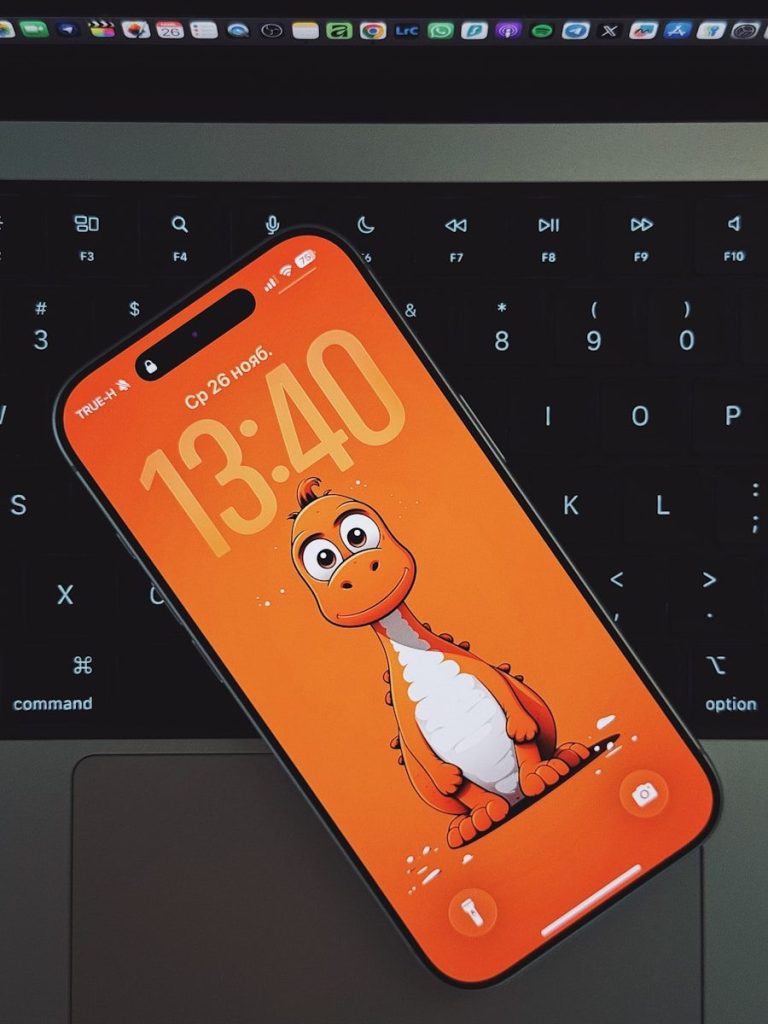
    Smartphone with cartoon dinosaur wallpaper on keyboard
    Photo by Max Bvp on Unsplash

    If you wear an Apple Watch, it can unlock your Mac when you wake the computer. Apple says you can also use the watch to approve certain requests after Auto Unlock is set up.

    That saves time during the day. Instead of typing your password each time you return to your desk, your watch helps confirm it is you and lets you get back to work faster.

    Turn iPad into another screen

    white ipad on white table
    Photo by Arthur Lambillotte on Unsplash

    Sidecar lets an iPad work as a second display for a Mac. Apple says it can be used wirelessly, or you can plug in the iPad to keep it charged while using it.

    This is handy when you need more room. You can keep notes, messages, previews, or a browser window on the iPad while your main work stays on the Mac.

    Control iPad from your Mac

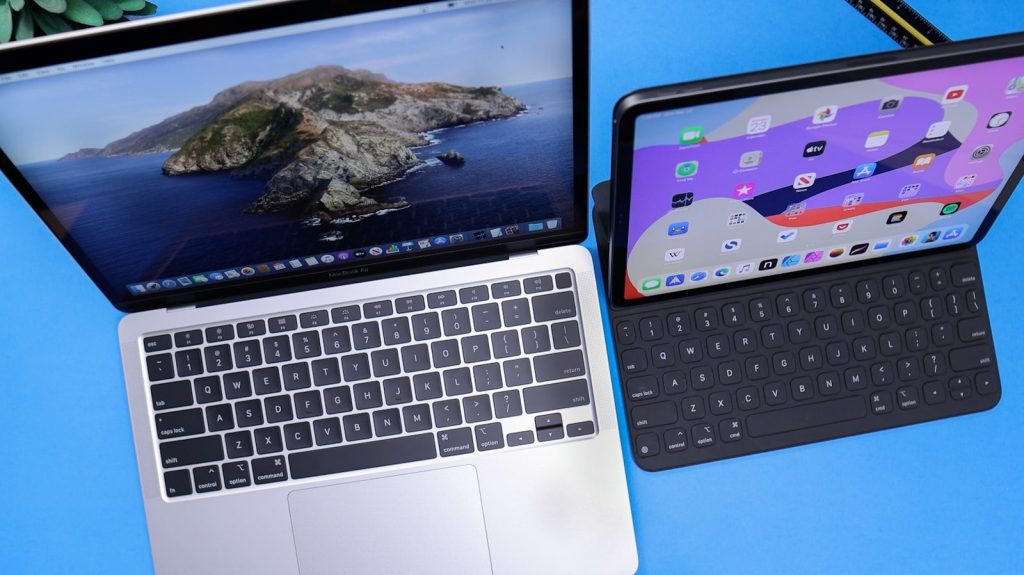
    macbook pro beside ipad mini
    Photo by Daniel Romero on Unsplash

    Universal Control lets one keyboard and mouse or trackpad work between a Mac and iPad. Apple says you can move the pointer between screens and drag and drop between devices.

    It is different from using the iPad as a second display. Each device keeps its own apps, but your Mac keyboard and pointer can glide between them like one bigger workspace.

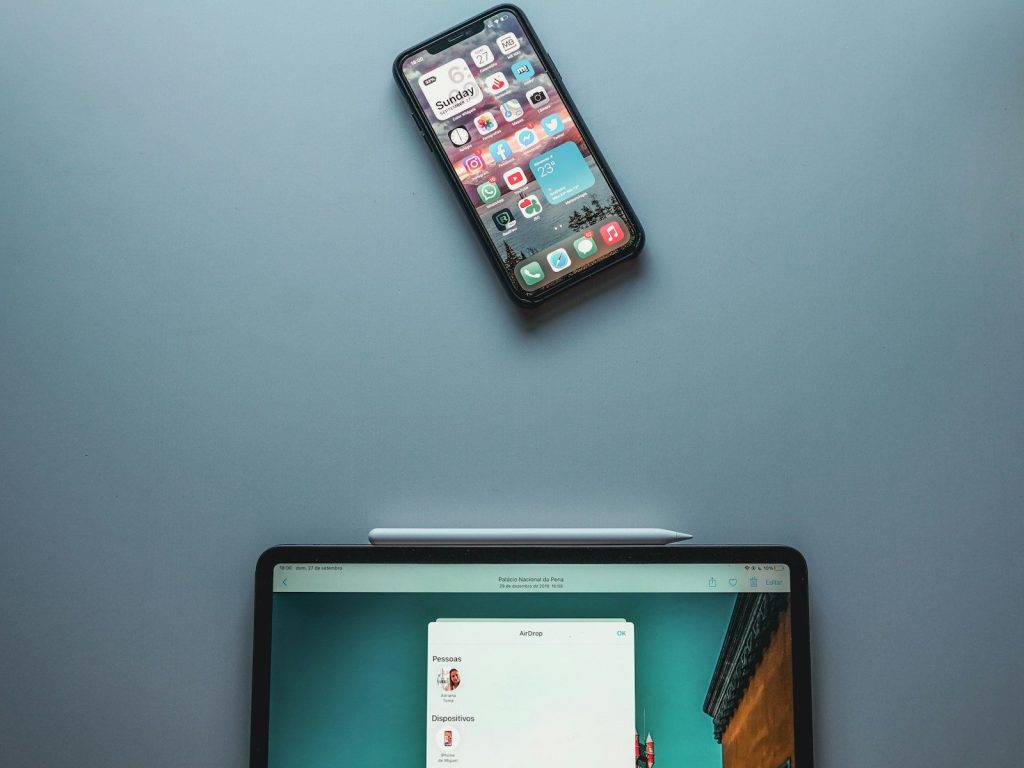
    AirDrop more than photos

    silver ipad on white table
    Photo by Miguel Tomás on Unsplash

    AirDrop is famous for sharing pictures, but it can also send files, websites, map locations, and more between nearby Apple devices. Apple says it is best for sharing a small selection of files.

    That makes it great for quick handoffs. You can send a PDF from Mac to iPhone, move a photo to iPad, or share a link without digging through email.

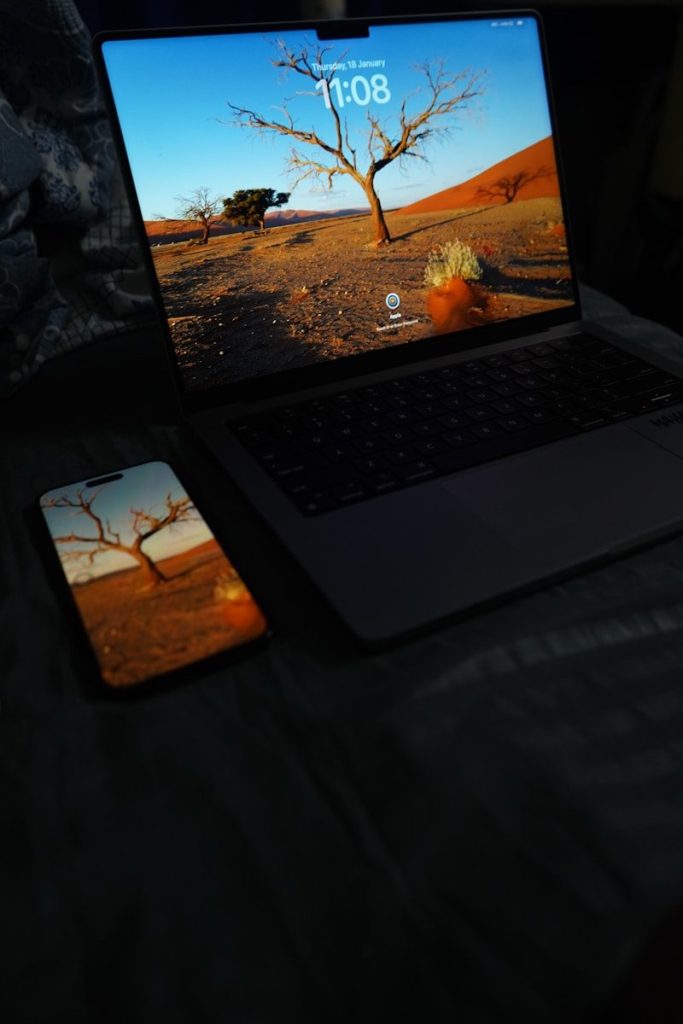
    Mirror iPhone on Mac

    A laptop computer sitting on top of a bed
    Photo by Freebird 10c on Unsplash

    iPhone Mirroring lets you interact with your iPhone and its apps from your Mac. Apple says the iPhone stays locked while you use it from the computer, so others cannot access it directly.

    This can make small phone tasks feel less disruptive. You can check an app, respond to a notification, or use your Mac keyboard without picking up your iPhone every few minutes.

  • Could Android laptops become the next everyday computer?

    Could Android laptops become the next everyday computer?

    Android laptops used to sound like a strange idea. Phones ran Android. Laptops ran Windows, macOS, or ChromeOS. But that line is starting to blur. Google has introduced Googlebook, a new laptop category that brings together Android, ChromeOS, Google Play apps, Chrome, Gemini, and tighter Android phone features. The goal is not just to make a bigger phone with a keyboard. It is to build a laptop that feels more connected, more app-friendly, and more helpful for daily tasks. If the hardware is good and the software feels polished, Android laptops could move from “interesting experiment” to something normal people actually consider.

    Google is making a real push

    chromebook, office, laptop, work from home, desk, table, computer, work, workspace, workplace, officespace, tech, technology, quote, corona, covid, make a video call, webinar, digitization, feline corona virus, digital, network, chromebook, chromebook, chromebook, chromebook, chromebook, webinar
    Photo by RoonzNL on Pixabay

    Google has already introduced Googlebook as a new laptop category built around Gemini Intelligence, Android phone connection, Google Play apps, Chrome, and premium hardware. That makes Android laptops feel less like a rumor and more like a planned product direction.

    This matters because big platform shifts need support from the company behind the software. If Google keeps investing in the idea, Android laptops may get better apps, stronger updates, and more attention from hardware makers.

    ChromeOS paved the way

    black and white laptop computer
    Photo by Ihor Dvoretskyi on Unsplash

    Chromebooks helped many people get used to simple, cloud-friendly laptops. They became popular because they were easy to use, updated automatically, and worked well for web browsing, school, email, and basic work.

    Google said in 2024 that ChromeOS would start using large parts of the Android technology stack. That move was meant to bring Google AI and new features to users faster, which helps explain why Android-based laptops now feel possible.

    Android apps could matter

    a close up of a cell phone with different app icons
    Photo by lonely blue on Unsplash

    One big reason Android laptops may catch on is app familiarity. Millions of people already use Android apps every day for messages, photos, notes, maps, shopping, banking, streaming, and smart home controls.

    Googlebook is described as bringing together Android’s apps from Google Play with ChromeOS’s browser strength. If those apps run smoothly on larger screens, users may not feel like they are learning a totally new computer.

    Phone syncing may be key

    A laptop computer sitting on top of a table
    Photo by Andrey Matveev on Unsplash

    A normal laptop can feel separate from your phone. Googlebook is being built to work closely with Android phones, including quick access to phone apps and files. That could make switching between devices feel less clunky.

    For many people, the phone is already the center of daily tech life. A laptop that continues the same flow could feel natural, especially for texting, moving photos, checking files, or picking up tasks.

    AI may shape the experience

    a yellow letter sitting on top of a black floor
    Photo by Jackson Sophat on Unsplash

    Google says Googlebooks are designed from the ground up for Gemini Intelligence. The company describes features like Magic Pointer, which uses Gemini to offer helpful suggestions near the cursor.

    That could make the laptop feel more active than a traditional computer. Instead of only opening apps and typing commands, users may get help summarizing, organizing, editing, and moving through tasks with fewer steps.

    Better chips could help

    macro photography of black circuit board
    Photo by Alexandre Debiève on Unsplash

    Android laptops will need strong performance to feel normal. Recent reports say Googlebook hardware is expected to involve major chip partners, including Intel, Qualcomm, and MediaTek, which could give laptop makers more design choices.

    That is important because people expect laptops to feel fast, quiet, and reliable. If Android laptops can offer good battery life, quick wake times, and smooth multitasking, they may be easier to accept.

    Price will matter a lot

    fan of 100 U.S. dollar banknotes
    Photo by Alexander Mils on Unsplash

    Android laptops cannot become normal if they only appear as expensive showcase devices. Chromebooks grew partly because many models were affordable and practical for schools, homes, and light work.

    At the same time, Googlebook is being described as a premium category, not just a cheap Chromebook replacement. That could help the idea feel serious, but prices must still make sense for everyday buyers.

    Work needs strong support

    black and silver laptop computer
    Photo by Amir CH on Unsplash

    For Android laptops to become common, they must handle normal work without frustration. That means strong web browsing, good keyboard and trackpad support, smooth video calls, file management, printing, and reliable office tools.

    Chrome already gives Google a strong base for web work. The harder part is making Android apps feel like real laptop apps, not stretched phone screens. That polish could decide whether users stick around.

    Windows is still a giant

    A white laptop sitting on top of a table
    Photo by Triyansh Gill on Unsplash

    Android laptops may grow, but Windows will not disappear overnight. Many workplaces, schools, gamers, and creative users depend on Windows apps, hardware support, and long-standing software habits.

    That means Android laptops are more likely to start as an alternative for everyday users. They could appeal to people who mostly browse, write, stream, study, manage photos, and live inside Google and Android services.

    Normal depends on trust

    the google logo is displayed on the side of a building
    Photo by Adarsh Chauhan on Unsplash

    A new laptop platform needs more than hype. People must trust that apps will work, updates will last, accessories will connect, and the device will not feel limited after a few months.

    Google says Chromebooks receive long automatic update support, which shows how important long-term reliability has become for laptop buyers. If Android laptops can offer that same steady feeling, they may have a real chance.

  • 10 smart home devices that work better when you set them up right

    10 smart home devices that work better when you set them up right

    Smart home devices can make daily life feel smoother, but only when they are set up with care. A camera that sends too many alerts, a speaker with the wrong voice settings, or a smart plug with a vague name can turn convenience into confusion. The best smart home habits are simple: use strong passwords, keep software updated, check privacy settings, and name devices clearly.

    The FTC recommends starting with the router by changing default settings, enabling encryption, and checking for hardware and software updates. CISA also advises users to review security settings and protect internet-connected devices before relying on them every day. Those basics can make smart home gear easier to use and safer to manage.

    Smart speakers need clear names

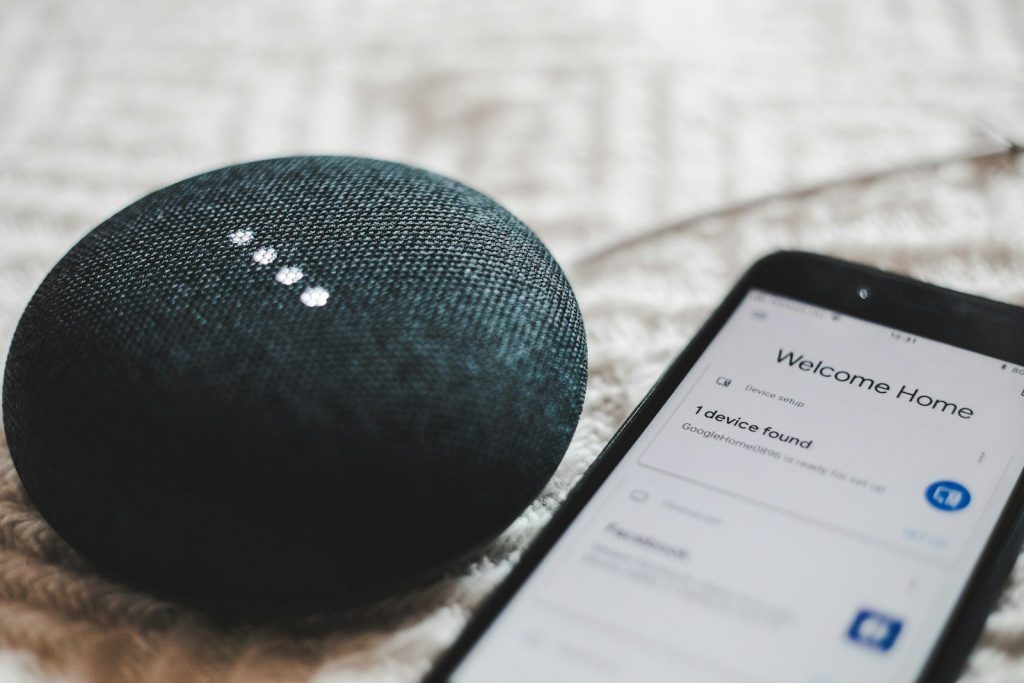
    turned-on charcoal Google Home Mini and smartphone
    Photo by BENCE BOROS on Unsplash

    Smart speakers are often the center of a smart home. They control lights, timers, music, reminders, and other devices, so the setup should be easy for everyone to understand.

    Give rooms and devices simple names like “kitchen light” or “bedroom lamp.” Avoid names that sound too similar. Clear naming helps voice commands work better and keeps family members from turning on the wrong device by mistake.

    Smart displays need privacy checks

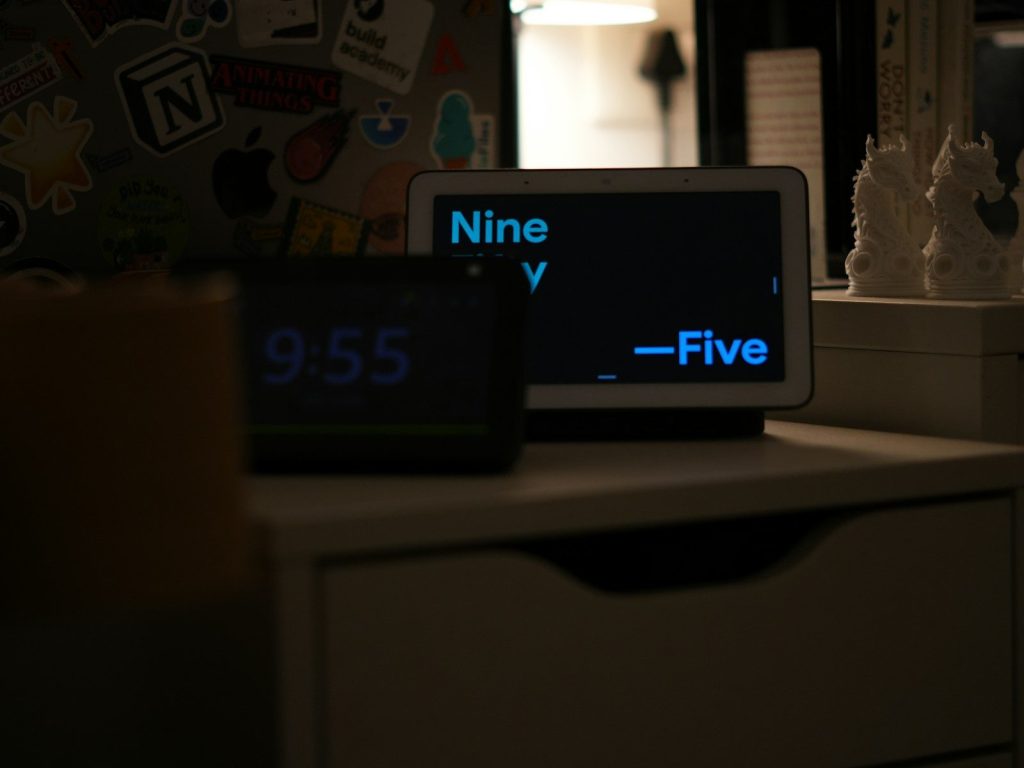
    Two digital clocks display different times
    Photo by Vidhunnan Murugan on Unsplash

    Smart displays can show calendars, photos, recipes, cameras, and video calls. That makes them useful, but it also means they may show personal information in shared spaces.

    Before placing one in a kitchen or hallway, check what appears on the screen. Turn off details you do not want visible to guests. Also review camera and microphone settings so the device matches how your household actually uses it.

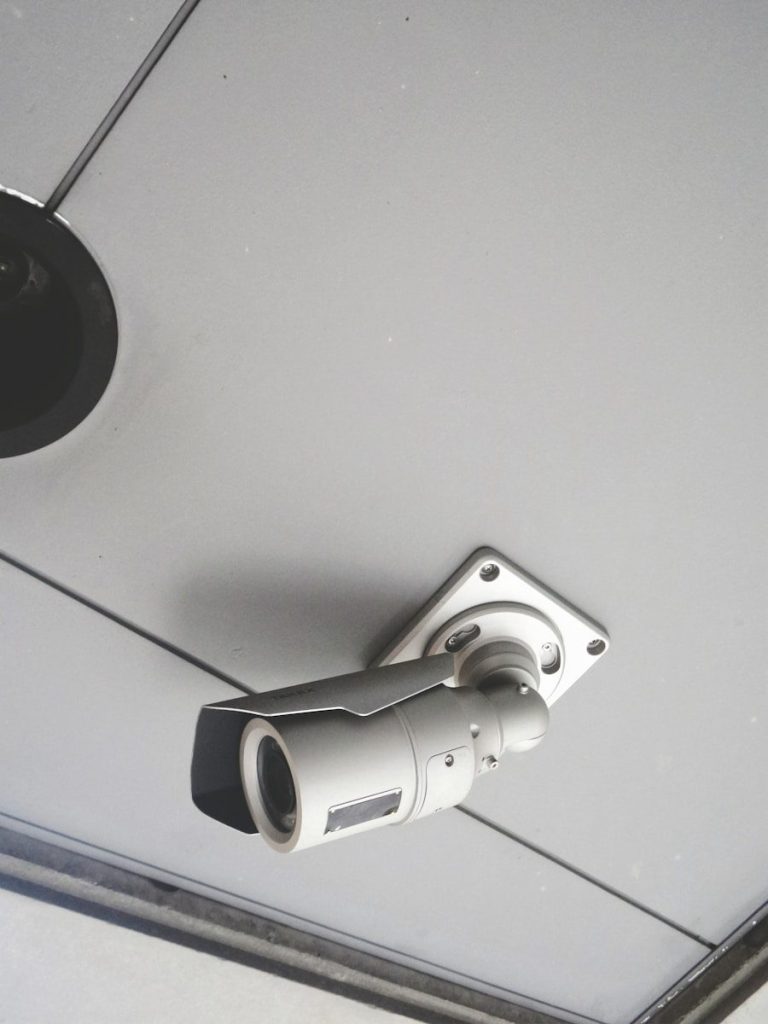
    Security cameras need zones

    a security camera mounted to the ceiling of a building
    Photo by Possessed Photography on Unsplash

    Smart cameras can be helpful, but poor setup often leads to too many alerts. If every passing car, shadow, or tree branch triggers a notification, people may start ignoring the alerts.

    Use motion zones when available and aim the camera carefully. Focus on doors, driveways, or key entry areas. Good setup reduces noise and helps important alerts stand out when they matter.

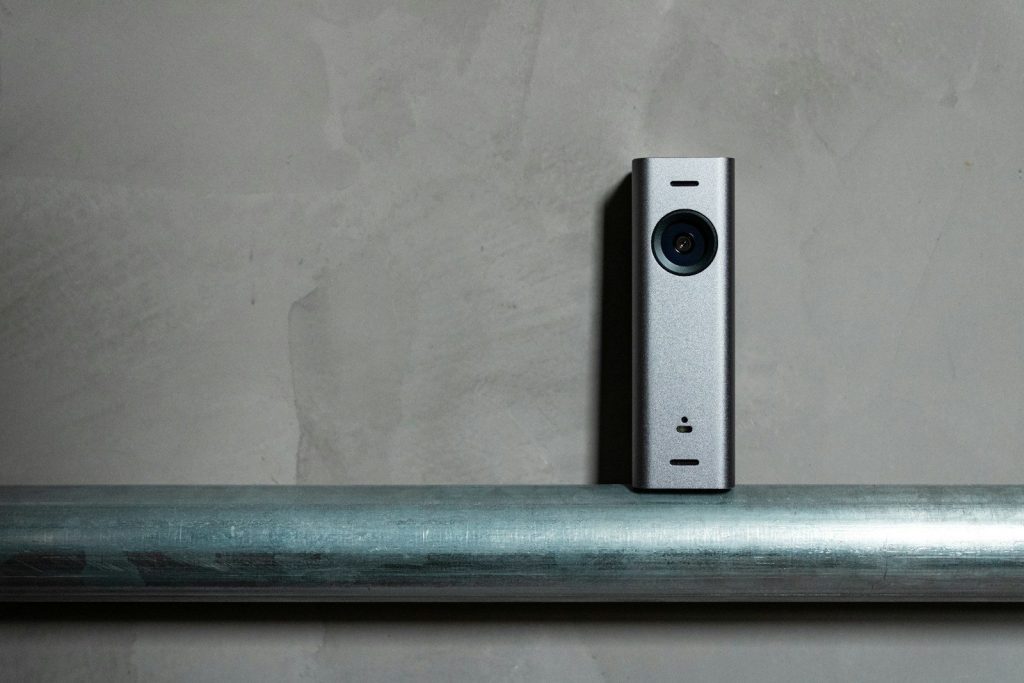
    Video doorbells need angle checks

    a silver camera sitting on top of a metal pole
    Photo by Gabriel Ramos on Unsplash

    A video doorbell may seem easy to install, but the angle matters. A poor view can miss packages, faces, or visitors standing slightly to the side.

    Before final mounting, test the live view during the day and at night. Make sure the camera sees the area you care about most. A small wedge or height change can make the doorbell much more useful.

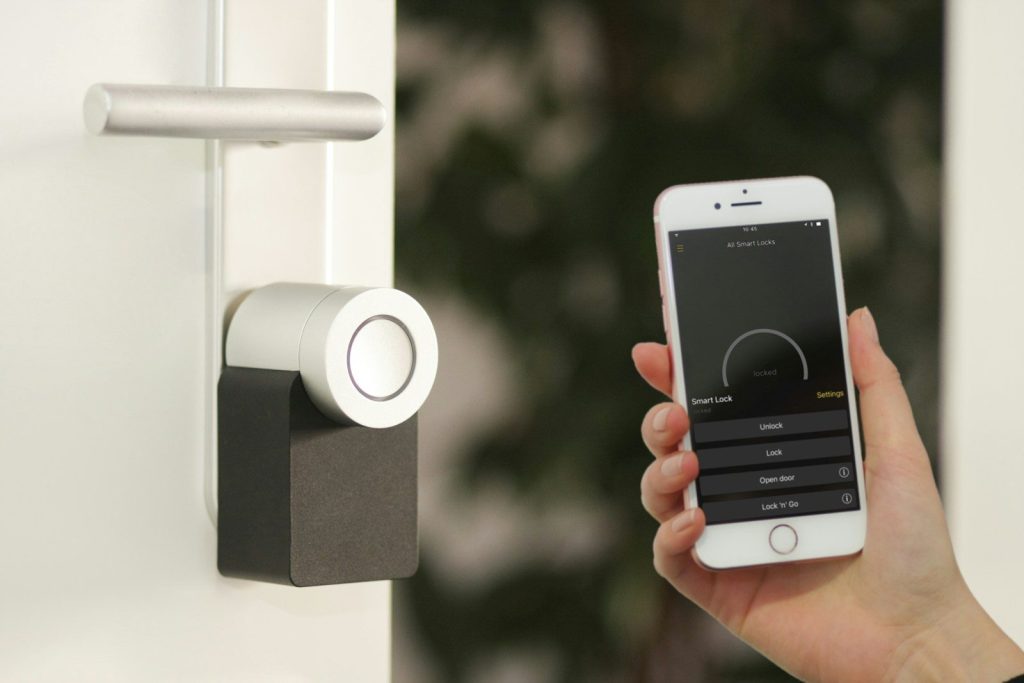
    Smart locks need backup plans

    gold Apple iPhone smartphone held at the door
    Photo by Sebastian Scholz (Nuki) on Unsplash

    Smart locks can make entry easier, especially for families and trusted guests. But they need careful setup because they control access to the home.

    Create secure codes, remove codes that are no longer needed, and know how the physical key or backup method works. Also check battery alerts. A smart lock is most helpful when the backup plan is already clear.

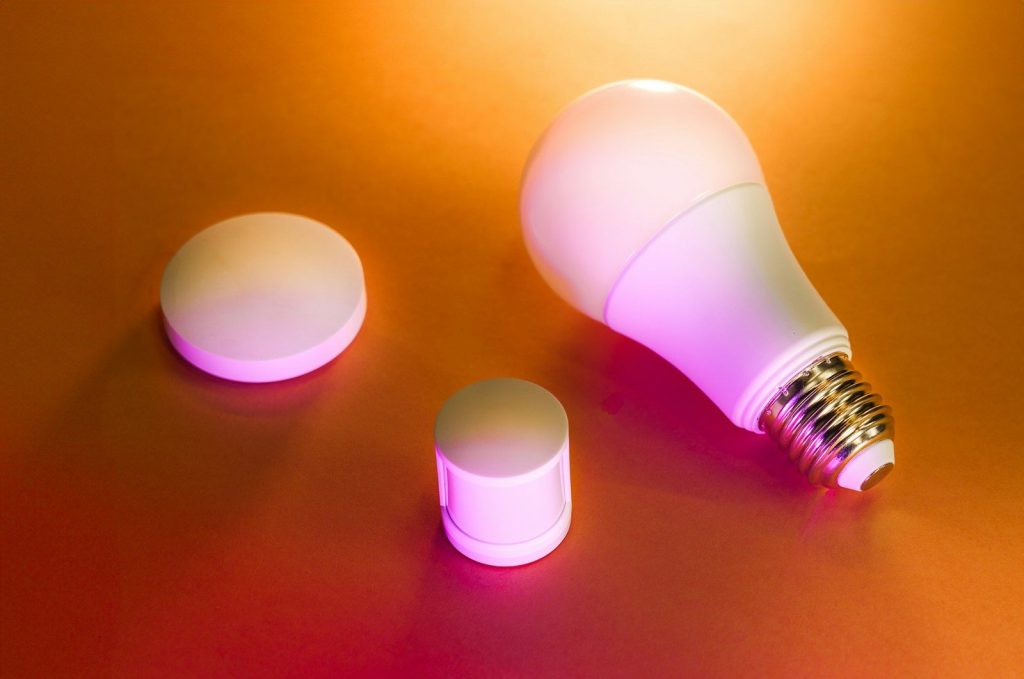
    Smart bulbs need better groups

    a close up of a light bulb on a table
    Photo by Jakub Żerdzicki on Unsplash

    Smart bulbs are fun until every light has a random name. If the app is full of labels like “bulb one” and “bulb two,” routines and voice commands become frustrating.

    Group bulbs by room or purpose. Use names like “sofa lamp,” “hall light,” or “porch light.” This makes scenes, schedules, and voice control easier to manage, especially as more lights are added.

    Smart plugs need safe uses

    A close up of a blue and pink object on a table
    Photo by Jakub Żerdzicki on Unsplash

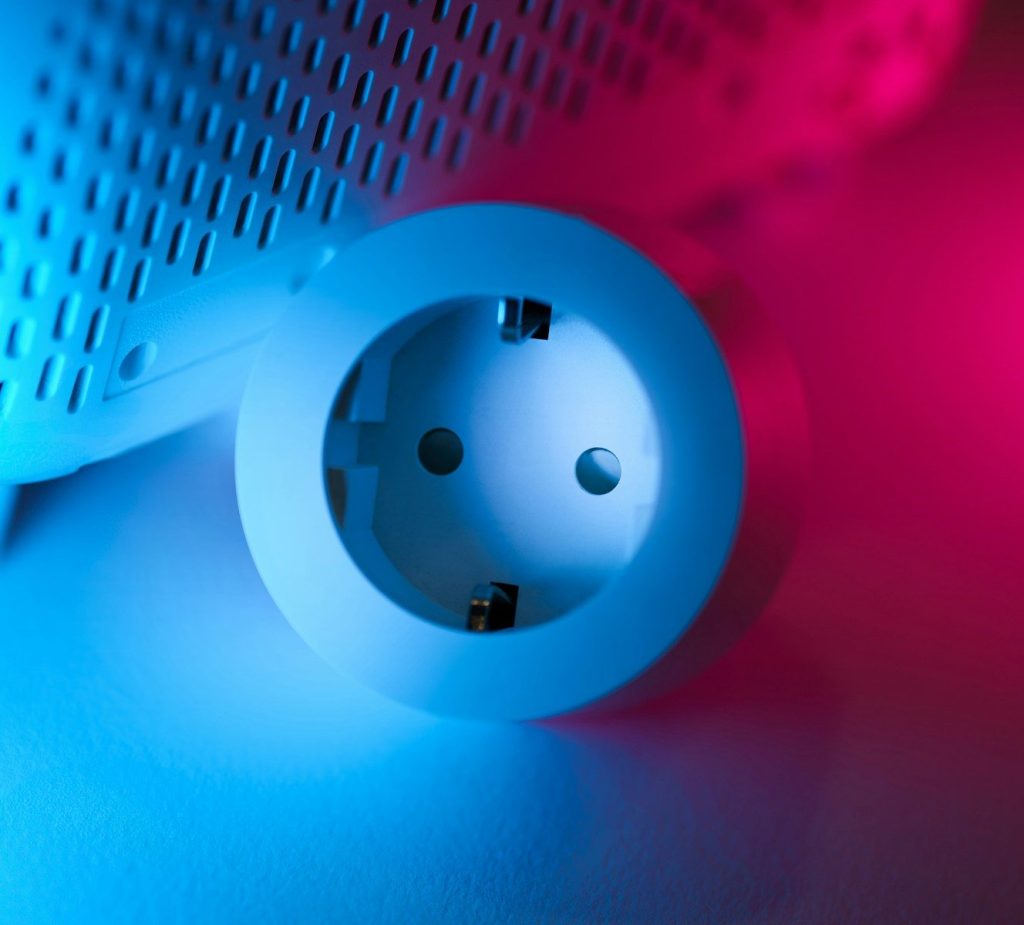
    Smart plugs are simple, but they still need smart habits. They work best for basic devices like lamps, fans, or small appliances that are safe to turn on and off remotely.

    Do not guess with high-power items. Check the plug’s rating and the device’s power needs before using them together. A smart plug should add convenience, not create a setup you are unsure about.

    Thermostats need a real schedule

    white thermostat at 62
    Photo by Dan LeFebvre on Unsplash

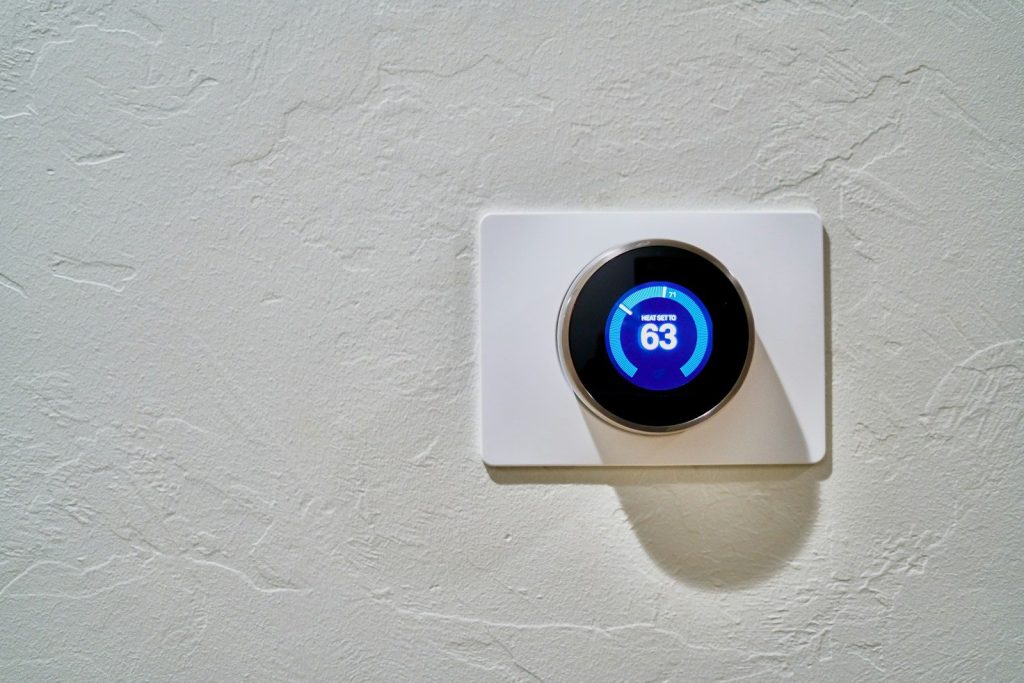
    A smart thermostat can save effort, but only if the schedule fits real life. Many people install one and never adjust the daily routine settings.

    Set wake, leave, return, and sleep times based on your household’s habits. Then check the schedule after a week. Small changes can make the home feel more comfortable without constant manual changes.

    Robot vacuums need map cleanup

    white short coated small dog on brown wooden floor
    Photo by YoonJae Baik on Unsplash

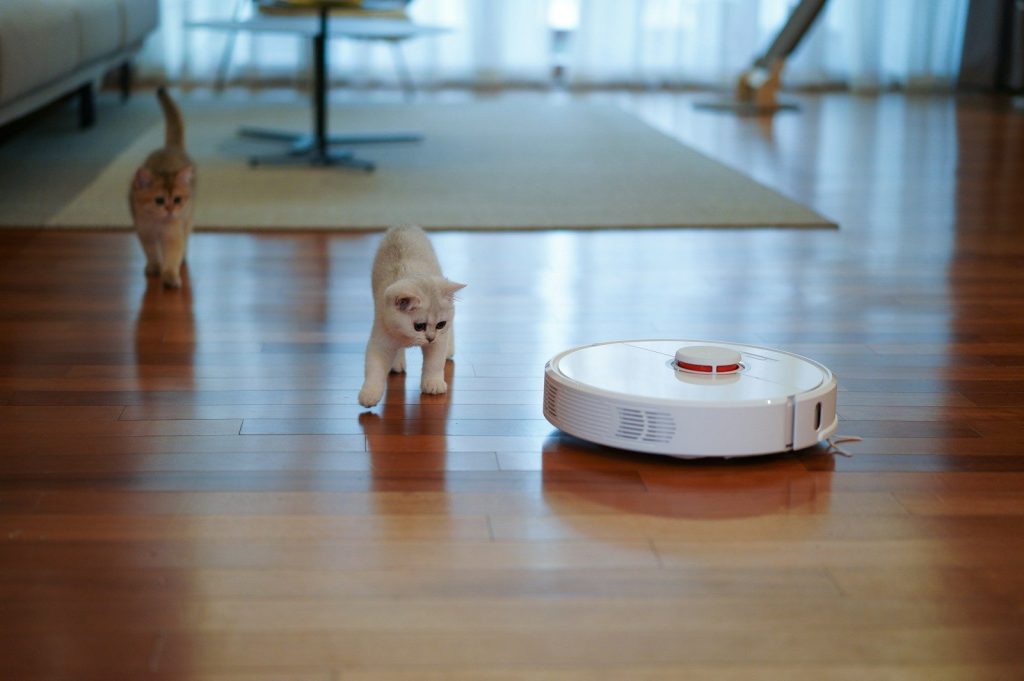
    Robot vacuums work best when the home map is accurate. If rooms are mislabeled or blocked zones are missing, the vacuum may clean the wrong space or get stuck often.

    Take time to name rooms, set no-go zones, and clear cords or small items before scheduled runs. A little setup turns the vacuum from a gadget you rescue into a tool you can trust.

    Hubs need update habits

    Smart home hub and remote on a wooden table.
    Photo by User_Pascal on Unsplash

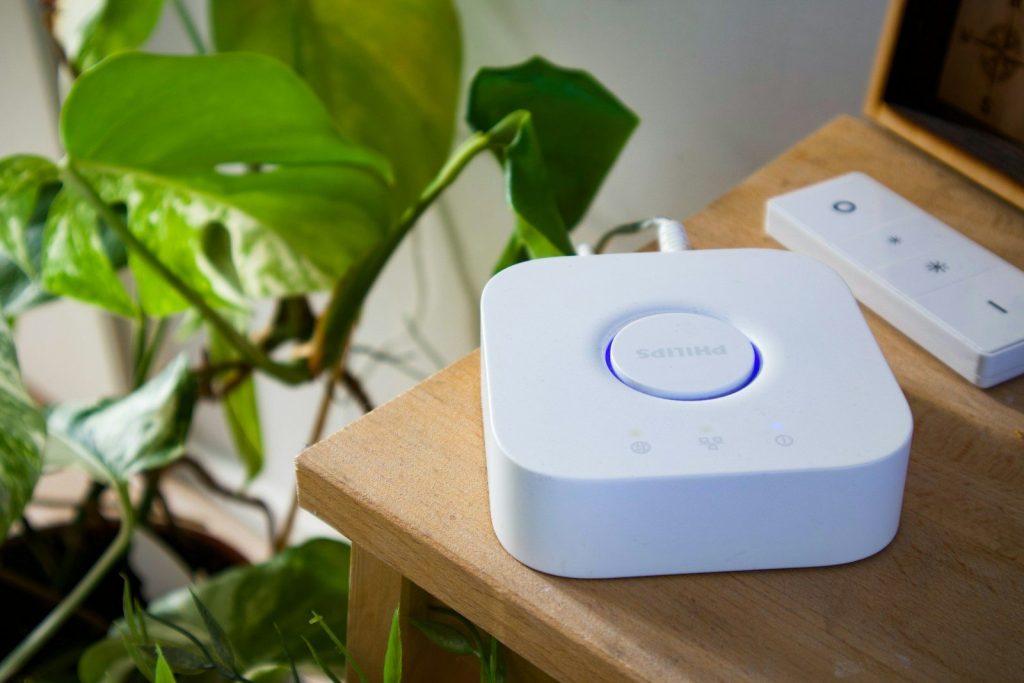
    Smart hubs and bridge devices help connect lights, sensors, locks, and other gear. They are easy to forget because they often sit quietly near a router.

    That quiet role makes updates important. The FTC recommends checking for hardware and software updates on connected home devices, and the Matter standard also focuses on more reliable and secure smart home connections.

  • 10 ways cloud gaming is changing what a console means

    10 ways cloud gaming is changing what a console means

    A console used to mean one box under the TV, one controller, and games that ran from a disc or download. Cloud gaming is stretching that idea. Now the game can run on powerful servers far away while your screen shows the action through the internet. Xbox says its cloud gaming works on supported PCs, consoles, phones, tablets, select smart TVs, and even select VR headsets.

    That does not mean the classic console is disappearing. It still matters for speed, ownership, local play, and big-screen comfort. But cloud gaming is changing the shape of the console. The “machine” can now be a TV app, a phone, a handheld screen, or a browser tab.

    The box is less important

    a woman wearing headphones and a pink dress
    Photo by mahdi chaghari on Unsplash

    For decades, the console was the main thing you bought. It held the power, ran the game, and connected to the TV.

    Cloud gaming moves much of that power away from your home. The game can run on remote hardware, while your device becomes the screen, controller hub, and internet doorway.

    Your TV can become one

    person holding game controller in-front of television
    Photo by Glenn Carstens-Peters on Unsplash

    Smart TVs are starting to act more like gaming machines. Xbox Cloud Gaming supports select Samsung and LG smart TVs, which means some players can stream games without a separate Xbox console.

    That changes the living room setup. Instead of buying a box first, some people may open an app, pair a controller, and start playing from the same screen they use for shows.

    Phones join the console club

    person playing PUBG mobile
    Photo by I’M ZION on Unsplash

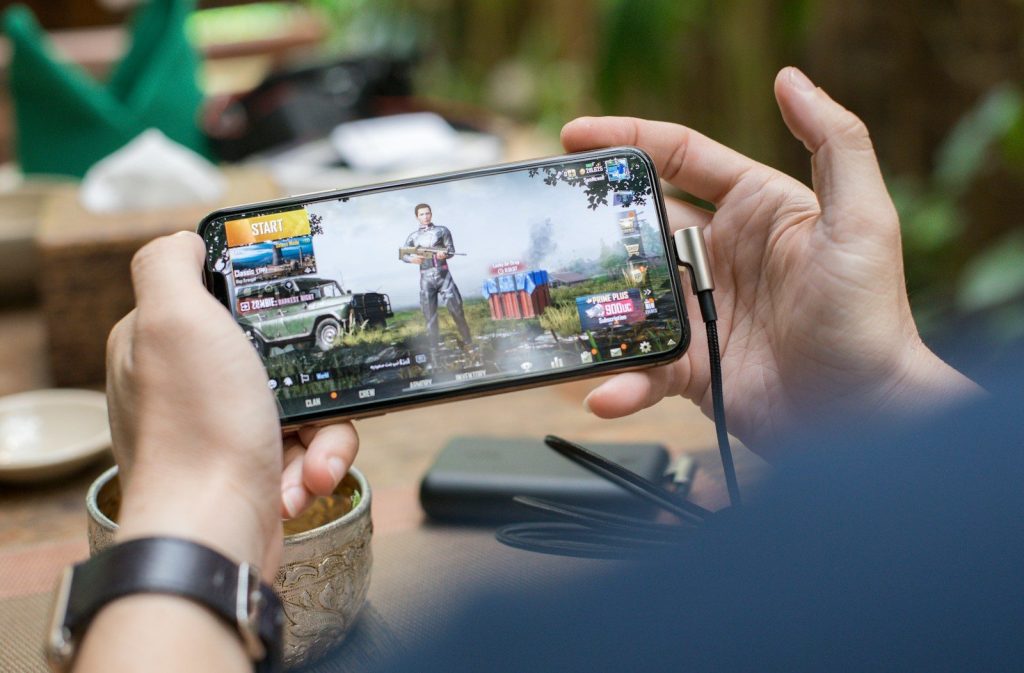
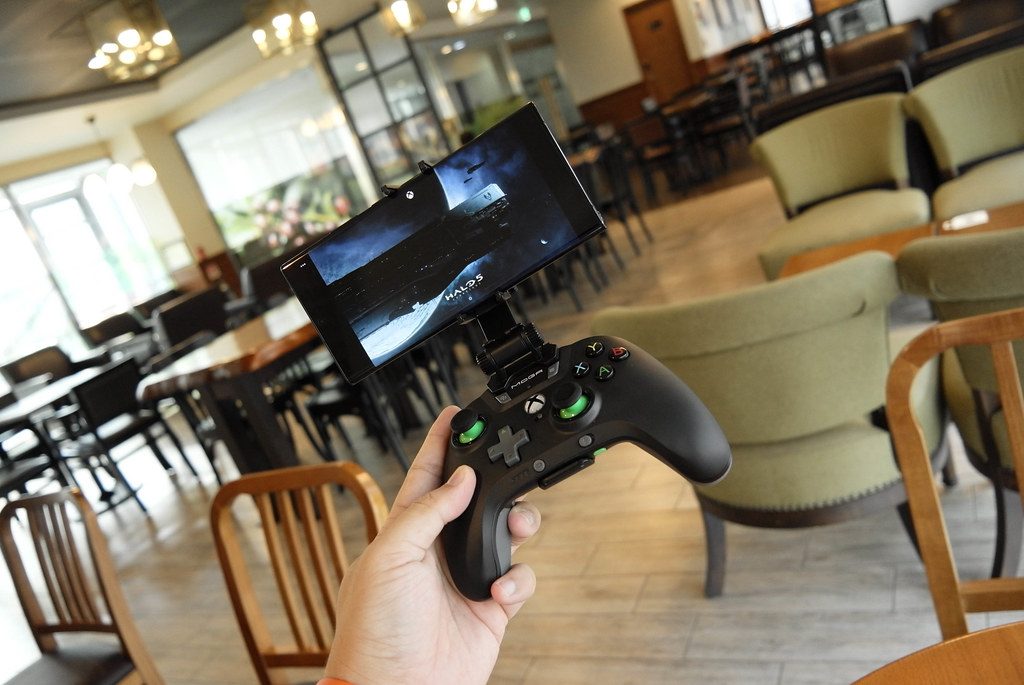
    Cloud gaming makes phones feel more like portable consoles. A phone screen, a controller, and a solid connection can be enough for many games.

    This is a big shift for casual players. They may not need a full gaming setup to try console-style games during breaks, trips, or quiet time away from the TV.

    Downloads matter less

    black flat screen computer monitor turned on beside black computer keyboard
    Photo by Resul Kaya on Unsplash

    Traditional consoles often need large downloads, patches, and storage space. That can be frustrating when a player just wants to start a game quickly.

    Cloud gaming reduces that pain because the game runs elsewhere. NVIDIA says GeForce NOW lets players stream supported games from stores like Steam, Epic Games, and Xbox without waiting for local installs or updates.

    Storage feels different

    a hand holding a green and black cell phone
    Photo by Xavier Cee on Unsplash

    A console’s storage used to decide how many games you could keep installed. Big modern games can fill a drive fast, forcing players to delete and manage space.

    With cloud gaming, storage becomes less central. Your saved data, library access, and internet connection matter more than how many giant games fit on the device.

    Handhelds get more flexible

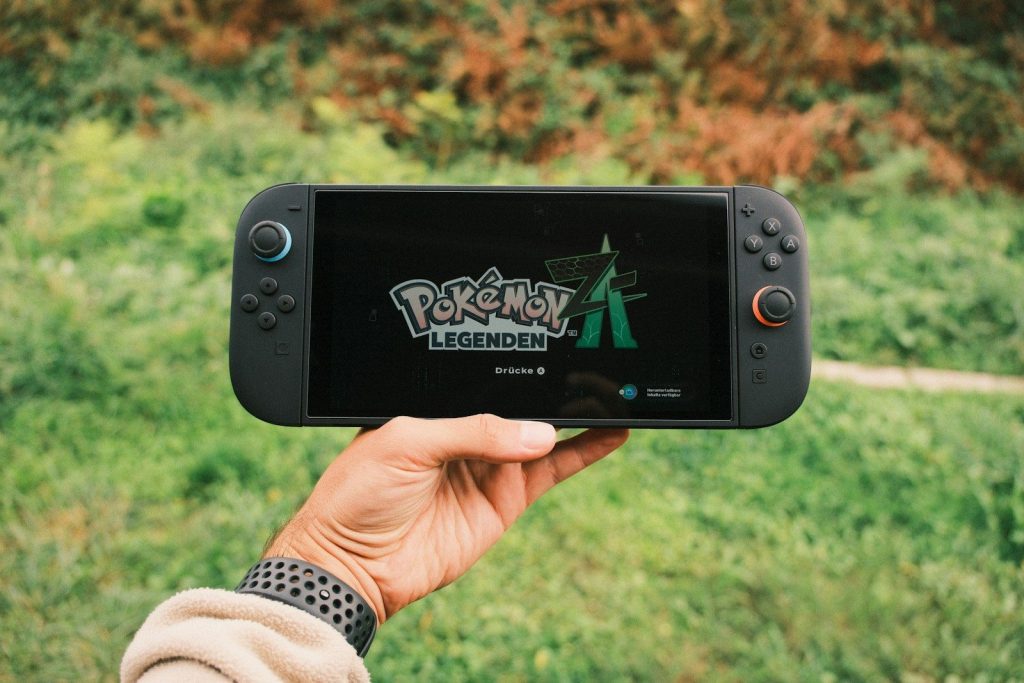
    Hand holding a nintendo switch playing pokémon legends
    Photo by Daniel J. Schwarz on Unsplash

    Cloud gaming is also changing handheld devices. Sony says PlayStation Plus Premium members can use cloud streaming for PS5 games on the PlayStation Portal.

    That makes a handheld feel less tied to one room or one console setup. It can become a dedicated screen for streamed play, rather than a full console with all the hardware inside.

    Subscriptions shape access

    SKT GalaxyNote20 Xbox Game Pass” by TheBetterDay is licensed under CC BY-ND 2.0

    Cloud gaming often connects closely with subscriptions. Xbox Game Pass Ultimate includes the ability to stream games on supported devices, along with access to a large game library.

    That changes how people think about a console. Instead of buying one machine and a few games, the focus can shift toward monthly access, rotating libraries, and supported screens.

    Controllers stay essential

    black sony ps 4 game controller
    Photo by Igor Karimov on Unsplash

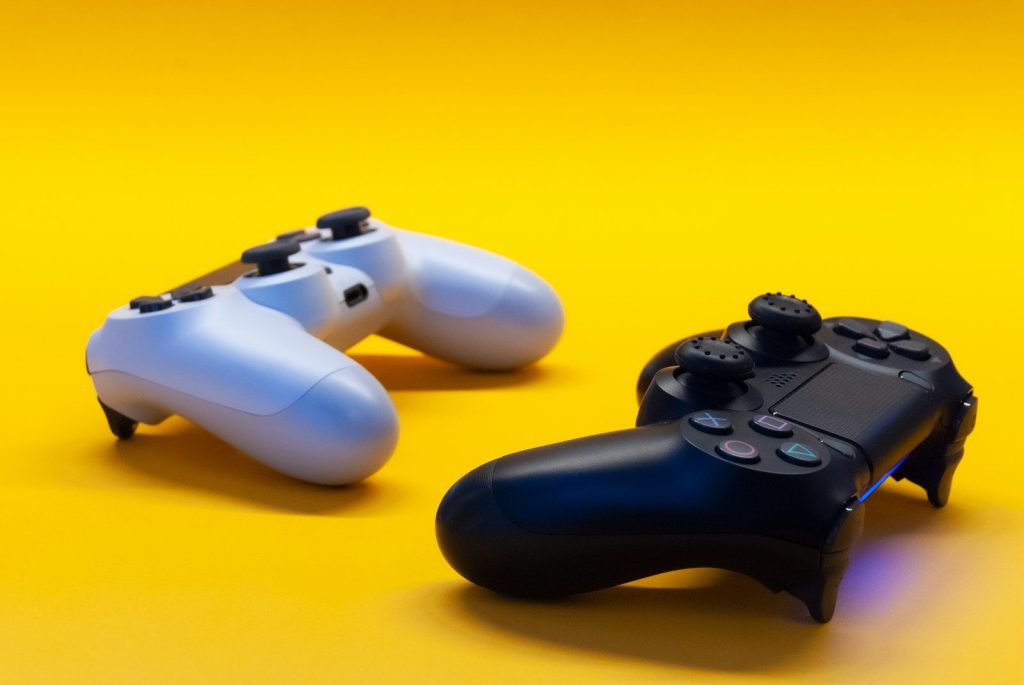
    Even when the console box fades, the controller still matters. Touch controls can work for some games, but many console-style games feel better with real buttons and sticks.

    That keeps part of the console experience alive. The screen may change, and the hardware may be remote, but the controller still gives players that familiar console feeling.

    Internet becomes the hardware

    man sitting on couch holding controllers
    Photo by Humphrey M on Unsplash

    A regular console depends on local parts, like the processor, graphics chip, and storage drive. Cloud gaming depends heavily on connection quality.

    That means speed, stability, and low delay become part of the “console” experience. A powerful cloud service can still feel rough if the home internet or Wi-Fi is unreliable.

    Game ownership feels different

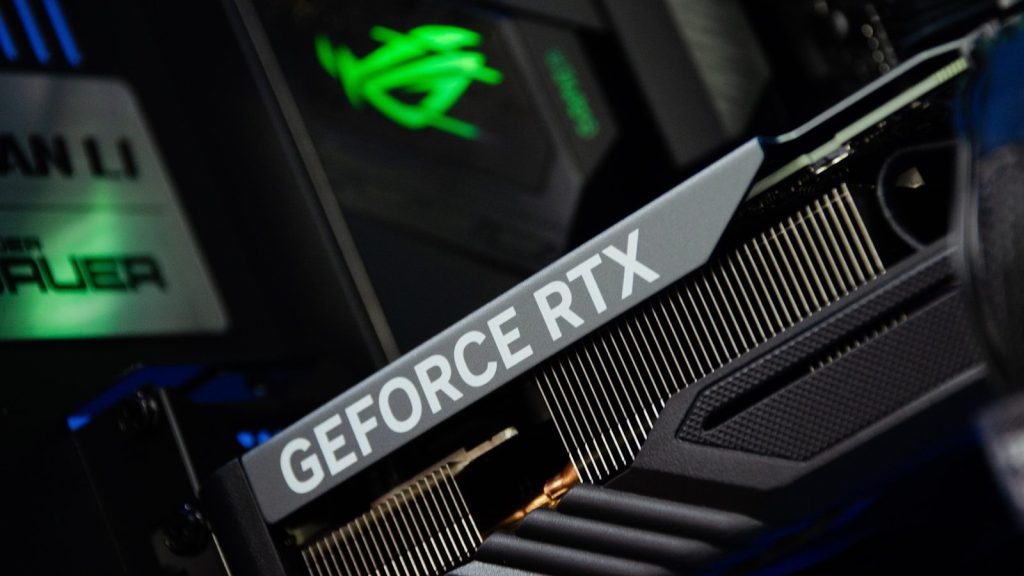
    a close up of the geforce rxtx logo on the side of a
    Photo by GAMERCOMP.RU on Unsplash

    Cloud gaming can make access easier, but it also changes how ownership feels. Some services stream games from a subscription library, while others let players connect supported games they already own.

    Amazon Luna, for example, works through supported browsers and devices, while GeForce NOW connects with several PC game stores. The exact model depends on the service.

    Consoles become everywhere

    black and white xbox one game controller
    Photo by Kerde Severin on Unsplash

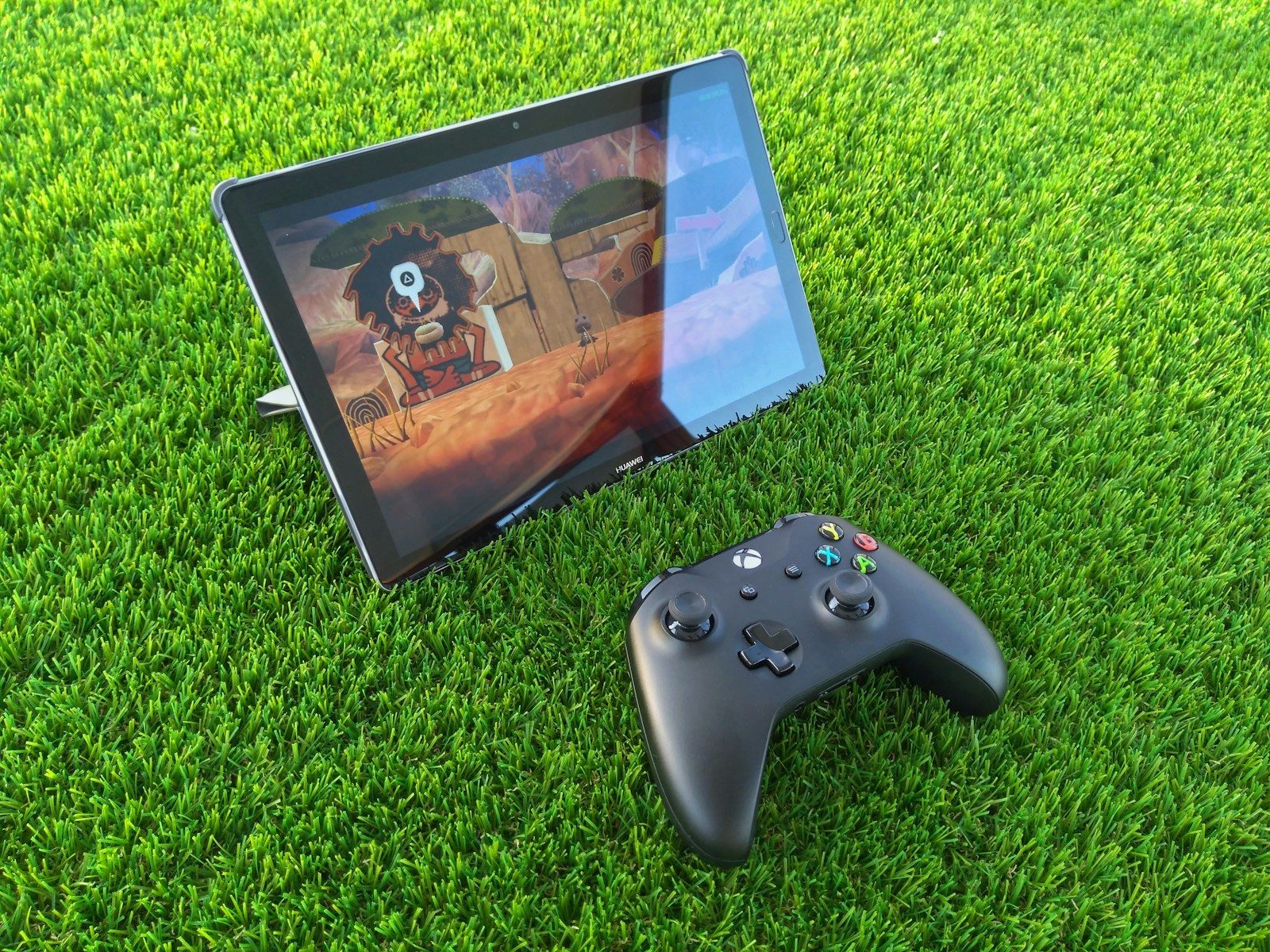
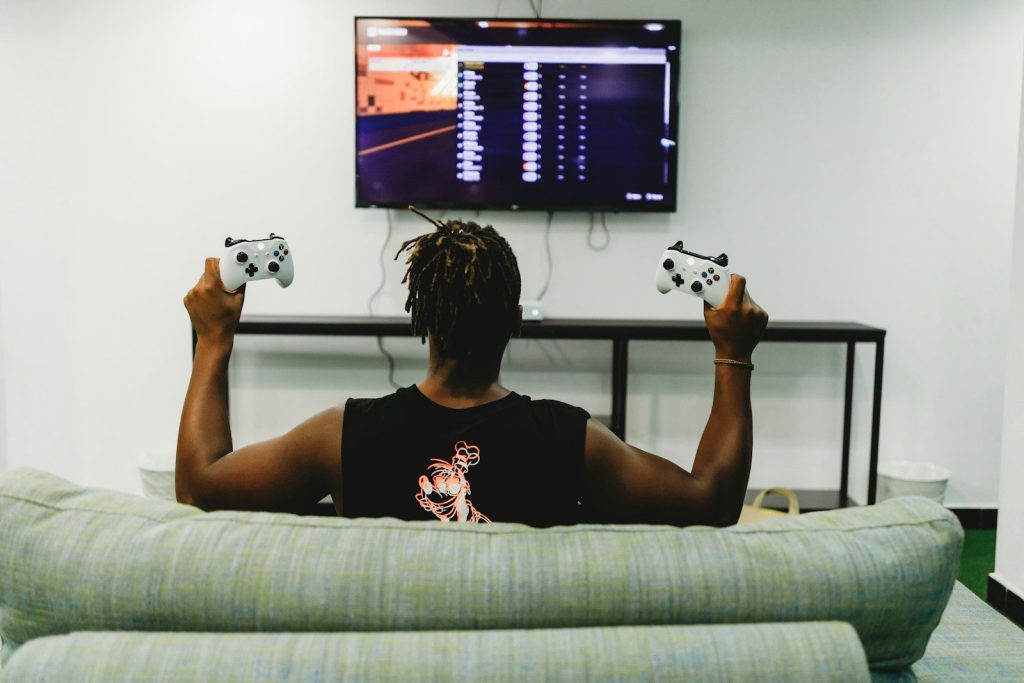
    The biggest change is simple: a console is no longer just one device. It can be a TV app, a browser, a phone, a handheld, or a familiar controller connected to the cloud.

    That makes gaming more flexible for many players. The classic console still has a place, but cloud gaming is turning the console into an experience that can follow you across screens.