Android phones can do much more than make calls, send texts, and open apps. The problem is that many helpful tools are tucked away in menus, Quick Settings, or privacy sections that casual users may never see. That means people often miss simple features that can save time, reduce distractions, protect private items, and make everyday phone use feel smoother.
Some of these tools are built for sharing files, checking missed alerts, recording the screen, calming nighttime phone use, or keeping one app locked on the screen. Others help you manage attention or add extra privacy. Google’s Android Help pages show that many of these features are already part of Android, though exact names and steps can vary by phone model and Android version.
Quick Share saves time
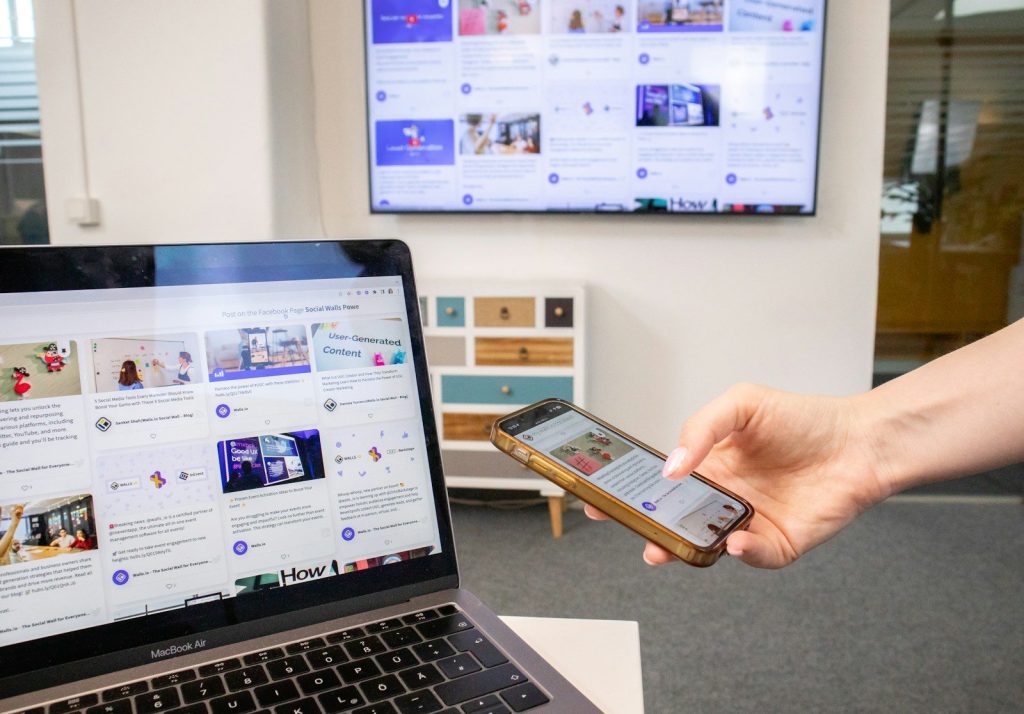
Quick Share lets Android users send files, photos, videos, and documents to nearby devices without having to dig through long menus. Google says it works with Android devices, Chromebooks, and select Windows PCs through Quick Share for Windows.
Many casual users still email themselves photos or use a cable. Quick Share can be faster for nearby transfers, especially when moving vacation pictures, school files, or screenshots between your phone and computer.
Notification history helps
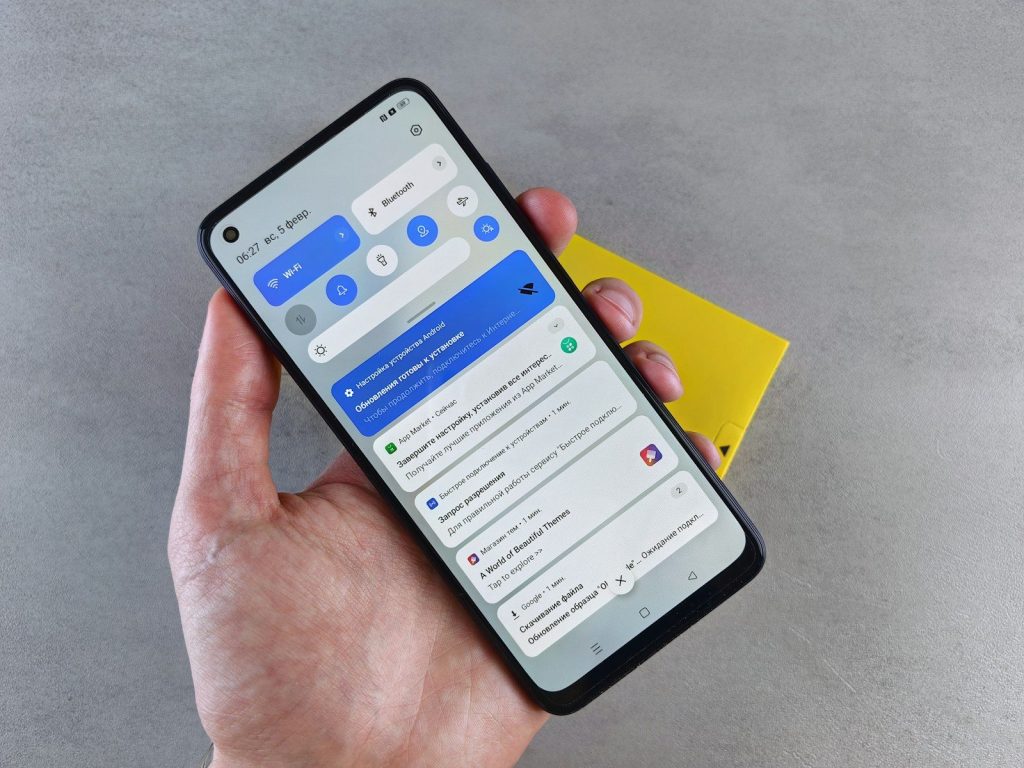
Almost everyone has swiped away a notification too fast. Android’s notification history can help you find recently dismissed alerts, snoozed notifications, and the day’s notification list.
Look under Settings > Notifications to see if your phone supports it. This feature is useful when you accidentally clear a message preview, delivery update, reminder, or app alert before reading it.
Screen record is built in
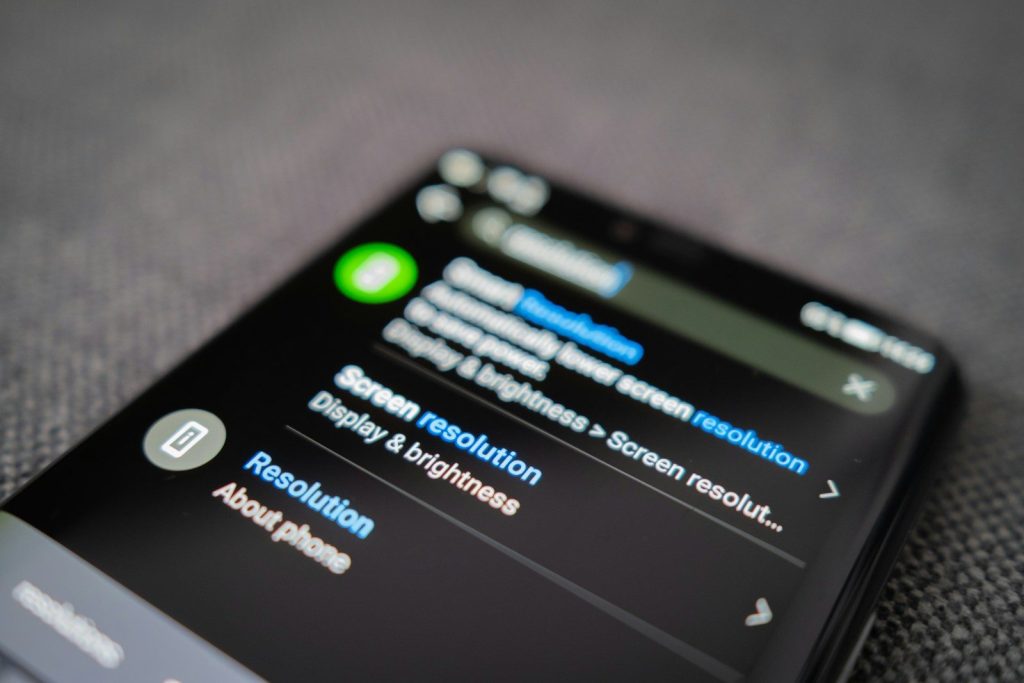
Many Android phones can record the screen without installing another app. Google says users can swipe down twice, tap Screen record, and choose whether to record audio or show touches before starting.
This is handy for saving a quick tutorial, showing a family member how to change a setting, or capturing steps inside an app. If the button is missing, you can add it to Quick Settings.
App pinning adds control
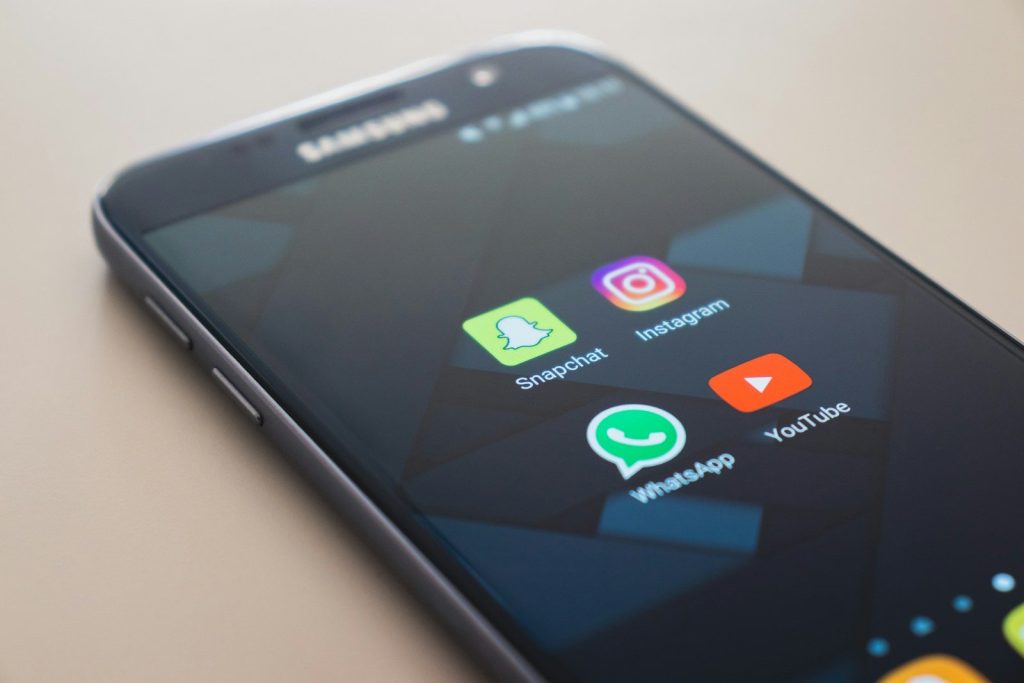
App pinning keeps one app locked on the screen until the phone is unlocked again. Google lists it under Android security settings, though the exact path can vary by device.
It is useful when handing your phone to someone to view a photo, read a menu, or make a call. They stay in that app instead of wandering into messages, photos, or other private areas.
Bedtime mode is underrated
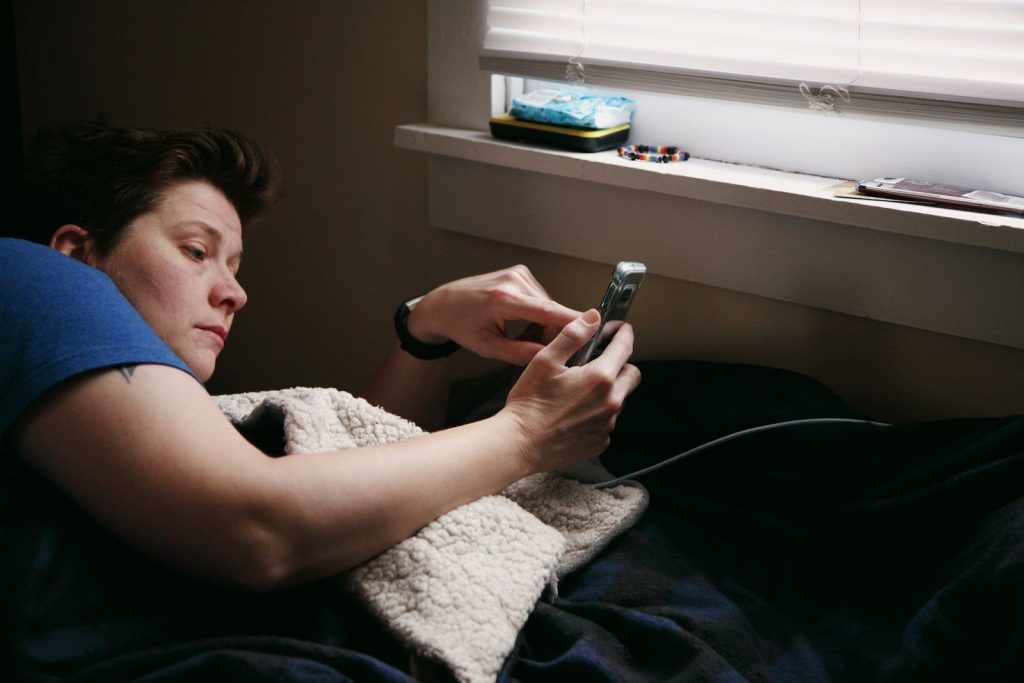
Bedtime mode can help your phone feel less distracting at night. Google says users can schedule it, turn it on while charging, and choose how the phone behaves during bedtime hours.
This feature can reduce late-night screen temptation and make the phone feel calmer before sleep. It is not just for heavy phone users; it is also helpful for anyone who checks notifications too often.
Focus mode cuts noise
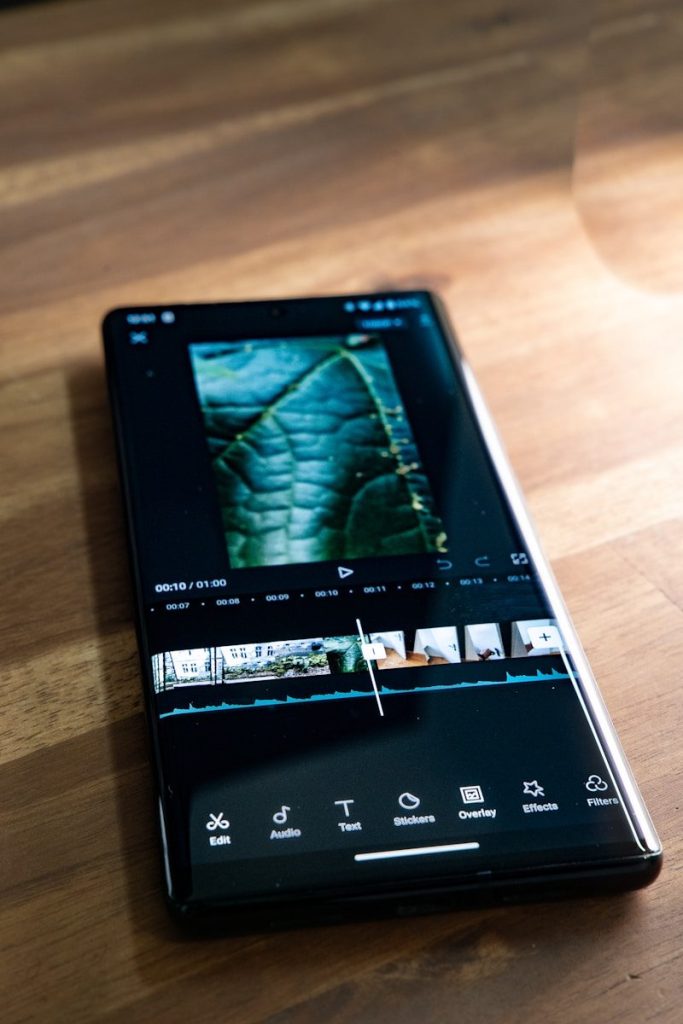
Focus mode is part of Android’s Digital Wellbeing tools. Google’s Android Help explains that Digital Wellbeing can help users manage phone time, including app limits and related controls.
You can pause distracting apps while studying, working, reading, or spending time with family. Instead of deleting apps, Focus mode simply helps keep them out of the way during certain moments.
Quick Settings can be edited
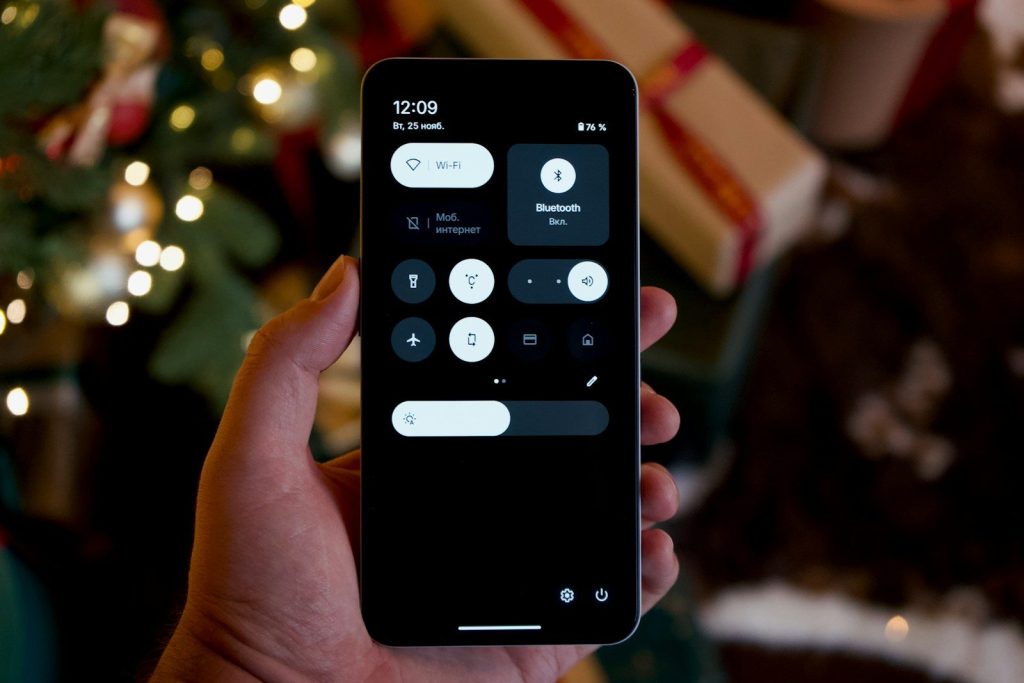
Many people only use the Quick Settings buttons that came with the phone. But Android lets users move or add tiles, including useful tools like Screen record if it is not already visible.
Swipe down from the top and look for the edit option. Placing your most-used buttons near the front can make Wi-Fi, flashlight, screen recording, and other controls easier to reach.
Private Space hides apps
Private Space is designed to keep selected apps in a separate, locked area on supported Android devices. Google says users can find it under Security & privacy, then unlock it with a private space lock or device screen lock.
This can be helpful for apps you do not want sitting in the main app list. Availability may depend on your Android version and phone maker, so not every device will show it.
Screen lock has options
Android offers several screen lock choices, including PIN, pattern, and password. Google notes that a six-digit PIN is recommended for added security, while longer PINs tend to be stronger.
Casual users often set a lock once and never think about it again. Checking your lock type can make your phone easier to use while still helping protect personal files, photos, and accounts.
File transfer has choices
Moving files from Android to a computer does not have to be confusing. Google lists several options, including using a Google Account, a USB cable, or Quick Share for Windows.
This gives users flexibility. A cable may work well for big folders, while Quick Share can be easier for nearby photos or documents. Knowing both options can save time when storage gets crowded.
Leave a Reply