Author: Dylan

  • 9 charging mistakes that can make gadgets more annoying

    9 charging mistakes that can make gadgets more annoying

    Charging sounds simple until your phone gets hot, your cable stops working, or your battery dies right when you need it most. Many everyday charging problems do not come from bad luck. They come from small habits that slowly make gadgets less reliable and more frustrating.

    The good news is that you do not need to treat every device like fragile lab equipment. A few smarter choices can help your phone, tablet, earbuds, laptop, and power bank charge more safely and last longer.

    Using better cables, avoiding heat, keeping chargers dry, and not pushing batteries to extremes can make a real difference. These common charging mistakes are easy to miss, but they are also easy to fix.

    Using worn-out cables
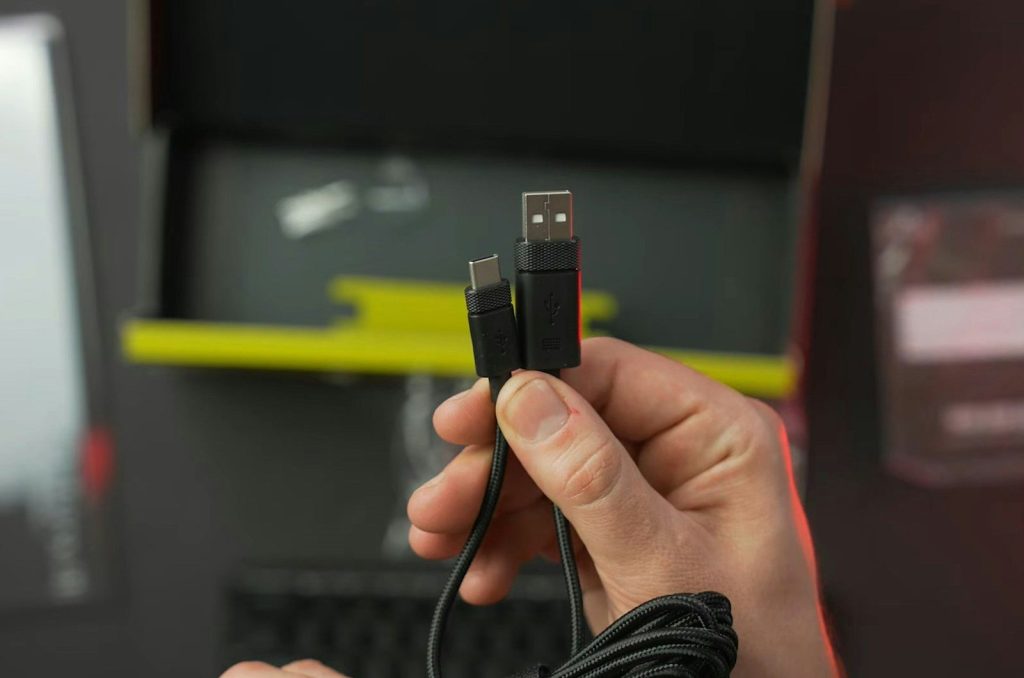
    a person holding a usb device in their hand
    Photo by InBox Dicas on Unsplash

    A frayed cable may still charge your phone, but it is not worth the risk. Damaged cords can charge slowly, disconnect often, or make your device heat up.

    Replace cables with exposed wires, bent tips, loose plugs, or strange burn marks. Fire Safety Research Institute advises using the charger made for the device and watching for warning signs like heat, smoke, swelling, or odd sounds.

    Buying mystery chargers
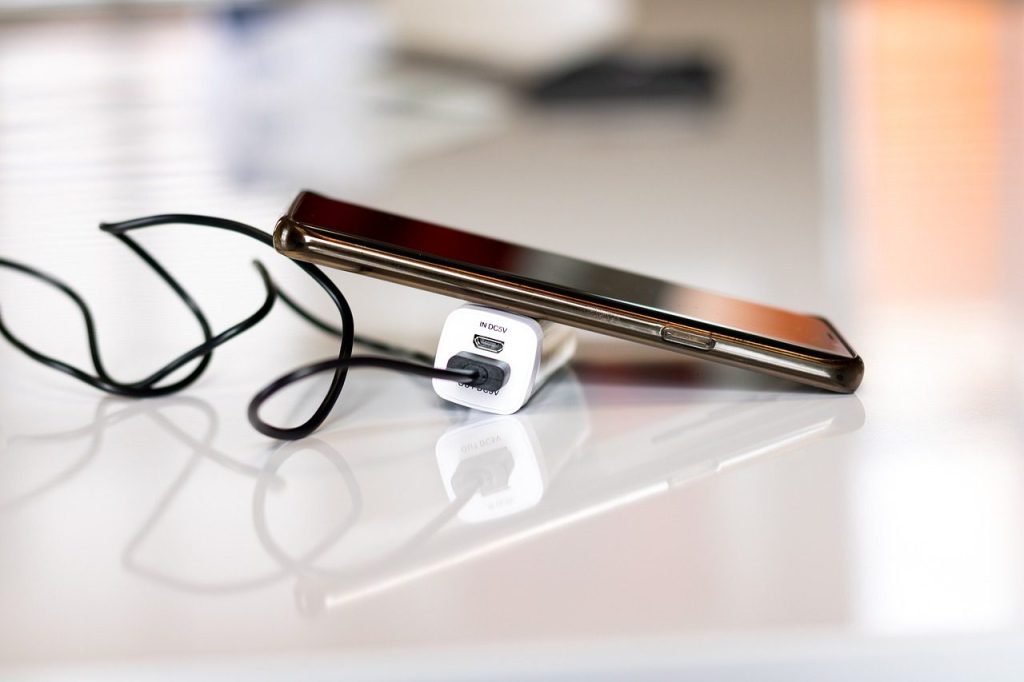
    charging phone, power bank, charger, charge, battery, cable, energy, smartphone, powerbank, cellphone, device, electric, equipment, gadget, mobile, phone, power, smart, technology, telephone, usb, charging, electricity, charging phone, power bank, power bank, power bank, charger, charger, charger, charger, charger, powerbank, powerbank, powerbank
    Photo by C10Maj on Pixabay

    Cheap replacement chargers can seem like an easy fix, especially when your original one disappears. But a poor-quality charger may not work well with your device’s battery system.

    Use a charger from the device maker or a trusted certified brand. Samsung advises using official chargers and cables for safety and performance, especially with newer fast-charging phones.

    Charging on soft surfaces
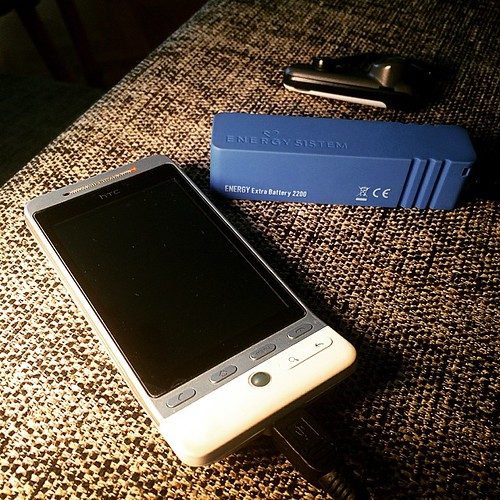
    “#nanodelarosa #charging #phone #htc with #energysistem #charger #charge your #phone #everywere by ##thebackpack by #simbiosc #simbiosctv @energysistem #powerbank” by simbiosc is licensed under CC BY-SA 2.0

    A phone charging on a bed, blanket, or couch may look harmless, but soft surfaces can trap heat. That can make charging slower and put extra stress on the battery.

    Use a desk, table, counter, or nightstand instead. Apple says iPhones, cables, power adapters, and wireless chargers should be kept in a well-ventilated area while charging.

    Ignoring overheating signs
    blue ipod nano 6 th gen
    Photo by Lasse Jensen on Unsplash

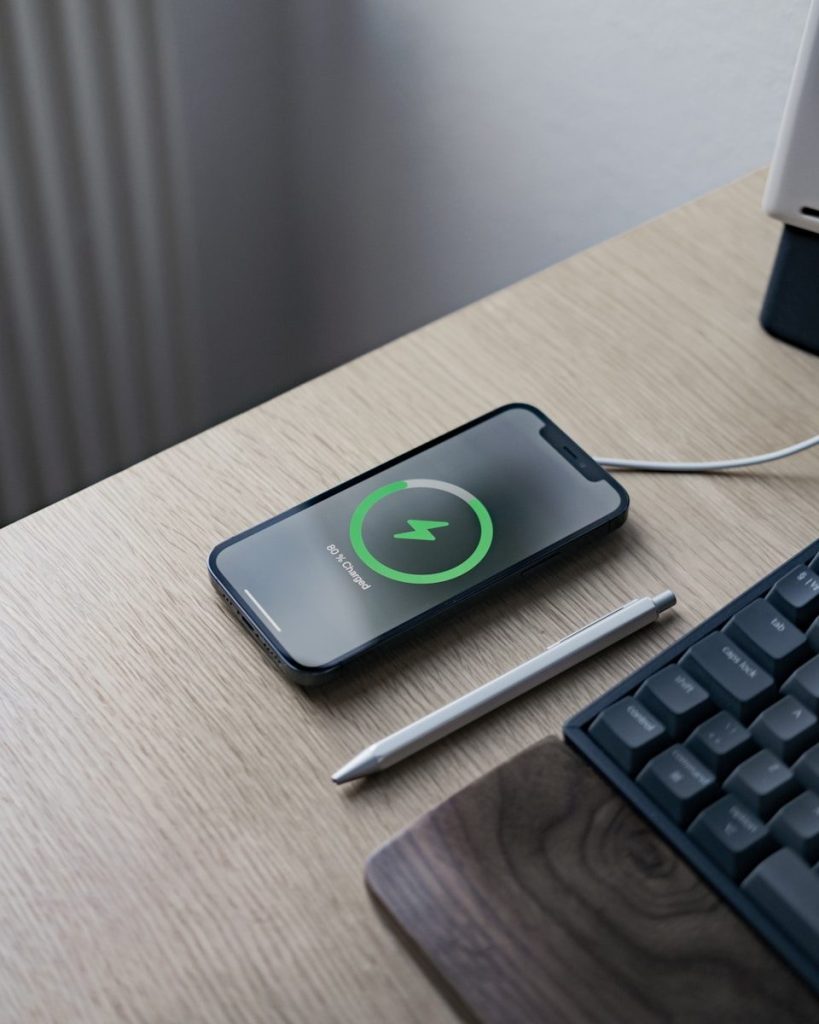
    A warm device is common during charging, especially with fast or wireless charging. But if it feels unusually hot, stops charging, or acts strangely, do not ignore it.

    Unplug it and let it cool in a safe spot. Samsung notes that if a battery becomes too hot, charging may stop, which is a sign the device is trying to protect itself.

    Charging near water
    person holding black smartphone on white textile
    Photo by I’M ZION on Unsplash

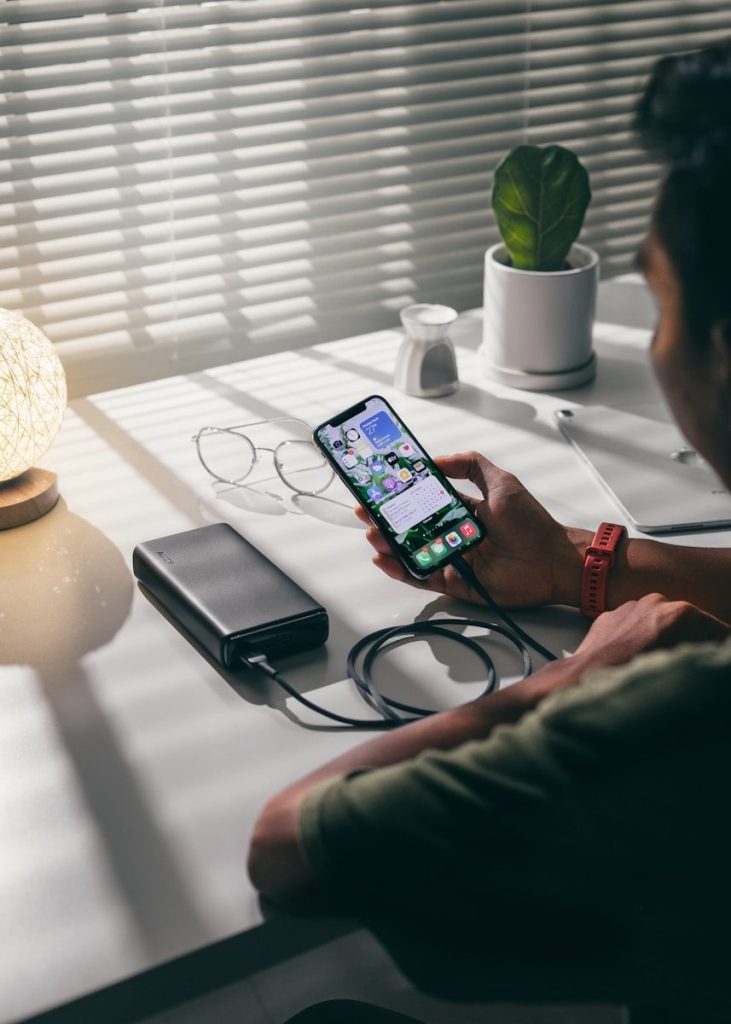
    Charging in the bathroom, near a sink, or beside a drink can turn a small accident into a big problem. Water and charging gear do not mix well.

    Keep gadgets, cords, and adapters in dry areas. Even if a device is water resistant, the charger, port, and power outlet still need care. A dry charging spot is the safer habit.

    Leaving gadgets in heat
    black smartphone on white table
    Photo by I’M ZION on Unsplash

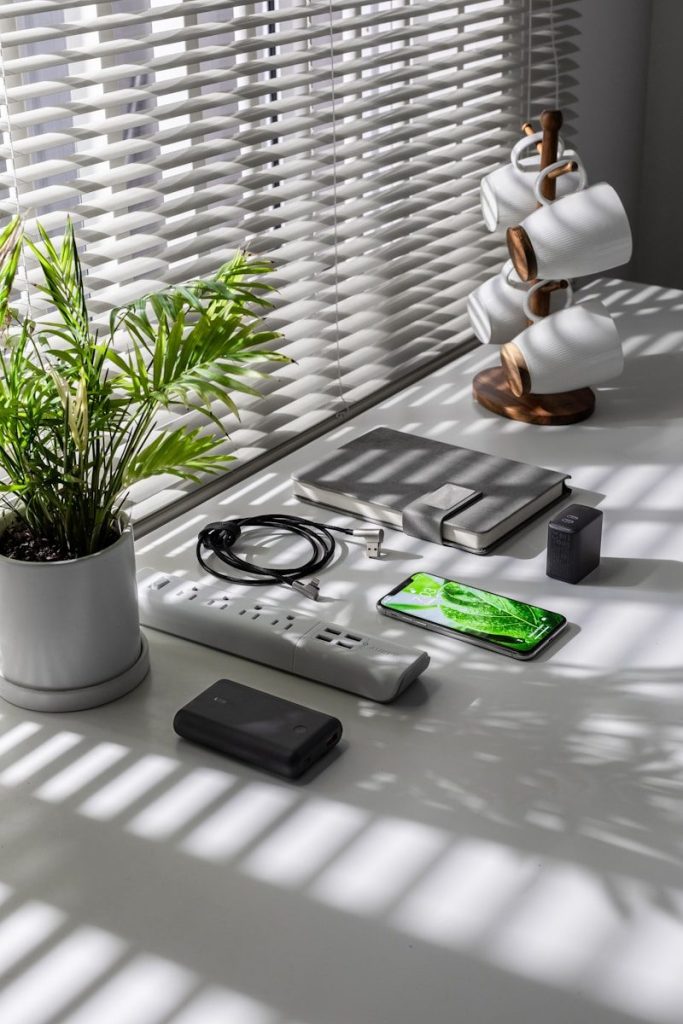
    Heat is rough on batteries. A phone charging in direct sunlight, on a hot car seat, or near a heater can become slower, glitchier, and more stressful to use.

    Move charging devices away from hot spaces. Apple says iPhone should be used where the ambient temperature is between 32° and 95° Fahrenheit, and high temperatures can harm battery performance.

    Always charging to full
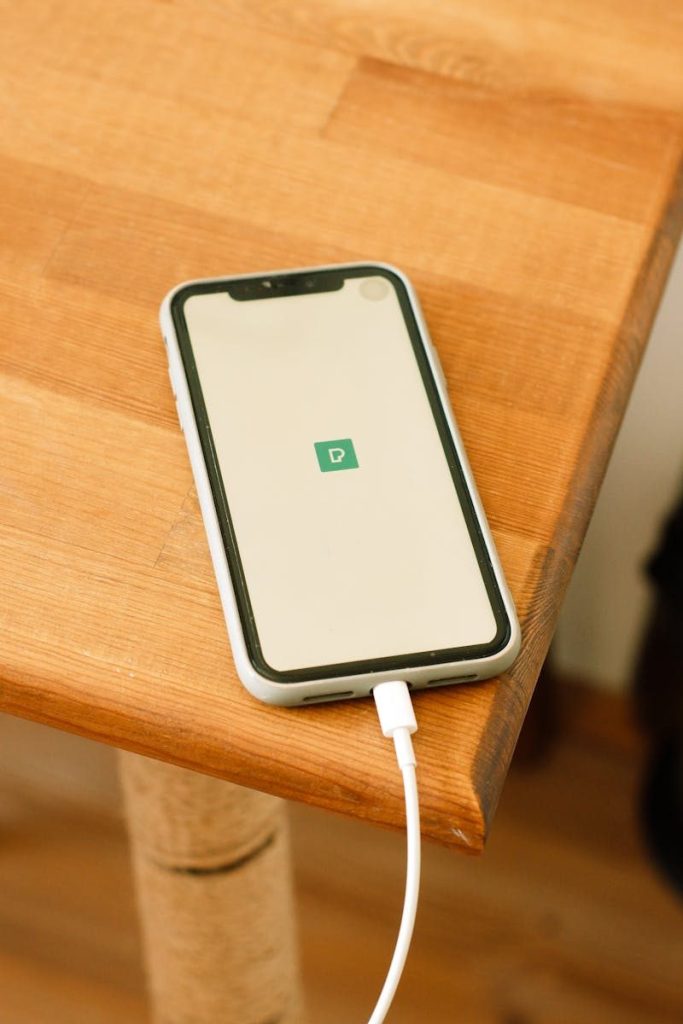
    A smartphone connects to a charger on a wooden table, highlighting modern technology.
    Photo by Beyzaa Yurtkuran on Pexels

    Charging to 100% is not a disaster, but making it your daily habit can add wear over time. Modern batteries usually last longer when they avoid constant high-stress charging.

    Many devices now include battery health features that slow or limit charging when needed. For daily use, topping up before the battery gets very low can be more comfortable than chasing a full charge every time.

    Draining the battery to zero

    smartphone, mobile, phone, gadget, touchscreen, battery, charger, cord, hand, battery, battery, battery, battery, battery, charger, charger, charger, charger
    Photo by StockSnap on Pixabay

    Older battery advice does not always fit today’s gadgets. Many modern phones use lithium-ion batteries, which do not need to be fully drained before every charge.

    Waiting until your device dies can be annoying and may add stress over time. A better habit is to charge when it gets low enough to bother you, not when it shuts itself off.

    Charging while using too much
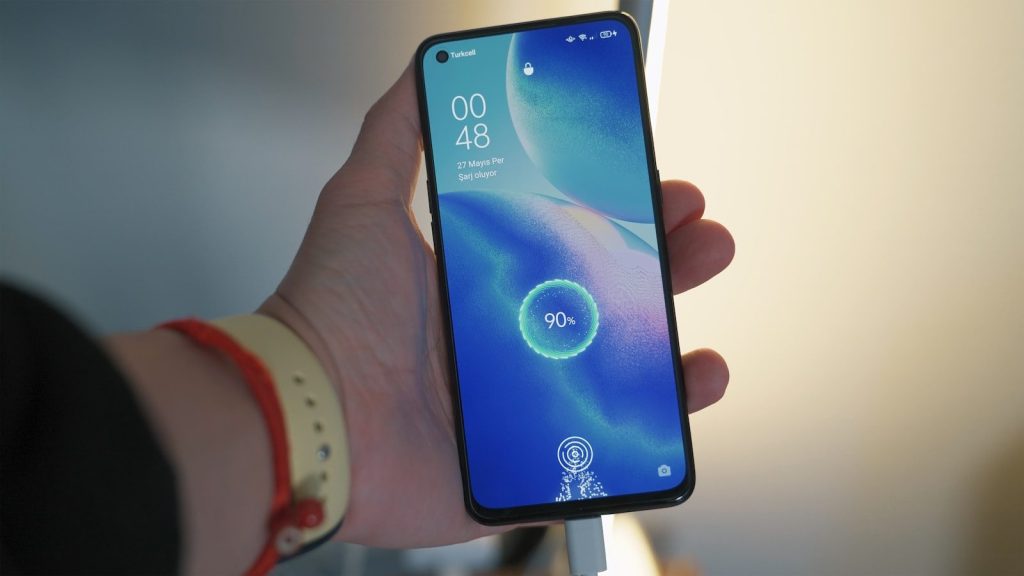
    person holding black samsung android smartphone
    Photo by Onur Binay on Unsplash

    Using a phone for heavy tasks while it charges can make it warmer. Streaming, gaming, video calls, or navigation can all add heat while the battery is already working.

    Light use is usually fine, but give the device a break during heavy charging. If it feels hot, pause the task, unplug it, or let it cool before continuing.
  • How AI may reshape factory jobs without replacing every worker

    How AI may reshape factory jobs without replacing every worker

    Factory work is changing, but that does not mean every person on the floor is being pushed aside. In many plants, AI is becoming a helper for planning, maintenance, quality checks, safety alerts, and training.
    It can study data faster than humans, spot patterns in machine performance, and suggest fixes before small problems turn into costly shutdowns. NIST describes AI in manufacturing as a way to turn data into insight for better production, scheduling, and resource decisions.

    The bigger story is not “robots versus workers.” It is how people and smart tools may work together. The World Economic Forum’s 2025 jobs report points to major workforce shifts through 2030, with technology changing both tasks and skills.

    Machines spot trouble early

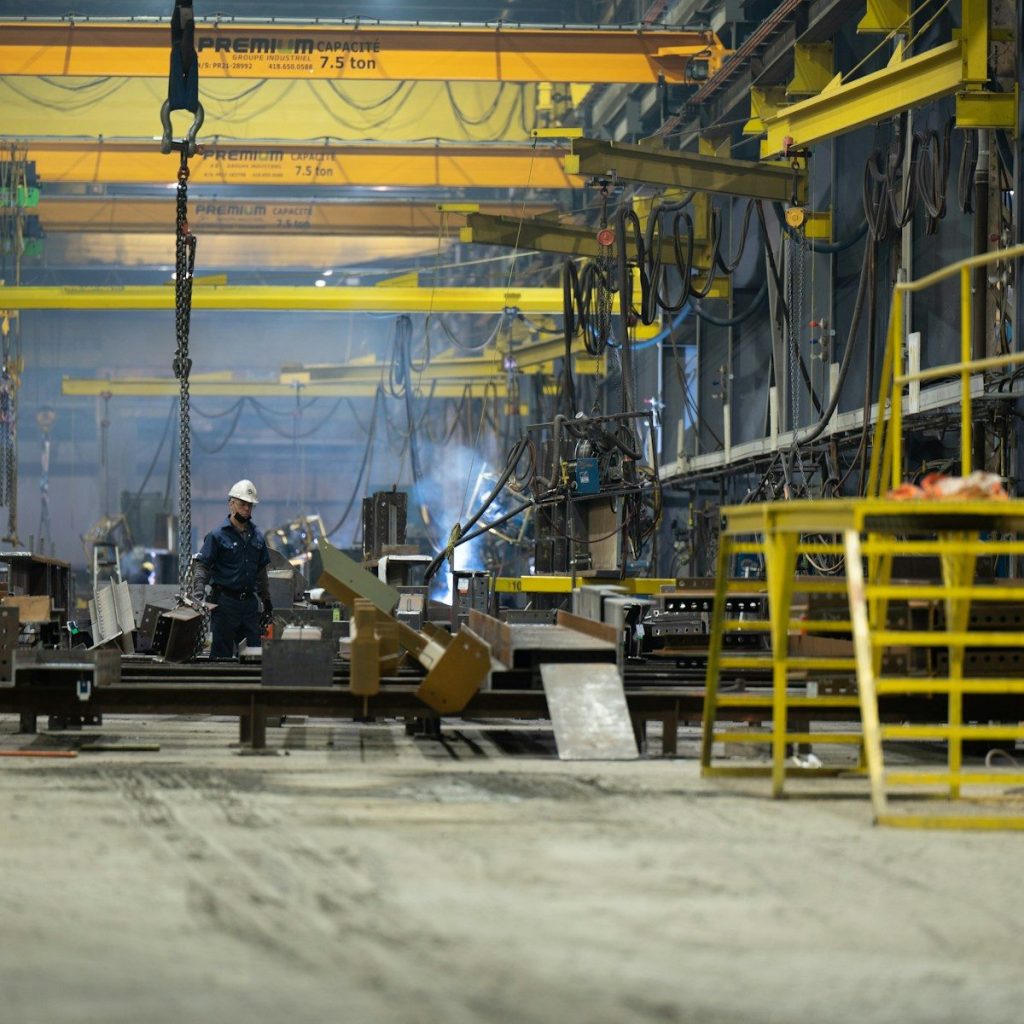
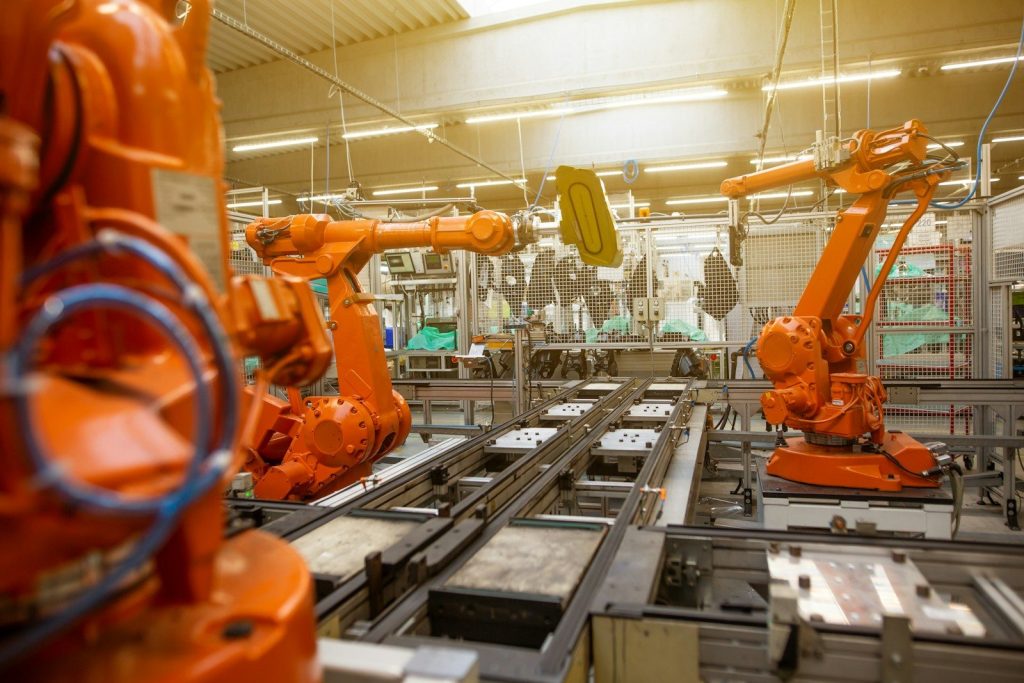
    a factory filled with lots of orange machines
    Photo by Simon Kadula on Unsplash

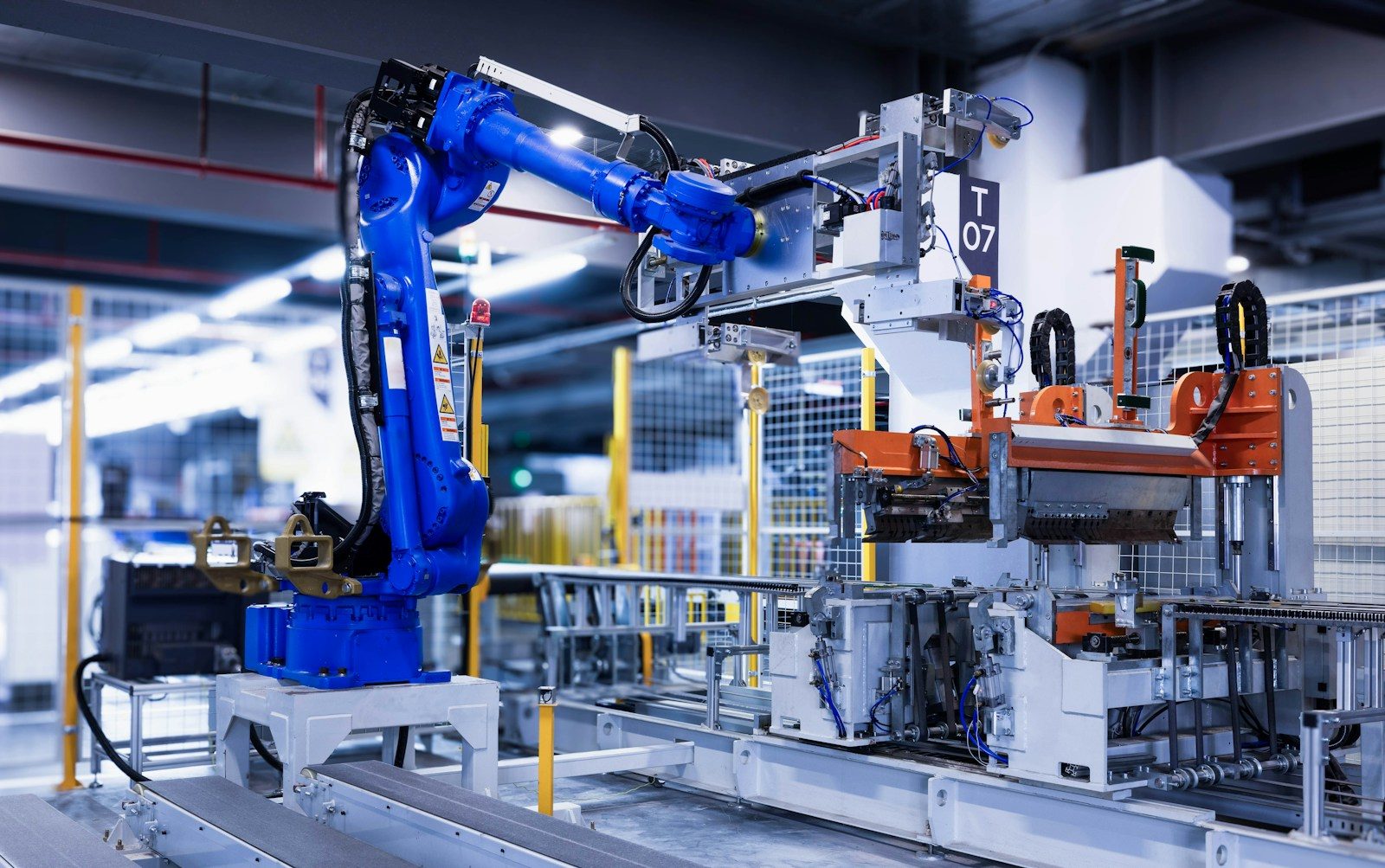
    AI can help factories find signs of machine trouble before equipment breaks. Sensors collect data on heat, vibration, speed, and pressure, while AI looks for patterns that may warn of a coming problem.

    That can change maintenance jobs in a big way. Instead of waiting for a machine to fail, workers may spend more time checking alerts, planning repairs, and keeping production running smoothly.

    Quality checks get faster

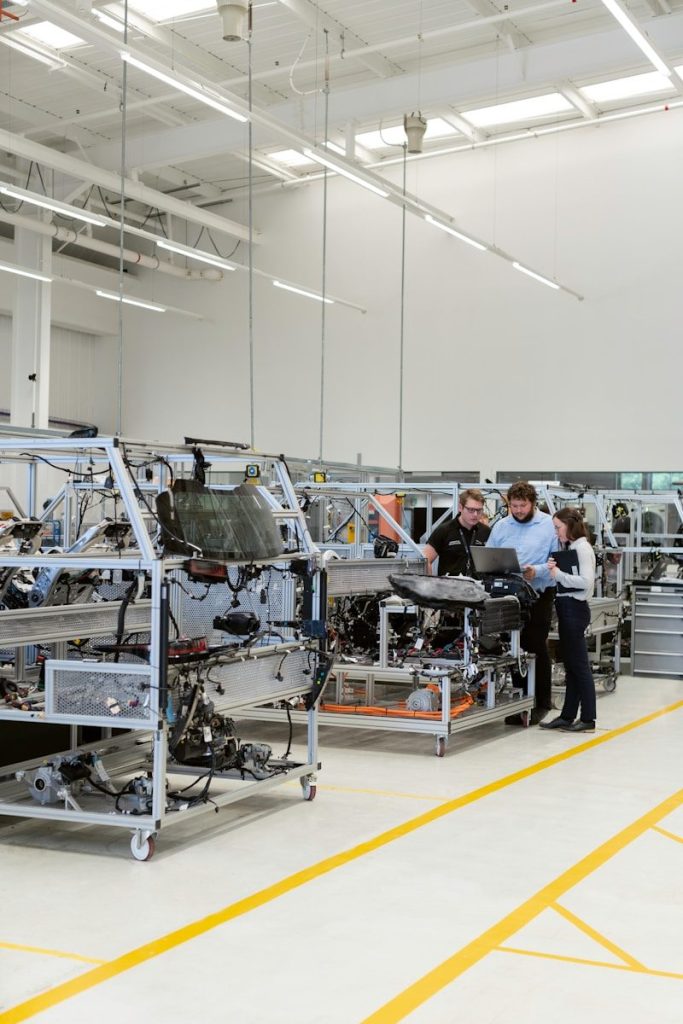
    a room with many machines
    Photo by ZHENYU LUO on Unsplash

    Factories often need to inspect products for tiny flaws. AI-powered cameras and software can help scan parts, packaging, or finished goods faster than manual checks alone.

    This does not remove the need for skilled people. Workers still help set quality standards, review unusual cases, and decide what should happen when the system finds a problem. AI can speed up the search, while people guide the judgment.

    Workers need new skills

    a group of people working in a factory
    Photo by TruckRun on Unsplash

    As AI tools spread, some factory jobs may require more digital comfort. Workers may need to understand dashboards, alerts, sensor readings, and simple troubleshooting steps.

    That does not mean everyone needs to become a programmer. Many roles may focus on practical skills, like reading AI recommendations, checking machine data, and knowing when to call in a specialist. Training will matter as much as the technology itself.

    Cobots work nearby

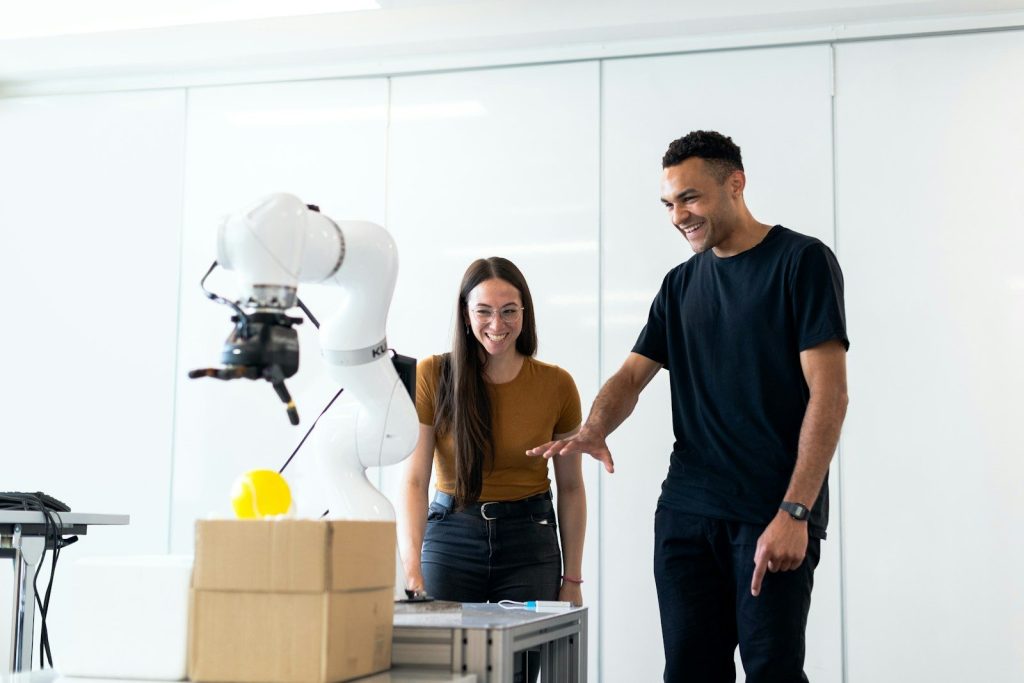
    a man and a woman standing in front of a robot
    Photo by Natalia Dziubek on Unsplash

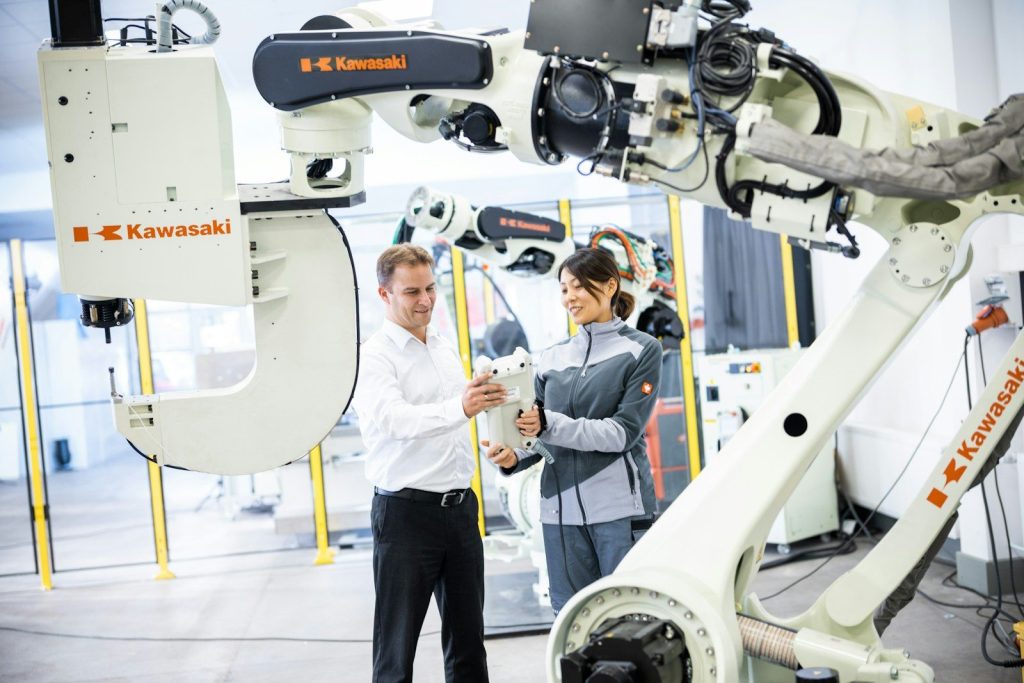
    Collaborative robots, often called cobots, are designed to work around people on certain tasks. They may help with lifting, sorting, packing, or repeated motions that can be tiring over a long shift.

    The International Federation of Robotics says cobots are meant to work alongside humans, and their use has grown as companies face labor shortages. That makes them tools for support, not just replacement.

    Repetitive tasks may shrink

    a group of men in a factory
    Photo by Arno Senoner on Unsplash

    Some factory tasks are dull, repetitive, or physically demanding. AI and automation may take over parts of those jobs, especially when the steps are predictable and easy to measure.
    That can free workers for tasks that need flexibility, problem-solving, and human judgment. The change may still feel stressful, so companies need clear communication and fair training plans to help people move into updated roles.

    Supervisors get better data

    a man in a factory working on a piece of equipment
    Photo by Alireza Hatami on Unsplash

    Factory supervisors often make fast decisions with incomplete information. AI can help by pulling together data from machines, orders, supply chains, and staffing schedules.

    Instead of guessing where the bottleneck is, supervisors may see clearer signals on a dashboard. That can help them adjust shifts, move resources, or fix slowdowns before they affect the whole line.

    Safety alerts improve

    a man standing in front of a machine in a factory
    Photo by Adrien on Unsplash

    AI can support safer factories by watching for unusual machine behavior, blocked paths, missing protective steps, or unsafe patterns. It may also help track near-misses and find areas that need attention.

    The goal is not to blame workers. A good safety system helps teams notice risks earlier and improve the work environment. Human safety leaders still need to review alerts and make careful decisions.

    Training becomes more hands-on

    engineers working in automotive factory
    Photo by ThisisEngineering on Unsplash

    AI may change how factory workers learn. New hires could use digital instructions, smart checklists, simulations, or guided tools that explain steps while they work.

    This can be useful when experienced workers retire or when plants add new equipment. Instead of learning only from manuals, workers may get real-time help that makes training more practical and less overwhelming.
    Human judgment still matters

    man in blue crew neck t-shirt standing beside woman in orange tank top
    Photo by ThisisEngineering on Unsplash

    AI can find patterns, but it does not understand every factory situation the way experienced workers do. A strange noise, a rushed order, or a small process change may need human judgment.
    NIST’s 2026 AI for Manufacturing workshop highlights human-AI teaming as part of future manufacturing research. That shows the focus is not only smarter machines, but better teamwork between people and systems.

    The best factories will blend both

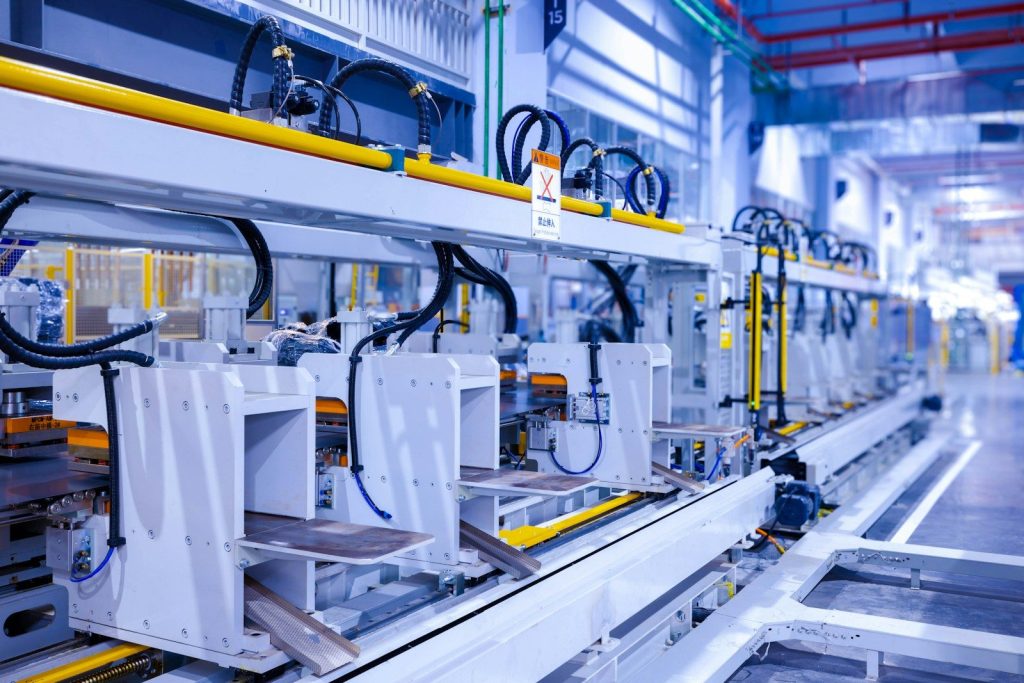
    a factory with a lot of machines in it
    Photo by Homa Appliances on Unsplash

    The strongest factories may not be the ones with the fewest workers. They may be the ones that use AI to support people, reduce waste, improve quality, and make jobs safer.

    McKinsey has described AI’s workplace value as coming from empowering people to unlock productivity, not simply removing them from the process. For factory jobs, that means the future may depend on better tools, better training, and smarter ways to share work.

  • Why AI PCs are confusing regular buyers

    Why AI PCs are confusing regular buyers

    Buying a laptop used to feel simple enough: check the price, screen size, battery life, storage, and speed. Now shoppers are seeing labels like “AI PC,” “Copilot+ PC,” “NPU,” and “TOPS,” often without a clear reason to care. The idea is real, but the marketing can feel bigger than the everyday benefits. An AI PC usually has a special chip called an NPU that helps handle certain AI tasks more efficiently, while Copilot+ PCs need a stronger NPU rated at 40+ TOPS for specific Windows AI features.

    That sounds exciting, but many regular buyers just want a laptop that feels fast, lasts all day, and works with the apps they already use. That gap is where the confusion begins.

    The name sounds too broad

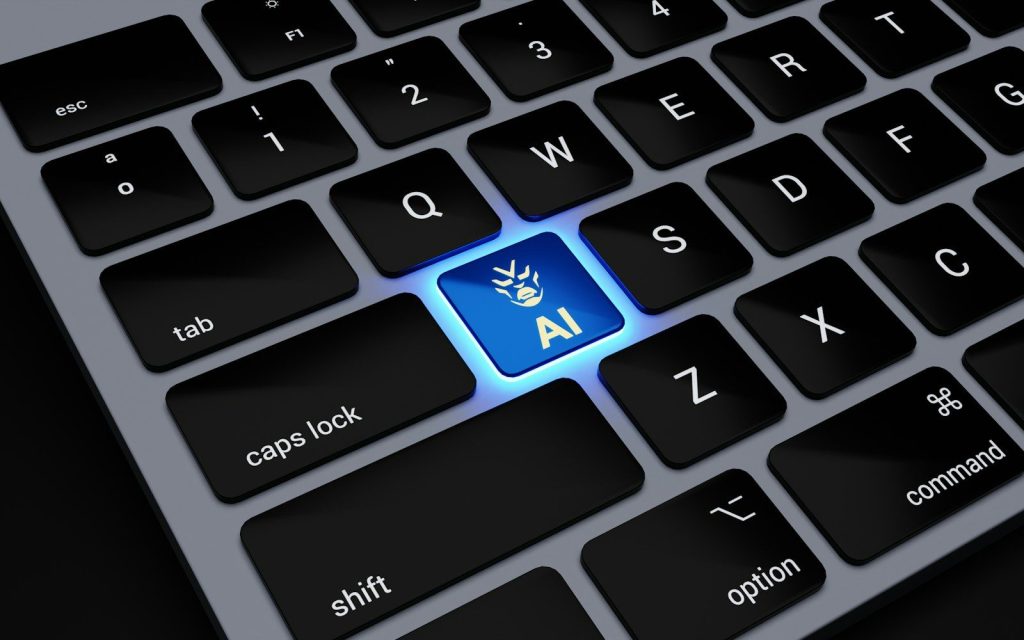
    a computer keyboard with a blue light on it
    Photo by BoliviaInteligente on Unsplash

    “AI PC” can make it sound like the whole computer is powered by artificial intelligence. In reality, it is still a regular PC with a CPU, GPU, memory, storage, and battery.

    The difference is that many newer models include an NPU, a chip made to handle certain AI tasks more efficiently. That matters, but it does not mean every app suddenly becomes smarter overnight.

    Copilot+ adds another layer

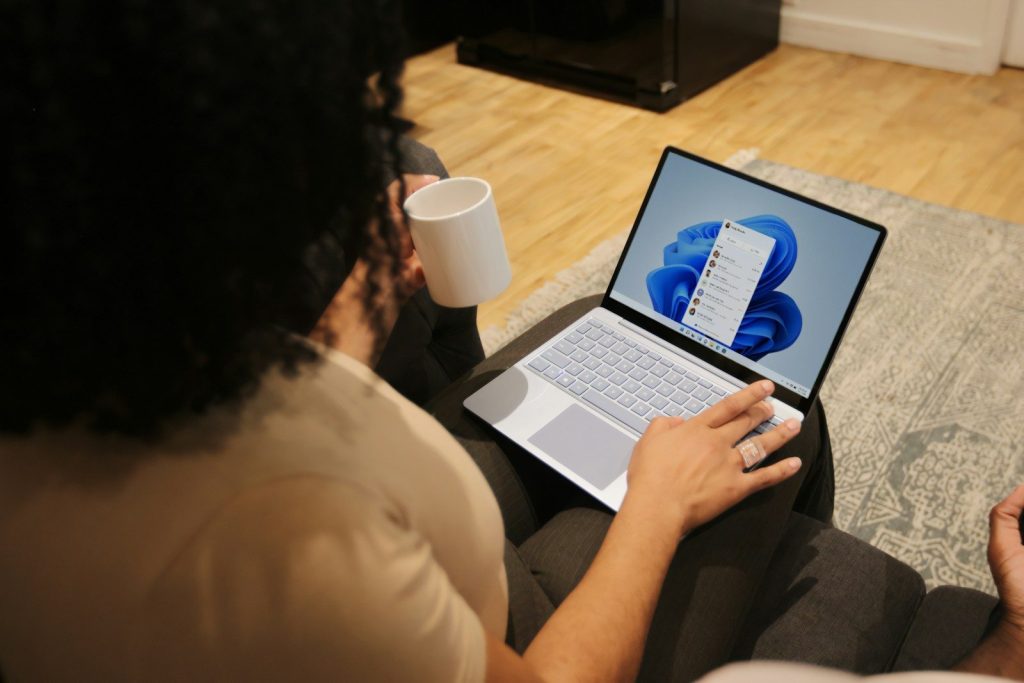
    Female on her Microsoft laptop at work drinking coffee
    Photo by Windows on Unsplash

    A regular AI PC and a Copilot+ PC are not always the same thing. Microsoft says Copilot+ PCs need a high-performance NPU that can reach more than 40 trillion operations per second.

    That one detail can confuse shoppers fast. A laptop may be marketed as AI-ready, but it may not support every Copilot+ feature buyers see in ads or store displays.

    TOPS is not shopper-friendly

    person typing on MacBook Pro keys
    Photo by Cleo Vermij on Unsplash

    Tech brands often talk about TOPS, which stands for trillions of operations per second. It is a performance number used to describe how much AI work a chip can handle.

    For regular buyers, that number feels abstract. A shopper can understand “10 hours of battery” or “1TB of storage,” but “40 TOPS” does not clearly explain what the laptop will do better on Monday morning.

    The benefits feel uneven

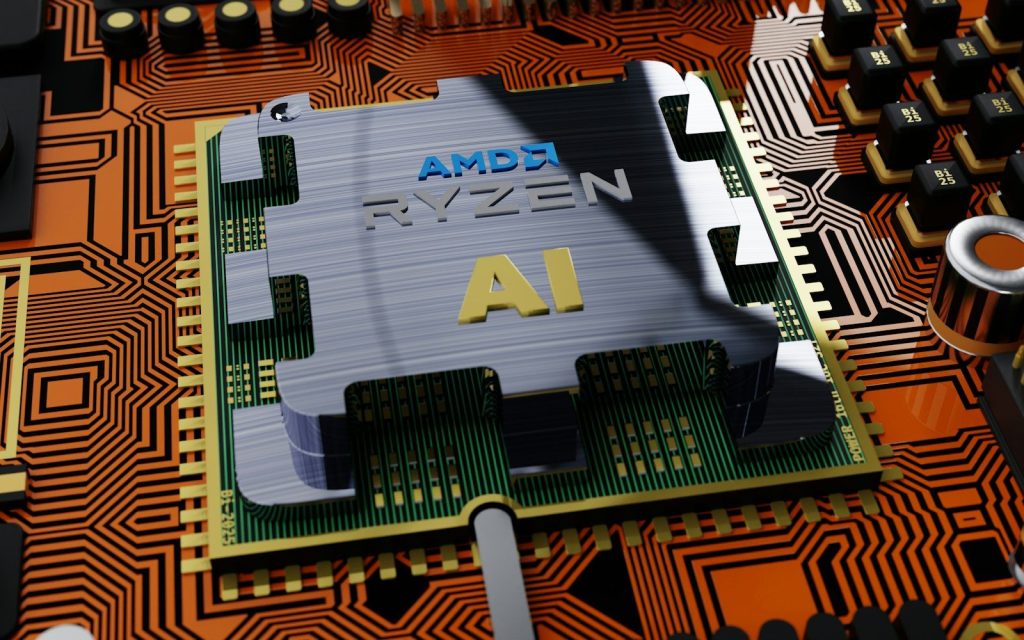
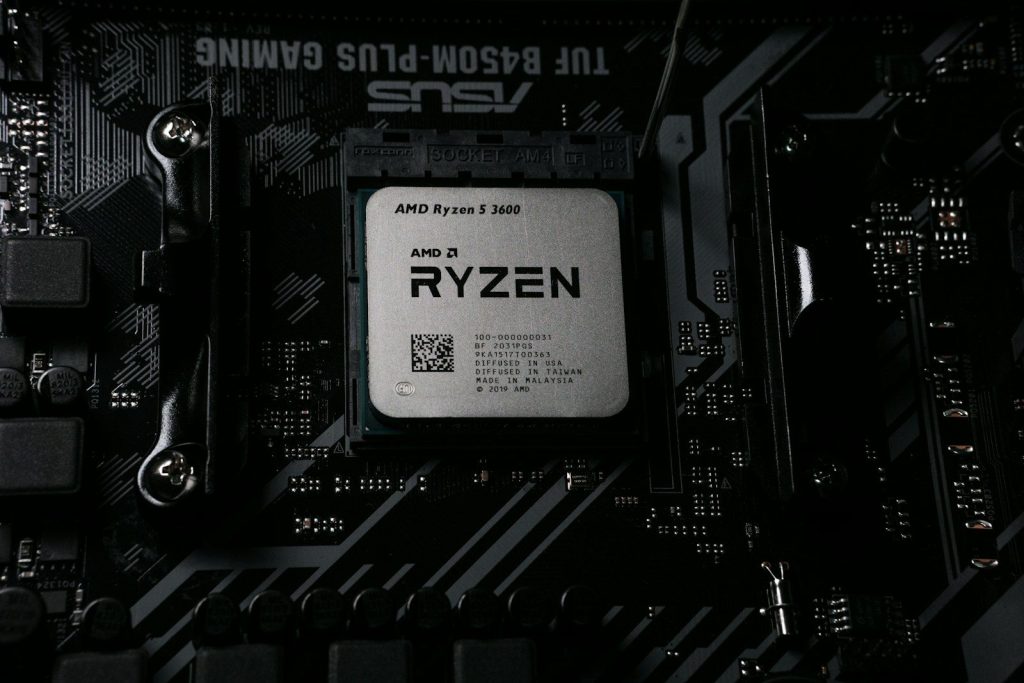
    an amd radeon processor on top of a printed circuit board
    Photo by BoliviaInteligente on Unsplash

    Some AI PC features are useful, like better background blur, live captions, image tools, or faster on-device help. These can make daily tasks smoother for certain users.

    But not everyone needs them. A student writing papers, a parent shopping online, or someone checking email may not notice a huge difference right away, especially if their current laptop already feels fast enough.

    Local AI sounds unclear

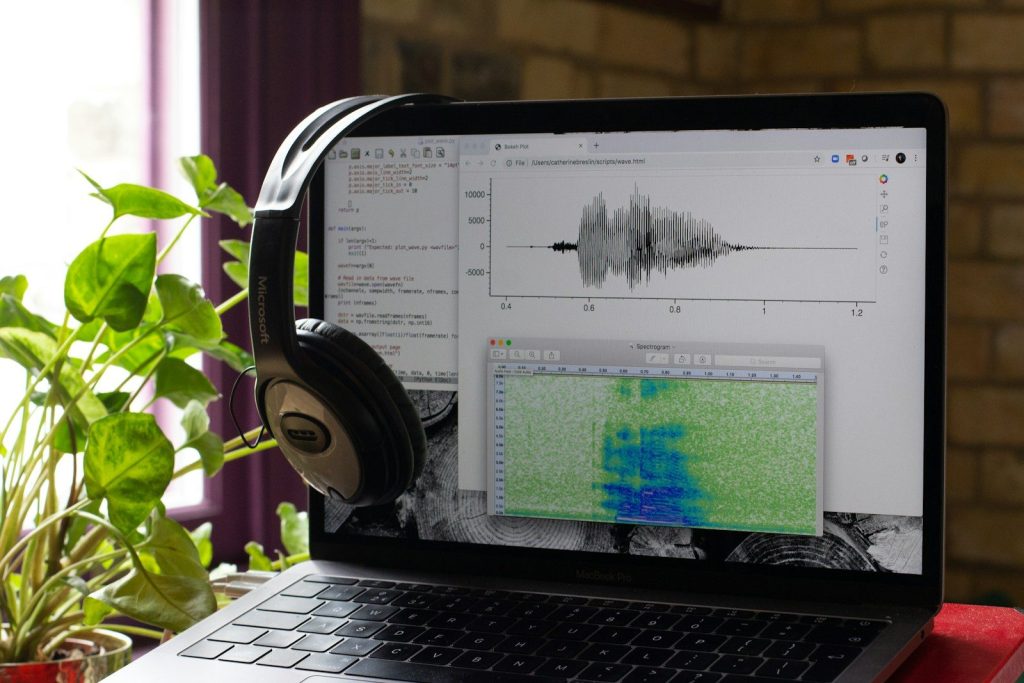
    a laptop computer with headphones on top of it
    Photo by Catherine Breslin on Unsplash

    One promise of AI PCs is that some AI tasks can run directly on the device instead of depending fully on the cloud. That can help with speed, privacy, and battery use in supported tasks.

    The confusing part is that many popular AI tools still run online. So buyers may wonder why they need special hardware when the AI services they use already work in a browser.

    App support is still growing

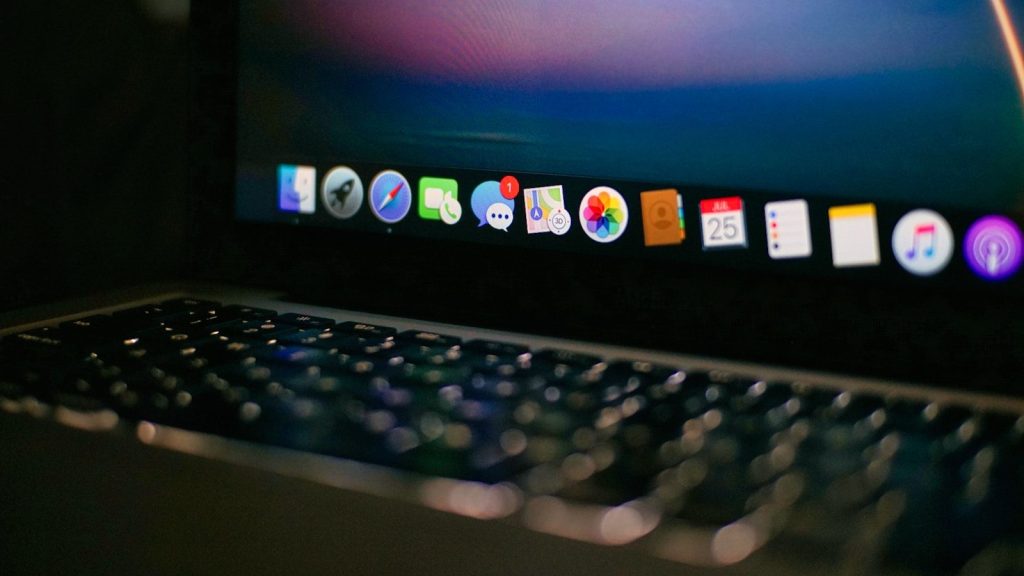
    a close up of a laptop computer with icons on the screen
    Photo by Visual Karsa on Unsplash

    Hardware is only part of the story. For an AI PC to feel useful, apps must actually take advantage of the NPU inside the machine.

    That support is still developing. Some features work today, while others depend on future updates from Microsoft, chip makers, or app developers. Buyers may feel like they are paying for benefits that are not fully visible yet.

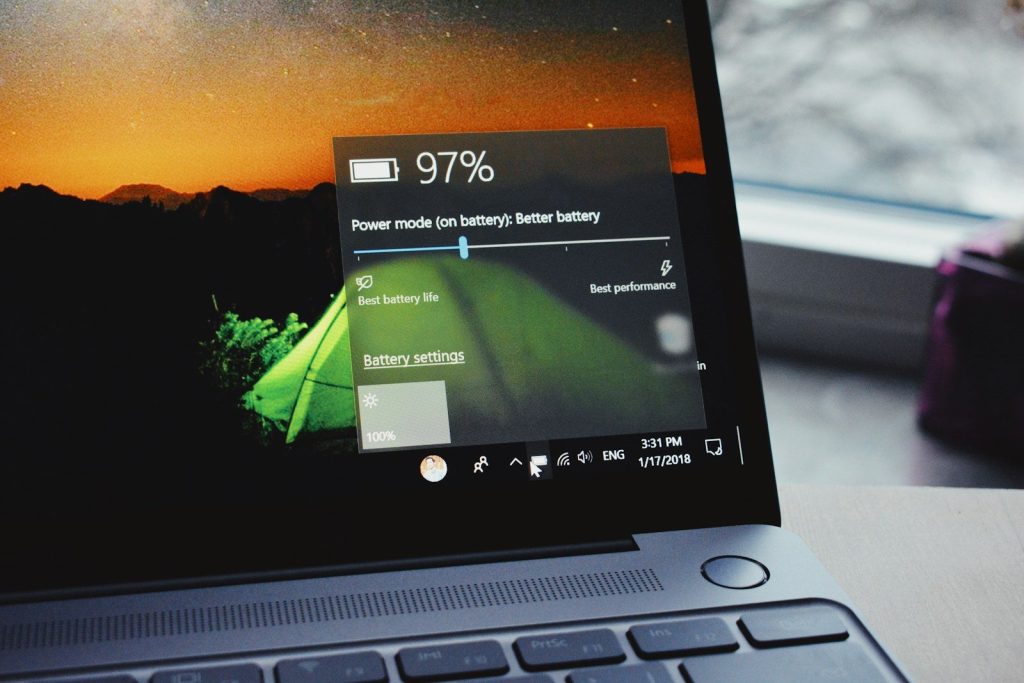
    Battery claims can blur the message

    turn-on laptop displaying 97 percent battery
    Photo by Panos Sakalakis on Unsplash

    Many new AI PCs are also simply better laptops. They may have newer processors, improved power use, and longer battery life, which are things shoppers already understand.

    That creates a mixed message. A buyer may love the laptop because it lasts longer or runs quietly, but the box may focus on AI features instead of the practical upgrades that actually matter most.

    Chip brands use different wording

    black samsung galaxys 7 edge
    Photo by Luis Gonzalez on Unsplash

    Intel, AMD, Qualcomm, and other companies all promote AI features in their own way. Intel describes AI PCs as systems using CPU, GPU, and NPU hardware, while AMD highlights dedicated Ryzen AI NPU technology for efficient AI processing.

    That variety can make store shelves messy. Two laptops may both say “AI,” but use different chips, support different features, and perform differently in daily use.

    Price makes buyers hesitate

    fan of 100 U.S. dollar banknotes
    Photo by Alexander Mils on Unsplash

    AI PCs often appear in newer laptop lines, which can mean higher prices than older models. That makes people ask a fair question: “Am I paying for something I will actually use?”

    For many buyers, the answer depends on timing. Someone replacing an old laptop may enjoy the extra future-proofing. Someone with a recent laptop may not need to rush.

    Simple buying rules help

    a person's hand on top of a laptop computer
    Photo by Revendo on Unsplash

    Regular buyers do not need to chase every AI label. The smarter move is to start with basics: battery life, screen quality, keyboard comfort, memory, storage, ports, and overall performance.

    Then check the AI part. If the laptop is a Copilot+ PC, it should meet the stronger NPU requirement. If it is only called an AI PC, read the feature list carefully before assuming it supports everything.

  • 10 laptop specs people misunderstand

    10 laptop specs people misunderstand

    Buying a laptop can feel simple until the spec sheet starts throwing numbers at you. RAM, cores, storage, brightness, battery life, refresh rate, and graphics all sound important, but they do not always mean what people think they mean. A laptop with bigger numbers can still feel slow, run hot, or lose battery faster than expected.

    The tricky part is that specs work together. A fast processor needs good cooling. A sharp screen can drain more power. More storage does not mean faster storage. Even Windows 11 has basic hardware needs, but meeting the minimum does not always mean the experience will feel smooth. Microsoft lists 4GB of RAM and 64GB of storage as Windows 11 minimums, but most everyday users will want more room than that.

    More RAM is not always faster

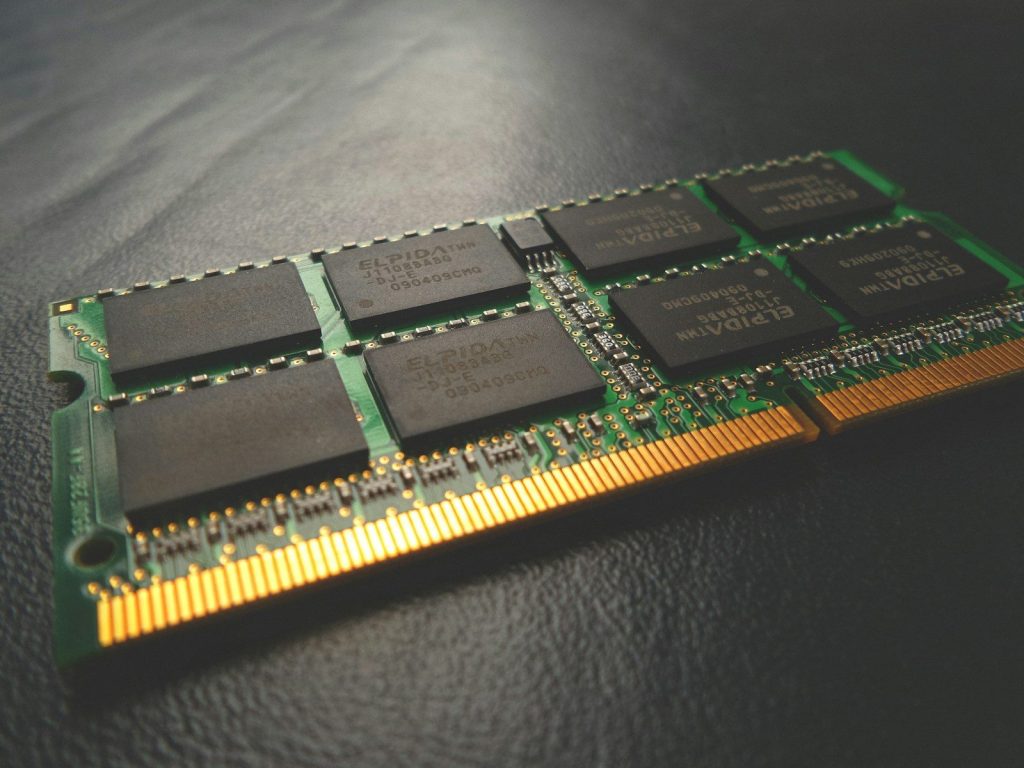
    SODIMM RAM stick
    Photo by Possessed Photography on Unsplash

    RAM helps your laptop keep more apps open at the same time. That means 16GB usually feels better than 8GB if you browse with many tabs, edit photos, or use school and work apps together.

    But RAM size is not the whole story. Speed, type, and whether the memory is soldered or upgradeable also matter. A laptop with enough RAM and a solid processor often feels better than one with huge RAM but weak overall hardware.

    Storage size is not speed

    A woman sitting at a table using a laptop computer
    Photo by Samsung Memory on Unsplash

    A 1TB drive sounds better than a 512GB drive because it holds more files. That is true for photos, videos, games, and downloads. But storage size does not tell you how fast the laptop opens apps or moves files.

    The type of drive matters more for speed. A modern SSD will feel much quicker than an older hard drive. Even among SSDs, some are faster than others, so do not judge storage by capacity alone.

    Processor cores need context

    black samsung galaxys 7 edge
    Photo by Luis Gonzalez on Unsplash

    Many shoppers see more processor cores and assume the laptop must be much faster. That can be true for heavy work like video editing, coding, or 3D tasks. For basic browsing and streaming, it may not make a big difference.

    Modern chips can also mix different core types. Intel explains that Performance-cores focus on demanding work, while Efficient-cores handle lighter background tasks. So the core count matters, but the design matters too.

    Clock speed is not everything

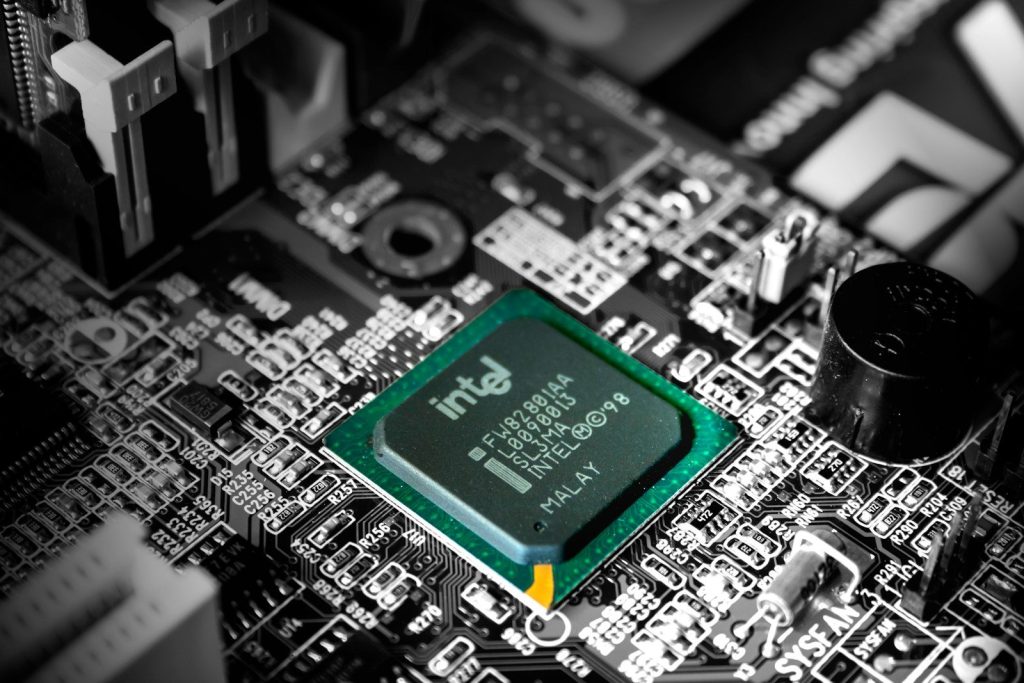
    Intel computer processor in selective color photography
    Photo by Slejven Djurakovic on Unsplash

    A processor listed at a higher GHz can look stronger at first glance. Clock speed shows how fast a chip can run, but it does not tell the full story about real laptop performance.

    A newer chip with better design may beat an older chip with a higher clock speed. Cooling, power limits, and battery settings also affect how long a laptop can stay fast before slowing down.

    Graphics names can mislead

    laptop on white table
    Photo by Dell on Unsplash

    Two laptops can have graphics with similar names but perform very differently. This happens a lot with gaming and creator laptops, where power limits and cooling can change the final result.

    A graphics chip with more power available can often run faster, but it may also create more heat and use more battery. ASUS notes that laptop GPU power values help buyers make more informed choices because each machine is tuned differently.

    Battery claims are best-case numbers

    turn-on laptop displaying 97 percent battery
    Photo by Panos Sakalakis on Unsplash

    Laptop battery life numbers are usually measured under controlled conditions. That may mean low brightness, light tasks, quiet performance modes, and limited background activity.

    Real use can be very different. Video calls, gaming, high screen brightness, many browser tabs, and demanding apps can drain the battery much faster. Treat battery claims as a guide, not a promise.

    Screen resolution has trade-offs

    macbook pro on white table
    Photo by Devin Pickell on Unsplash

    A higher-resolution display can make text, photos, and videos look sharper. That sounds great, especially on larger laptops or devices used for creative work.

    But sharper screens can use more power and may cost more. On smaller laptops, the difference between full HD and higher resolutions may not feel huge for everyday tasks. Brightness, color quality, and glare control can matter just as much.

    Refresh rate is not for everyone

    silver MacBook Pro
    Photo by Howard Bouchevereau on Unsplash

    A 120Hz or 144Hz screen can make motion look smoother. Gamers often notice it, and some people like it for scrolling through websites and apps.

    Still, refresh rate does not improve everything. Movies and basic office work may not benefit much. A high refresh screen also needs good graphics performance to truly shine, especially in games.

    Thin laptops can slow down

    macbook pro on white table
    Photo by Giorgio Trovato on Unsplash

    Thin and light laptops are easy to carry, which is why many people love them. But slim bodies leave less space for cooling hardware.

    That means a thin laptop with powerful specs may not always perform like a thicker machine with the same chip. Heat can force the laptop to slow down during long tasks, so design matters as much as the parts inside.

    Minimum specs are not comfort specs

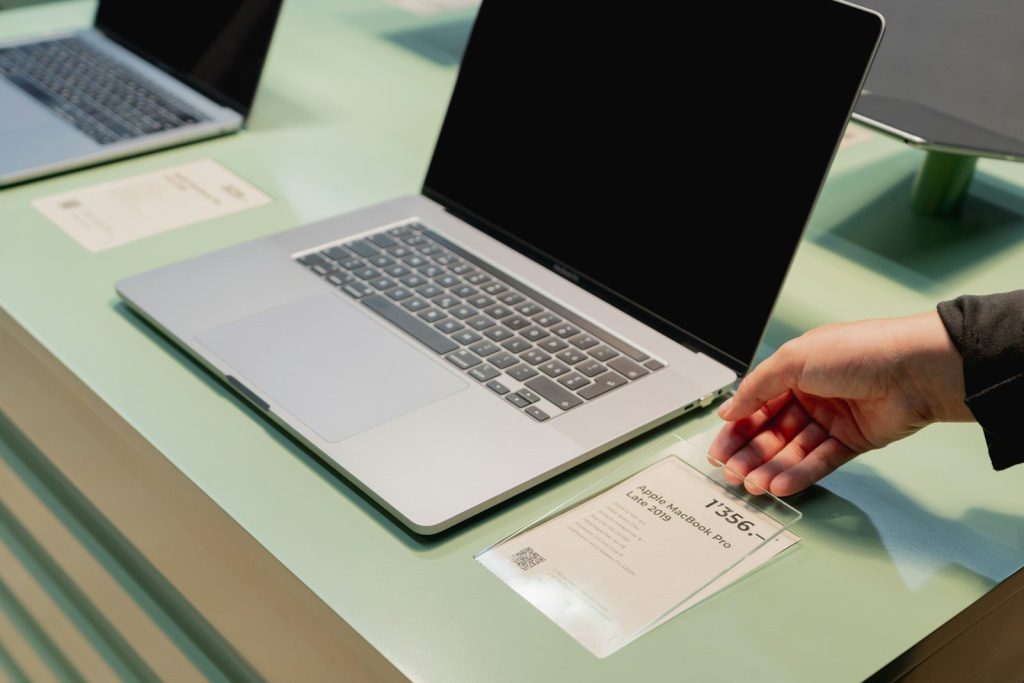
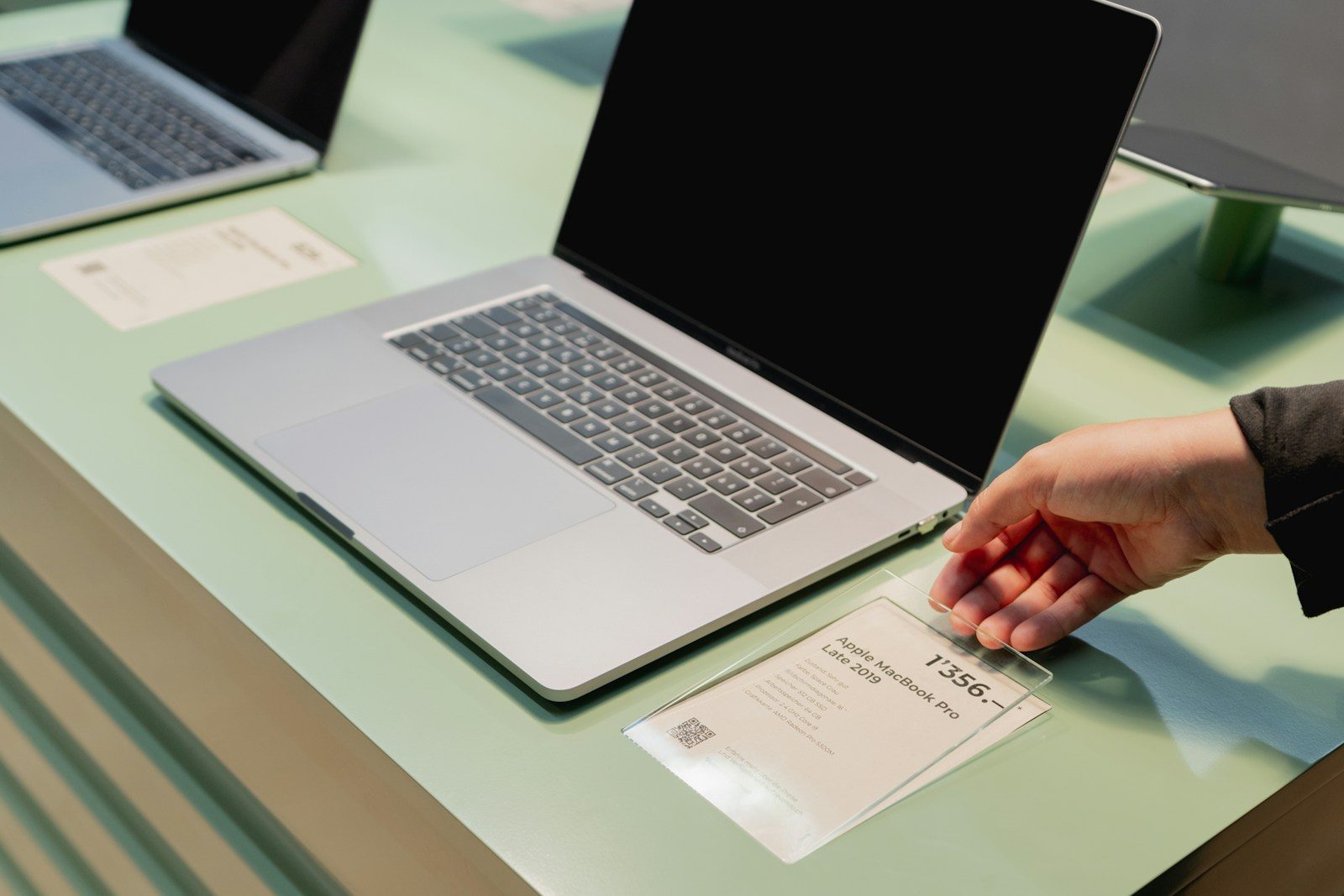
    A MacBook with lines of code on its screen on a busy desk
    Photo by Christopher Gower on Unsplash

    A laptop can meet the basic requirements for Windows and still feel limited. Microsoft lists minimum Windows 11 needs such as a compatible processor, 4GB of RAM, and 64GB of storage.

    Minimum specs are about whether the system can run, not whether it will feel fast for years. For everyday use, extra RAM, more storage, a newer processor, and a good screen usually make the laptop easier to live with.

  • 10 Windows settings you should check before your PC slows you down

    10 Windows settings you should check before your PC slows you down

    A new Windows PC can feel fast, clean, and ready to go, but a few default settings may not match the way you actually use it. Some settings can affect storage, privacy, battery life, updates, security, notifications, and how your apps behave every day. The good news is that you do not need to be a tech expert to fix them.

    A quick settings check can help your computer feel smoother, safer, and less annoying. It can also save you from surprise pop-ups, full storage warnings, missing backups, or apps opening the wrong files. Before you start installing everything and filling up your desktop, these Windows settings are worth checking first.

    Check Windows Update

    black and white laptop computer
    Photo by Clint Patterson on Unsplash

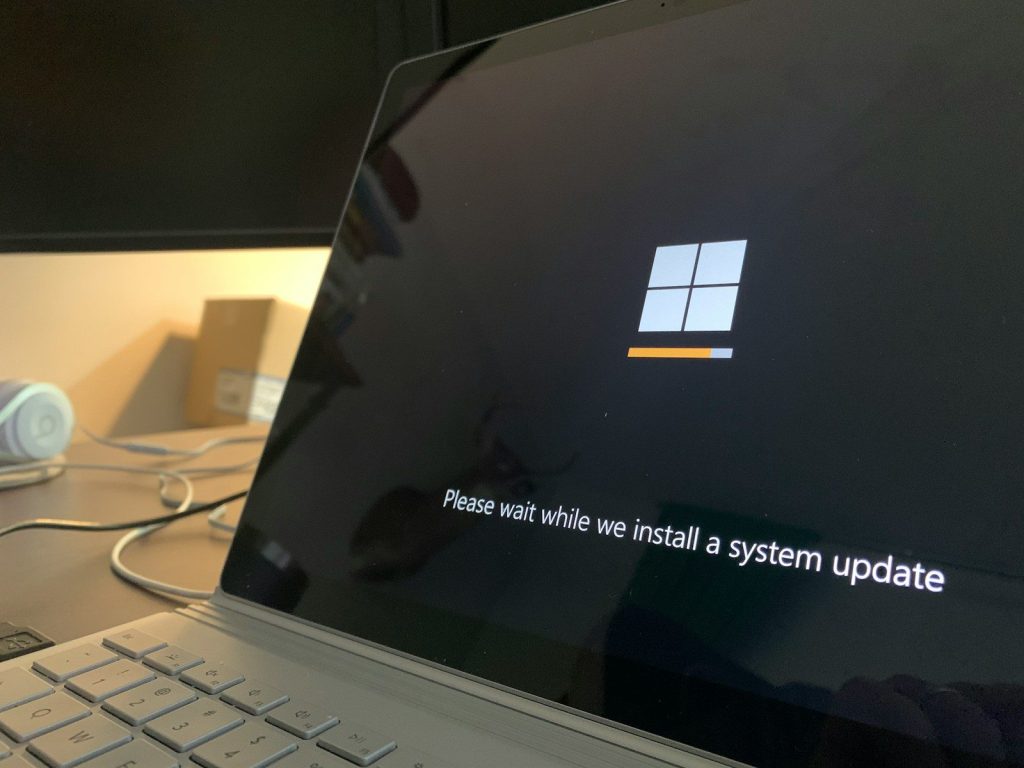
    Windows Update is one of the first places to visit on any PC. Updates can bring security fixes, bug repairs, driver updates, and feature improvements that help Windows run better over time.

    Go to Settings > Windows Update and check for updates before you do much else. Restart when needed, then check again. Sometimes Windows needs more than one round before everything is fully current.

    Turn on Storage Sense

    Female on her Microsoft laptop at work drinking coffee
    Photo by Windows on Unsplash

    Storage can fill up faster than people expect, especially with downloads, temporary files, and items sitting in the Recycle Bin. Microsoft says Storage Sense can automatically free space by clearing files you do not need.

    Find it under Settings > System > Storage > Storage Sense. Review the cleanup schedule before turning it on, so it does not remove files sooner than you want. This small step can help prevent slowdowns caused by low disk space.

    Review notification settings

    turn-on laptop displaying 97 percent battery
    Photo by Panos Sakalakis on Unsplash

    Too many notifications can make even a fast PC feel frustrating. Windows lets you control notifications by app, so you can keep important alerts and silence the noisy ones.

    Go to Settings > System > Notifications and look through the app list. Turn off alerts from apps you rarely use. You can also adjust sounds, lock screen alerts, and banners to make your desktop calmer.

    Set up Focus mode

    A close-up photo of a computer screen showing the settings button with a cursor hovering over it.
    Photo by Pixabay on Pexels

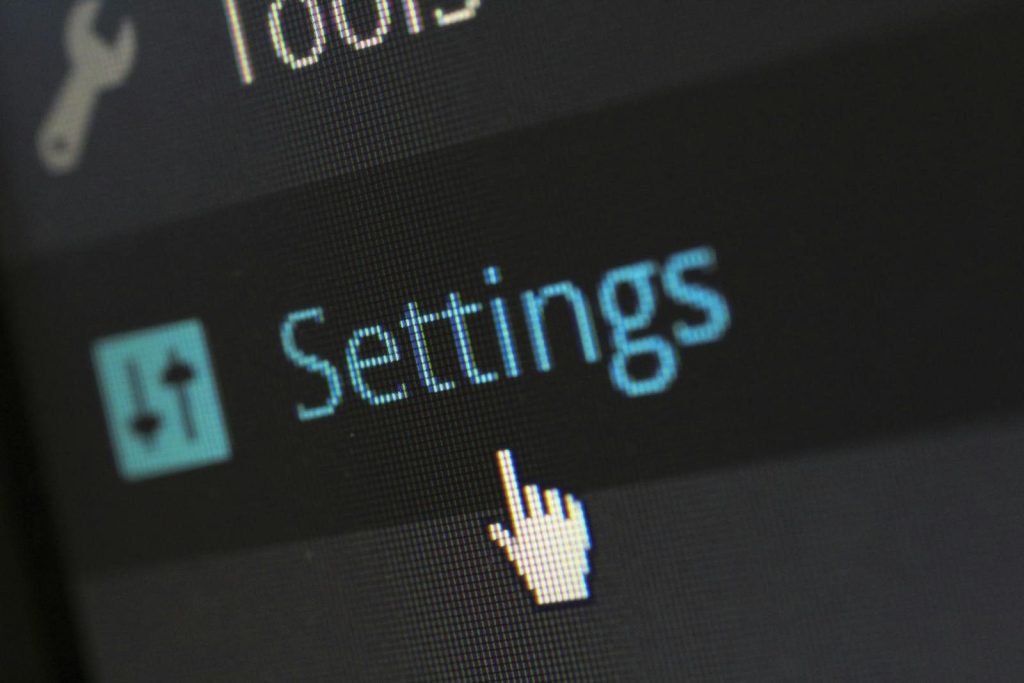
    Focus mode is helpful when you need fewer distractions. Microsoft says Focus can temporarily block notifications, sounds, and alerts while you work.

    Open Settings > System > Focus and choose how you want it to behave. You can use it while studying, writing, gaming, or working. It is a simple setting, but it can make your PC feel less busy.

    Check privacy permissions

    windows on android, windows, phone, android, remote desktop, technology, interface, metro ui, windows 10, black technology, black phone, black window, black telephone, windows 10, windows 10, windows 10, windows 10, windows 10
    Photo by ArtificialOG on Pixabay

    Apps often ask for access to your camera, microphone, location, contacts, and other data. Some apps need those permissions, but others may not. Checking them early gives you more control.

    Go to Settings > Privacy & security and review each permission category. Turn off access for apps that do not need it. This helps keep your PC cleaner and makes it easier to understand what each app can use.

    Choose default apps

    close shot of black laptop computer
    Photo by Panos Sakalakis on Unsplash

    Windows may not always open files with the apps you prefer. A browser, photo viewer, music player, or PDF reader might not be set the way you want after setup.

    Open Settings > Apps > Default apps and search by app or file type. Set your preferred browser, email app, media player, and document tools. This saves time because your files open correctly the first time.

    Turn on Windows Backup

    person using cobalt blue microsoft surface laptop computer
    Photo by Windows on Unsplash

    Backups are easy to ignore until something goes wrong. Windows Backup can help save folders, settings, and app preferences when connected with your Microsoft account and OneDrive.

    Search for Windows Backup from the Start menu and review what is selected. You can choose folders such as Desktop, Documents, Pictures, Videos, and Music. Pick only what you really want backed up.

    Check device encryption

    the screen of a laptop with the windows security button highlighted
    Photo by Ed Hardie on Unsplash

    Device encryption helps protect your files if your laptop is lost or stolen. Microsoft notes that you can find it under Privacy & security > Device encryption, if your device supports it.

    If the option appears, check whether it is on. Also make sure your recovery key is saved somewhere safe. This setting is especially important for laptops that travel outside the house.

    Review startup apps

    microsoft surface black laptop computer turned on beside green plant
    Photo by Windows on Unsplash

    Some apps start automatically every time Windows turns on. A few are useful, but too many can slow boot time and make the desktop feel crowded right away.

    Go to Settings > Apps > Startup and look through the list. Turn off apps you do not need at launch. You can still open them later, but they will not slow down every startup.

    Adjust display settings

    person using black laptop computer on brown wooden table
    Photo by Dell on Unsplash

    Display settings can make a big difference in daily comfort. Brightness, scale, resolution, night light, and refresh rate all affect how your screen looks and feels.

    Open Settings > System > Display and review the basics. Make sure the resolution is recommended, text size feels comfortable, and Night light is set if you use your PC late. Small tweaks can reduce eye strain.

  • How Android is becoming more personal

    How Android is becoming more personal

    Your phone used to feel personal mostly because of your wallpaper, ringtone, and app layout. Now Android is going deeper. It can match system colors to your wallpaper, let different apps use different languages, give you more control over photo access, and make chats feel more expressive. Google’s Material You design focuses on dynamic color, motion, and widgets to create a more connected look across Android.

    This shift is not just about making phones prettier. It is about giving people more choice without making settings feel too complicated. Android is becoming more flexible, more private, and more aware of how different people actually use their phones every day.

    Your colors follow your style

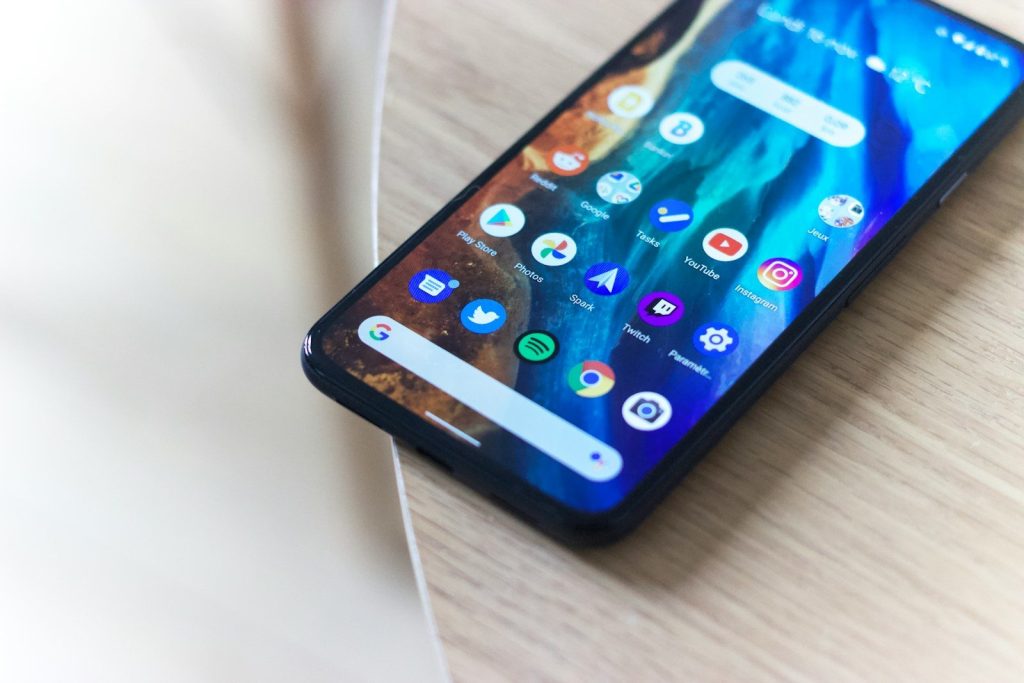
    iphone screen showing icons on screen
    Photo by Shiwa ID on Unsplash

    Android’s Material You design helps your phone feel less generic. Instead of forcing one fixed look, it can pull colors from your wallpaper and spread them across parts of the system.

    That means your lock screen, menus, widgets, and controls can feel like they belong together. It is a small change, but it makes the phone feel more like something you shaped, not just something you bought.

    Widgets feel more useful

    Hand holding smartphone with abstract interface design
    Photo by Georgiy Lyamin on Unsplash

    Widgets used to be simple boxes that showed the weather, time, or calendar. Now they are becoming cleaner, smarter, and easier to fit into your home screen style.

    A good widget can save taps. You can glance at reminders, music, messages, or smart home controls without opening a full app. That makes personalization feel practical, not just decorative.

    Lock screens do more

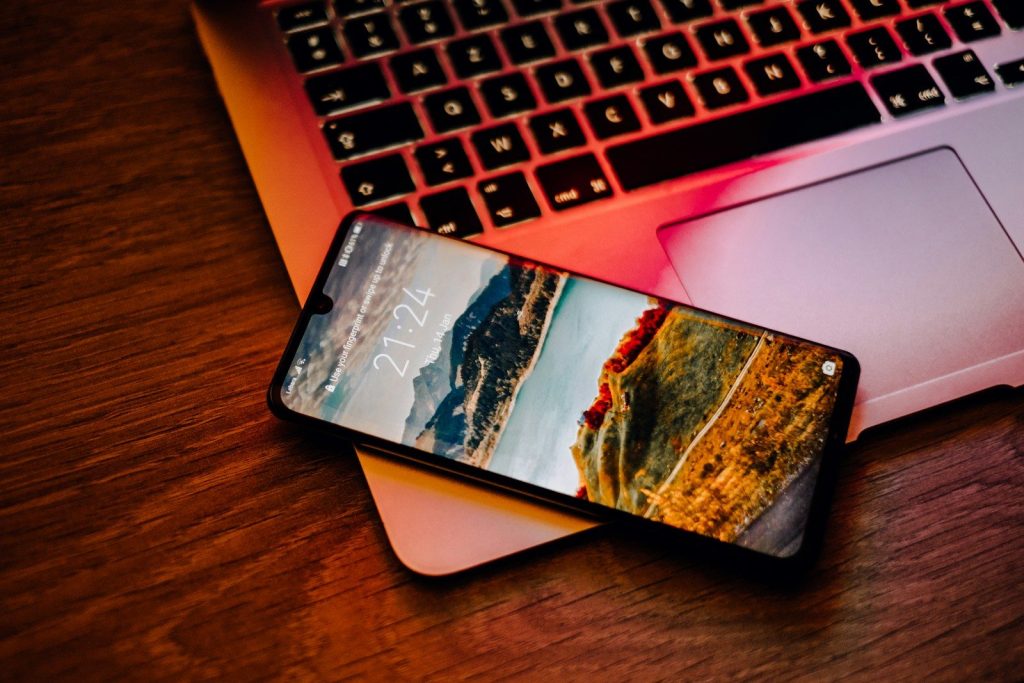
    black iphone 7 on macbook pro
    Photo by Kenny Leys on Unsplash

    The lock screen is no longer just a place to check the time. Android has been moving toward more flexible lock screen experiences with better shortcuts, cleaner visuals, and useful glanceable details.

    This matters because people check their phones many times a day. A lock screen that shows the right information quickly can make the whole phone feel more tuned to your routine.

    Apps can speak your language

    black android smartphone on brown wooden table
    Photo by Adrien on Unsplash

    Android 13 added support for setting different languages for different apps. That is helpful for people who text in one language, work in another, or share a device with family.

    This kind of personalization goes beyond looks. It lets the phone better match real life, where many people switch between languages depending on the task, app, or person they are talking to.

    Privacy feels more personal

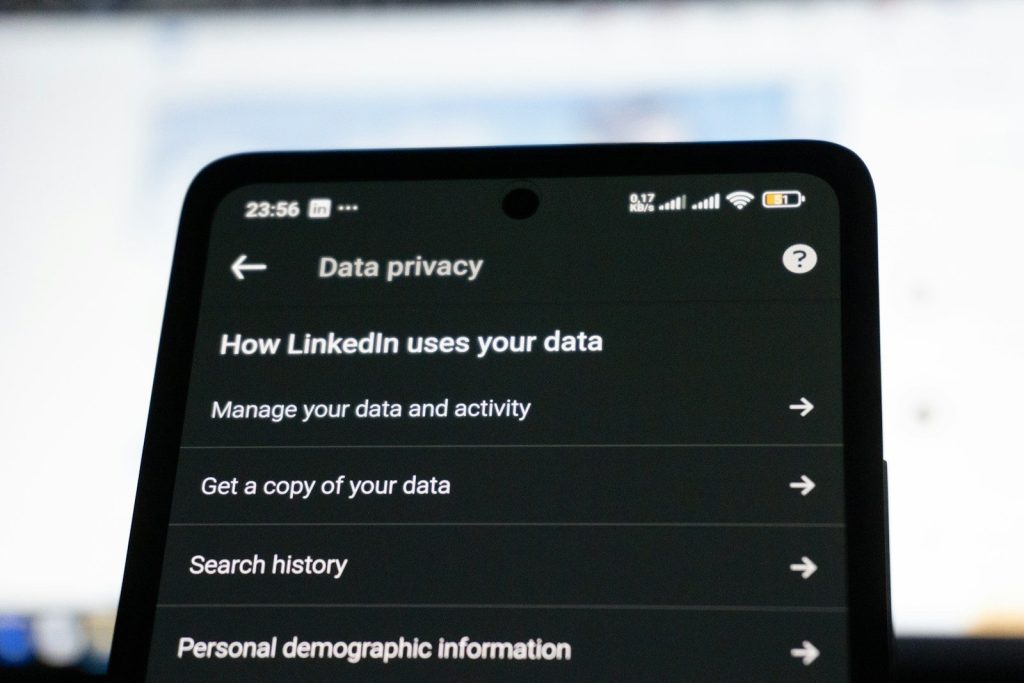
    Linkedin data privacy settings on a smartphone screen
    Photo by Zulfugar Karimov on Unsplash

    Personalization is not only about colors and layouts. It also includes control over what apps can see. Android’s photo picker lets users share selected photos and videos instead of giving access to an entire media library.

    That makes the experience feel more comfortable. You can share the exact picture you need without opening the door to everything else stored on your phone.

    Messages show more personality

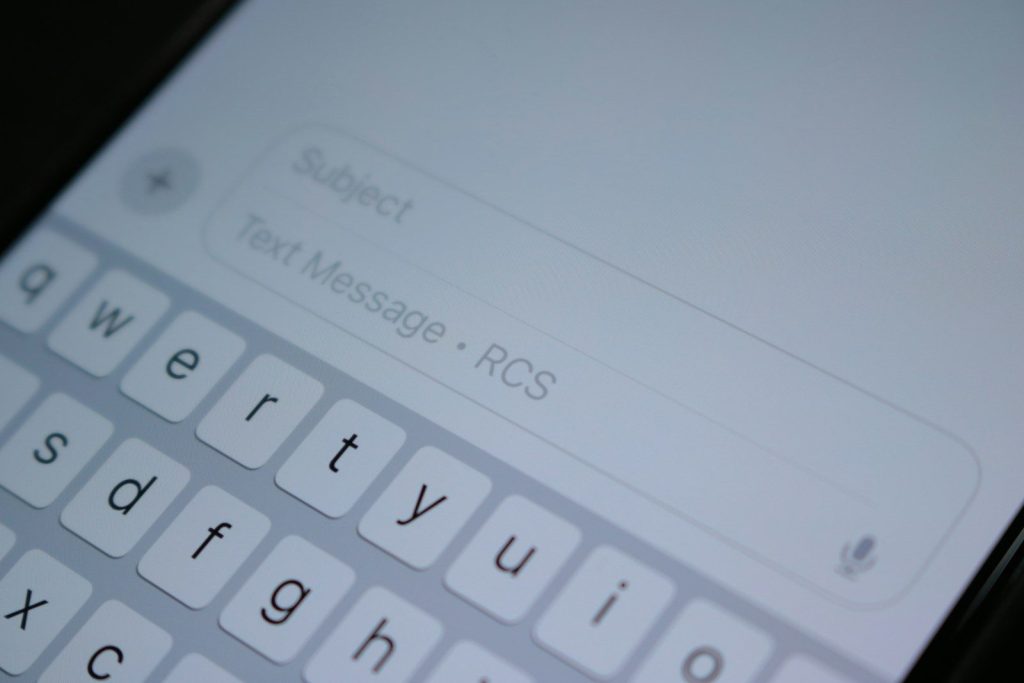
    A close up of a cell phone with a keyboard
    Photo by Samuel Angor on Unsplash

    Google Messages has added more ways to make chats feel expressive, including custom chat colors, effects, selfie GIFs, and Photomoji-style reactions.

    For many people, texting is one of the most-used parts of a phone. When chats can look and feel different, conversations become easier to recognize and more fun to return to.

    AI helps create new looks

    green frog iphone case beside black samsung android smartphone
    Photo by Denny Müller on Unsplash

    Android 14 brought AI-generated wallpaper options, giving users another way to create a phone style that feels original.

    Instead of hunting for the perfect image online, you can start with an idea and let the phone help shape it. That makes customization feel easier for people who want a fresh look but do not want to spend time searching.

    Accessibility adds real choice

    person holding black android smartphone
    Photo by Daniel Romero on Unsplash

    A phone feels more personal when it is easier to see, hear, and control. Android has continued adding accessibility tools that help people adjust the experience to fit their needs.

    That can include display size, contrast, captions, sound options, and other helpful controls. These features may look small on a settings page, but they can make a phone far more comfortable every day.

    Connected devices feel smoother

    a person holding a cell phone in front of a laptop
    Photo by NSYS Group on Unsplash

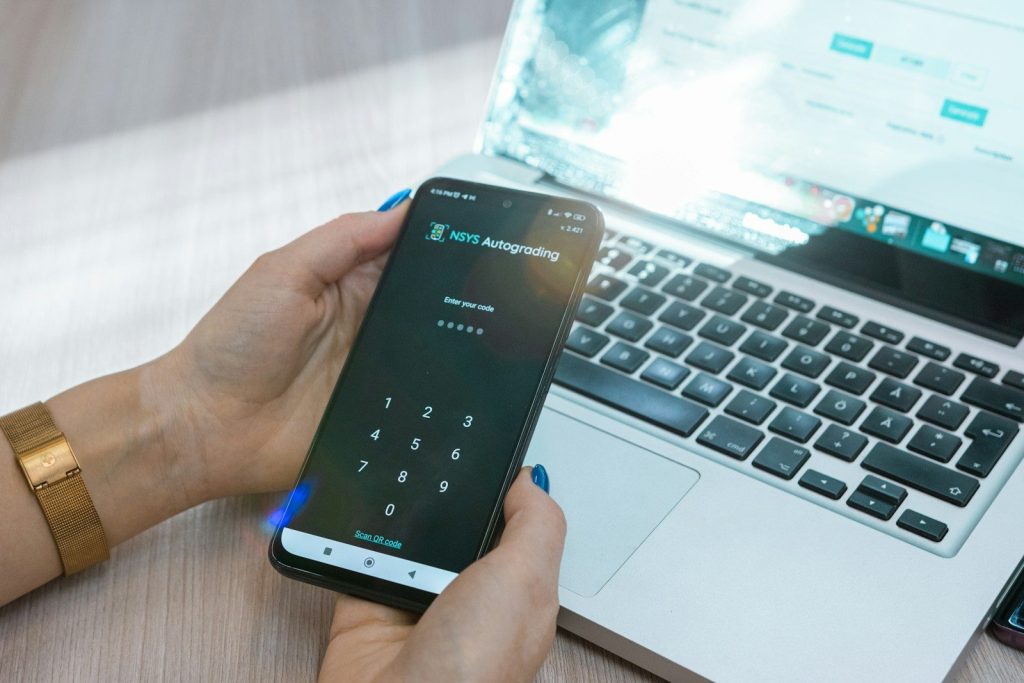
    Android is also becoming more personal by working better with other devices. Phones, tablets, watches, earbuds, and Chromebooks can share more tasks across screens.

    That means your phone is not always the center of everything. You might start a message on one device, listen on another, or check something from your wrist. The experience follows you more naturally.

    The phone learns your habits

    person holding black android smartphone
    Photo by Jonas Leupe on Unsplash

    The biggest change is that Android is becoming less one-size-fits-all. It is turning into a system that adapts to your colors, language, apps, privacy choices, and daily routines.

    That does not mean every setting needs to be changed. Even small choices can make a phone feel easier to use. The more Android gives people control, the more personal the whole experience becomes.

  • Why old Windows habits may slow you down

    Why old Windows habits may slow you down

    That familiar Windows routine can feel harmless. You turn on the computer, ignore a few pop-ups, leave apps running in the background, save everything to the desktop, and promise to clean it up later. But over time, small habits like these can make a PC feel slower, messier, and harder to use.

    The good news is that you do not need a new laptop or a full reset to make things better. A few smarter habits can help Windows start faster, stay cleaner, and feel less cluttered. Microsoft’s own Windows tools include settings for startup apps, Storage Sense, notifications, Focus, updates, and default apps that can help users manage performance and daily comfort.

    Leaving every app open

    a laptop computer with headphones on top of it
    Photo by Catherine Breslin on Unsplash

    It is easy to leave apps open because you plan to come back later. But when too many programs stay active, your PC has more work to handle in the background.

    Close apps you are not using, especially heavy ones like games, video editors, or browsers with many tabs. This gives Windows more breathing room and can make everyday tasks feel smoother.

    Ignoring startup apps

    microsoft surface black laptop computer turned on beside green plant
    Photo by Windows on Unsplash

    Some programs launch every time you sign in, even when you do not need them right away. Microsoft lets users manage these under Settings > Apps > Startup.

    Old habits like clicking past slow startup screens can hide the real problem. Turn off nonessential startup apps, and your PC may reach the desktop faster with less waiting.

    Skipping Windows updates

    black and white laptop computer
    Photo by Clint Patterson on Unsplash

    Updates can feel annoying when you are busy, but ignoring them for too long is not a great habit. Microsoft says Windows updates help keep a device running smoothly and securely.

    Check Settings > Windows Update and install available updates when you have time to restart. Staying current can fix bugs, improve stability, and reduce small problems that build up.

    Letting storage fill up

    graphical user interface, application, Teams
    Photo by Alexey Demidov on Unsplash

    A nearly full drive can make Windows feel cramped. Downloads, temporary files, old installers, and forgotten folders can pile up without much warning.

    Use Settings > System > Storage to review what is taking space. Storage Sense can automatically remove items you do not need, such as temporary files and Recycle Bin content.

    Saving everything anywhere

    person using black laptop computer on brown wooden table
    Photo by Dell on Unsplash

    Dropping files on the desktop or into random folders may feel faster at first. Later, it can waste time because you cannot find what you need.

    Build a simple habit: keep downloads, photos, documents, and work files in clear folders. A cleaner file system will not magically boost speed, but it can make Windows feel easier to manage.

    Keeping too many tabs

    logo
    Photo by Denny Müller on Unsplash

    Browser tabs are useful, but they can also become a silent drain. A window with dozens of tabs can use memory and make switching between tasks feel slower.

    Bookmark pages you want to revisit instead of keeping everything open. You can also use browser reading lists or folders to save research without leaving your PC overloaded.

    Allowing constant notifications

    turn-on laptop displaying 97 percent battery
    Photo by Panos Sakalakis on Unsplash

    Every alert pulls your attention away and adds more noise to the screen. Windows lets users adjust notifications by app under Settings > System > Notifications.

    Turn off alerts from apps that do not need your attention. Keeping only the important ones can make your PC feel calmer and help you stay focused.

    Avoiding Focus mode

    windows on android, windows, phone, android, remote desktop, technology, interface, metro ui, windows 10, black technology, black phone, black window, black telephone, windows 10, windows 10, windows 10, windows 10, windows 10
    Photo by ArtificialOG on Pixabay

    Many people keep working through pings, banners, and taskbar badges. That habit can make simple tasks take longer because your attention keeps breaking.

    Windows Focus can temporarily block notifications, sounds, and alerts while you work. It can also turn on Do not disturb during a focus session.

    Never checking default apps

    Female on her Microsoft laptop at work drinking coffee
    Photo by Windows on Unsplash

    Old habits can make you keep using apps you do not prefer. A file may open in the wrong browser, photo viewer, mail app, or document tool.

    Go to Settings > Apps > Default apps and choose the apps you actually want Windows to use. Microsoft allows defaults to be changed by app or file type.

    Restarting only when forced

    A woman lounging on a beach chair using a laptop, enjoying the sunny seashore.
    Photo by Atlantic Ambience on Pexels

    Some people avoid restarting because they do not want to interrupt their work. But leaving a PC running for long stretches can allow small issues to linger.

    A regular restart can clear temporary glitches and finish updates that need a reboot. Save your work first, then restart when Windows asks or when the system starts feeling sluggish.

  • How multi-agent AI systems could change online services

    How multi-agent AI systems could change online services

    Online services are starting to move beyond simple chatbots that answer one question at a time. A newer idea, called multiagent AI, uses several AI agents that work together like a digital team. One agent might understand a customer request, another might check records, another might plan next steps, and another might write the final response. IBM describes a multiagent system as multiple AI agents working together to complete tasks for a user or another system.

    That teamwork could change how websites, apps, banks, stores, travel platforms, and support desks operate. The goal is not just faster replies. It is better coordination, fewer handoffs, and services that can handle more complex requests safely. The source material also highlights specialized agents, shared memory, communication, and coordination as key parts of these systems.

    Digital teams replace one bot

    selective focus photography of people sits in front of table inside room
    Photo by Annie Spratt on Unsplash

    Today, many online services use one AI assistant to handle many different tasks. That can work for simple questions, but it can struggle when a request needs several steps or different types of knowledge.

    Multiagent systems take a team approach. One agent can focus on search, another on planning, and another on checking details. Microsoft’s AutoGen project describes multiagent cooperation as a way to help solve tasks through agent collaboration.

    Support may feel faster

    a close up of a computer screen with a menu on it
    Photo by Emiliano Vittoriosi on Unsplash

    Customer support could be one of the biggest changes. Instead of one chatbot trying to answer everything, different agents could handle billing, account help, order updates, product questions, and escalation.

    That could make support feel smoother for users. A customer may not need to repeat the same details again and again. Behind the scenes, agents could share information and pass the request to the right digital helper.

    Websites could plan ahead

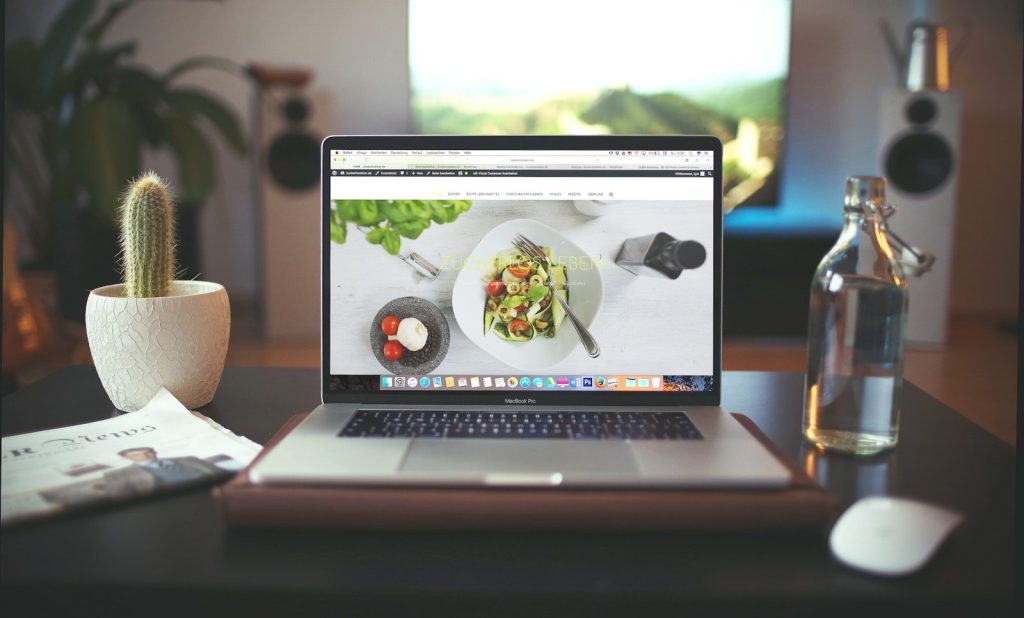
    MacBook Pro showing vegetable dish
    Photo by Igor Miske on Unsplash

    Most online services react after a user clicks, types, or complains. Multiagent AI could make services more proactive. A travel app, for example, might notice a delay, check options, update a schedule, and suggest next steps.

    This does not mean apps should act without limits. Good systems still need clear rules and human oversight. But when used carefully, agents could help services respond before small problems turn into bigger ones.

    Tasks may need fewer handoffs

    IBM logo
    Photo by Carson Masterson on Unsplash

    Many online tasks involve several systems. A return request may touch customer records, payment tools, shipping data, warehouse updates, and support messages. That is a lot for one bot to manage cleanly.

    Multiagent AI can split the work. Each agent handles a smaller part, then shares the result. IBM notes that multiagent systems are useful for large, complex tasks that may involve many agents.

    Personalization could improve

    Screen displaying AI chat interface DeepSeek on a dark background.
    Photo by Matheus Bertelli on Pexels

    Online services already personalize feeds, recommendations, and alerts. Multi-agent systems could make that personalization more useful by combining different kinds of context in a safer, more organized way.

    One agent might study user preferences, while another checks inventory, timing, or service rules. Another could make sure the final suggestion is clear and appropriate. The result could feel less random and more helpful.

    Human workers get support

    unknown persons using computer indoors
    Photo by Arlington Research on Unsplash

    Multiagent AI does not have to replace human service teams. In many cases, it may work best as a support layer. Agents can gather details, summarize requests, check policy steps, and prepare options.

    That can leave people with more time for judgment, empathy, and unusual cases. MIT Sloan explains agentic AI as systems where different agents can be orchestrated together for a task, which fits this helper role well.

    Errors need careful controls

    car parked in front of building
    Photo by Matthew Manuel on Unsplash

    More agents can also mean more moving parts. If agents share the wrong data, misunderstand a task, or act out of order, the service could create confusion instead of convenience.

    That is why coordination matters. Microsoft’s Agent Framework notes support for multiagent workflows, state management, telemetry, and related enterprise features. Those kinds of controls help teams monitor what agents are doing and catch problems sooner.

    Online security may change

    Hacker in hoodie working on multiple computer screens
    Photo by Julio Lopez on Unsplash

    Multiagent AI could also help with digital security. Specialized agents may watch for unusual behavior, check code, review alerts, and help security teams sort important issues from routine noise.

    Recent reporting on Microsoft’s MDASH security platform described a system using many specialized AI agents to help detect software flaws. That shows how agent teams may become useful in complex online defense work.

    Small services could scale

    man in gray long sleeve shirt using Windows 11 computer
    Photo by Windows on Unsplash

    Large companies are not the only ones that may benefit. If agent tools become easier to build and manage, smaller online businesses may use them to handle support, scheduling, content updates, and routine operations.

    Microsoft describes AutoGen as an open-source framework for building AI agents and helping multiple agents cooperate. Tools like that could make multiagent ideas more reachable for developers and service teams.

    The best systems stay clear

    people sitting on chair in front of computer
    Photo by Israel Andrade on Unsplash

    The most useful multiagent services will not feel noisy or confusing. Users may never see all the agents working behind the screen. They will simply notice that tasks feel faster, answers are clearer, and fewer steps are needed.

    Still, trust will matter. Online services should be clear about when AI is involved, protect user data, and keep humans available for important decisions. Multiagent AI may be powerful, but it works best when it stays helpful, controlled, and easy to understand.

  • The hidden science behind tracking space rocks before they arrive

    The hidden science behind tracking space rocks before they arrive

    Space rocks do not arrive with flashing warning signs. Most look like tiny moving dots against a sky full of stars. Yet behind those dots is a global tracking system built from telescopes, math, shared data, and constant updates. Scientists do not simply “see” an asteroid once and know where it will go. They collect repeated observations, compare positions, calculate an orbit, and keep improving that path as more data arrives.

    That work matters because near-Earth objects can pass close to our planet, and early warning gives researchers more time to study them. NASA’s Center for Near-Earth Object Studies, known as CNEOS, calculates orbit paths and checks possible future close approaches for known near-Earth objects.

    Tiny dots tell big stories

    an artist's rendering of a space ship approaching a planet
    Photo by Javier Miranda on Unsplash

    Most asteroids are not seen as giant rocks in a telescope. They often appear as small points of light moving slowly against the background stars.

    That motion is the first clue. Once astronomers spot it, they can report the object’s position and time. Those early measurements help scientists begin building a path for where the object may travel next.

    Sky surveys never sleep

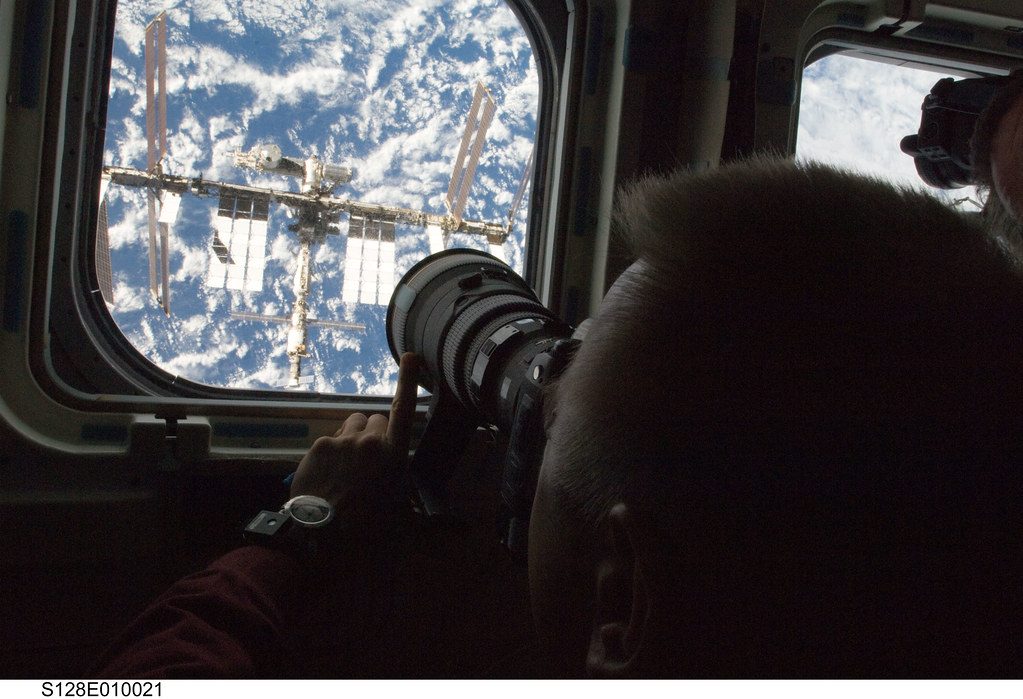
    Taking Pictures From Space (NASA, 09/08/09)” by NASA’s Marshall Space Flight Center is licensed under CC BY-NC-ND 2.0

    Asteroid tracking depends on wide-field surveys that scan large parts of the night sky again and again. These systems are built to notice movement, not just take pretty space pictures.

    NASA says ATLAS became able to search the entire dark sky every 24 hours after new telescopes were added. That makes it a major part of the search for near-Earth objects.

    One sighting is not enough

    view of Earth and satellite
    Photo by NASA on Unsplash

    A single observation can start the process, but it does not tell the whole story. Scientists need several sightings over time to understand an asteroid’s speed, direction, and orbit.

    The more observations they collect, the smaller the uncertainty becomes. That is why an object’s risk estimate can change quickly after discovery. New data often makes the path clearer.

    The math does heavy lifting

    Asteroid Lutetia and Saturn” by europeanspaceagency is licensed under CC BY-SA 2.0

    Once an asteroid is reported, computers compare its position with gravity, time, and possible future paths. This is where tracking becomes more than just watching the sky.

    CNEOS uses reported positions to compute high-precision orbits and study possible future locations of hazardous objects near Earth. If needed, it can also estimate impact timing and location.

    Close does not mean danger

    astronaut, space suit, space, universe, galaxy, outer space, space travel, astronautics, astronomy, cosmonaut, astronaut suit, space walk, astronaut, astronaut, astronaut, astronaut, space, space, space, space, space
    Photo by WikiImages on Pixabay

    Many asteroids pass near Earth without posing a threat. In space terms, “close” can still mean thousands or millions of miles away.

    That is why scientists focus on the exact path, not scary labels. CNEOS predicts close approaches and makes impact hazard assessments to support NASA’s planetary defense work.

    Risk numbers can change

    Beautiful starry sky with meteors streaking over a rocky cliff at night.
    Photo by FURKAN GÜNEŞ on Pexels

    When a new asteroid is first discovered, its future path may be uncertain. Early risk numbers can rise or fall as scientists gather more observations.

    That happened with asteroid 2024 YR4. NASA first monitored a small possible risk, then later said new calculations showed no significant threat to Earth in 2032 and beyond.

    Global teams share the load

    Bronze statue of Apollo astronauts at Cape Canaveral, holding a flag.
    Photo by Frankie Hatton on Pexels

    No single observatory can watch the whole sky perfectly. Weather, daylight, location, and equipment limits all matter.

    That is why planetary defense uses a network approach. ESA says its Planetary Defence Office runs observation campaigns, searches for potentially hazardous asteroids, and calculates their orbits.

    Infrared eyes may help

    Two astronauts in silver space suits stand in a desert, depicting a Mars-like exploration scene.
    Photo by RDNE Stock project on Pexels

    Some asteroids are dark, which makes them harder to spot in visible light. Future space telescopes can help by looking for heat instead of only reflected sunlight.

    NASA’s NEO Surveyor is designed as a space telescope focused on detecting asteroids and comets that may be potential hazards. NASA lists its launch as no earlier than September 2027.

    Faster warning means more options

    Majestic comet and starry night sky above dramatic rock formations in Durango, Mexico.
    Photo by S L V on Pexels

    The earlier scientists find a space rock, the more time they have to study it. That time can help improve orbit predictions and guide future planning.

    Early warning does not mean panic. It means better information. With more lead time, experts can make calmer, clearer decisions based on data instead of guesses.

    Tracking protects curiosity too

    Two astronauts holding hands, exploring rocky Mars-like terrain.
    Photo by RDNE Stock project on Pexels

    Asteroid tracking is not only about safety. These objects are leftovers from the early solar system, so every close pass can teach scientists something.

    By watching them carefully, researchers learn about their size, path, brightness, and behavior. The same science that helps protect Earth also helps explain how our neighborhood in space was built.

  • Why streaming may look different in 2026 and beyond

    Why streaming may look different in 2026 and beyond

    Streaming used to feel simple: pick an app, pay a monthly fee, and watch what you want. Now the picture is changing fast. Prices have risen, free ad-supported options are growing, live sports are moving across more platforms, and bundles are starting to look a lot like the cable packages people once left behind. Nielsen reported that streaming reached 47.5% of U.S. TV viewing in December 2025, showing how central it has become to daily entertainment.

    The next phase may not be about having more apps. It may be about smarter packages, better ads, live events, social video, and services that try harder to keep viewers from canceling. For many households, streaming in 2026 and beyond could feel more flexible, but also more crowded and harder to compare.

    Ads become more normal

    black flat screen tv turned on displaying 11
    Photo by Mollie Sivaram on Unsplash

    Streaming was once sold as a cleaner break from traditional TV ads. That is changing. Many viewers now choose lower-cost plans that include ads because monthly entertainment bills can add up quickly.

    Deloitte reported in 2026 that about 68% of streaming subscribers were paying for an ad-supported option, a sharp rise from 2024. That means ads may become part of the regular streaming experience again, just in a more targeted and digital form.

    Bundles make a comeback

    a screen shot of a computer
    Photo by Nicolas J Leclercq on Unsplash

    After years of separate apps, streaming companies are moving back toward bundles. Viewers may see more packages that combine video, music, sports, shopping perks, phone plans, or internet service.

    This can make streaming cheaper and easier to manage, but it can also make choices confusing. The new question may not be “Which app do I want?” It may be “Which bundle gives me the most value without adding things I never use?”

    Free channels keep growing

    person holding gray remote control
    Photo by Jonas Leupe on Unsplash

    Free ad-supported streaming TV, often called FAST, gives viewers channels without a monthly bill. These services usually feel more like classic TV, with scheduled channels, familiar shows, and ads.

    They may grow because many people want entertainment without another subscription. Nielsen has noted that sports-related FAST channels are becoming a major part of the free streaming world, giving fans highlights, documentaries, and related programming beyond live games.

    Live sports shift online

    a flat screen tv sitting on top of a wooden table
    Photo by Tech Daily on Unsplash

    Sports may be one of the biggest reasons streaming changes. Major games, documentaries, highlights, and talk shows are now spread across many platforms, not just traditional TV channels.

    Nielsen says streaming is changing live sports through multiplatform viewing and new ways to reach fans. That means viewers may need to follow leagues and events across more apps, especially as sports rights become more split between streaming and broadcast partners.

    Social video competes harder

    person holding white samsung galaxy smartphone
    Photo by Aaron Weiss on Unsplash

    Streaming services are not only competing with each other. They are also competing with TikTok, YouTube, Instagram, gaming, podcasts, and creator content for attention.

    Deloitte’s 2025 Digital Media Trends report said social platforms and user-made content are disrupting video entertainment. For younger viewers especially, short videos and creators may feel just as important as traditional shows or movies.

    Recommendations may get smarter

    black flat screen tv turned on displaying man in black suit
    Photo by Marques Kaspbrak on Unsplash

    Streaming platforms already suggest what to watch, but those suggestions can still feel repetitive or random. In 2026 and beyond, services may use better data and AI tools to improve discovery.

    The goal will be simple: help viewers find something good before they give up and close the app. Better recommendations could also help platforms promote smaller shows, older titles, live events, and ad-supported channels without overwhelming the screen.

    Prices may stay under pressure

    selective focus photography of person using tablet computer
    Photo by CardMapr.nl on Unsplash

    Streaming is no longer the cheap alternative it once seemed to be for every household. As more services raise prices or limit sharing, viewers may become more careful about what they keep.

    That could lead to more canceling, rotating, and switching. People may subscribe for one show, pause for a few months, then return later. Streaming companies will need stronger reasons to keep viewers paying all year.

    Ads get more connected

    black flat screen tv turned on near brown brick wall
    Photo by Mahrous Houses on Unsplash

    Connected TV ads are becoming a bigger business as more viewing moves through smart TVs, streaming sticks, and apps. Advertisers want the reach of TV with more digital-style targeting.

    Nielsen reported that ad-supported platforms made up 72.4% of U.S. TV viewing time in the first quarter of 2025, with streaming representing 42.4% of that ad-supported viewing. That gives streaming services a strong reason to keep building ad tools.

    Global growth shapes choices

    tv, popcorn, movie, streaming, watch tv, movie night, action, movie theater, netflix, tv, popcorn, movie, movie, movie, movie, watch tv, watch tv, watch tv, watch tv, watch tv, movie night, movie night, movie night, netflix, netflix, netflix, netflix
    Photo by Frank_Rietsch on Pixabay

    Streaming is not only a U.S. story. Companies are chasing viewers around the world, which can change what gets made and promoted. More international hits may reach U.S. audiences faster than before.

    PwC projects global entertainment and media revenue will keep growing through 2029, helped by advertising, live events, and video games. That broader market may push streaming platforms to think beyond movies and shows alone.

    Viewers gain more control

    A woman lying on a sofa, enjoying music with headphones and browsing the internet on a laptop.
    Photo by Atlantic Ambience on Pexels

    The future of streaming may feel both better and messier. Viewers may get more free options, more live events, smarter search, and bundles that save money. They may also face more ads, more price changes, and more places to check.

    The winners will likely be the services that make watching feel easy again. People do not want a puzzle every night. They want good shows, fair prices, clear choices, and fewer reasons to wonder where everything went.