That familiar Windows routine can feel harmless. You turn on the computer, ignore a few pop-ups, leave apps running in the background, save everything to the desktop, and promise to clean it up later. But over time, small habits like these can make a PC feel slower, messier, and harder to use.
The good news is that you do not need a new laptop or a full reset to make things better. A few smarter habits can help Windows start faster, stay cleaner, and feel less cluttered. Microsoft’s own Windows tools include settings for startup apps, Storage Sense, notifications, Focus, updates, and default apps that can help users manage performance and daily comfort.
Leaving every app open
It is easy to leave apps open because you plan to come back later. But when too many programs stay active, your PC has more work to handle in the background.
Close apps you are not using, especially heavy ones like games, video editors, or browsers with many tabs. This gives Windows more breathing room and can make everyday tasks feel smoother.
Ignoring startup apps
Some programs launch every time you sign in, even when you do not need them right away. Microsoft lets users manage these under Settings > Apps > Startup.
Old habits like clicking past slow startup screens can hide the real problem. Turn off nonessential startup apps, and your PC may reach the desktop faster with less waiting.
Skipping Windows updates
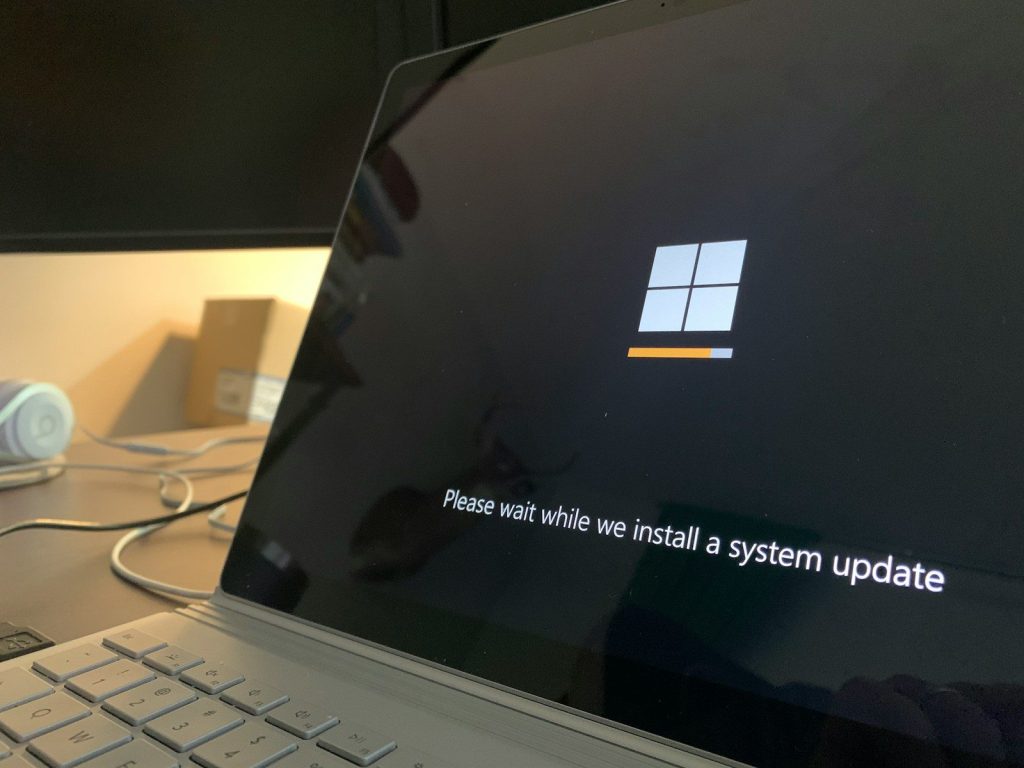
Updates can feel annoying when you are busy, but ignoring them for too long is not a great habit. Microsoft says Windows updates help keep a device running smoothly and securely.
Check Settings > Windows Update and install available updates when you have time to restart. Staying current can fix bugs, improve stability, and reduce small problems that build up.
Letting storage fill up
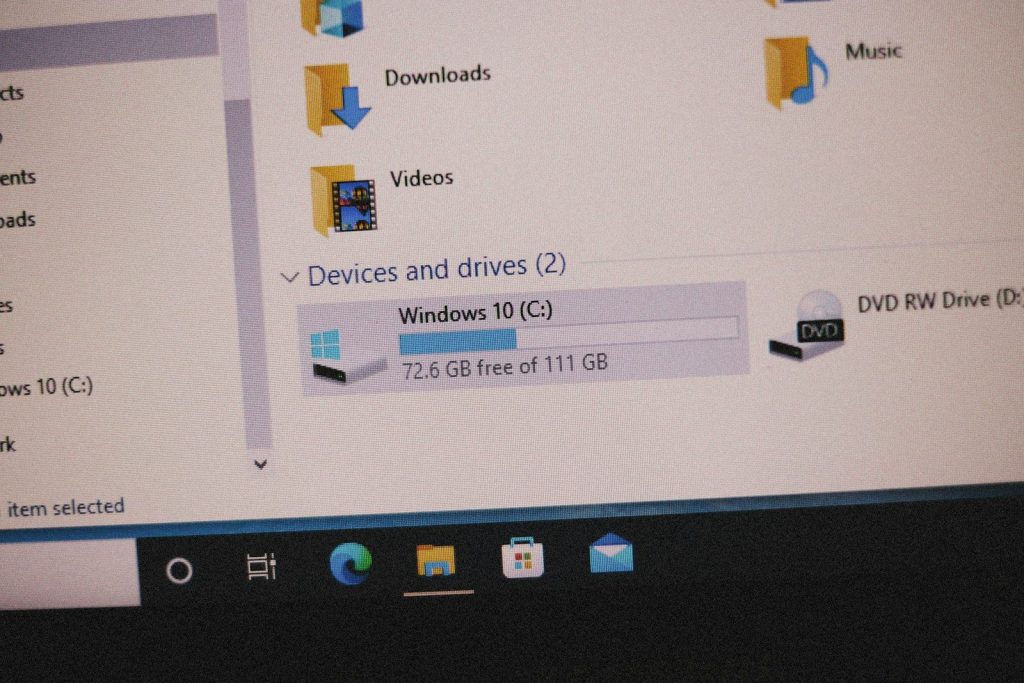
A nearly full drive can make Windows feel cramped. Downloads, temporary files, old installers, and forgotten folders can pile up without much warning.
Use Settings > System > Storage to review what is taking space. Storage Sense can automatically remove items you do not need, such as temporary files and Recycle Bin content.
Saving everything anywhere
Dropping files on the desktop or into random folders may feel faster at first. Later, it can waste time because you cannot find what you need.
Build a simple habit: keep downloads, photos, documents, and work files in clear folders. A cleaner file system will not magically boost speed, but it can make Windows feel easier to manage.
Keeping too many tabs
Browser tabs are useful, but they can also become a silent drain. A window with dozens of tabs can use memory and make switching between tasks feel slower.
Bookmark pages you want to revisit instead of keeping everything open. You can also use browser reading lists or folders to save research without leaving your PC overloaded.
Allowing constant notifications
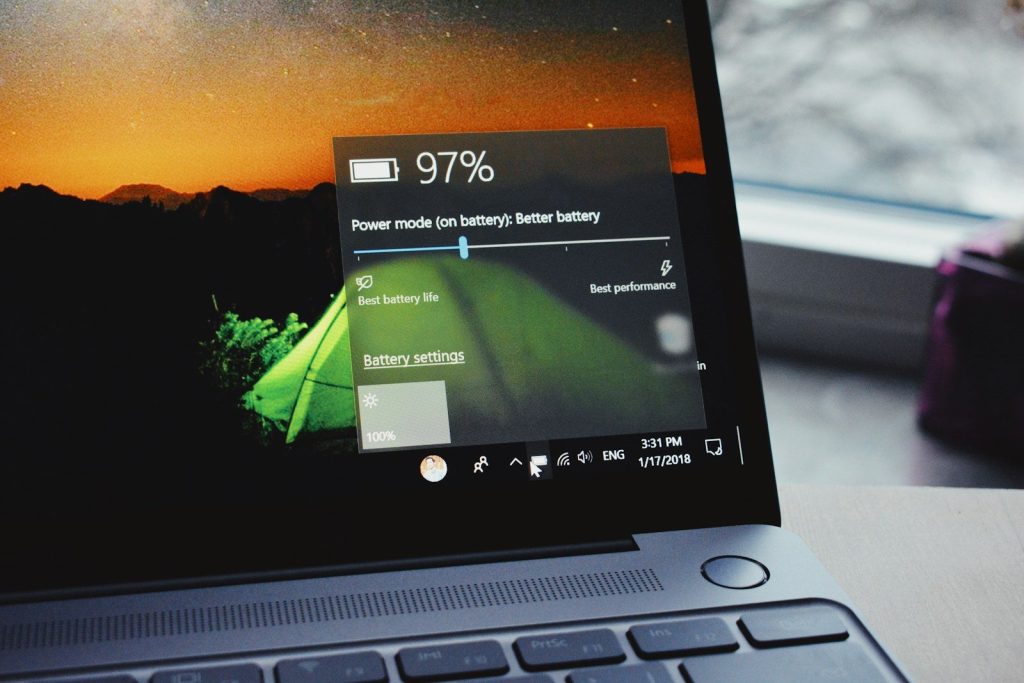
Every alert pulls your attention away and adds more noise to the screen. Windows lets users adjust notifications by app under Settings > System > Notifications.
Turn off alerts from apps that do not need your attention. Keeping only the important ones can make your PC feel calmer and help you stay focused.
Avoiding Focus mode
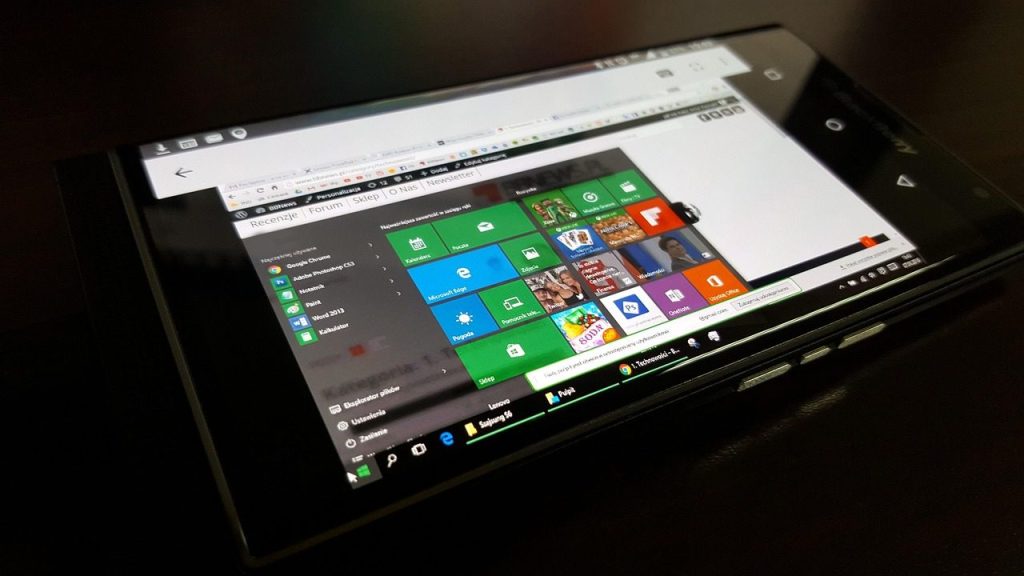
Many people keep working through pings, banners, and taskbar badges. That habit can make simple tasks take longer because your attention keeps breaking.
Windows Focus can temporarily block notifications, sounds, and alerts while you work. It can also turn on Do not disturb during a focus session.
Never checking default apps
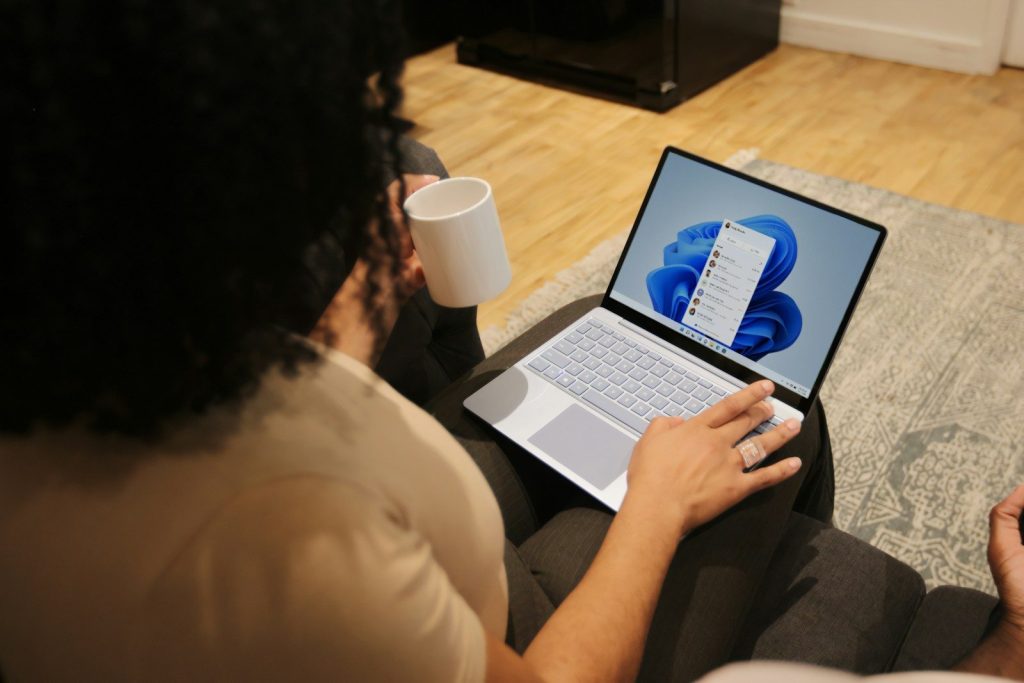
Old habits can make you keep using apps you do not prefer. A file may open in the wrong browser, photo viewer, mail app, or document tool.
Go to Settings > Apps > Default apps and choose the apps you actually want Windows to use. Microsoft allows defaults to be changed by app or file type.
Restarting only when forced

Some people avoid restarting because they do not want to interrupt their work. But leaving a PC running for long stretches can allow small issues to linger.
A regular restart can clear temporary glitches and finish updates that need a reboot. Save your work first, then restart when Windows asks or when the system starts feeling sluggish.
Leave a Reply