Most mobile users assume that typing a mistake on a touchscreen requires endless manual backspacing. We believe that we must slowly erase incorrect letters or words one by one.
But hidden shortcuts built directly into modern devices can erase typos with a simple hand gesture. These quick tools allow you to restore deleted text in a fraction of a second.
The Hidden Screen Shortcuts
Tapping three fingers twice on the screen immediately undoes your last action. Most people naturally reach for the backspace key to wipe away their typos. According to Apple tech support manuals, a much faster hidden system exists. It is incredibly fast. Yet another physical motion can perform this exact same trick.
Shaking Away Your Typos
A simple physical flick of your wrist can also erase mistake-ridden sentences in an instant. If you write a long message and suddenly regret your words, you can physically shake your mobile device. According to official iOS development documentation, this movement triggers a prompt to clear your recent input. It is very simple. However, a third hidden button makes editing even easier.
The Keyboard Swipe Method
Dragging your fingers across the virtual keys can unlock an even more precise cursor control. Placing three fingers on your screen and swiping to the left acts as an instant delete function. According to software engineers at Google, this gesture is a staple of modern multi-touch interface design. This changes the game. Users must turn on a buried menu first to use these tools.
Activating Your Hidden Tools
Enabling these useful gestures sometimes requires a trip deep inside your phone settings. Users must navigate to the accessibility tab to ensure these features are fully active. According to tech analysts at CNET, the shake-to-undo option resides under the physical and motor settings menu. Finding it is easy. These shortcuts also work on many other screen actions.
Beyond Simple Text Editing
Using these rapid undo gestures does more than just clean up your typos. They can also recover accidentally deleted emails or restore a misplaced photo in your gallery. According to system interface reports, these system-wide commands communicate directly with your device’s core operating memory. They are highly efficient. There is one final trick that helps you recover lost documents.
The Backup Touch Option
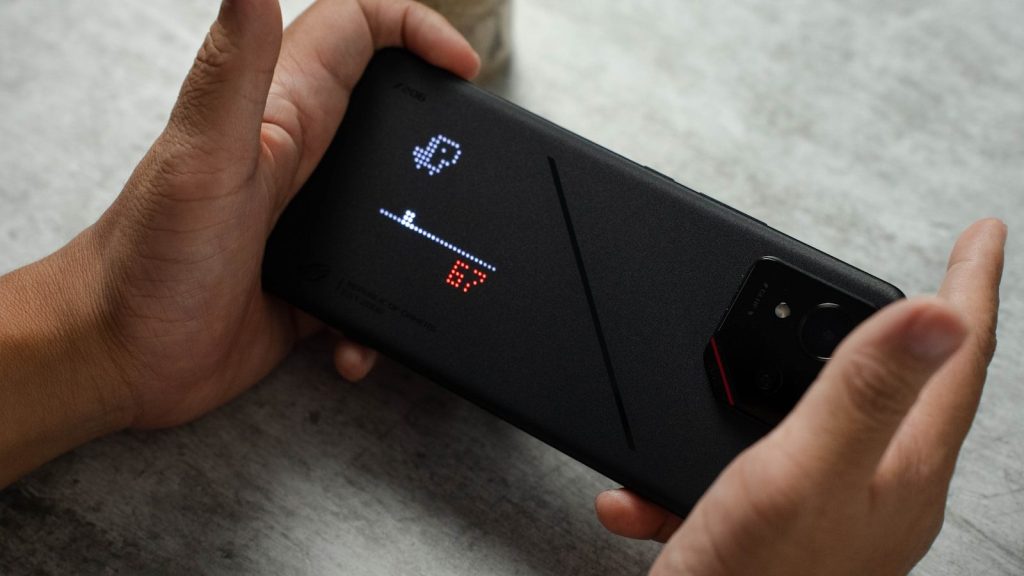
Some users find shaking their device or swiping their screen a bit awkward. Fortunately, a customization feature lets you map the undo command to the back of your phone. According to tech guide publications, mapping a double tap to the back cover provides a seamless shortcut. It works every time. Mastering these quick shortcuts will permanently change how you write.
A Faster Typing Era

According to mobile usability studies, utilizing built-in gestures can reduce daily typing frustration by up to forty percent. These simple shortcuts prove that modern smartphones hold far more power than we realize. Learning to use them turns your device into a highly efficient writing tool. This article is for informational purposes only.
Featured Image: Photo by Solen Feyissa on Unsplash
Leave a Reply