Small keyboard habits can make a normal day on a Windows PC feel much smoother. You do not need to memorize a giant list or learn anything complicated. A few useful shortcuts can help you copy text, find files, switch apps, clean up your screen, grab screenshots, and reopen tools without digging through menus.
Microsoft lists many built-in Windows shortcuts for common actions like copy, paste, search, snapping windows, opening File Explorer, using clipboard history, and taking screenshots. Some work across Windows 10 and Windows 11, while others depend on settings or the app you are using. The best ones are easy to remember because they solve small problems you hit every day.
Copy and paste faster

Ctrl + C and Ctrl + V are still the classic time-savers. Use Ctrl + C to copy selected text, files, or images, then Ctrl + V to place them somewhere else. It is quicker than right-clicking through menus.
These shortcuts help when you are filling forms, moving notes, editing documents, or sharing links. Add Ctrl + X when you want to cut something instead of copying it. Once this becomes muscle memory, basic PC work feels much faster.
Switch apps in seconds

Alt + Tab lets you move between open windows without reaching for the mouse. Hold Alt, tap Tab, and stop when the app you want is highlighted. It is simple, quick, and useful on almost any busy desktop.
This helps when you are jumping between a browser, email, notes, and a document. It also keeps your focus moving instead of making you hunt through the taskbar. For work, school, or casual browsing, it can save many small clicks.
Find files quickly

Windows key + E opens File Explorer right away. That means you can get to Downloads, Documents, Pictures, and folders without clicking through the Start menu or desktop icons.
It is a great shortcut when you just saved a file and need to attach it, move it, or rename it. Pair it with the search box inside File Explorer when a folder is crowded. It turns file hunting into a faster habit.
Search your PC
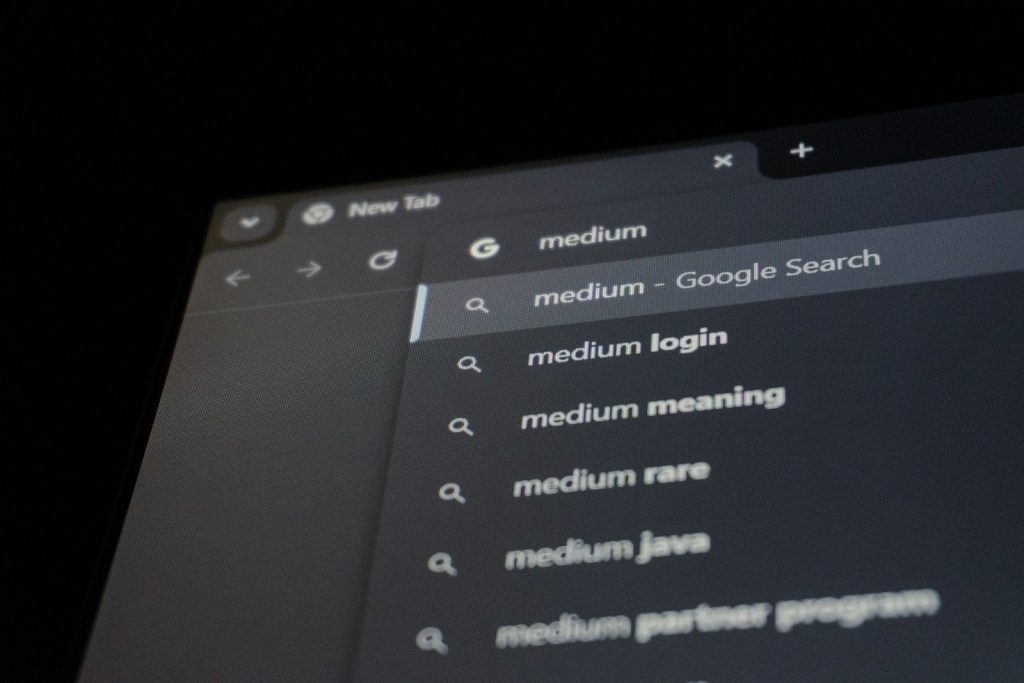
Windows key + S opens Windows search. You can use it to find apps, files, settings, and sometimes web results from one place. It is faster than scrolling through menus when you already know what you need.
Try typing only the first few letters of an app or setting. For example, search “printer,” “Bluetooth,” or “calculator.” This shortcut is handy for people who do not want to remember where every Windows setting lives.
Clean up the desktop
Windows key + D shows or hides the desktop. Press it once to move all open windows out of the way. Press it again to bring them back. It is perfect when your screen feels messy.
This shortcut helps when you need a file on the desktop, want a cleaner view before sharing your screen, or just need a quick reset. It does not close your apps. It simply gives you breathing room.
Capture part of your screen

Windows key + Shift + S lets you select part of the screen for a screenshot. After you drag over the area you want, Windows copies the capture so you can paste or edit it.
This is useful for saving receipts, sharing error messages, grabbing a chart, or sending a small part of a page. It is cleaner than taking a full-screen screenshot when you only need one section.
Open emoji and symbols

Windows key + period, or Windows key + semicolon, opens the emoji panel. It is not just for emoji. You can also use it when you need symbols that are not sitting on your keyboard.
This shortcut helps when writing messages, social posts, school notes, or casual emails. It saves you from searching online for a symbol, copying it, a
Leave a Reply