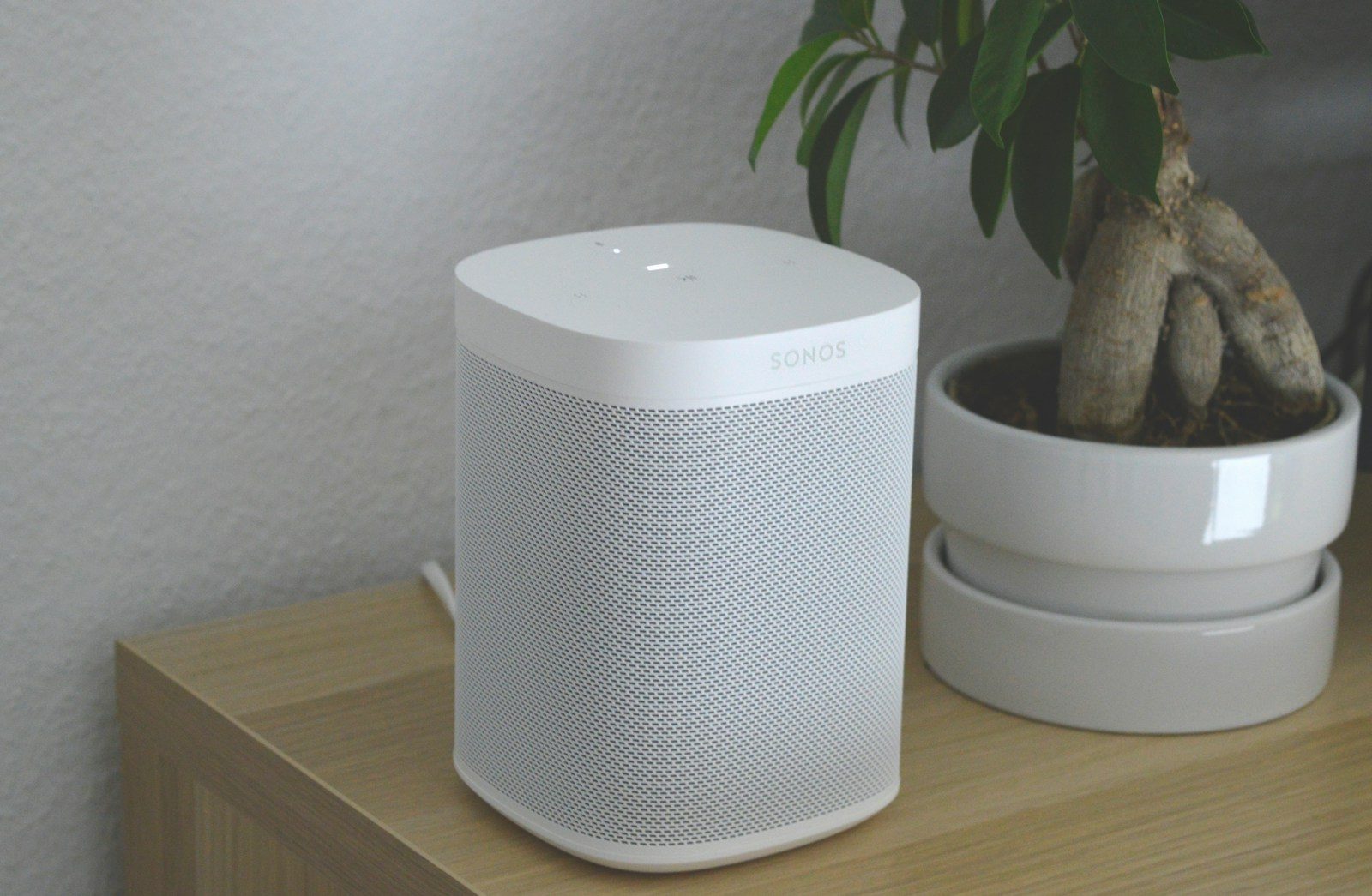
Smart speakers and smart displays are handy little helpers. They play music, answer questions, control lights, show recipes, and make the weather feel one voice command away. But because they sit in busy rooms and listen for wake words, it is smart to review the privacy settings behind them.
The good news is that most major platforms give you controls for voice history, app access, activity records, microphones, cameras, location, and connected devices. Amazon lets users review and delete Alexa history, Google lets users manage Assistant activity and audio settings, and Apple lets HomePod users delete Siri history through the Home app. A few small checks can help your device stay useful without sharing more than you want.
Check voice history
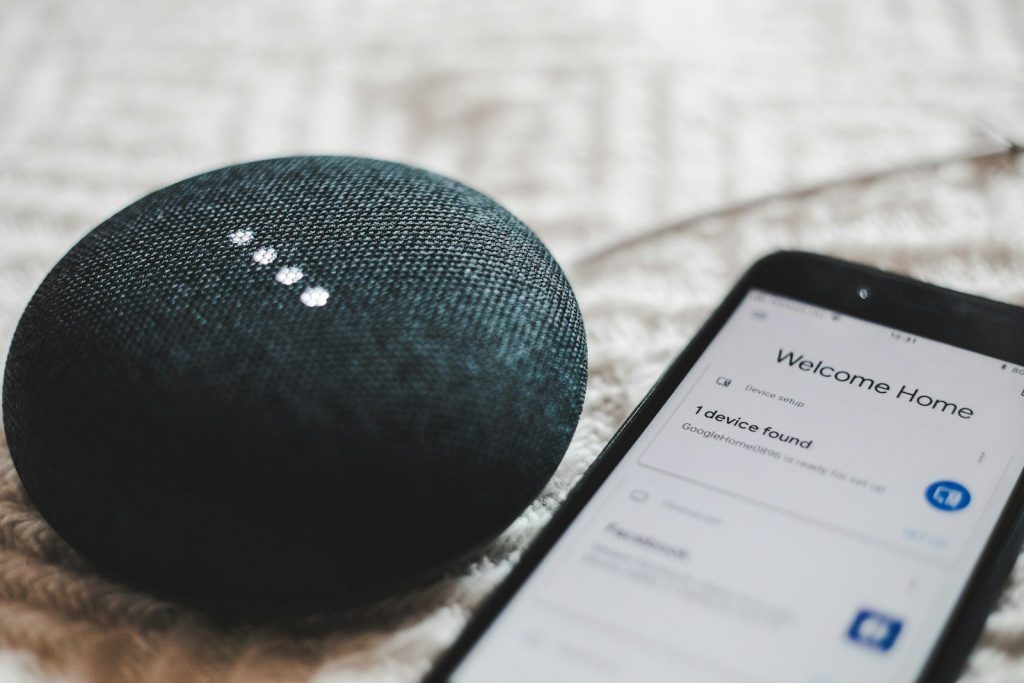
Your smart speaker may save voice requests so the service can improve responses or personalize results. That history can include simple commands, questions, and moments when the device thought it heard its wake word.
Open the privacy or activity section in your speaker’s app and review what is stored. Amazon says Alexa users can review, listen to, or delete history in Alexa Privacy, while Google users can review and delete Assistant activity in My Activity.
Set auto-delete options
Deleting old activity by hand is easy to forget. That is why auto-delete settings are worth checking. They help reduce how much old data stays linked to your account over time.
Google says users can delete activity manually, set up automatic deletion, or turn off Web & App Activity, though turning it off may limit personalization. For many homes, auto-delete is a simple middle ground between convenience and privacy.
Mute the microphone
The microphone mute button is one of the simplest privacy tools on a smart speaker. It is useful when you are having a private conversation, working from home, or placing the device in a shared space.
Google notes that Assistant-enabled devices may include built-in controls like a mute mic button. Get in the habit of using it when voice help is not needed. It is a quick check that does not require digging through settings.
Review camera controls
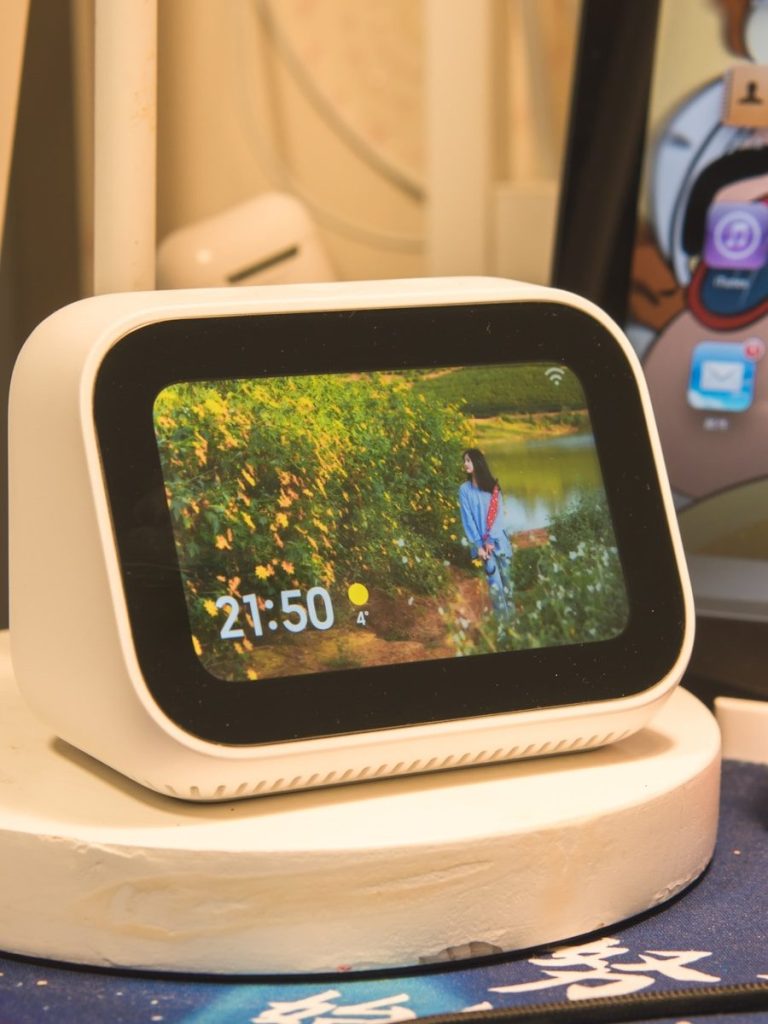
Smart displays can be more sensitive than speakers because they may include both a microphone and a camera. That camera can be helpful for video calls, but it should not stay open when you do not need it.
Look for a physical shutter, camera switch, or camera setting in the device app. Google says some Assistant-enabled devices include a camera switch, which gives users another direct way to control when the camera can be used.
Limit location access
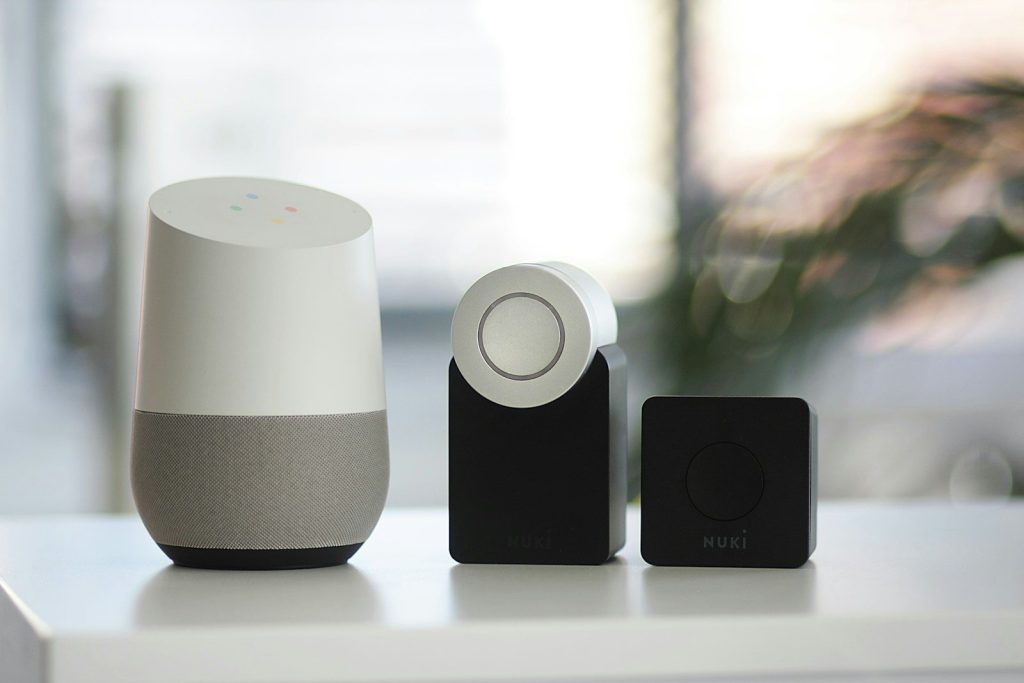
Location can make smart speakers more useful. It helps with local weather, nearby traffic, time zones, and local search. Still, not every device needs precise location access all the time.
Apple’s HomePod privacy page includes steps for turning off Location Services on HomePod. If you only use your device for music, timers, or basic questions, limiting location access may be a smart privacy choice.
Clean up linked apps
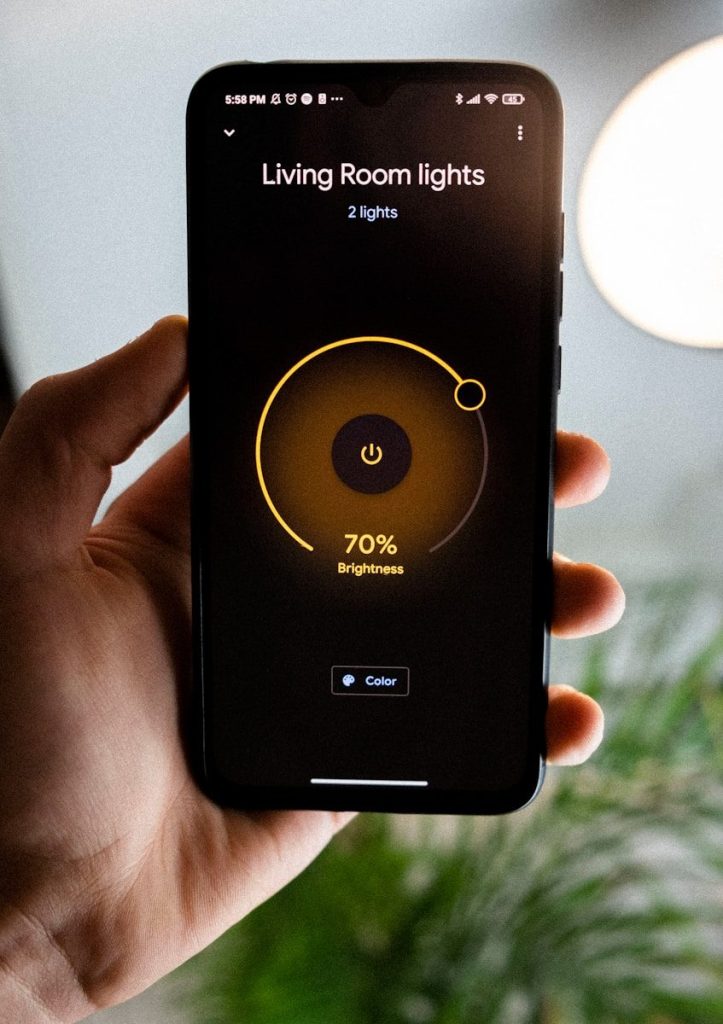
Smart speakers often connect to music services, shopping tools, calendars, smart home apps, and third-party skills. Over time, those links can pile up, even if you no longer use them.
Open the device app and remove services you do not recognize or need. This lowers the number of outside tools connected to your speaker. It also makes your smart home setup easier to understand and manage.
Check smart home devices
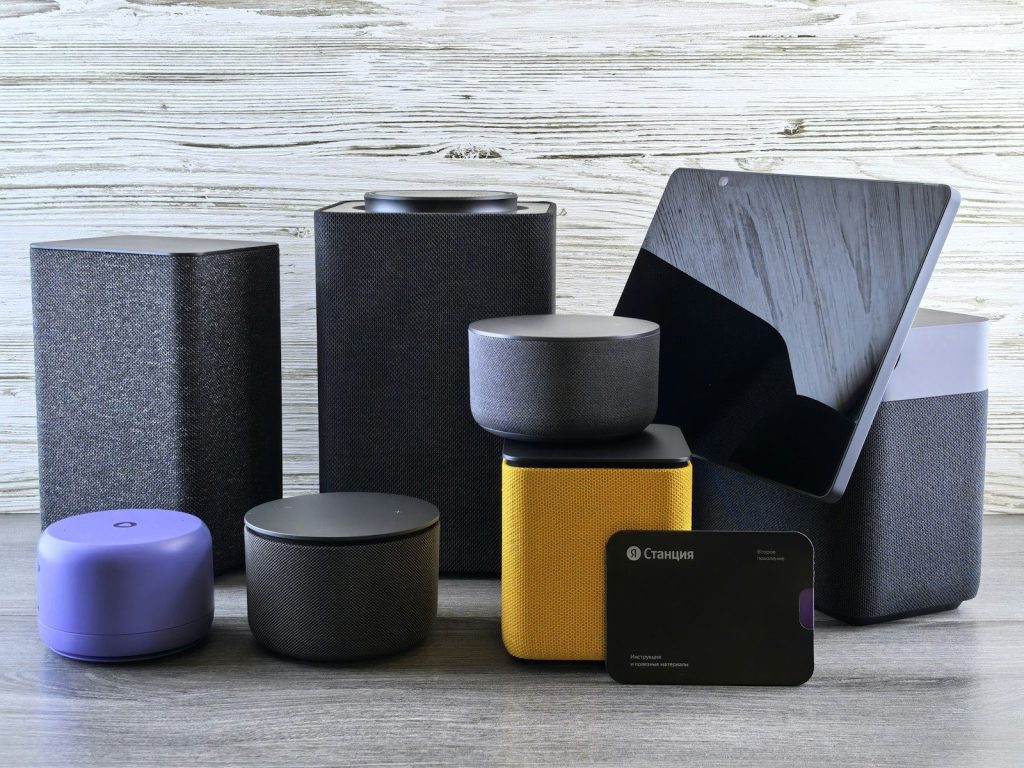
A speaker can become the control center for lights, locks, plugs, cameras, and thermostats. That makes it important to review which devices are connected and who can control them.
Remove old devices, rename confusing ones, and check household access. The FTC also recommends setting up device security features and keeping internet-connected devices updated, since weak settings can create avoidable risks.
Delete Siri history
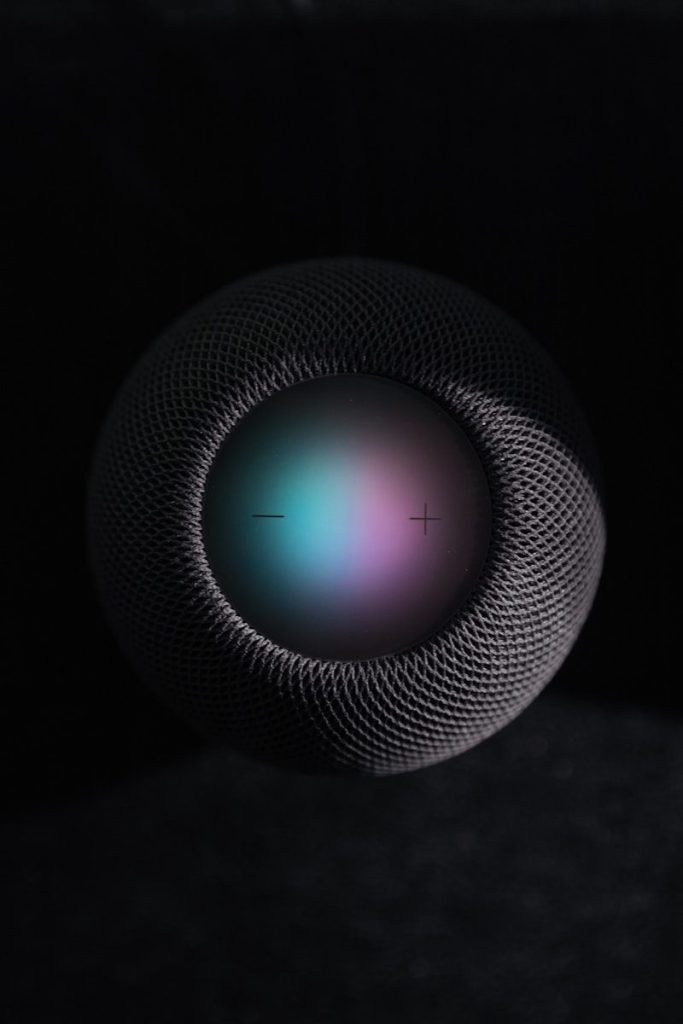
HomePod users should know where Siri history controls live. Apple says Siri interactions associated with a HomePod can be deleted through the Home app by opening the HomePod settings and choosing Siri History.
This is a useful check after setting up a new HomePod, moving one to another room, or changing how your family uses it. It gives you more control over what remains tied to that speaker.
Leave a Reply